Each user can customize how rooms are displayed in Exely PMS according to their preferences.
How to set the room display
1. In the Exely extranet, go to "Property management" > "Front Desk" and click the "View" button on the right.
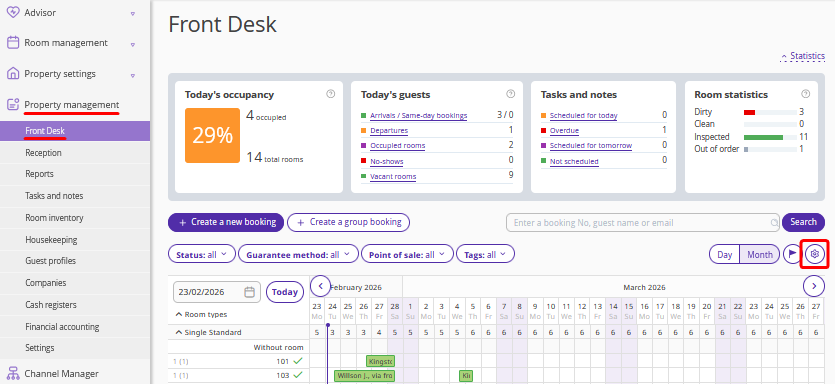
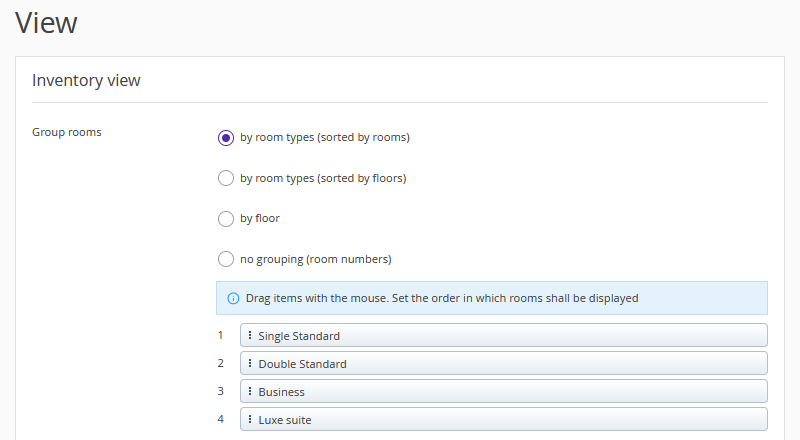
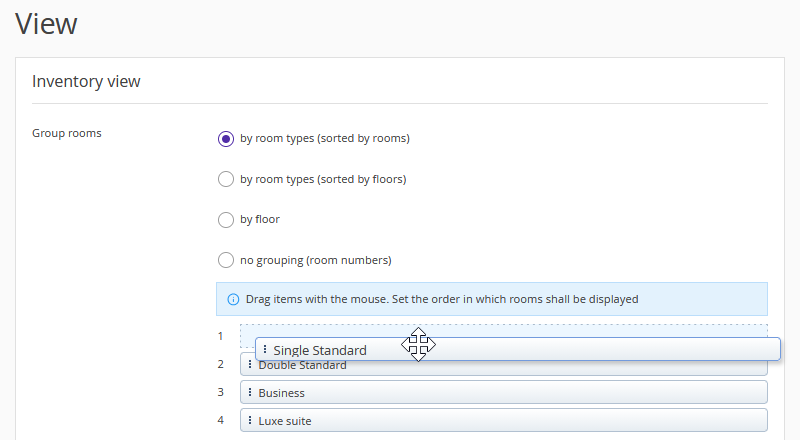
2. In the opened window, in the "Inventory view" section, select the preferred display option:
by room types (sorted by rooms);
by room types (sorted by floors);
by floor;
no grouping (room numbers).
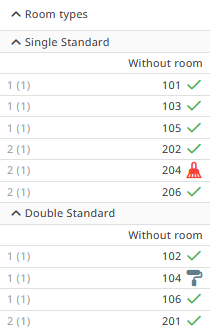
By room types (sorted by rooms)
When rooms are grouped by room types (sorted by rooms), rooms are displayed in ascending order of their numeric room numbers. Room types are displayed according to the sorting order.
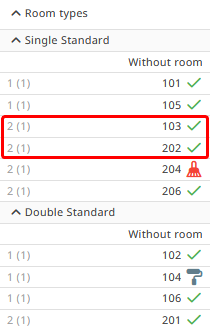
By room types (sorted by floors)
When rooms are grouped by room types (sorted by floors), rooms are displayed in ascending order of their numeric room numbers and by floors. Room types are displayed according to the sorting order.
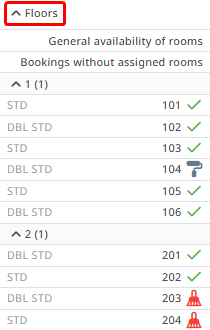
By floors
When grouped by floors, all rooms are displayed by floors regardless of the room type.
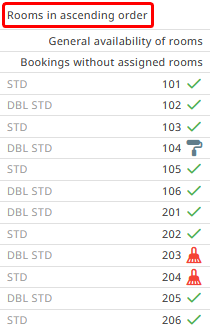
No grouping (room numbers)
No grouping (room numbers): rooms are displayed as a list in ascending or descending order within each room type. This option is suitable for apartments where each apartment is set up as a separate room type.
3. Click "Save" at the top of the page.
How to set the room types order
1. Set the order of room types and floors in Front Desk: drag and drop items with the mouse and arrange them in the required order.
2. If you have long room type names, tick the "Display short names of the room types" check-box.

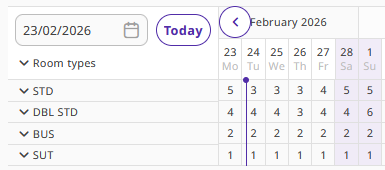
3. If you tick the "Show all room types collapsed" check-box, physical rooms will not be displayed in Front Desk. The row with the room type will show the number of available rooms. To display physical rooms, click the room type name.

4. Click "Save" at the top of the page.
How to the responsive mode for Front Desk
Front Desk automatically adapts to the screen size of your device.

However, you can control this behavior in the settings:
1. Click the “View” button.
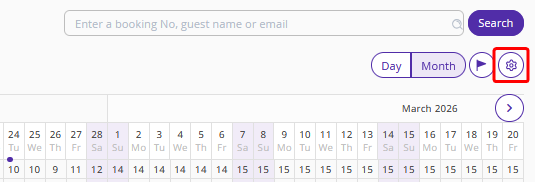
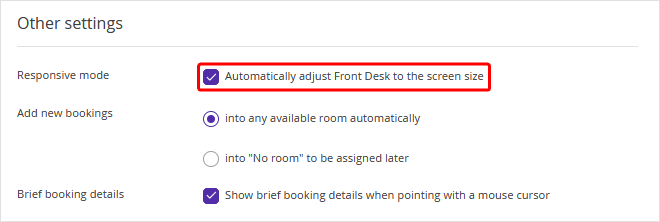
2. On the opened page, at the bottom, tick or untick the "Automatically adjust Front Desk to the screen size" check-box:
if the check-box is ticked, cell size will change depending on the window width;
if the checkbox is not ticked, cell size will remain the same on any device.
The check-box is ticked by default.
3. Click "Save" at the top of the page.
