Properties may use various documents in their operations: rental agreements, invoices, and others. These are often template-based documents. In Exely PMS, it is possible to automate work with templates using special variables that populate the template with the necessary information from the booking. This helps reduce manual work with documents.
How to create a document template
1. Create a template in .docx format on your computer, for example, in Microsoft Word. To upload a ready-made template with variables, the file size must not exceed 3 MB.
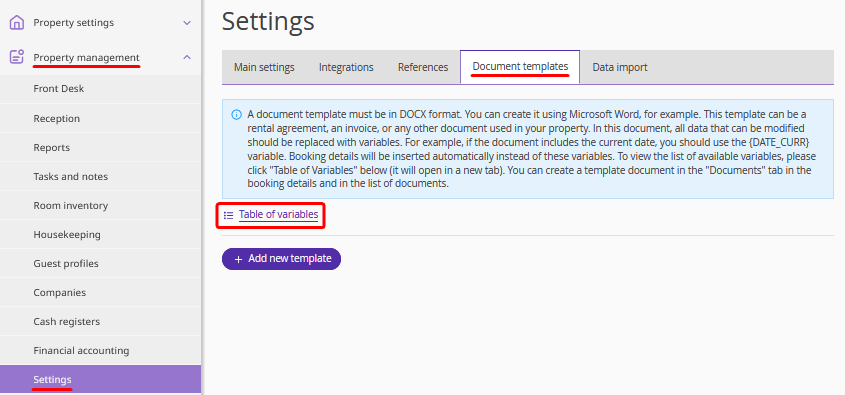
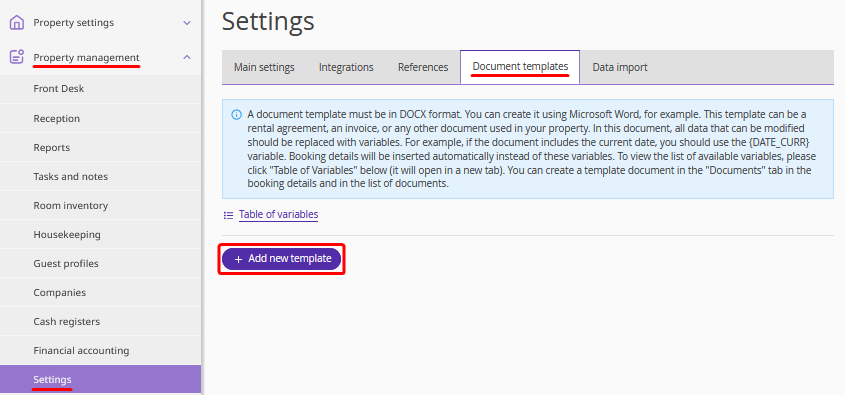
2. Go to "Property management" > "Settings" > "Document templates". Click "Table of variables" — a list of variables for templates will be opened.
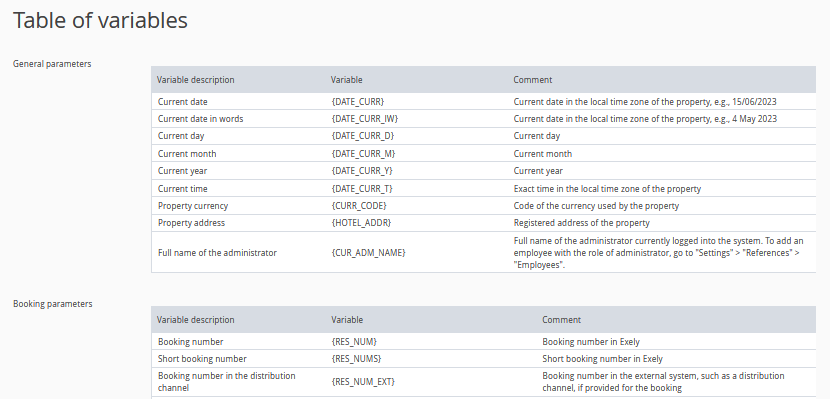
Variables are divided into several categories:
general parameters;
booking parameters;
room parameters;
customer of the total booking;
customer company;
agent company;
guest;
extra services.
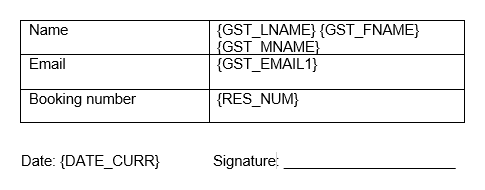
3. Insert variables into your template: guest name, date, booking amount, etc. For example, the variable {DATE_CURR} will insert the current date into the template, and {RES_NUM} will insert the booking number. To ensure variables display correctly when printing the document, copy them from the table and paste them into the template using the "Keep text only" paste option.
Pay attention. For the "Extra services" category, it is mandatory to use the variables {EXTR:START} and {EXTR:END} at the beginning and end of the list so that the variables in this category work correctly. For example: {EXTR:START}{EXTR_NAME} {EXTR_PRICE} {EXTR:END}
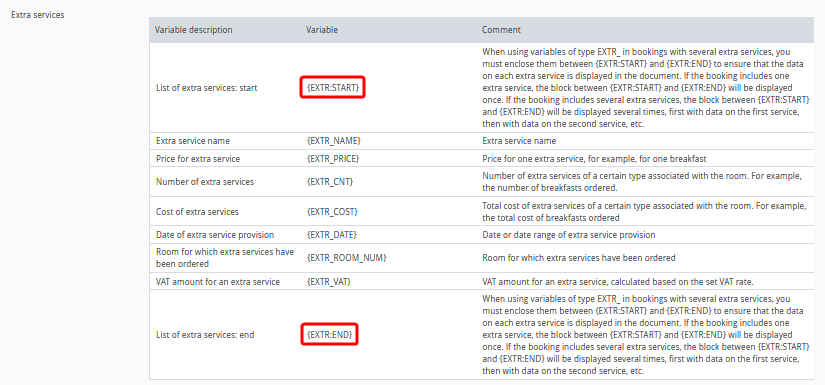
If variables are placed inside a table, {EXTR:START} and {EXTR:END} must also be placed inside the table before and after all elements. For example:

or

Mathematical operations
Templates can include formulas with variables for automatic calculations — for example, totals, surcharges, or discounts.
The following operations are supported:
addition (+);
subtraction (-);
multiplication (*);
division (/).
In addition to variables, numbers can be used in expressions. The decimal separator must follow the conventions of your language. For example, in Bulgaria and Georgia — a comma is used; in English — a dot.
Formula syntax: it starts with an equals sign (=) and is enclosed in curly braces { }.
Examples of formulas:
{= STAY_ADR_WITHOUT_VAT * STAY_STAY_DAYS} — calculates the total accommodation cost without VAT: multiplies the average daily rate without VAT by the number of nights.
{= RES_GRAND_TOTAL - RES_PAID} — calculates the remaining amount to be paid (or overpayment): subtracts the paid amount from the total booking cost.
If a formula calculation error occurs:
In the template preview, the variable will be highlighted in red and will not be replaced with a number.
When downloading the document from the booking, the formula will not be replaced with a number.
Ошибка может возникать по следующим причинам:Errors may occur for the following reasons:
incorrect format of numbers or variables;
division by 0;
mathematical operations with non-numeric variables. For example, {RES_ACC_PRICE_IW} represents the accommodation cost in words, not as a number.
Example template
Below is an example of an invoice template with variables that you can use as a reference to create your own template.
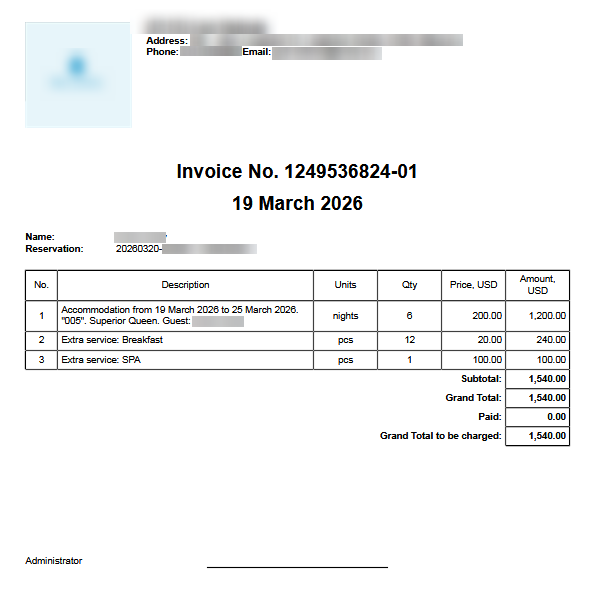
How the template with variables looks:
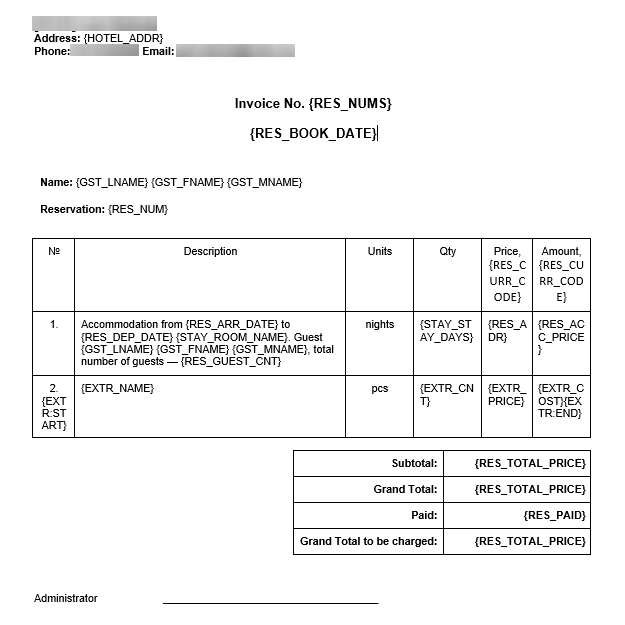
Note. If you use a numbered list with auto-numbering, the variable {EXTR:START} must be placed after the number — this applies to documents with an unlimited number of items.
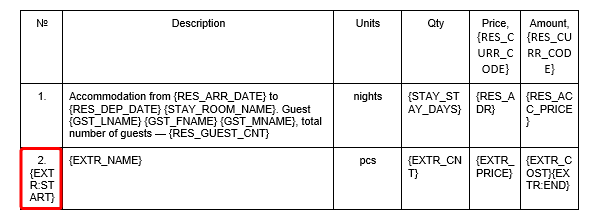
If numbering is entered manually, the variable must be placed before the number.
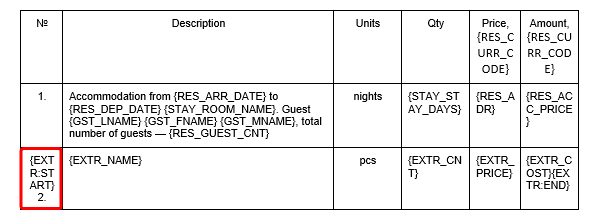
Below are the variables from the example above — you can copy and use them in your template:
|
Invoice № {RES_NUMS} {RES_BOOK_DATE}
|
How to upload a document template
1. Go back to "Property management" > "Settings" > "Document templates".
2. Click "Add new template".
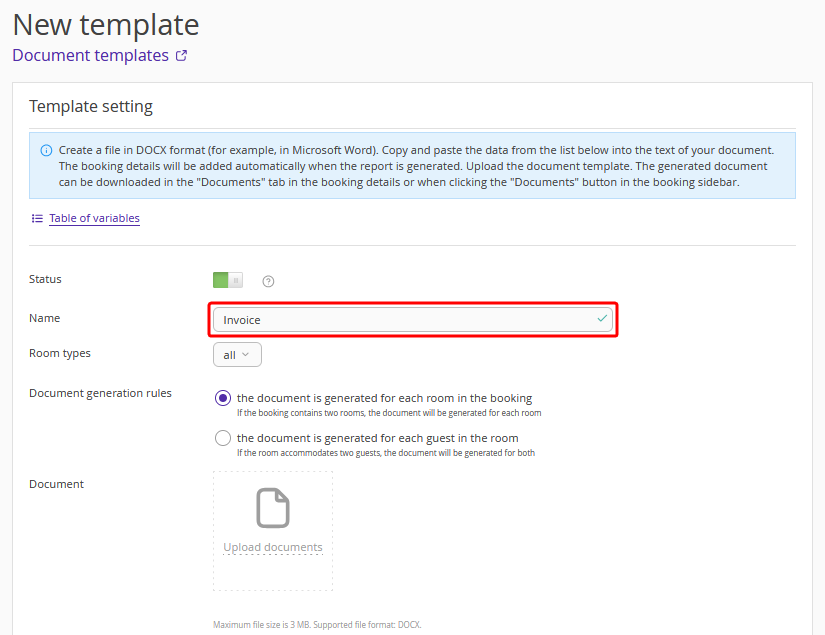
3. Enter the template name — it will be displayed in the booking details page.
4. Select the room types for which documents based on this template will be available.
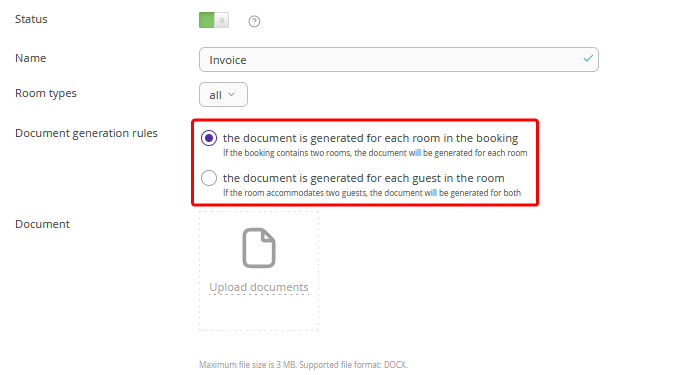
5. In the "Document generation rule" field, specify how the document should be generated — for each room in the booking or for each guest in the room.
6. Click "Upload documents" and select the file from your computer. Specify the name that will be assigned to the file when downloading.
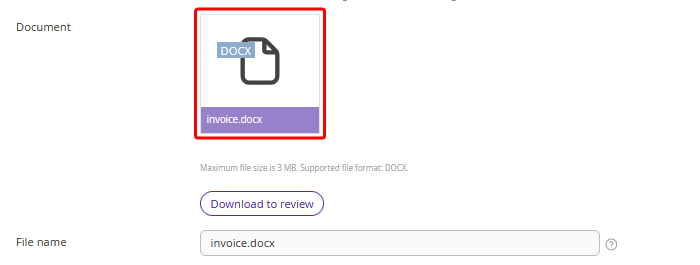
7. Click "Save" at the top of the page.
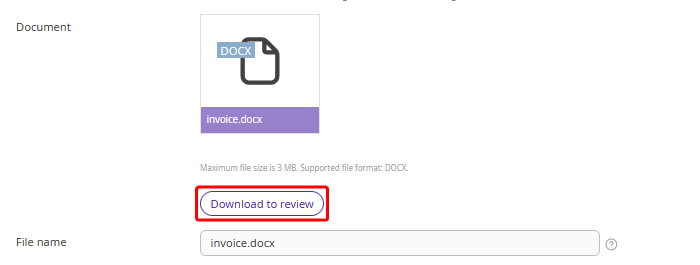
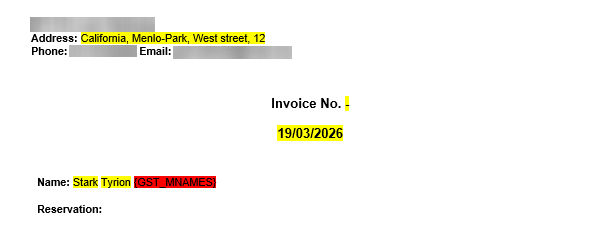
8. After uploading the template, click "Download for review".
The variables in the template will be replaced with test data for verification and highlighted in yellow. If there is an error in a variable name, it will be highlighted in red.
How to deactivate or delete a document template
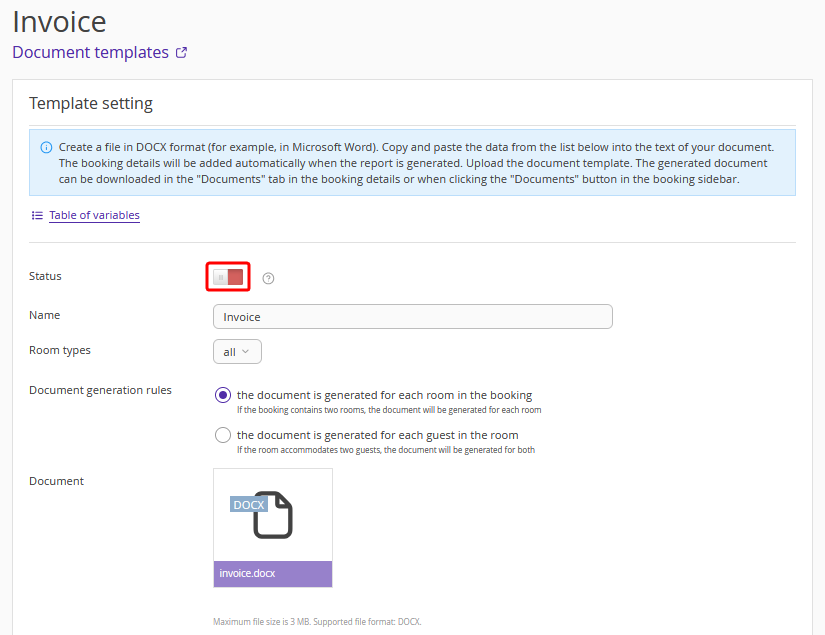
If you need to remove an outdated template but do not want to delete it permanently, deactivate it using the switch in the "Status" field — the template will not be displayed in the booking details.
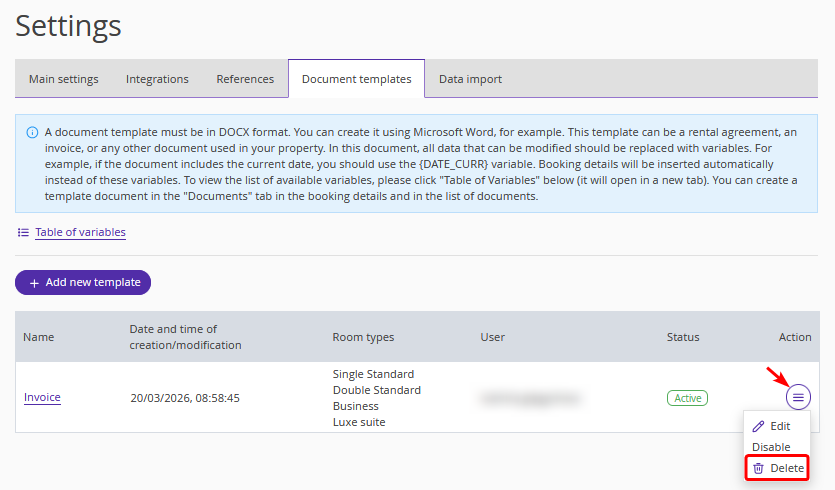
To delete a template, go to the list of templates > click "Action" > "Delete".
How to view and download a document template in a booking
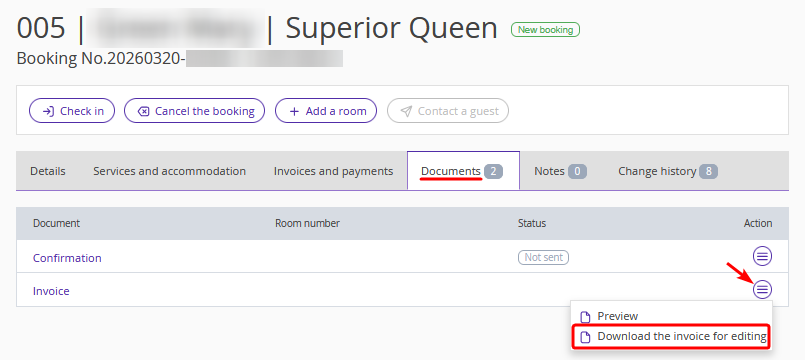
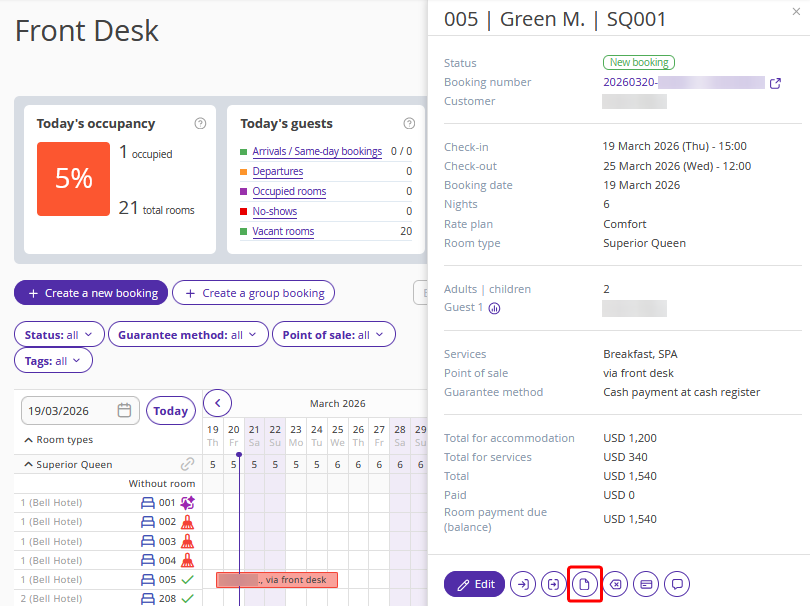
After the template is uploaded, it will appear in the booking details as a document. You can view and download it in the brief booking details window:
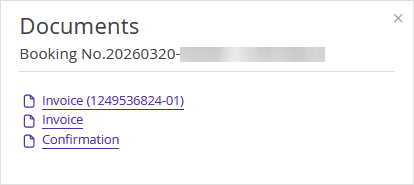
Or at the booking details page on the "Documents" tab.