Integration with Datecs cash registers is now available for properties in Bulgaria. The following Datecs models are supported:
Datecs-FP-700
Datecs-FP-800
Datecs-FP-2000
Datecs-FP-650
Datecs-SK1-21F
Datecs-SK1-31F
Datecs-FMP-10
What you need to start working
Install a Datecs cash register. The property should purchase and set up the cash register, as registration on behalf of the property legal entity is required.
Specify the taxation rate in the Exely extranet. To do this, go to the “Property settings” > “Tax system” section and select the taxation system used in your property.

Install and configure Exely Agent.
How to install and configure Exely Agent
1. Download Exely Agent installation file.
2. Unzip the downloaded file.
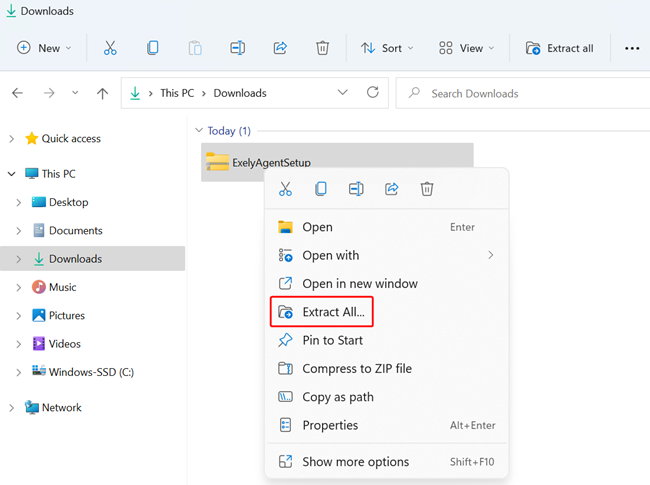
3. Double-click the extracted file to open it and follow the setup wizard instructions

4. After successfully installing Exely Agent, launch the application.

5. In the Exely extranet, go to “Property management” > “Settings” > the “Integrations” tab. Copy the API key.

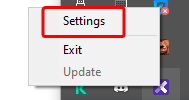
6. Find Exely Agent in the taskbar, right-click the icon and select “Settings”.
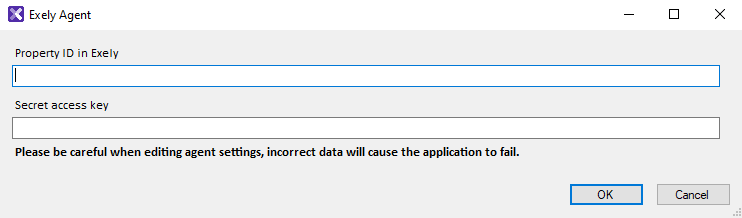
7. In the opened window, enter the property ID in the “Property ID in Exely” field. Paste the integration key for the current reception (computer) into the “Secret access key” field.
How to set the integration of Exely PMS and Datecs
To set up a cash register in Exely extranet, go to "Property management" > “Cash registers” and click “Add a cash register”.
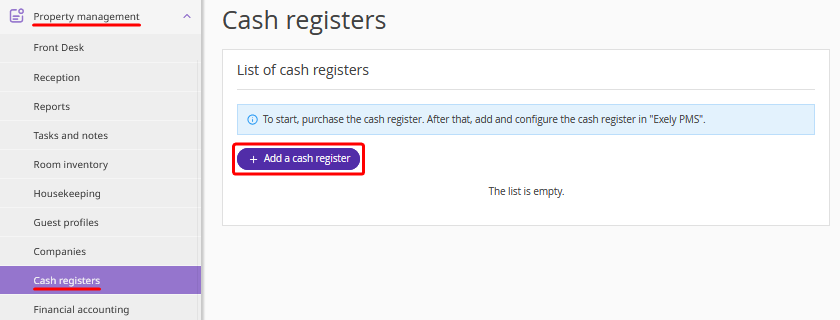
In the opened sidebar, fill in the following fields:

1. Name (1) — the cash register name that an employee will see when selecting the cash register through which a receipt will be printed.
2. Connection type (2) — check the back panel of the cash register to see which port it is connected through, and select the corresponding port from the list.

3. If the cash register is connected via a LAN connection type, additionally specify the IP address (3). Instructions on how to find the IP address of the connected cash register are provided below.
In case the cash register is connected via an RS-232 connection type, additional fields will appear where you must specify:
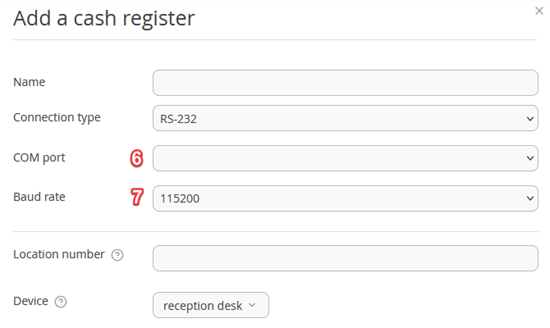
COM port (6). Select the port through which the cash register is connected to the computer. To find it, right-click in the lower-left corner of the desktop, click “Start” > “Computer Management”. Then open “Device Manager > Ports (COM & LPT)” > select the port through which the cash register is connected.

Baud rate (7) — by default, the maximum available value is set.
4. Location number (4) — specify the cash register number, for example, 1.
5. Device (5) — by default, a device from “Property management” > “Settings” > the “Integrations” tab is selected. If there are several devices configured for your property, select the one on which the cash register will be installed.
After all fields are filled in, click “Save”.
How to find the IP address if the cash register is connected via LAN
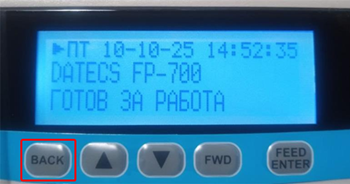
1. Turn on the cash register and wait until the message “Готов за работа” appears on the screen. Press the “Back” button once.
2. The “Диагностика” message will appear. Press the “Feed Enter” button once.
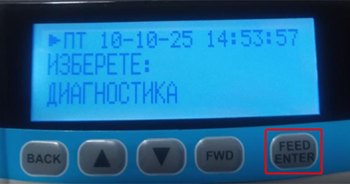
3. A receipt with diagnostic data will be printed. Enter the IP address specified on the receipt into the “IP address” field when adding the cash register in the Exely extranet.

How to add a cashier
After the settings are saved, a sidebar for adding a cashier will be opened. Fill in the following details”
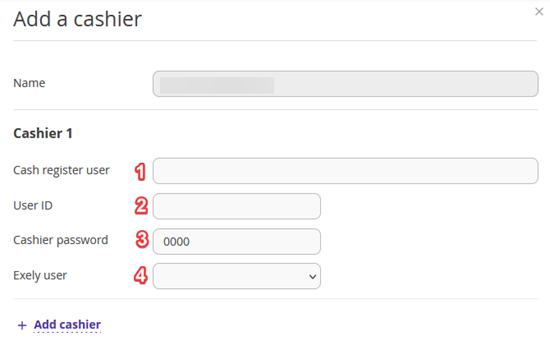
Cash register user (1) — cashier login saved in the cash register memory. It is provided upon cash register purchase and can be found in the cash register settings.
User ID (2) — a simple numeric value, for example, “1”. Each cashier must have a unique identifier.
Cashier password (3) — you can use the default password: 0000.
Exely user (4) — select from the list the employee who will process payments and print receipts.
Pay attention. The employee must have administrator rights in the "Staff" reference.
If the required employee is not in the directory, go to “Property management” > “Settings” > the “References” tab > the “Staff” reference and add the employee with administrator rights.
After filling in all the fields, click “Save”.
How to view the list of added cash registers
To see a list of all available cash registers, go to “Property management” > “Cash registers” > the “List of cash registers” tab.
The switch in the “On/Off” column allows deactivating the selected cash register. Once a cash register is deactivated, it is hidden in the list of cash registers for selection when printing receipts. You can activate the cash register again using the switch.
To activate a cash register, it is necessary to add at least one cashier for it.
To edit the cash register settings, click the cash register name or “Action” > “Edit a cash register”.
To disable or delete a cash register, add or edit cashiers, click “Action” and select the corresponding option.

If you click the cash register name or “Action” > “Edit a cash register”, a sidebar with the cash register settings will be opened. This is the same form you used when adding the cash register, but with the settings fields filled in.
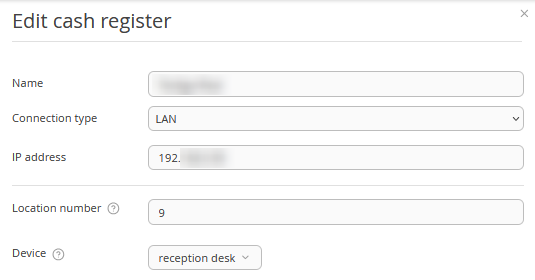
Make the required changes and click “Save”.
If you click “Action” > “Edit cashiers”, a sidebar with the cashiers settings will be opened.
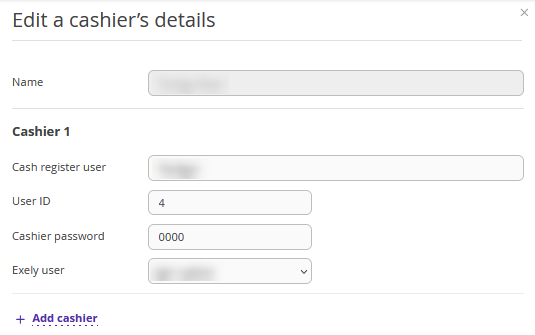
Make the required changes and click “Save”.
How to translate service names
According to the legislation, the names of services in Bulgarian should be displayed in receipts. If the names of services and groups of services in your Exely extranet are indicated in English, they should be translated into Bulgarian.
For this, go to “Property settings” > “Translation settings”. On the “Extra services” and “Groups of services”, select the required language and translate the names.

How to print a receipt using a cash register
Step 1. When making a payment, select a payment method from the list (1). In the “Payment details” section, you can also select the services for which you are accepting payment. To do it, change the position of the switch next to the service name to "On".
If you do not need a receipt for this transaction, uncheck the “Print receipt” box (2) and click "Apply". The payment will be processed without printing the receipt.
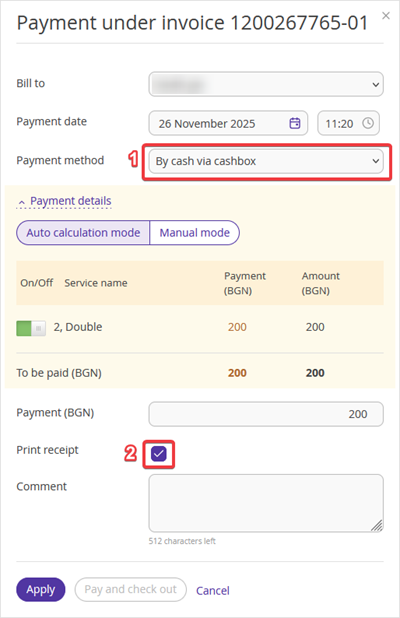
Pay attention. If you have made a payment without printing a receipt, you will not be able to print the receipt for that payment later.
Step 2. In the opened window, select a cash register from the list and click “Print receipt”.

Step 3. After the payment is completed, you can view the receipt status. To do this, in the "Invoices and payments" tab, find the required invoice and click “Action” > "Transactions with payments and receipts".
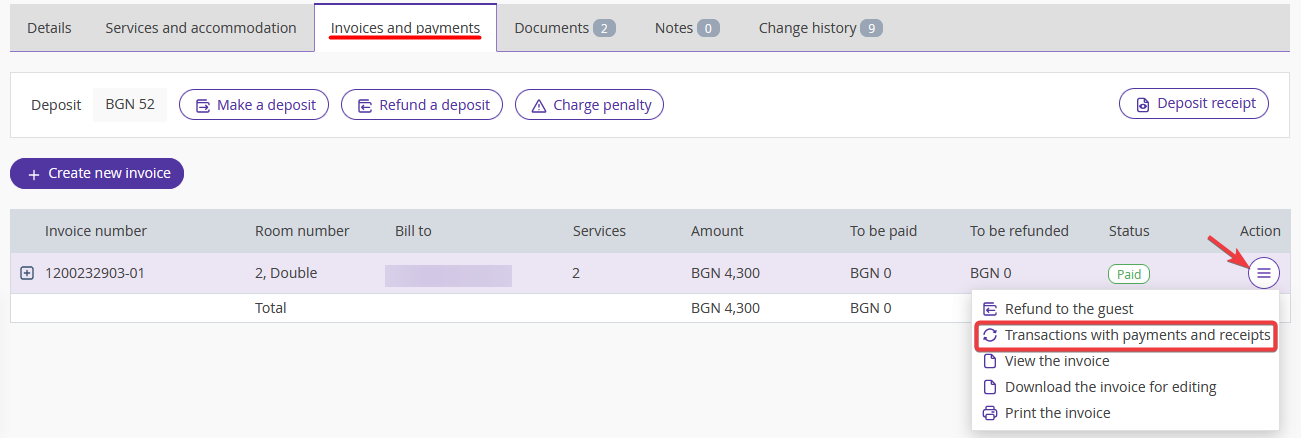
In the opened window, you will see all payments and refunds made for the invoice and the receipt statuses for them.

How to make a refund
Pay attention. Refunds are only made in cash, so there must be sufficient cash available at the cash desk to process the refund.
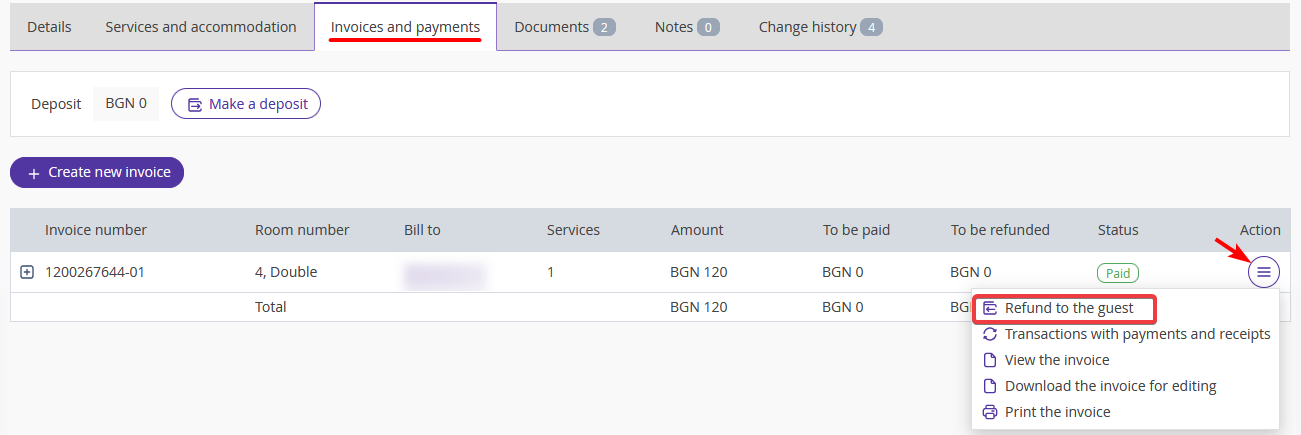
To make a refund for an invoice, open the booking details card and switch to the “Invoices and payments” tab. There, click “Action” > “Refund to the guest” for the required invoice.
In the opened window, select the “By cash via cashbox” payment method (1).
In the “Invoice payment” field, select a payment for which you want to make a refund (2). You can only make a refund on one payment at a time.

In the list of payments, the receipt status is indicated for each payment — in case of refund, you can print a receipt, only if a receipt for the payment has been printed.
Partial refund for a payment
If you need to refund only part of the payment to the guest, click the "Refund details" link when processing the refund and change the amount in the “Payment” column (1), or exclude an invoice item using the toggle (2).

Bookings in Euros
For bookings with the payment currency set to EUR, you can also accept the payment and print a receipt. When processing the payment, make sure to check the selected currency.

The payment will be processed in the selected currency. To correct it, you will need to cancel the payment or issue a refund.
