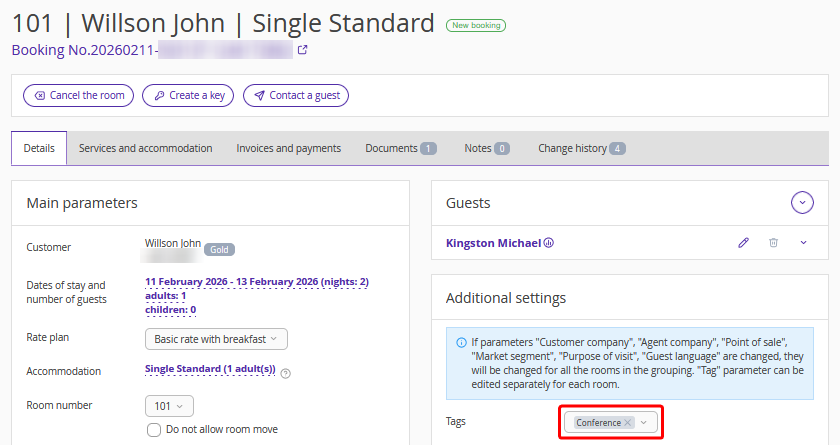
A tag is a keyword or filter used for search. Use tags in Exely PMS to mark guest bookings by a specific attribute.
Tags can be added to group bookings.
1. In the Exely extranet, go to "Property management" > "Front Desk" and click any room within the group booking.
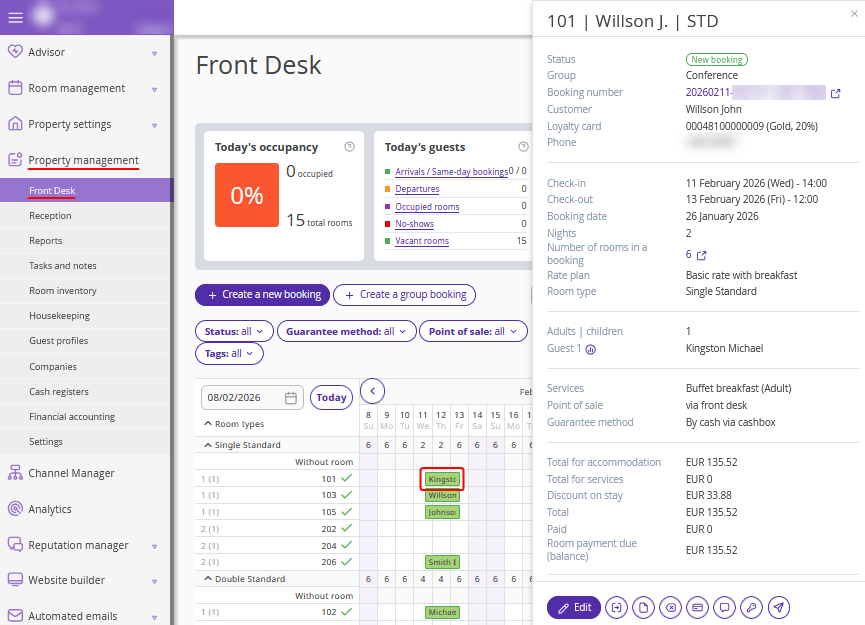
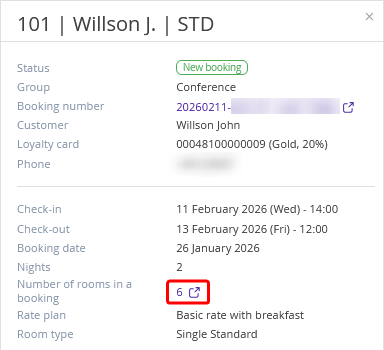
2. In the opened brief booking details window, click the value in the "Number of rooms in a booking" line.
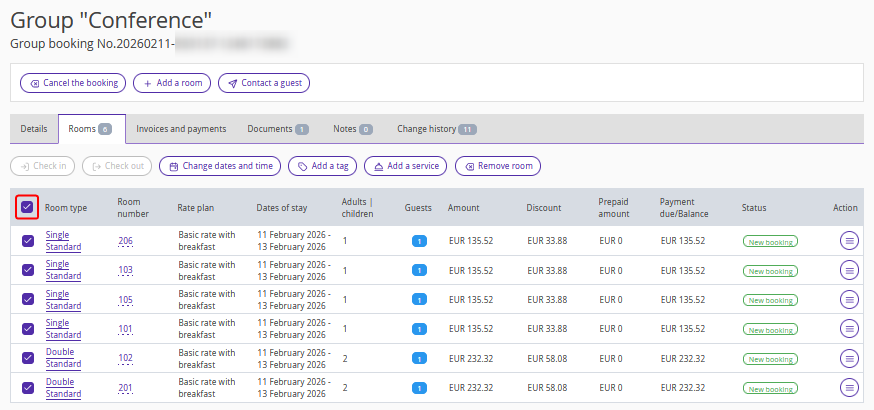
3. The group booking details page will be opened on the "Rooms" tab. Tick check-boxes for the rooms within the group booking to which you want to add a tag and click the “Add a tag” button.
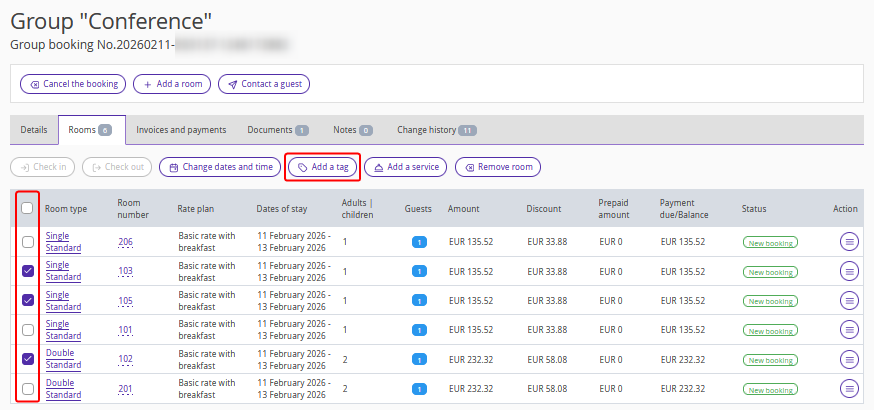
To select all rooms at once, tick the check-box in the table header.
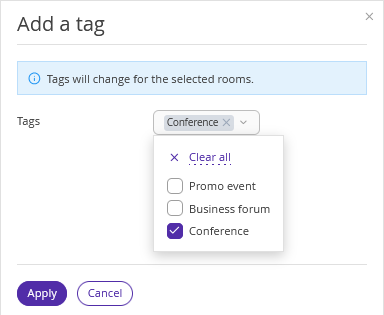
4. Select the required tag and click "Apply". Then click "Save" at the top of the page. The group booking will now have the tag assigned.
You can add multiple tags or assign different tags to individual rooms.
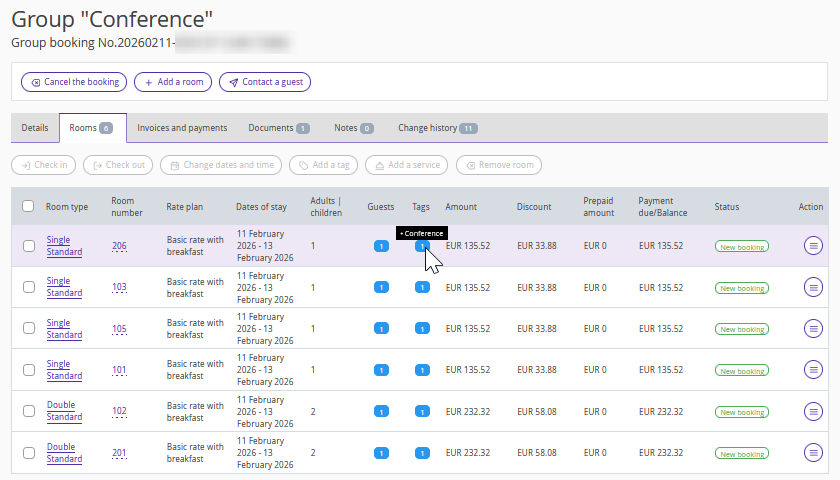
In the group booking, the added tags are displayed:
On the “Rooms” tab of the group booking:
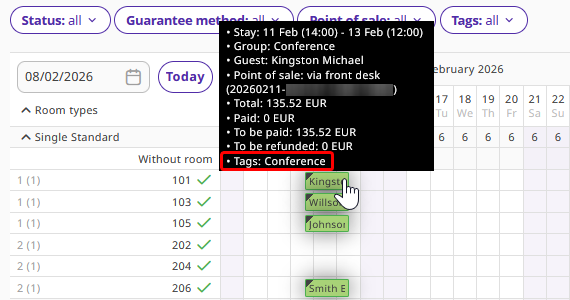
In Front Desk:
In the details of each booking: