If a guest has provided invalid or unsupported card details, or there are insufficient funds on the card to cover the payment, the automatic payment will not be processed until the guest updates their card details.
Bookings for which payment has not been processed are displayed in a report in the “Reports” > “Pay Connect bookings for review” section.
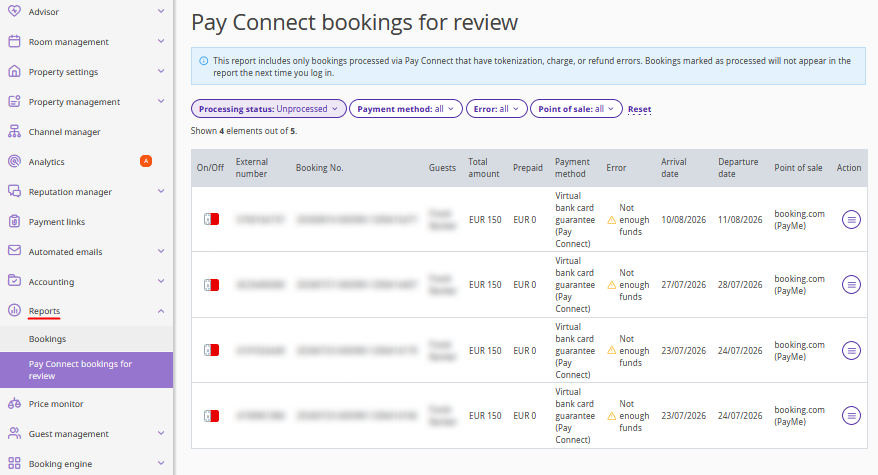
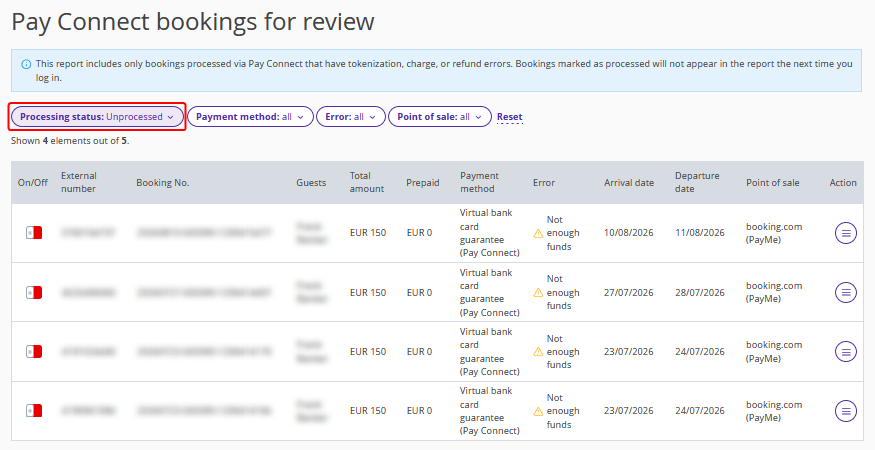
By default, the list displays only unprocessed bookings. If necessary, use the filters.
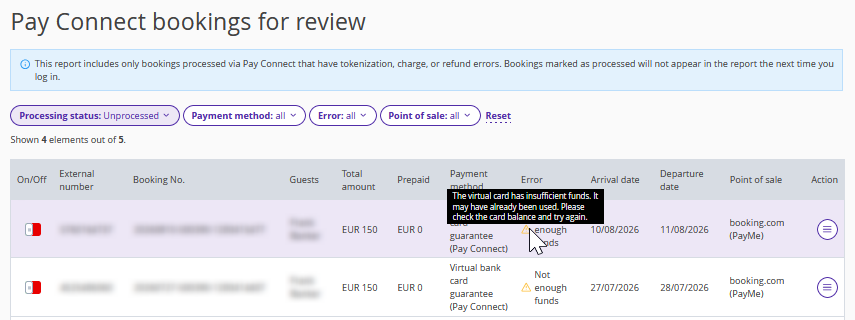
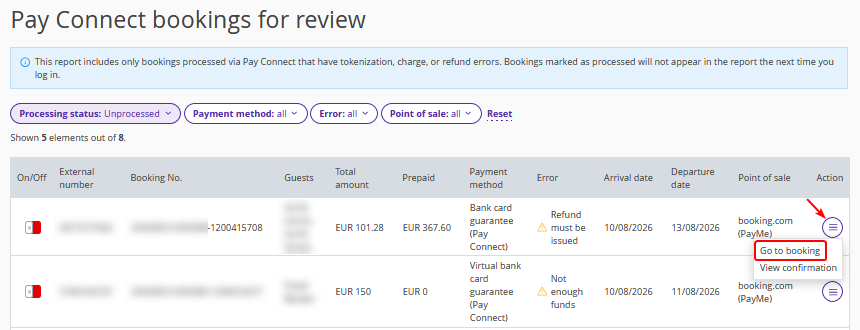
To see error details, hover over a yellow triangle to the left of the error.
To mark a booking as processed, enable the toggle in the "On" column.
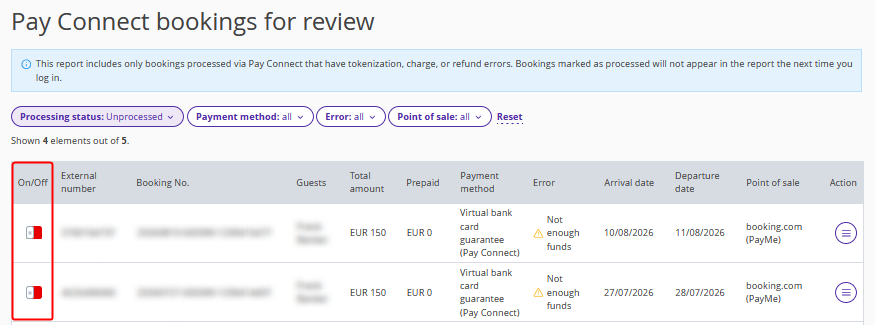
We recommend regularly checking the report to monitor payment charges.
How to request new card details for bookings from Booking.com
If a payment for a booking made via Booking.com failed because the guest provided invalid or unsupported card details, or the card has insufficient funds, a request for new card details will be sent automatically.
However, you can also send a request manually. To do this,
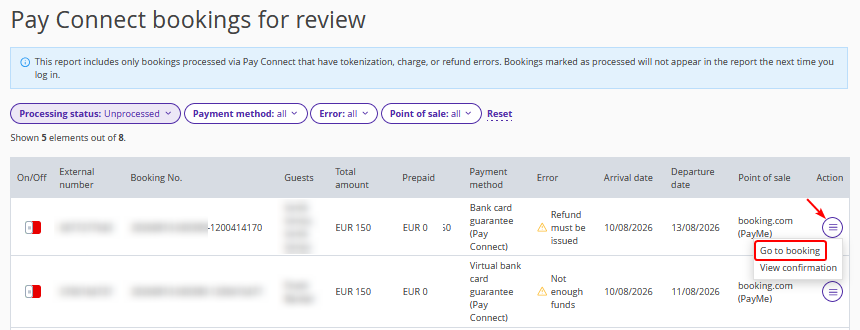
1. In the “PayConnect bookings for review” report, click “Go to booking”.
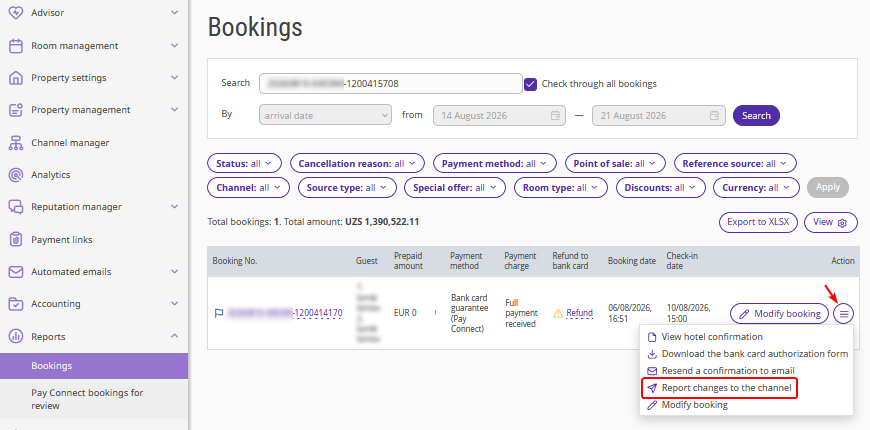
2. The “Reports” > “Bookings” page will be opened with the filtered booking. Click “Action” > “Report changes to the channel” to the right of the booking.
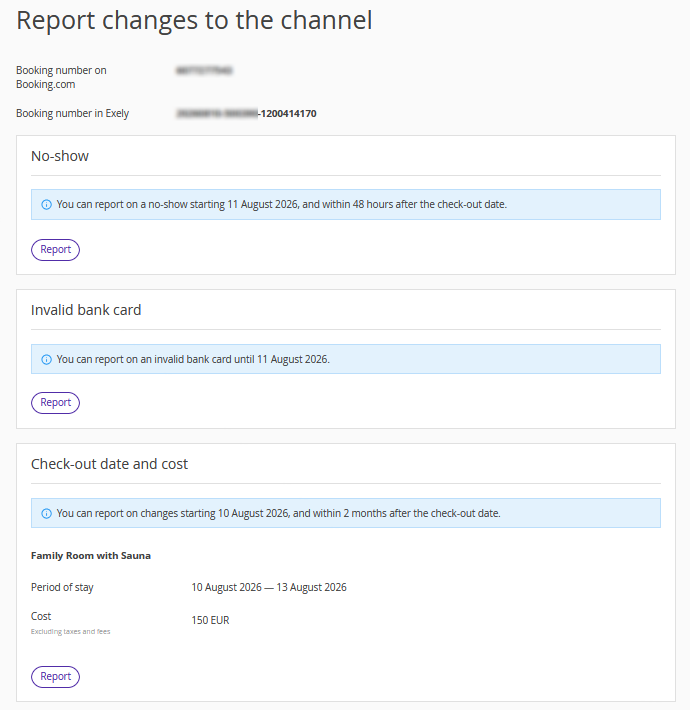
3. In the “Invalid bank card” section, click the “Report” button.
How to make a refund
If a payment has been processed for a booking, but later the booking was modified and the new amount is less than the paid amount, or the booking was canceled after the prepayment was received, you need to issue a refund manually. For such bookings in the report, the message “Refund must be issued” is displayed in the “Charge error” column.
To make a refund,
1. Click the “Go to booking” button.
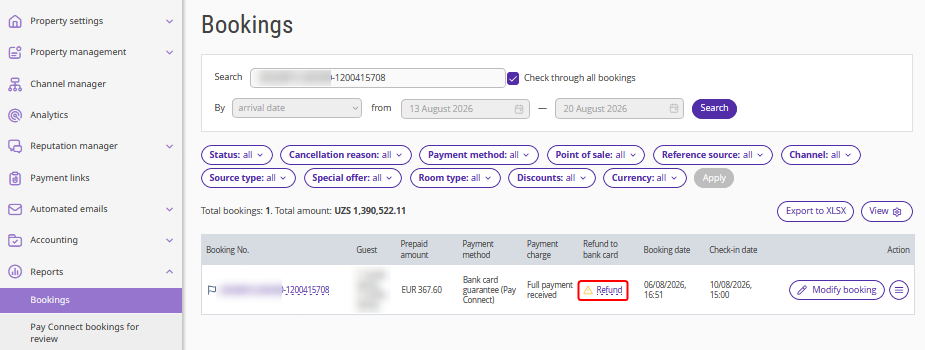
2. The “Reports” > “Bookings” page will be opened with the filtered booking. Click the “Refund” link.
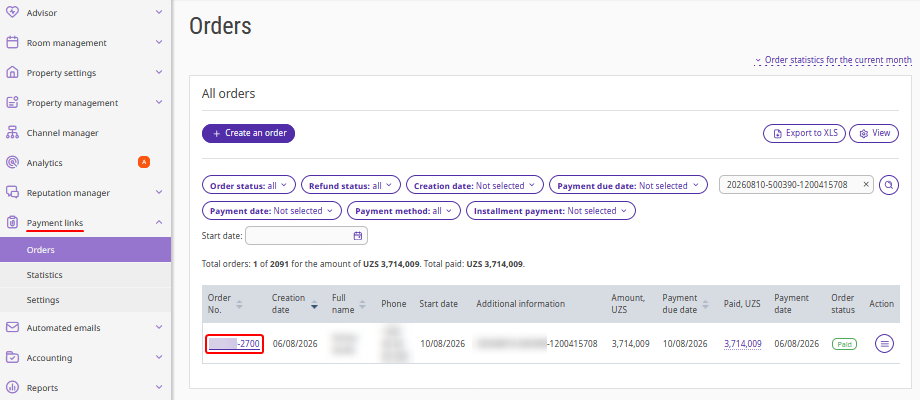
3. The “Payment links” > “Orders” page will be opened with a filtered order for the booking. Click the order number.
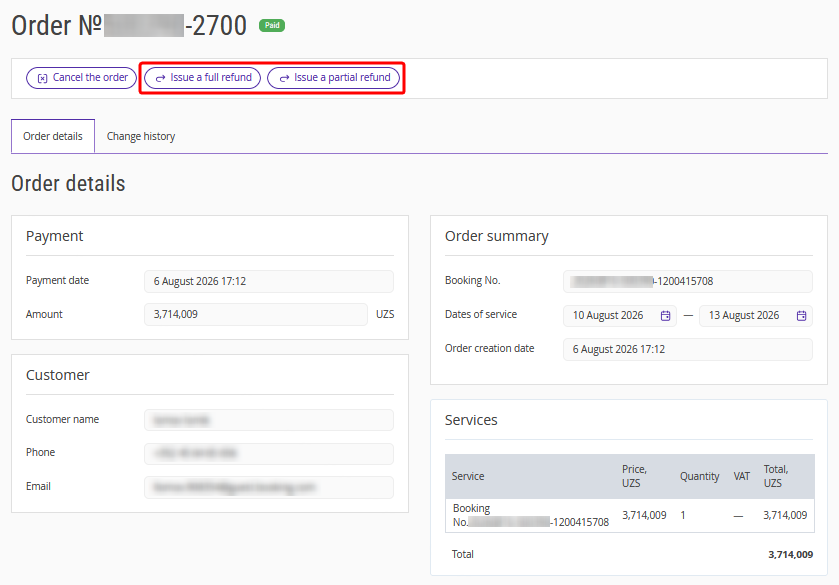
4. An order details page will be opened. Click the required button to process the refund.
5. A refund window will be opened. Specify the refund amount and click the “Confirm” button.
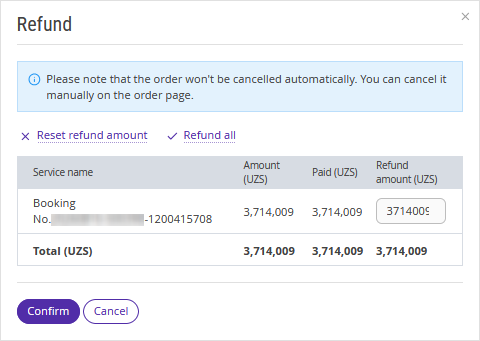
How to make manual payments
Payments for bookings are charged automatically according to the payment charge settings.
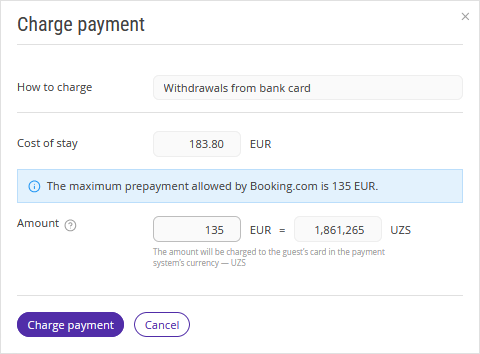
If you need to make a payment manually, go to “Reports” > “Bookings”. Find the required booking and click the “Charge payment” button.
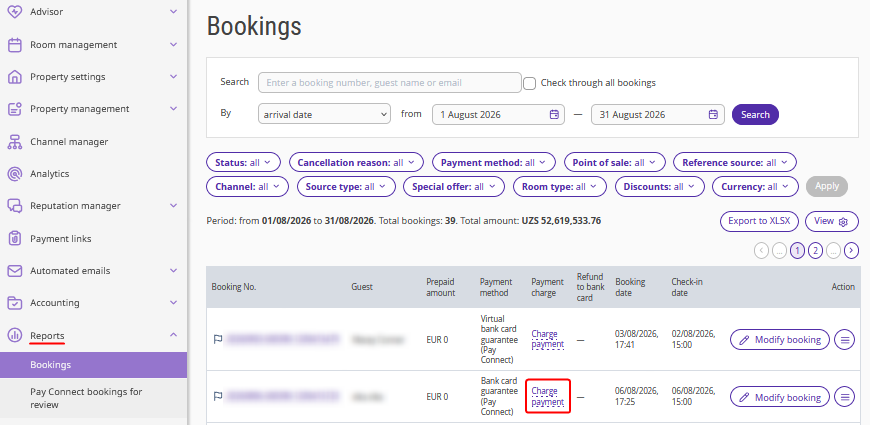
In the opened window, you will see information about the cost of the booking and the prepayment amount. In the “Amount” field, enter the amount to be charged and click the “Charge payment” button.
If the booking currency does not match the property currency, the booking cost will be recalculated.