In the Exely extranet, in the “Advisor” > “What’s new” section, you can learn about new features and updates for Exely solutions.

Pay attention. Unlike the “News feed”, the notifications in the “What’s new” section are always visible and cannot be hidden.
How to find a notification
Use the filters:
Period – select the start and end dates. As a result, you will see notifications for which the display start date falls within the selected period. By default, notifications for the last 6 months from the current date are displayed.
You can also quickly filter notifications for the last week, month, or quarter using the buttons.
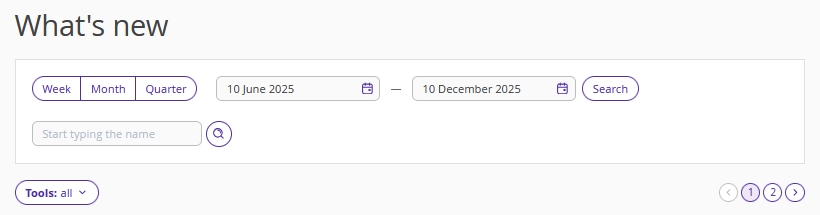
Tools – select one or several tools.

You can also search for notifications by title or text.

Notification card
Each notification card displays key information about the update: an image, the publication date and time, the title, and the notification text.

To read full details about the update, click “Learn more”. This link usually leads to the Exely Knowledge Base or to the relevant section of the extranet referenced in the notification.
In addition to the “What’s new” section, notifications also appear under the bell icon.

