How card import from a file works
The "Import from a file" feature allows you to upload loyalty cards of returning guests and start working with the loyalty program faster.
Upload a file with card numbers, cardholder details, and the amount of guest earnings. TXT and CSV (UTF-8) formats are supported, where the card number, cardholder full name, phone number, email, and earnings amount are listed separated by semicolons.
Pay attention. Access to the "Loyalty program" section in the Exely extranet becomes available only after Exely Loyalty Program is enabled. To save time on adding loyalty program members, a property can prepare the data import file in advance during the launch preparation stage. To do this, send a request to your Customer Support manager or Exely Customer Support team.
This instruction applies to both Exely Loyalty Program: Discounts and Exely Loyalty Program: Points.
How to import cards
1. In the Exely extranet, go to "Guest management" > "Loyalty program" > "Cards list".
2. Click the "Import from a file" button.
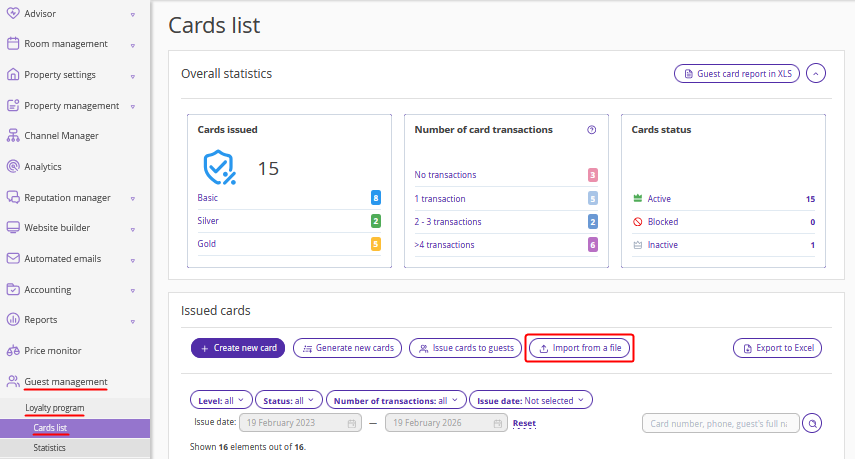
3. Download the template and fill it in following the example. The first line must always start with the following values: Card number (*); Guest’s name (*); Phone (*); Email; Loyalty level; Accumulated nights; Accumulated sum. Fields marked with "*" are required.
Pay attention. The loyalty level in the template can be left empty, as it will be calculated automatically based on the earnings level — amount or nights, depending on the loyalty program settings.
4. Convert the completed template to CSV (UTF-8) format. Alternatively, use a program that works with TXT format — for example, "Notepad" — and list the card number, cardholder full name, phone number, email, and accrual amount separated by semicolons.
5. Upload the file on the data import page and click the "Start import" button.
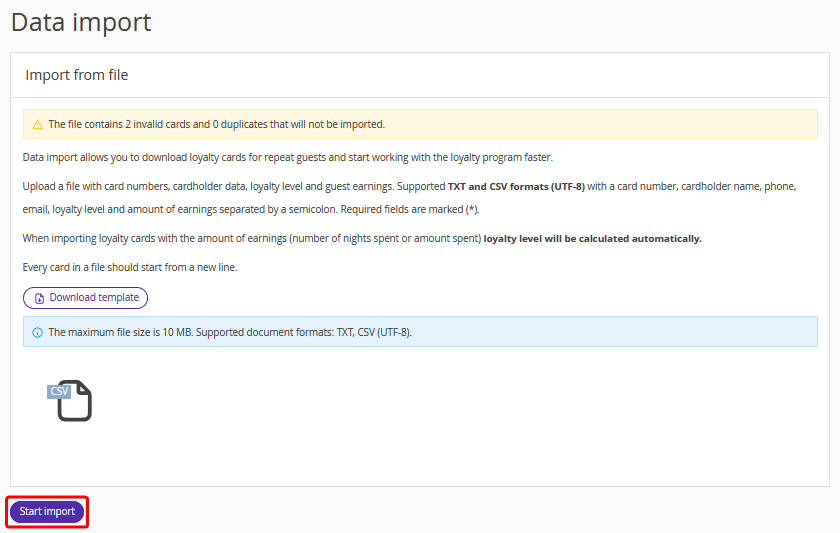
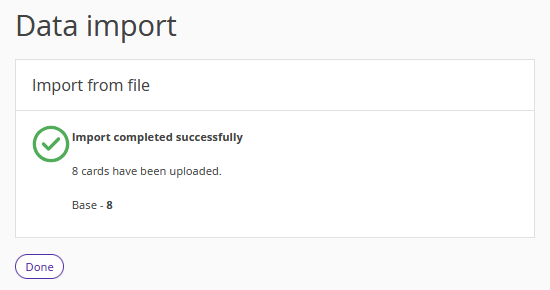
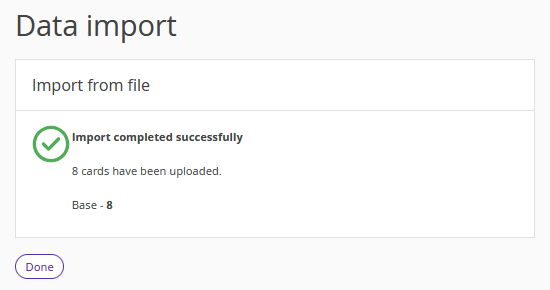
After the import is completed, the system will show the number of imported cards and the number of cards that were not imported — usually due to incorrectly filled data or because the file contained a duplicate of an existing guest.
Card import features
The import file must be filled in strictly according to the format. Otherwise, guest profiles will not be imported.
When importing loyalty cards with earnings data — number of nights stayed or amount spent — the loyalty level is calculated automatically.
Each card in the file must be on a new line.
The loyalty level in the template can be left empty, as it will be calculated automatically based on the earnings level. However, if level names are specified, they must exactly match the names in the loyalty program settings. For example, if the level is named "gold" in the settings, specifying "Gold" with a capital letter will cause the profile not to be imported.
Duplicate guests are not imported — that is, when the card number, full name, and phone number match.
If you need to upload existing loyalty card numbers and continue working with them, upload a file with card numbers only; other columns do not need to be filled in. In this case, during automatic card issuance, card numbers from the uploaded file will be used.
How to convert an Excel file to CSV (UTF-8) format
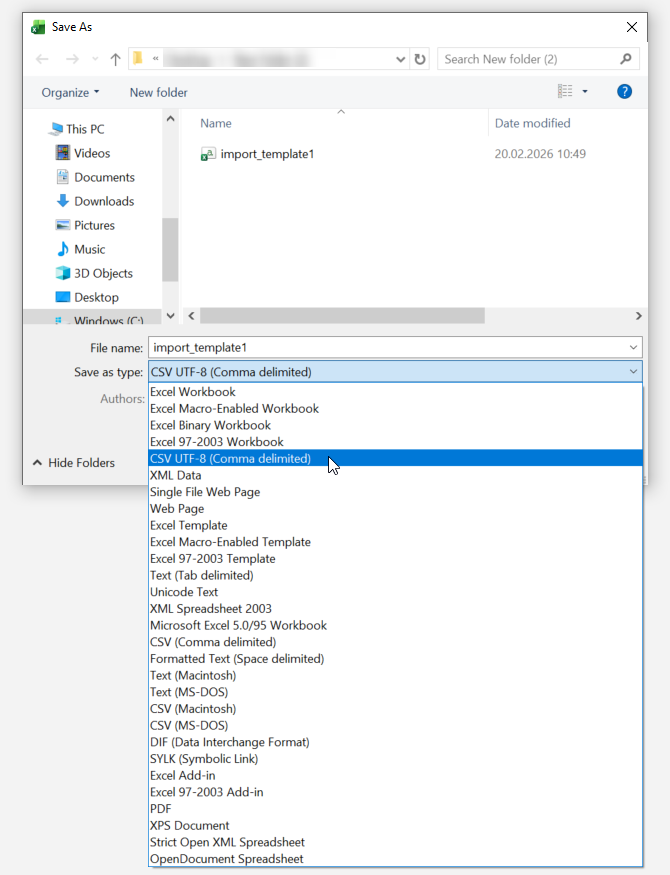
1. Fill in the import template in the Excel file, in the menu, click "File" > "Save As".
2. Specify the file name and select "CSV (UTF-8) (comma delimited)" in the "Save as type" drop-down list.
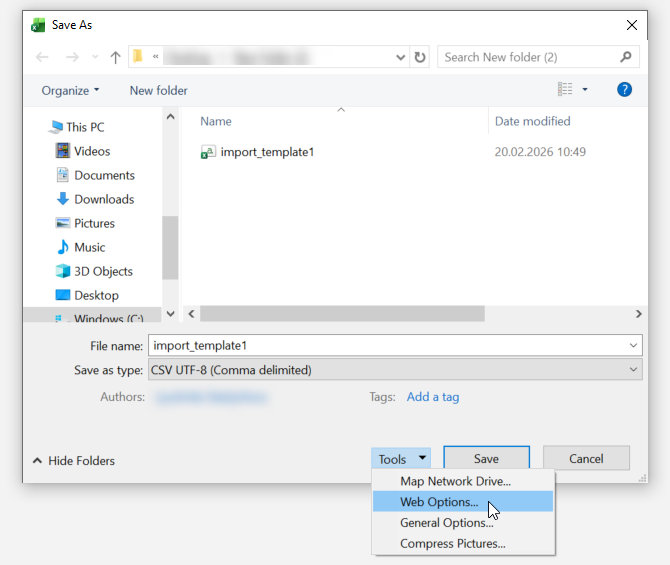
3. Click "Tools" > "Web Options".
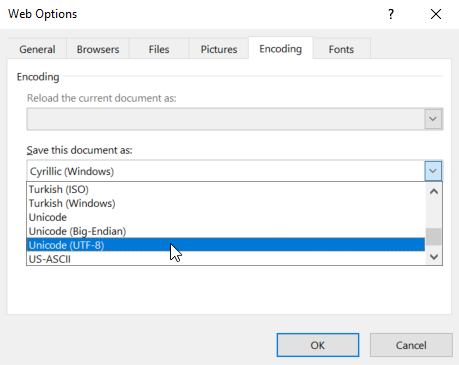
4. On the "Encoding" tab, select "Unicode (UTF-8)".
5. Save the file. It is now converted to CSV (UTF-8) format and ready for import.
How to fill in the template in TXT format
1. Open a program that works with TXT format — for example, "Notepad".
2. In the first line, specify the following values: Card number (*); Guest’s name (*); Phone (*); Email; Loyalty level; Accumulated nights; Accumulated amount.
3. Then, on each new line, list the card number, cardholder full name, phone number, email, and earnings amount separated by semicolons.

The loyalty level in the template can be left empty, as it will be calculated automatically based on the earnings level — amount or nights, depending on the loyalty program settings.

4. Save the document. It is now ready for import.
Upload the document and click the "Start import" button.
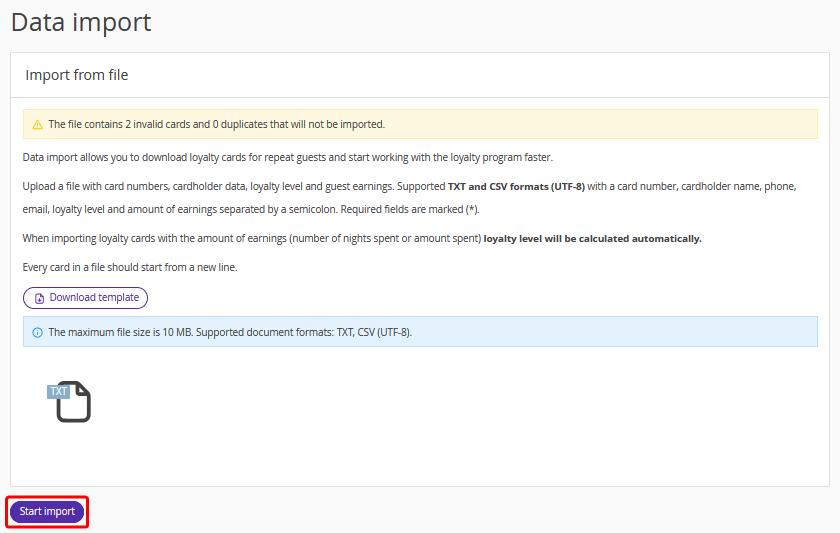
After the import is completed, the system will display the number of successfully imported profiles and their loyalty levels.
How a guest can use a loyalty card after receiving it
If a guest was not registered in the booking engine, during registration they need to enter the phone number for which the loyalty card was issued. The loyalty card will be found and added by phone number.
If the guest was registered in the booking engine before receiving the loyalty card, they need to enter the phone number for which the card was issued.
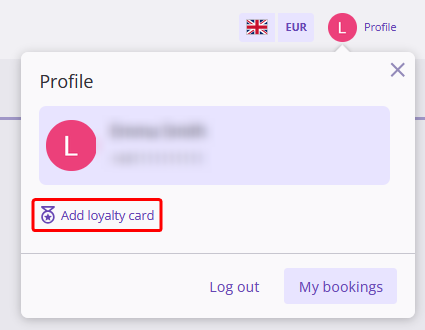
1. The guest needs to log in to their guest account in the booking engine and click the "Add loyalty card" link.
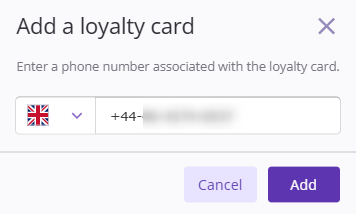
2. Then, the guest needs to enter the phone number for which the card was issued.
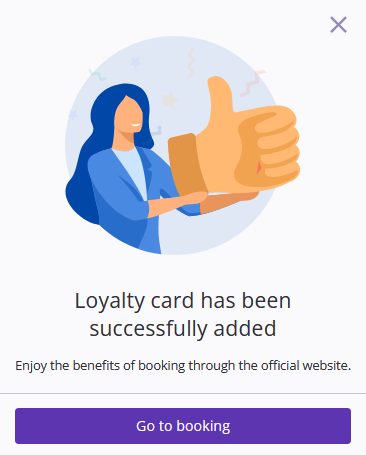
3. The loyalty card will be added, and the guest will be able to make a booking that will be counted in the loyalty program.