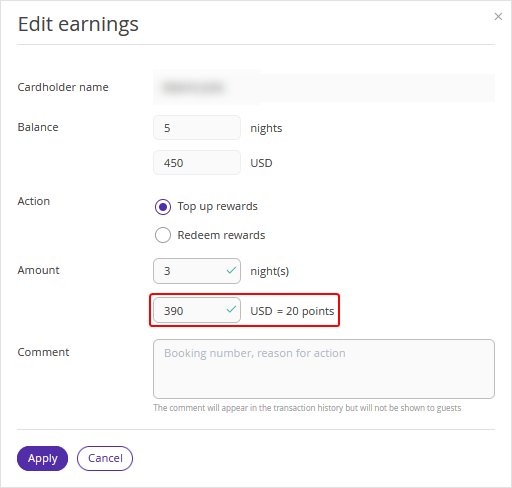
If you use Exely Loyalty Program: Discounts and Exely Loyalty Program: Points, you can edit rewards for loyalty cards.
Pay attention. To enable an ability to edit rewards, send a request to your Customer Support manager or Exely Customer Support team.
How to edit rewards for a loyalty card
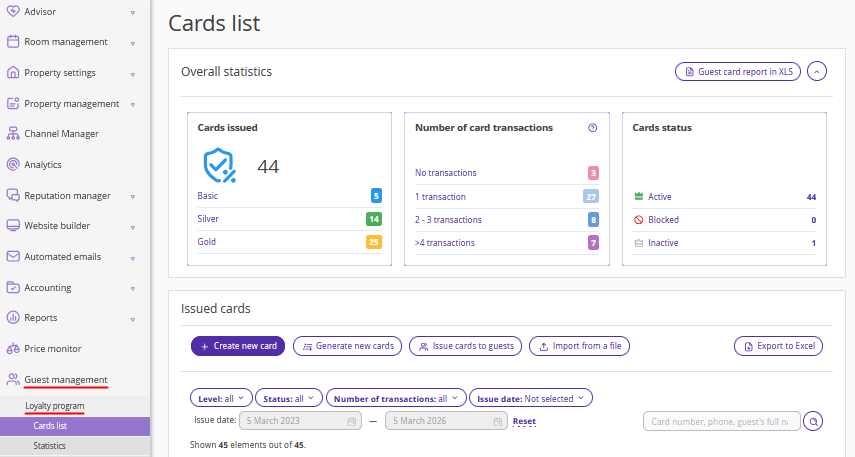
1. In the Exely extranet, go to “Guest management” > “Loyalty program” > “Cards list”.
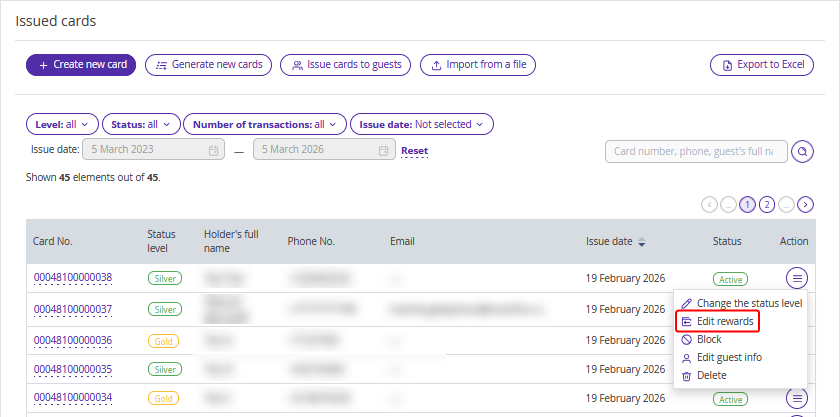
2. Find the required loyalty card and click “Action” > “Edit rewards”.
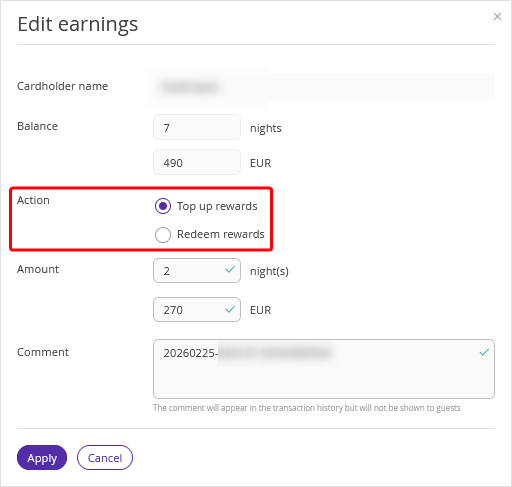
3. In the opened window, for the “Action” point, select “Top up rewards" or "Redeem rewards".
4. Specify the reward amount.
Pay attention.
You can fill in only one field (nights or money) or both at the same time.
Only whole positive numbers and "0" are allowed.
When redeeming rewards, the entered value must not exceed the guest’s current balance (the balance cannot become negative).
5. Enter a comment (booking number or reason for edits). The comment is displayed only in the loyalty card transaction history in the Exely extranet and is not visible to the guest.
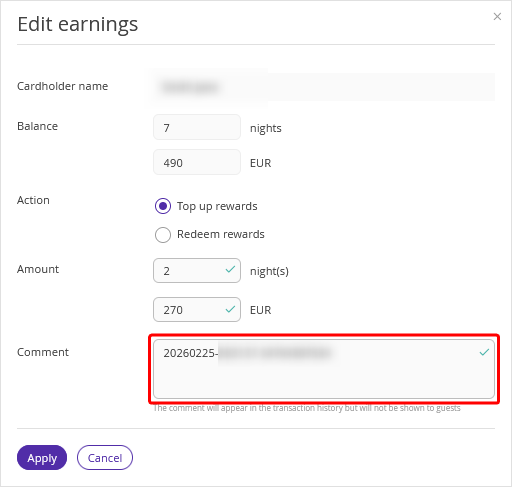
6. Click “Apply”.
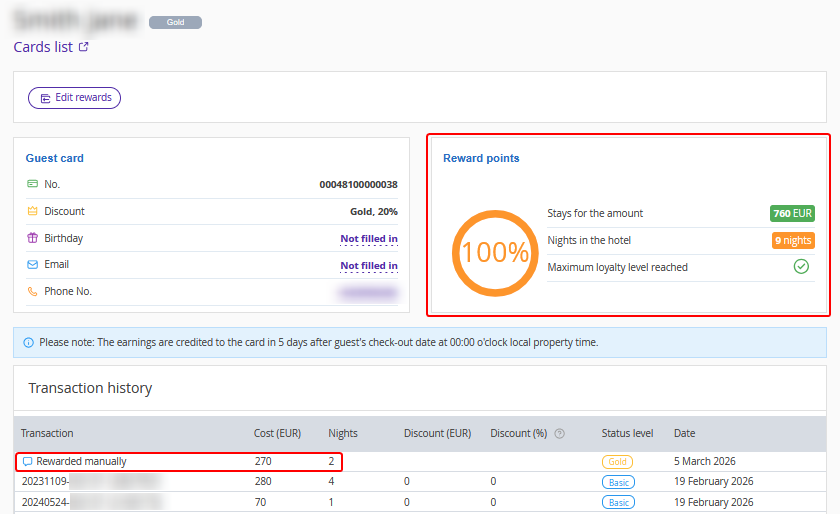
Information about the rewards changes is displayed in the loyalty card transaction history. In the “Reward points” section, you can see the loyalty card balance — the total number of bonuses after all rewards transactions.
Pay attention. If your property uses Exely Loyalty Program: Points and loyalty levels are set in the "Loyalty program" > "Reward rules" section, the amount or nights are automatically converted into points depending on the loyalty program settings.
For example, you need to top up rewards for a loyalty card of the "Base" level. In the reward rules, it is set that at this level 5% of the accommodation cost is rewarded as points.
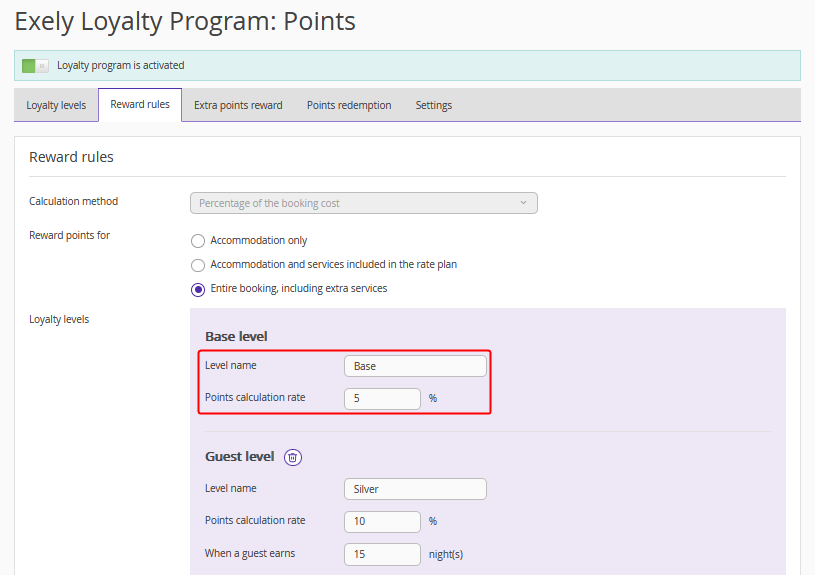
The program will automatically calculate 5% of the amount and show how many points will be rewarded to the guest.