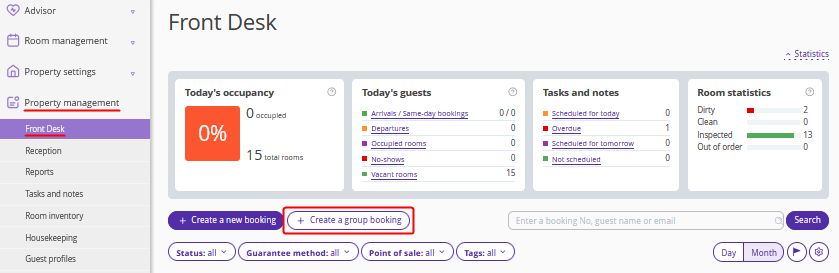
1. In the Exely extranet, go to “Property management” > “Front Desk”. Click the “Create a group booking” button.
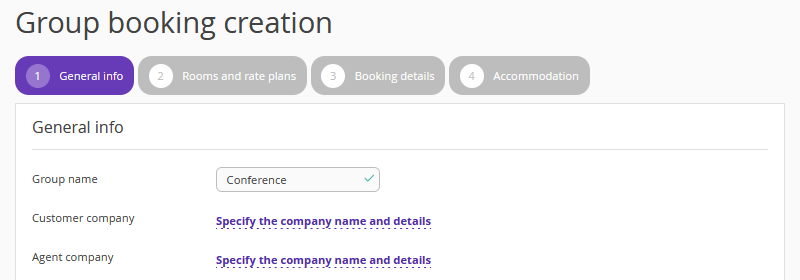
2. On the “General info” step, indicate:
group name (if available);
customer company (if available);
agent company (if available);
customer details.
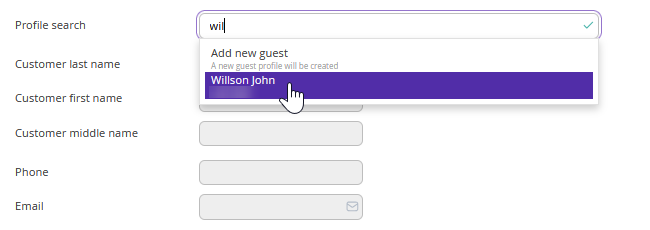
3. In the “Profile search” field, start entering the last name of the customer. The Exely system will offer the list of profiles, in which last names match what you entered.
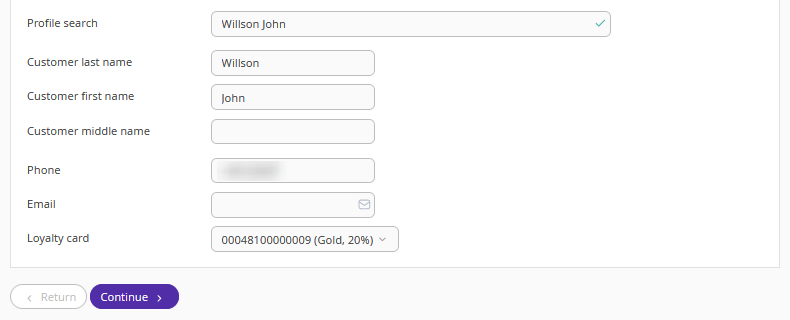
If the required profile is on the list, select it, and all the fields will be filled in automatically. If there is no such profile in the list, click “Add a new guest”.
Enter the customer’s first and last names. Click the “Continue” button.
Pay attention. The “Customer last name” and “Customer first name” fields are obligatory.
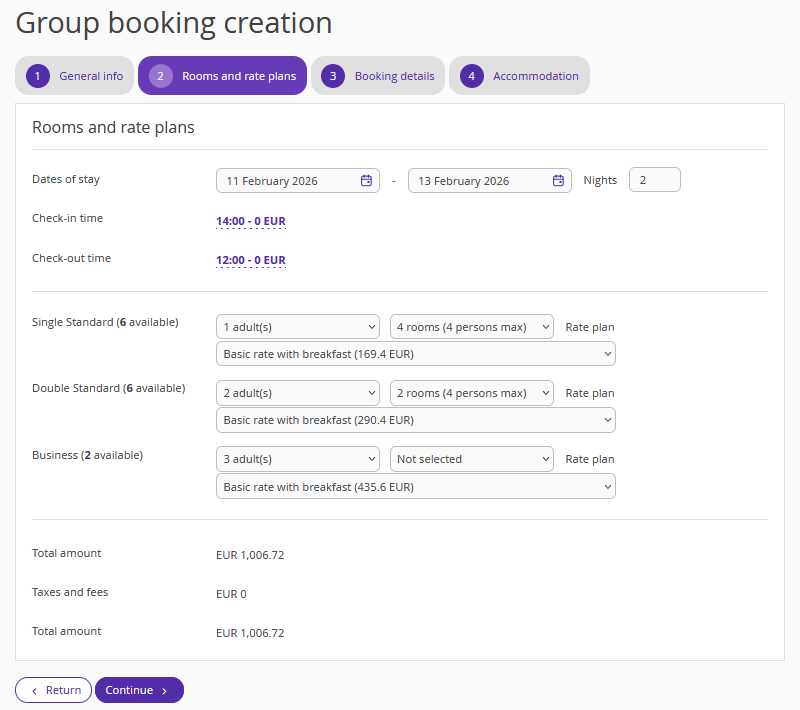
4. On the “Rooms and rate plans” step, select:
dates of stay;
check-in and check-out time;
room and accommodation types (the number of guests in a room);
number of rooms of the selected room type;
rate plan.
The total amount for the booking will be indicated at the bottom of the page. Then, click “Continue”.
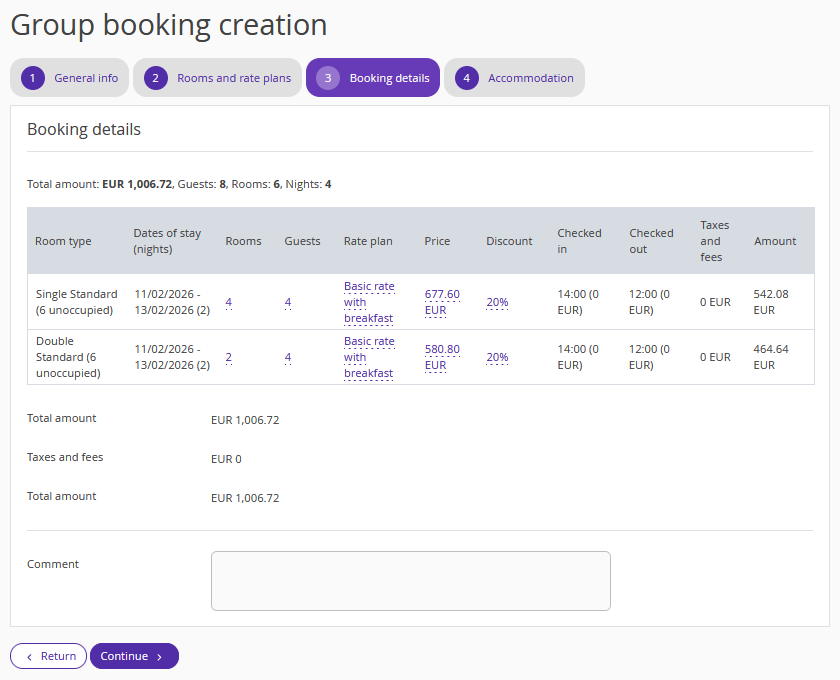
5. On the “Booking details” step, check the information that you entered before. To change a rate plan, the price, or offer a discount, click the corresponding underlined value. Then, click “Continue” to go to the next step.
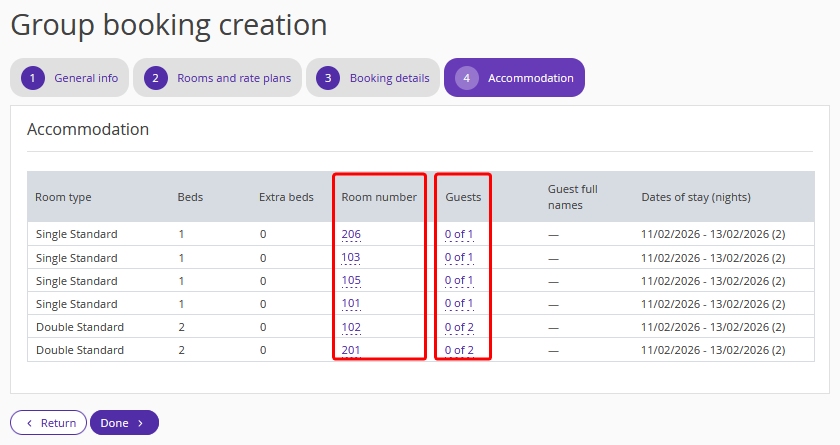
6. On the “Accommodation” step, assign rooms to guests. Click the underlined value in the “Room number” column and assign a room. Next, click the underlined value in the “Guests” column to indicate who is staying in the rooms. Click “Done”.
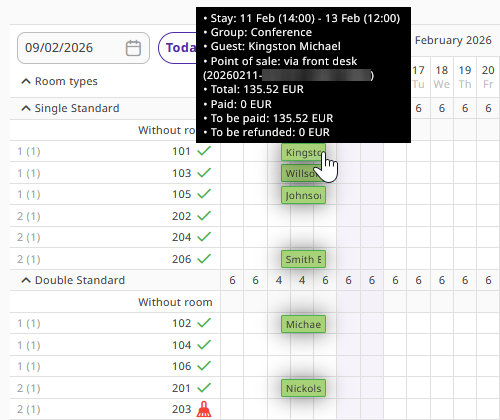
7. The group booking will appear in Front Desk. When you hover over one of the stay, all the stays of the group booking will be highlighted.
How to make changes to a group booking
If you need to make changes, for example, add a room to a group booking, open details page a booking within the group booking and click the numeric code.
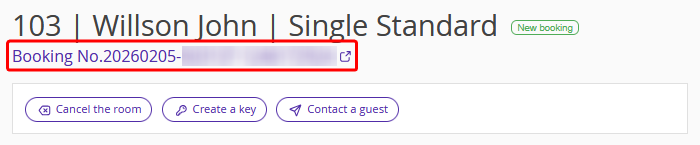
The group booking edit page will be opened. Here, you can make the required changes and add a room. For more details on how to add a room, see the article “How to add a room to a group booking in Exely PMS”.
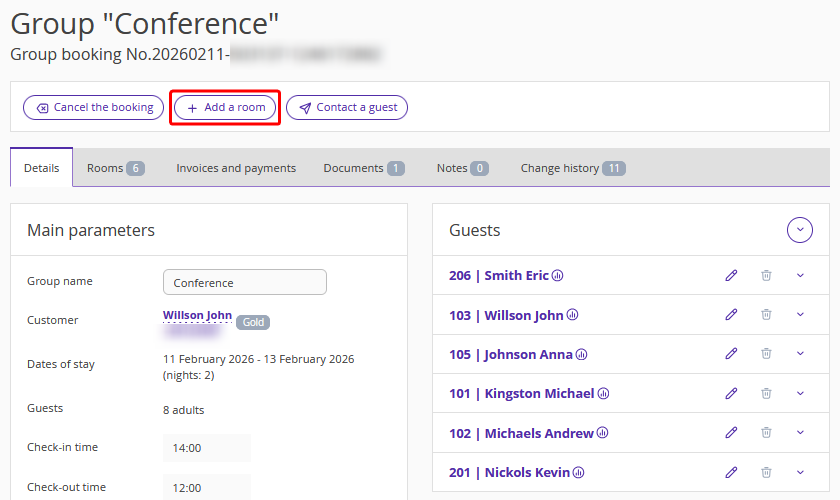
Pay attention. If you add a room to a single booking, it will become a group booking.
