1. In the Exely extranet, go to "Property management" > "Front Desk" and click any room within the group booking.
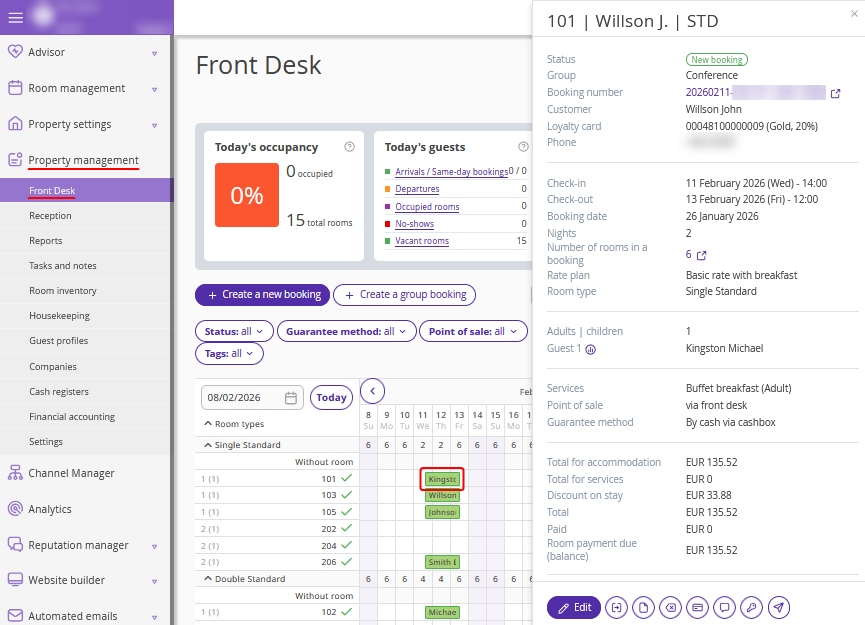
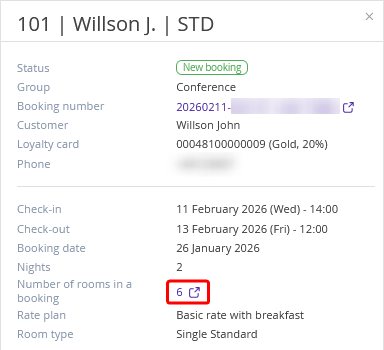
2. In the opened brief booking details window, click the value in the "Number of rooms in a booking" line.
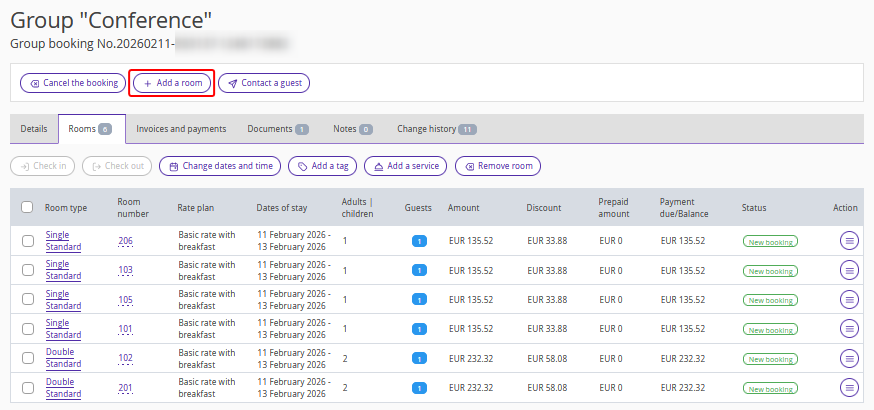
3. The group booking details page will be opened on the "Rooms" tab. Click "Add a room".
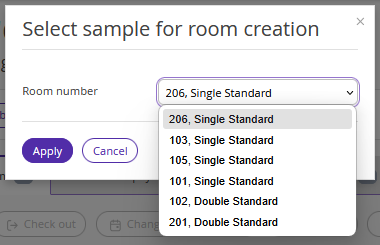
4. Select a template to create a room — the parameters of the selected template will be duplicated for the new room. You can select a room as a template even if there is no availability in that room type. Click "Apply".
Pay attention. You can select only a room type that is already present in the group booking. However, you can change the room type to a new one later.
5. On the created room details page, make all the necessary changes: edit the guest details, check the main booking parameters, and review the calculations.
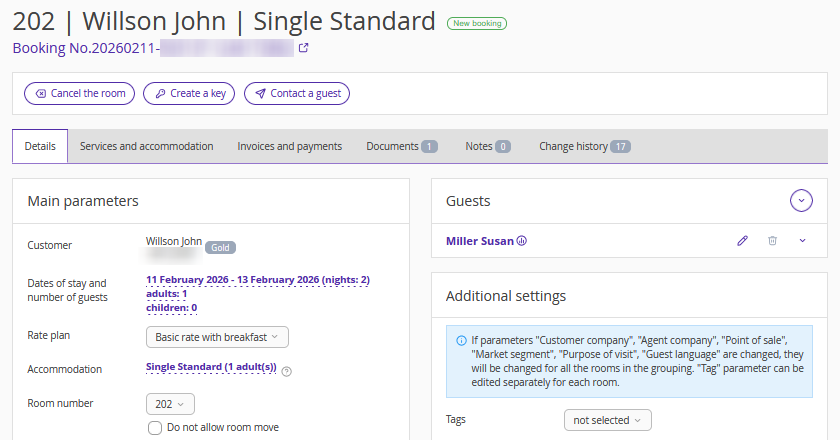
6. Click the “Save” button at the top of the page to save the changes.
