Rate Match is a tool that allows you to keep open rates on the property website in line with the OTA's open rates. When Rate Match is connected and configured, a special rate plan is created in which prices are changed automatically depending on the prices in the selected OTA.
How to enable and set Rate Match
To have Rate Match enabled and set up for your property, contact your Customer Support manager or Exely Customer Support team.
How Rate Match works
To set up Rate Match, a base rate plan is selected, and a special derived rate plan is automatically created from it.
Pay attention. It is possible to select multiple rate plans with the meal types similar to those in your rate plans in OTA. All created derived rate plans will be updated in accordance with similar offers in OTA.
The base rate plan will no longer be available in the booking engine — the “Official site” option will be disabled for the rate plan in the “General settings” tab > the “Points of sale” setting.
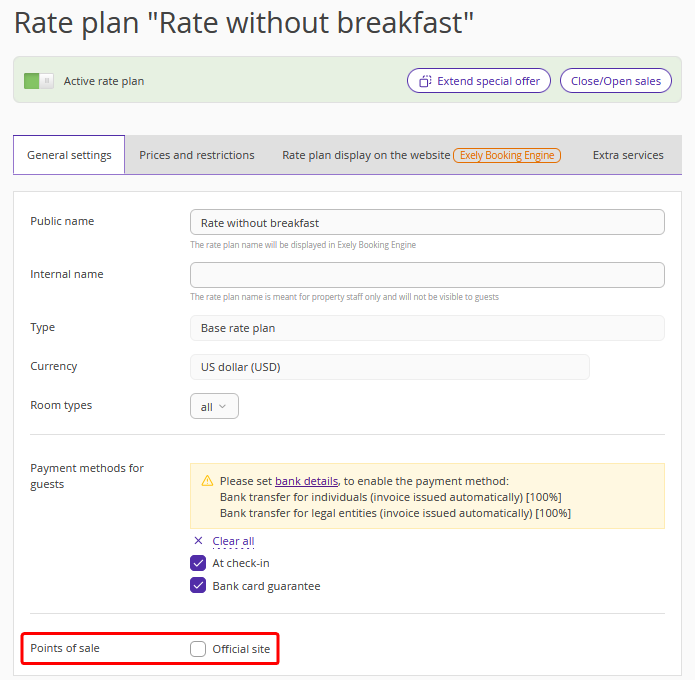
Instead, the newly created derived Rate Match rate plan will be sold. Rate Match will change the prices in this derived rate plan.
The Rate Match rate plan will have the following features:
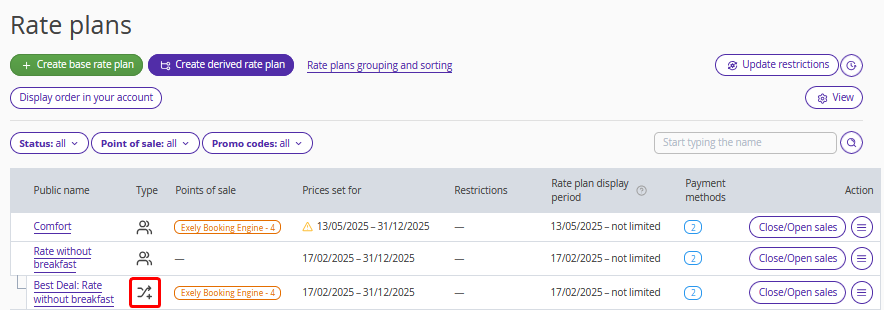
1. The name of the Rate Match rate plan will be formed according to the following template: “Best Deal: %name of the parent rate plan%”. In the “Rate plans” section, the rate plan is marked with a special icon.
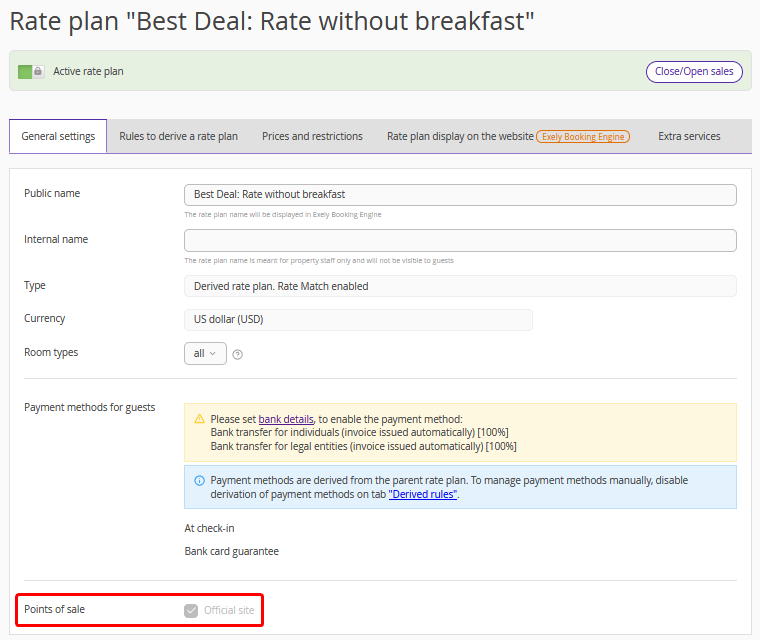
2. In the “General settings” tab,
in the “Points of sale” setting, the “Official site” check-box will be ticked;
in the “Points of sale” setting, the “Channel manager” will be unticked;
the “Points of sale” setting will be unavailable for editing.
3. In the “Rules to derive a rate plan” tab, the “Main rule” section will be hidden, including the “Accommodation types” setting.
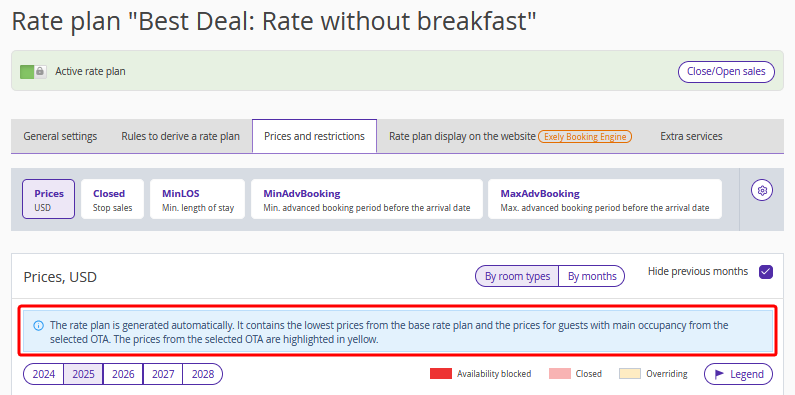
4. In the “Prices and restrictions” tab, there will be a hint explaining that the prices are automatically overridden in terms of the described functionality.
5. The rate plan content that cannot be derived will be copied at the time of creating the Rate Match rate plan.
6. The Rate Match rate plan cannot be deleted, disabled or converted to base rate plan, Rate Match should be first disabled for it. For this, contact your Customer Support manager or Exely Customer Support team.
All other rate plan settings will operate in the standard way unless otherwise specified above.
Pay attention. If you copy the Rate Match rate plan, the created copy will work as a regular rate plan, not as Rate Match one.
Logic and features of Rate Match work
Prices for comparison are collected:
automatically every day:
at 01:00 property local time for 90 days ahead.
at 11:00, 16:00 and 19:00 property local time for 14 days ahead.
manually by clicking the “Update data” link in the “Rate Match” > “Price history” section.
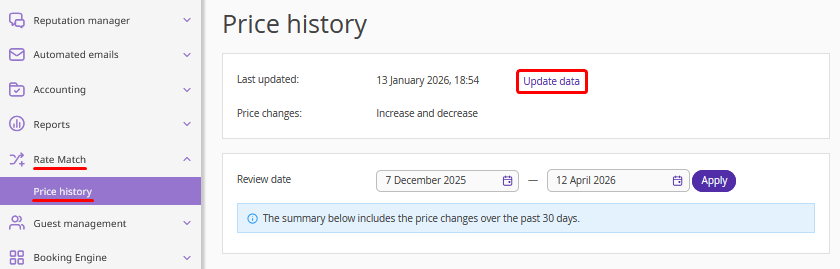
From the collected prices, Rate Match determines the minimum price for a specific meal type in the OTA and booking engine, compares them with each other, and, if necessary, decreases or increases prices depending on the selected price change mode.
Pay attention. The selected price change mode is displayed at the “Price history” page.
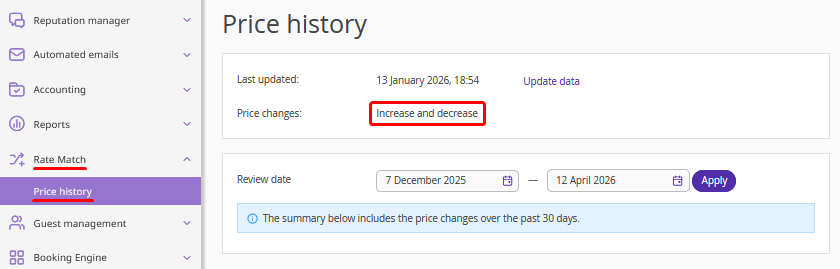
If multiple Rate Match rate plans have been created when setting up Rate Match, Rate Match will compare prices in all these rate plans with prices in OTA depending on the meal type in rate plans:
If a meal type is available in only one Rate Match rate plan, Rate Match will work according to the standard logic depending on the selected price change mode.
In case the same meal type is available in several Rate Match rate plans and is selected for different room types, Rate Match will work according to the standard logic depending on the selected price change mode.
Pay attention. Rate Match will not change prices in the Rate Match rate plan, if
1. The difference between the OTA price and the price in the Rate Match rate plan is greater than the maximum discount set for the property (40%, by default). Maximum discount percentage is set not to decrease the prices too much.
2. One meal type is available in several Rate Match rate plans and is selected for the same room types.
3. The price of double accommodation after the change will be lower than the price of single accommodation.
Logic and features of Rate Match work in price decrease mode
Price decrease mode is enabled by default for all properties using Rate Match.
When operating in price decrease mode
1. Rate Match determines the minimum price for a specific meal type in the OTA and booking engine and compares them to each other.
2. If the OTA price is lower than the prices in the booking engine and the price in the Rate Match rate plan, Rate Match decreases the price of the Rate Match rate plan to match the OTA price.
Logic and features of Rate Match work in price decrease and increase mode
Price decrease and increase mode is disabled by default. To have this mode enabled or disabled for your property, contact your Customer Support manager or Exely Customer Support team.
When operating in price decrease and increase mode
1. Rate Match determines the minimum price for a specific meal type in the OTA and booking engine and compares them to each other.
2. If the OTA price is lower than the prices in the booking engine and the price in the Rate Match rate plan, Rate Match decreases the price of the Rate Match rate plan to match the OTA price.
3. If the OTA price is higher than the price of the Rate Match rate plan, Rate Match increases the price of the Rate Match rate plan to match the OTA price
Pay attention. Price increase in the Rate Match rate plan is limited by the price of the parent rate plan used to create the Rate Match rate plan.
Once set, the new price will be displayed in the booking engine and exported to Google Free Booking Links, if it is the lowest price among the open prices in the booking engine.
Price history
All new prices are shown in a table in the “Rate Match” > “Price history” section.
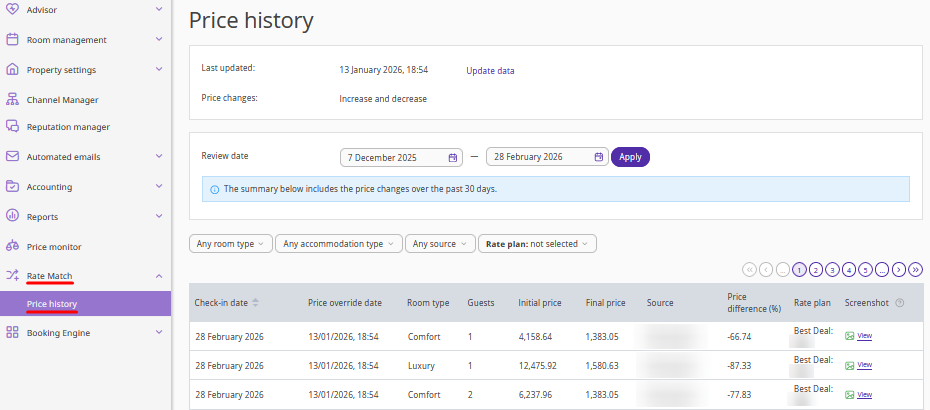
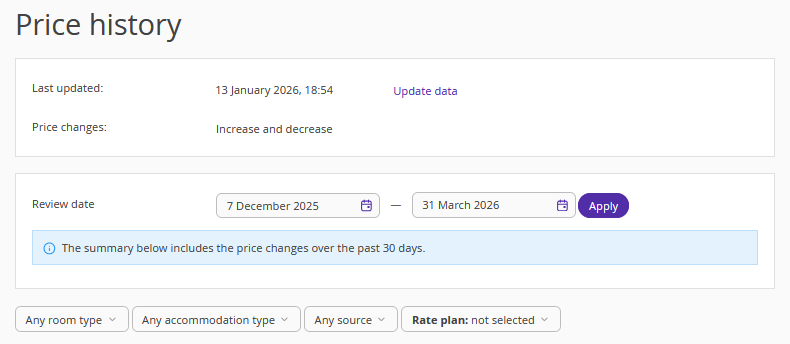
The table includes the price changes for the past 30 days. For a more detailed analysis, use the filters by room type, accommodation type, source, rate plan and review dates (the check-in dates for which prices were changed).
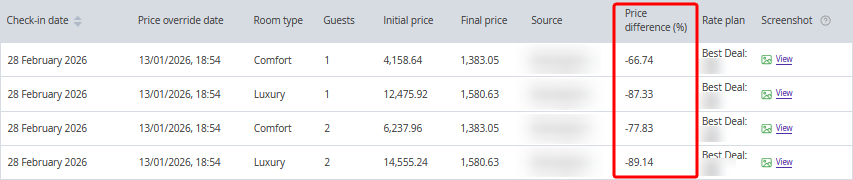
The percentage delta by which the price was changed is displayed in the “Price difference (%) column” for each price change event.
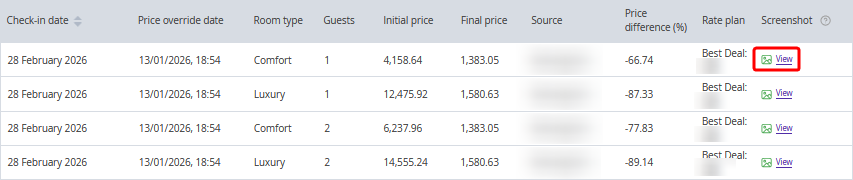
Click the image icon in the “Screenshot” column to see the OTA page where the price was taken from for a price overriding. For more details, see the article “How to view price source in Rate Match”.
How to change prices in the Rate Match rate plan
If you want to change the prices (increase or decrease), it is necessary to manually change them in the Rate Match rate plan. In this case:
1. If Rate Match works in the price decrease mode and
the manually entered price is lower than the OTA price, the price will be saved.
the manually entered price is higher than the OTA price, the next time the prices are updated, Rate Match will detect that the OTA price is lower and automatically change the price in the Rate Match rate plan.
2. If Rate Match works in the price decrease and increase mode, the next time the prices are updated, Rate Match will detect that the manually entered price does not match the OTA price and automatically change the price in the Rate Match rate plan to be in parity with OTA.
A promo code or discount can also be applied to the Rate Match rate plan, if required.
Pat attention Rate Match changes the prices only for single and double accommodation on the main bed. For extra beds and services, the prices set by the property will be used.
