In Exely PMS, you can remove a room from a group booking in several ways.
How to remove a room in Front Desk
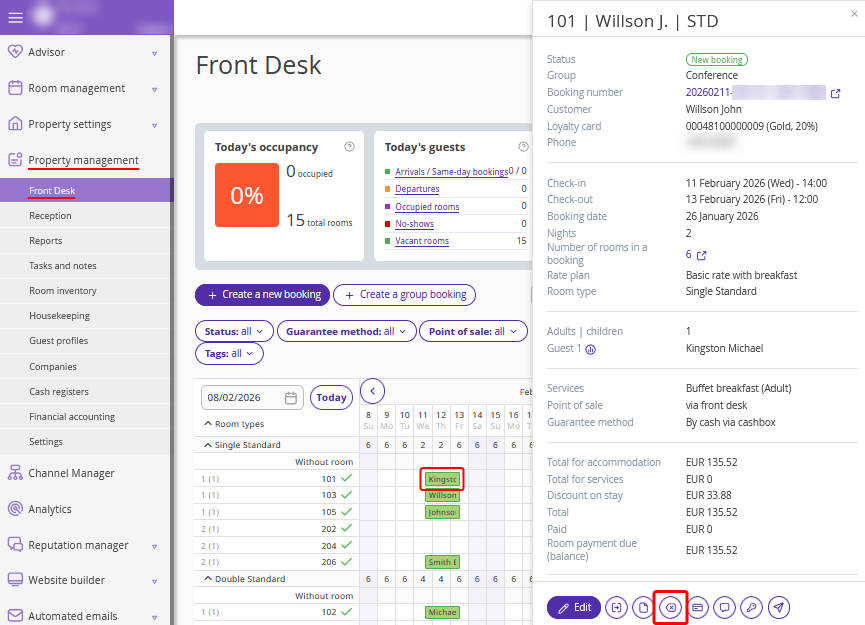
1. In the Exely extranet, go to "Property management" > "Front Desk" and click the room in the group booking that you want to remove. In the opened brief booking details window, click the “Cancellation” icon.
2. Choose what to cancel: only the selected room or the entire booking. Click "Confirm".
How to remove a room at the group booking details page
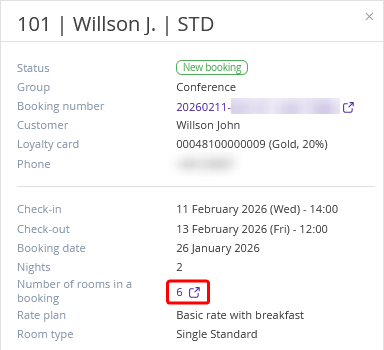
1. In "Property management" > "Front Desk", click any room within the group booking. The brief booking details window will be opened.
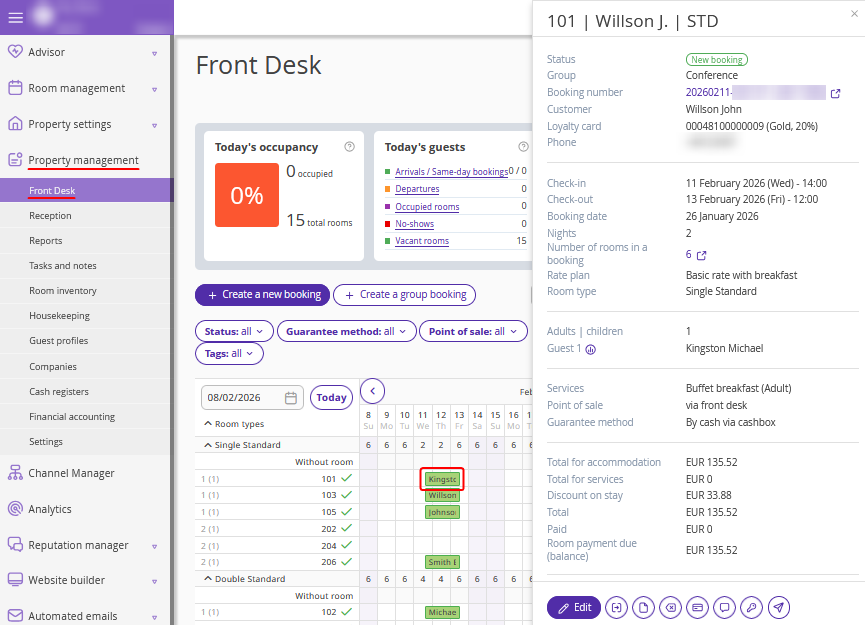
2. Click the value in the "Number of rooms in a booking" line.
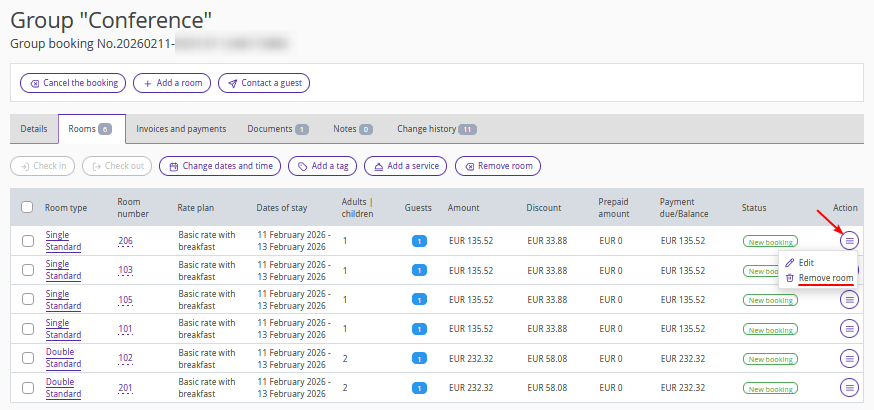
3. The group booking details page will be opened on the "Rooms" tab. Find the room you want to remove in the list. Click "Action" > "Remove room".
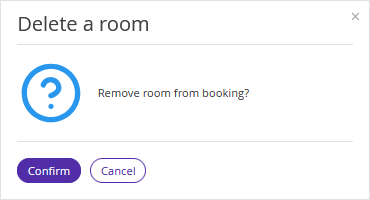
4. In the opened window, confirm the room should be removed.
How to remove multiple rooms from a group booking at once
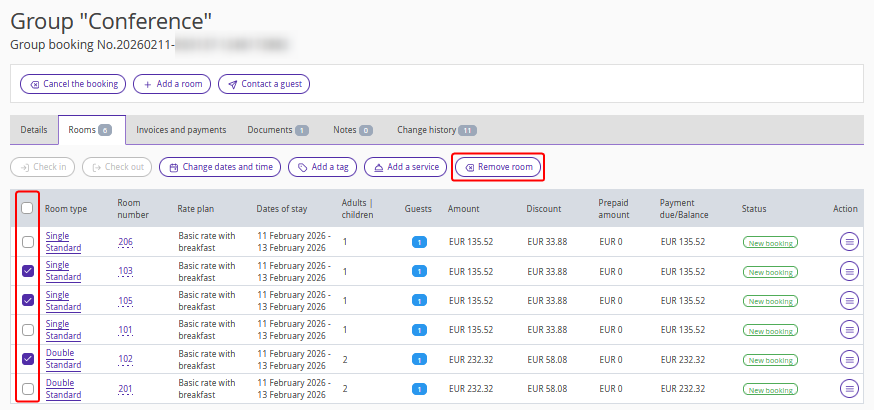
1. If you need to remove several rooms from a group booking at once, open the group booking details page on the "Rooms" tab.
Tick check-boxes for the rooms within the group booking for which you want to remove and click the "Remove room" button above the table.
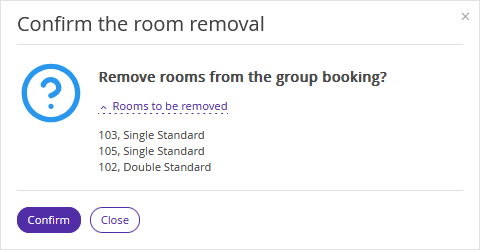
2. In the opened window, confirm the selected rooms should be removed.
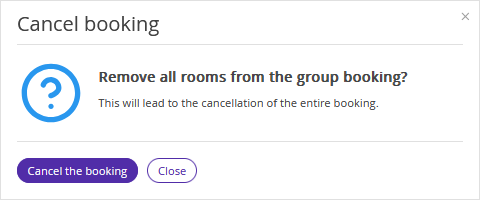
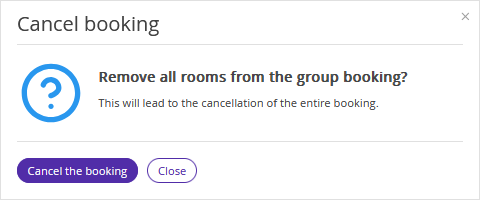
3. If you select all rooms in the group booking and click the "Remove room" button, the "Cancel booking" window will be opened.
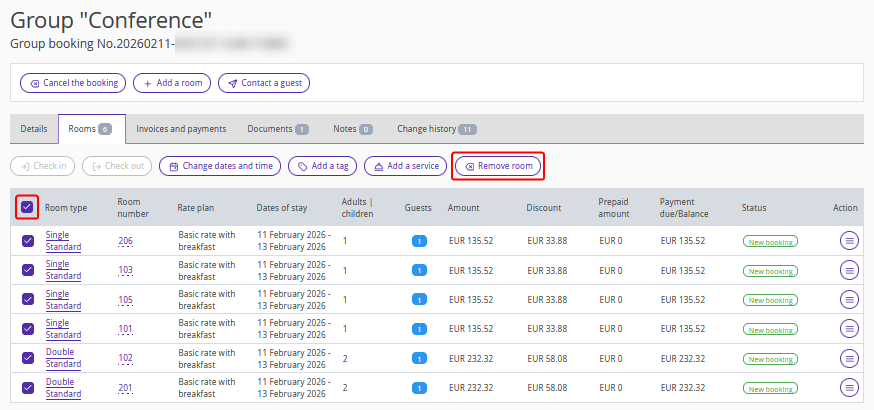
Click “Cancel the booking” to cancel the entire group booking.