The report on bookings contains a list of all the bookings ever reported in the Exely extranet. It can be used to:
find a booking and see detailed information on it;
quickly generate a list of bookings based on specific parameters.
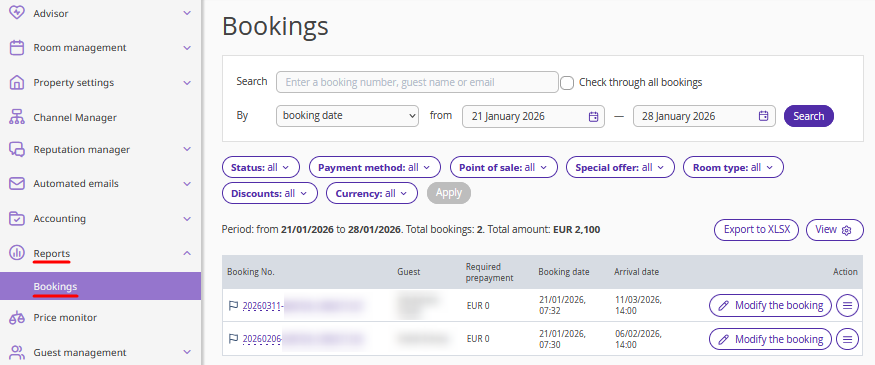
To find the report in your Exely extranet, go to "Reports” > "Bookings”.
How to generate the report
1. Use filters:
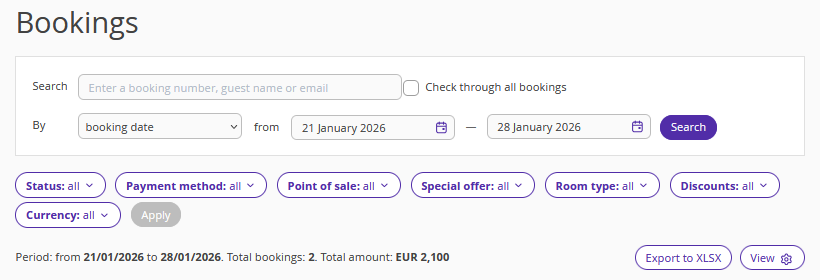
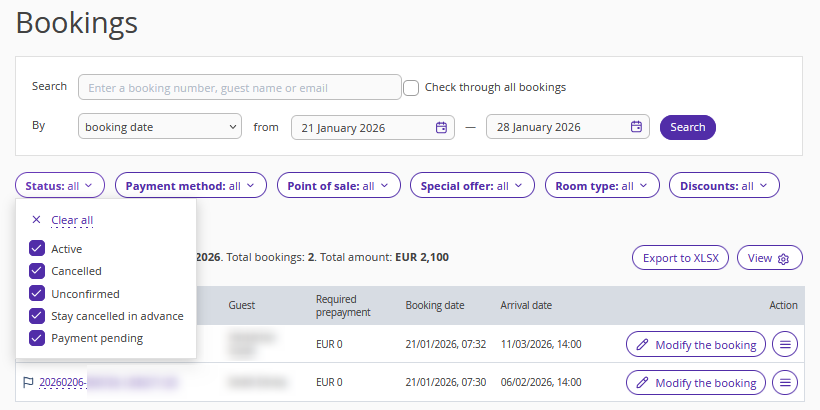
"Status” — active, cancelled, unconfirmed, stay cancelled in advance, payment pending;
"Payment method" — a selection of several or all the payment methods;
"Point of sale" — a selection of points of sale for bookings (where a booking was made: on the property website or in an online distribution channel, etc.);
"Channel" — a selection of an online distribution channel;
"Special offer" — a selection of the rate plan for which the report must be generated;
"Room type" — a selection of a room type specified in a booking;
"Discounts" — a selection of a discount that was applied to a booking;
"Currency" — a selection of booking currency.
Click on a filter to see all the options. Tick check-boxes for the options for which you want to generate a report. For convenience, use the ‘Select All’ and ‘Deselect All’ commands.
2. After selecting the required parameters, click the "Apply" button to generate the report.
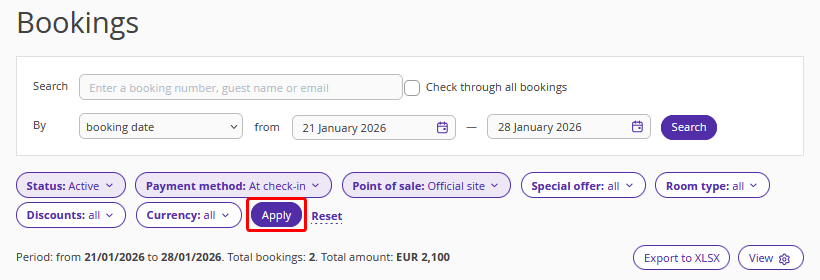
Pay attention. The "Apply" button is inactive by default. It becomes active after any filter value is changed.
3. Use the additional "By" filter to search for bookings by arrival, departure, booking, or modification date, stay period or cancellation. The “modification date” option also includes the booking creation date.

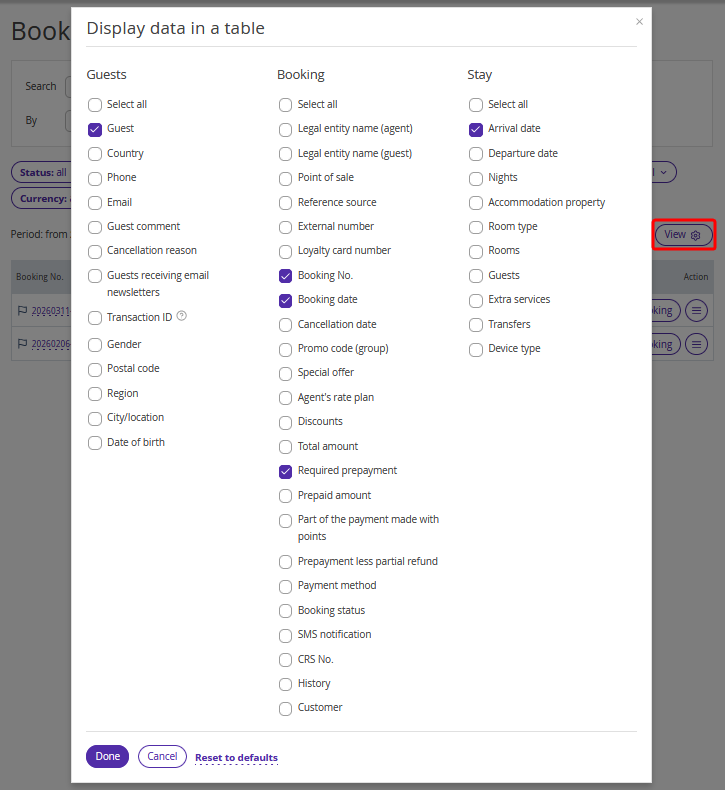
4. Use the "View" button to configure how data is displayed in the report table. The button is located on the right below the filters. In the opened window, select the data you want to have displayed in the report. Click the "Done" button.
5. You can convert the generated report into an Excel file to print it or send it via email. To do this, click the "Export to XLSX" button on the right below the filters.
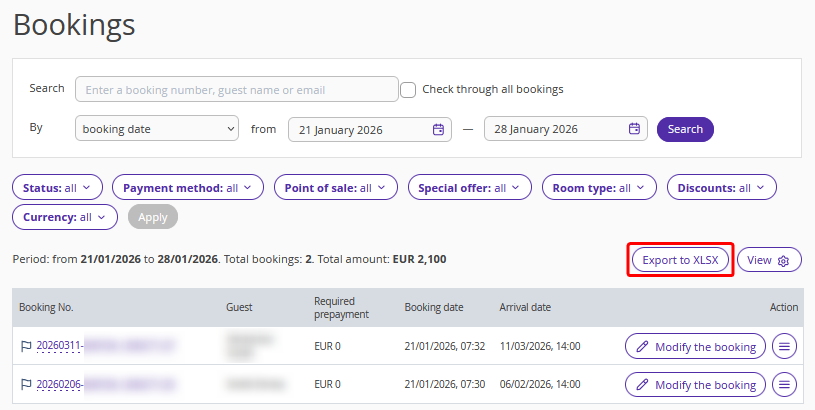
Pay attention. The configured filter parameters are saved and are automatically displayed when you open the “Reports” > “Bookings” section again.
How to find a booking
In the "Search" field, enter the booking number, guest name, or email address. Tick the "Check through all bookings" check-box so that Exely searches for the booking regardless of the dates set below. Click the "Search" button.
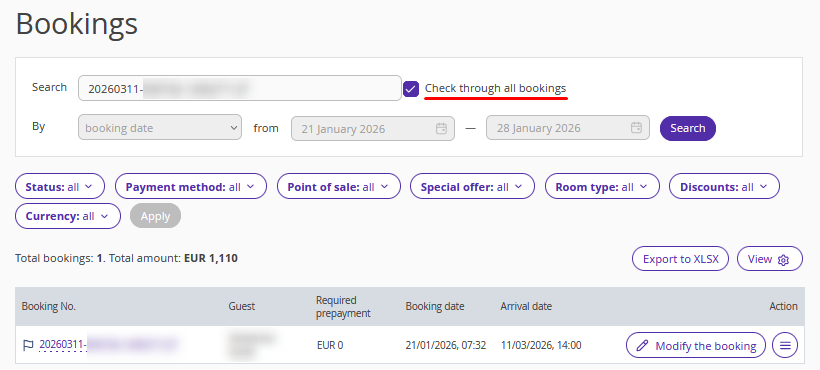
Pay attention. If you tick the “Check through all bookings" check-box, but the search returns no results, make sure that all options are selected in the "Status", "Payment method", and other filters.
What actions are available for bookings
The available actions for a booking depend on the point of sale: booking engine, a channel, etc.
Booking from the official site
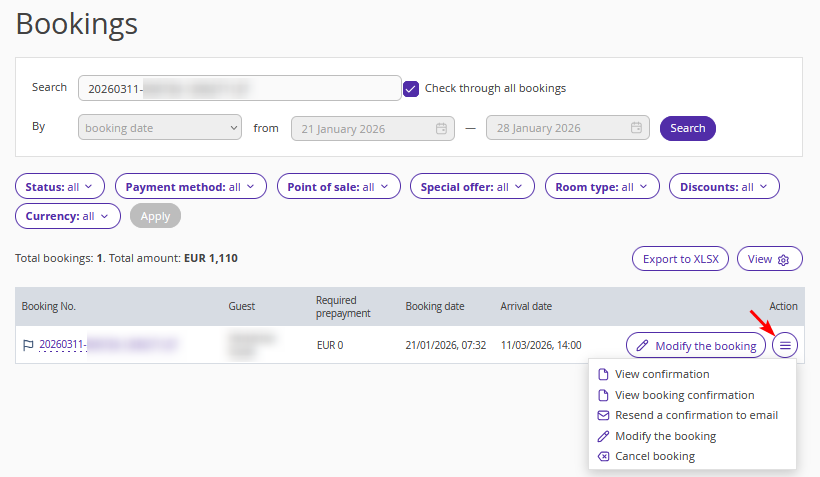
Click the "Action" button to open the list of available actions for a booking.
View confirmation — view the booking confirmation that is sent to the property immediately after a booking is made on the website.
View booking confirmation — view the booking confirmation that is sent to the guest after the booking is made.
Both types of confirmations can be printed directly from the extranet or exported to Word.
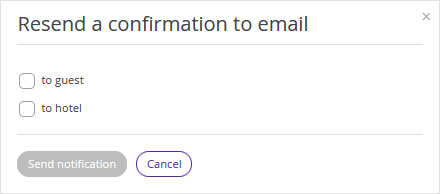
Resend a confirmation to email — resend the booking confirmation to the guest or the property.
Modify the booking — you can edit the email address, contact phone number, and the guest's full name. You can also add a comment to the booking. For bookings with the "Bank transfer for legal entities" and "Bank transfer for individuals" payment methods, you can download the automatically generated payment documents while editing the booking.
Cancel booking — allows you to cancel the booking. The guest will receive a cancellation notification.
Booking from a sales channel
If a booking is from the Booking.com channel, you can report changes to the channel from the Exely extranet. For detailed instructions on this, refer to the article "How to reconcile bookings from Booking.com in Exely extranet".
For bookings from other channels, the report on bookings only allows viewing the booking confirmation for the property and resending it to the property's email.
If you work with Exely PMS, it is possible to modify bookings. When you select this action, the booking details page is opened, where you can make changes. Information about the changes is saved only in the Exely extranet and is not sent to sales channels.
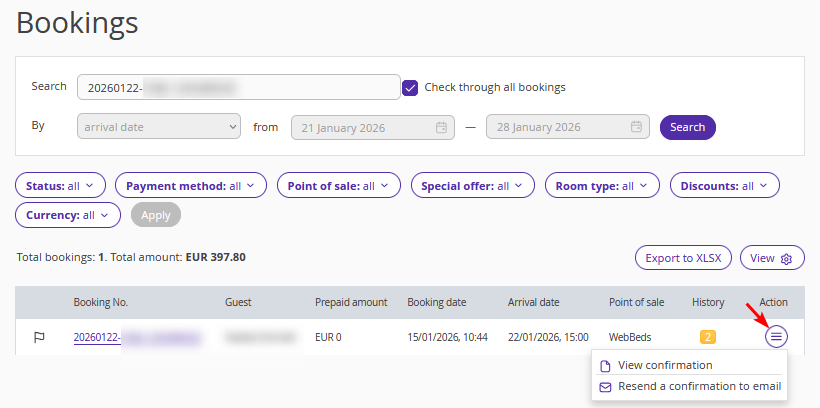
Pay attention. A booking from a channel can only be canceled in the channel extranet
How to view the history of changes for a booking
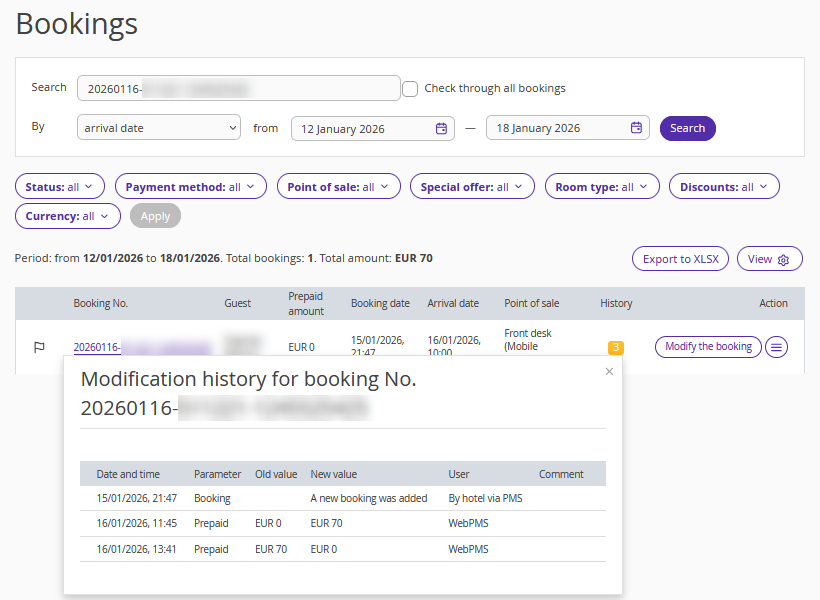
For any booking where changes were made, such as cancellation, adding additional data, or restoration, you can view the change history. To do this, click the yellow icon with a number in the "History" column. The number depends on the number of changes. A window will pop up showing the actions performed on the booking.