In Exely PMS, the ESTI report has been updated for properties in Bulgaria. The report contains a list of guests for a selected period and is intended for submitting data to ESTI (Unified Tourist Information System).
The report can now be exported in CSV format. The exported file complies with the requirements of ESTI and is ready to be uploaded and submitted to ESTI without additional processing. The report includes data only for checked-in bookings.
To work with the report, you need to first set integration with ESTI.
How to set integration with ESTI
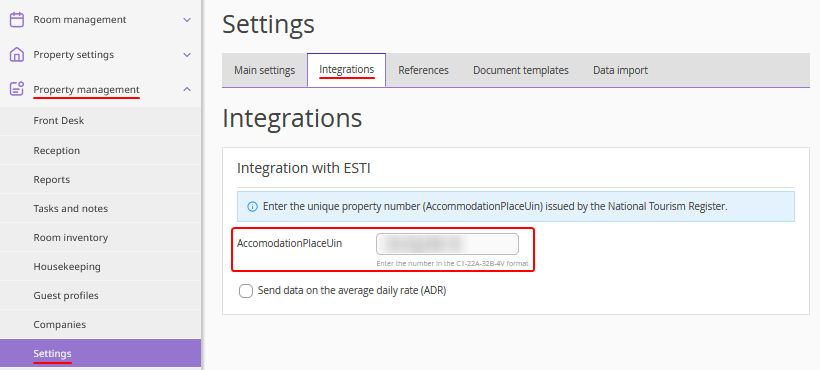
In the Exely extranet, go to "Property management" > "Settings" > the "Integrations" tab.
In the "Integration with ESTI" section, in the "AccomodationPlaceUin" field, enter the unique property number issued by the National Tourism Register of Bulgaria.
If you need to send data on the average daily rate, tick the "Send data on the average daily rate (ADR)" checkbox.
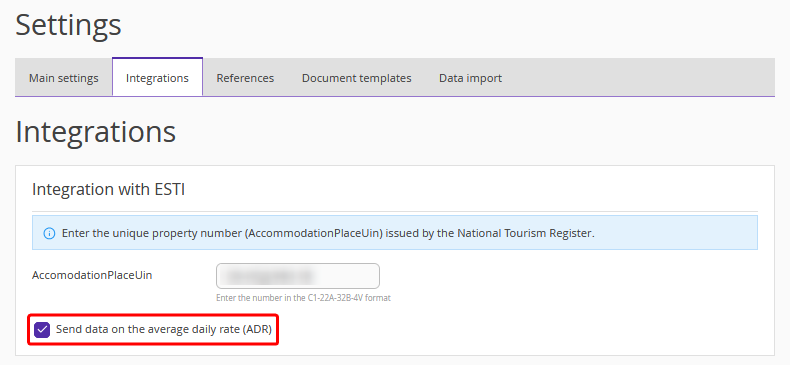
If this check-box is not ticked, a value of 0.00 EUR will be sent to ESTI for each guest for the ADR parameter. By default, this setting is disabled.
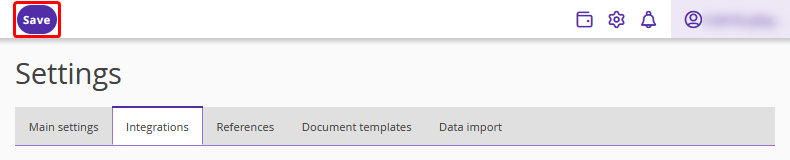
After making all changes, click the "Save" button on the top of the page.
How to generate the report
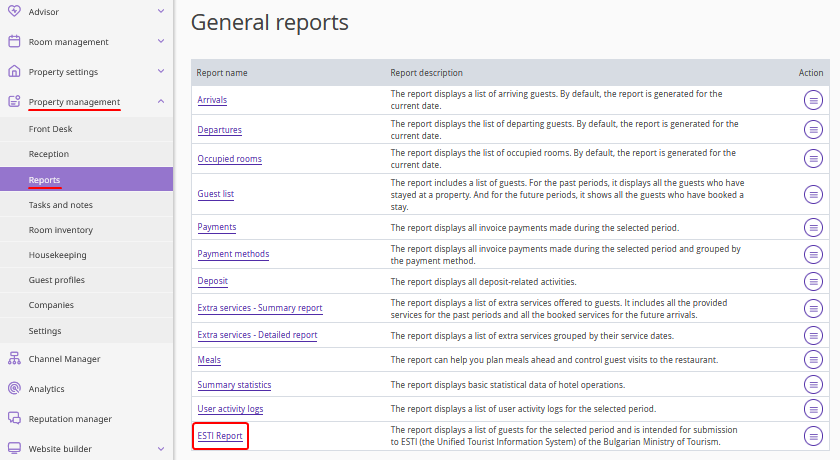
1. Go to "Property management" > "Reports" and click “ESTI Report”.
2. Select the period for which you want to generate the report.
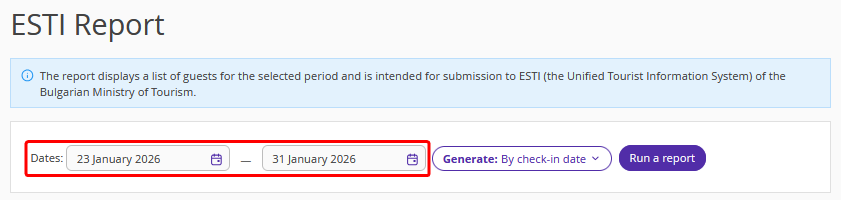
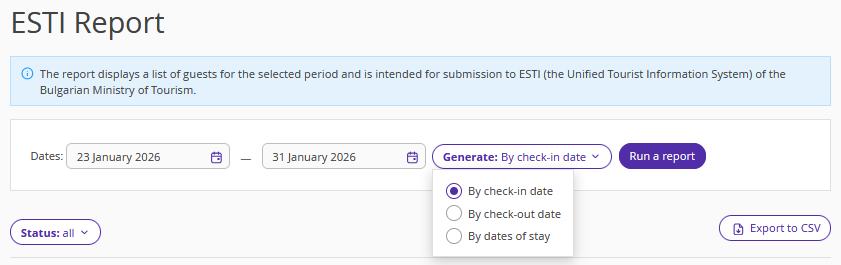
3. In the "Generate by" filter, choose the report generation method: by check-in date, by check-out date, or by dates of stay. Click "Run a report".
What data the report contains
Each line in the report contains data on the guest's arrival. The report includes data only for checked-in bookings.
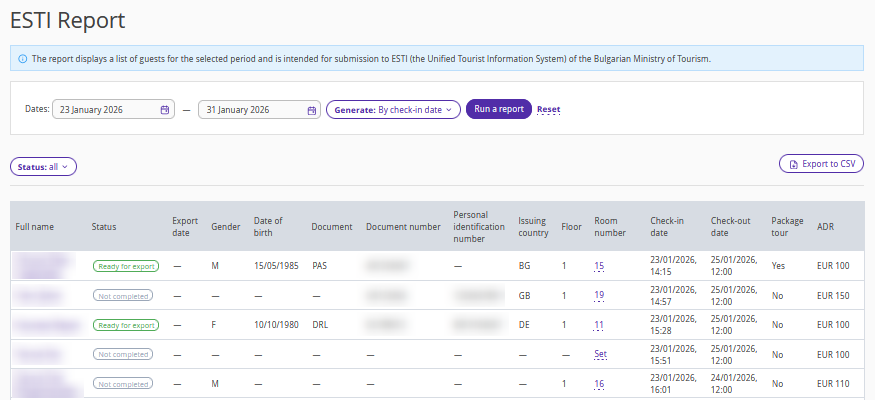
The report contains the following columns:
Full name.
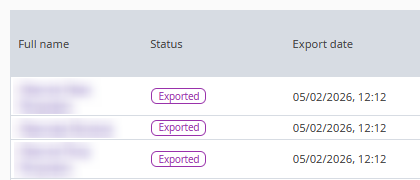
Status — the status of guest data export (“Not filled in”, “Ready for export”, “Exported”).
Export date — filled in if the guest data has already been exported to a CSV file.
Gender.
Date of birth.
Section with identity document details:
document — document type;
document number;
identification number;
issuing country.
Floor.
Room number.
Check-in date.
Check-out date.
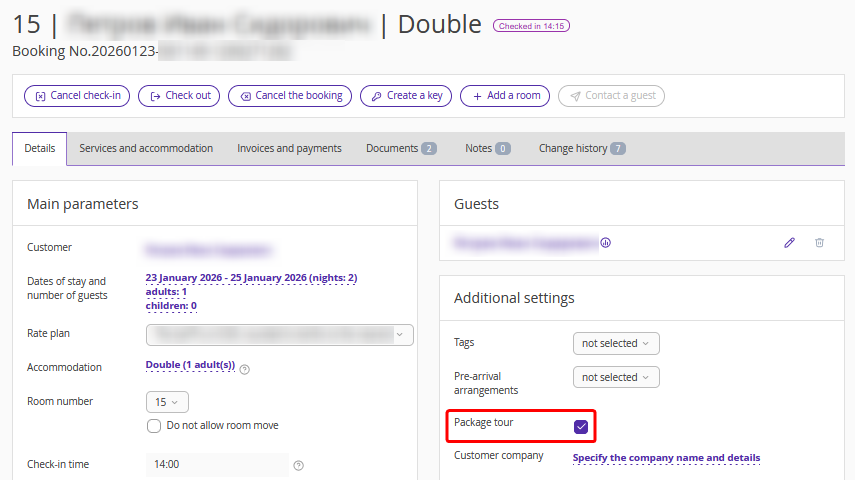
Package tour — you can change the value of this parameter on the booking details page. For this, open a booking on the "Details" tab and tick the "Package tour" checkbox in the "Additional settings" section, if guests are staying on a package tour.
ADR — average daily rate. If the "Send data on the average daily rate (ADR)" option is disabled in the ESTI integration settings, the ADR column in the exported CSV file will show 0.00 for each guest.
Export statuses
Each entry in the report has an export status that reflects the readiness of the data for submission to ESTI.
"Not filled in"
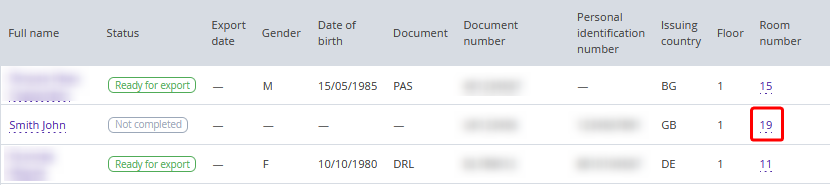
If mandatory information required for submission to ESTI is missing for an entry, the line will have the "Not filled in" status.
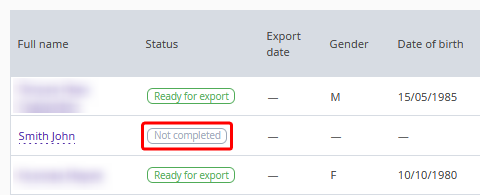
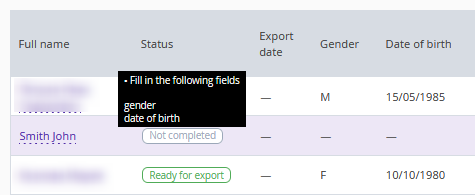
When you hover over the status, a tooltip displays a list of fields that need to be filled in.
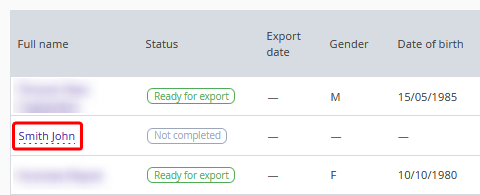
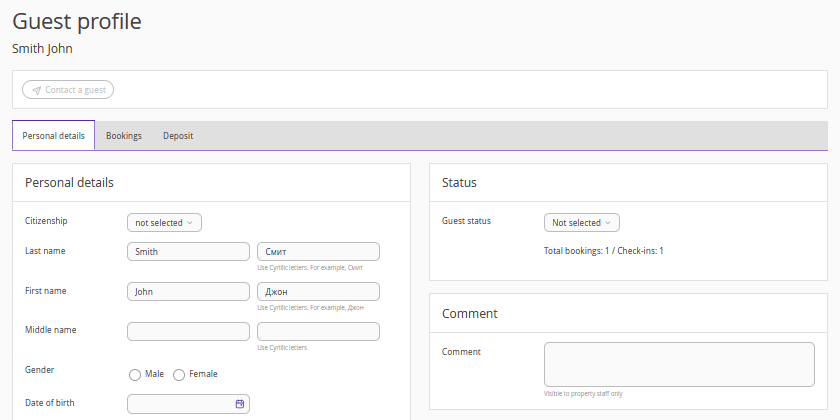
To enter the data, click the guest name in the report. The guest profile will be opened, where you can fill in the required fields.
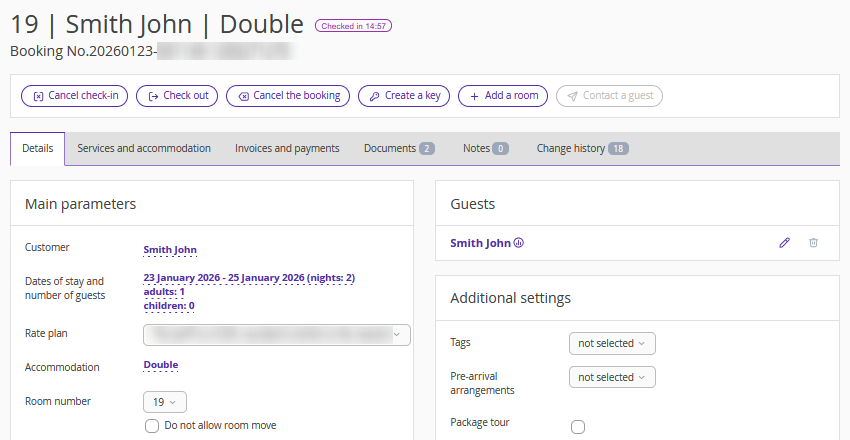
You can also click the room number to go to the booking details page and edit or add guest’s arrival details.
"Ready for export"
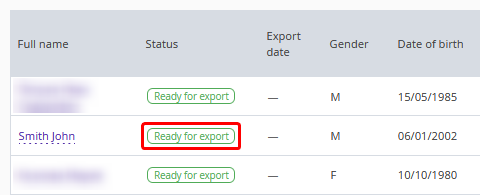
After all mandatory fields are filled in, the entry status changes to "Ready for export".
Click the "Export to CSV" button to download the report file.
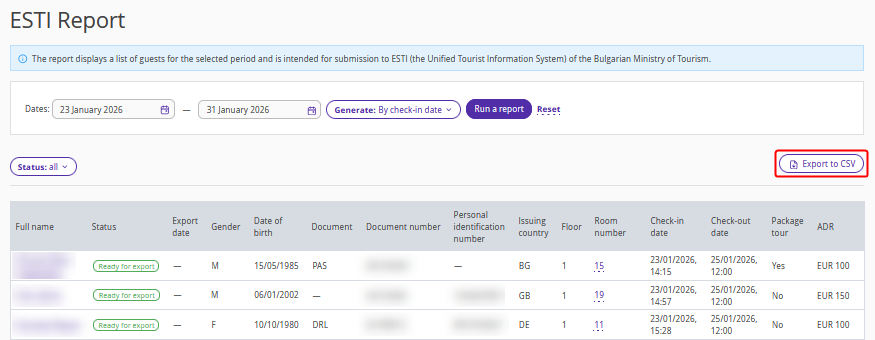
Pay attention. The "Export to CSV" button is available only if the table contains entries with the "Ready for export" status.
"Exported"
After export, the status of the corresponding entries changes to "Exported", and the export date is shown in the "Export date" column.
Pay attention. After downloading the report, you need to upload it to ESTI in your account at the ESTI website.
