In the Exely system, you can create special offers with different discount rates for different room types or days of the week. For example, on weekdays, the discount will be 5%, while on the weekend, it will be 10%; or the discount rate for the Standard rooms 15%, while it is 10% for Deluxe rooms.
To create a rate plan with different discounts for different room types or days of the week:
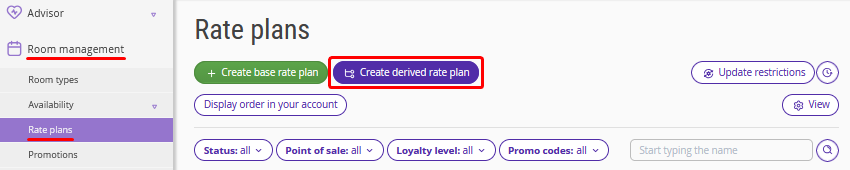
1. In the Exely extranet, Go to “Room management” > “Rate plans”. Click “Create derived rate plan”.
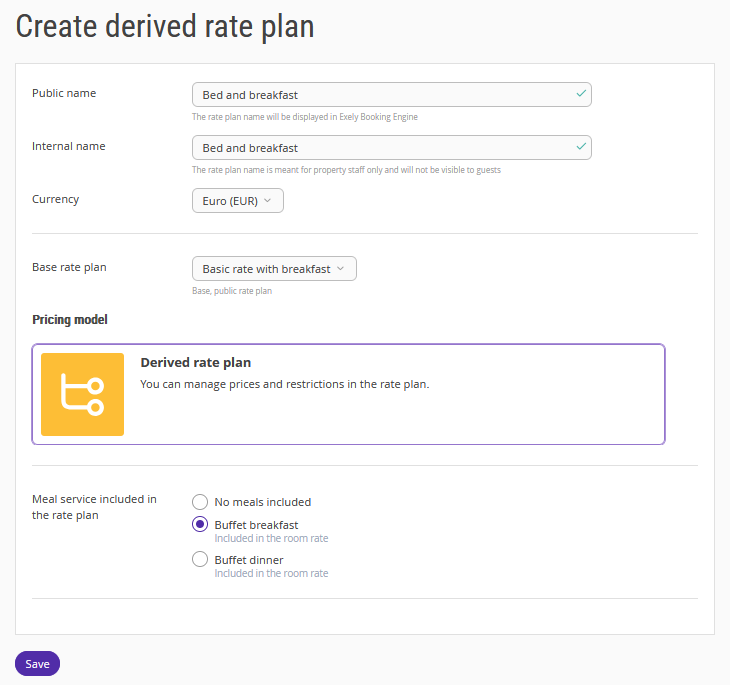
2. In the opened window, select the “Custom rate plan” option.

3. Make the following settings:
Enter the rate plan name that would be clear to the guests.
Select the base rate plan, based on which the price will be calculated.
Specify if meals are included in the rate plan.
Click “Save”.
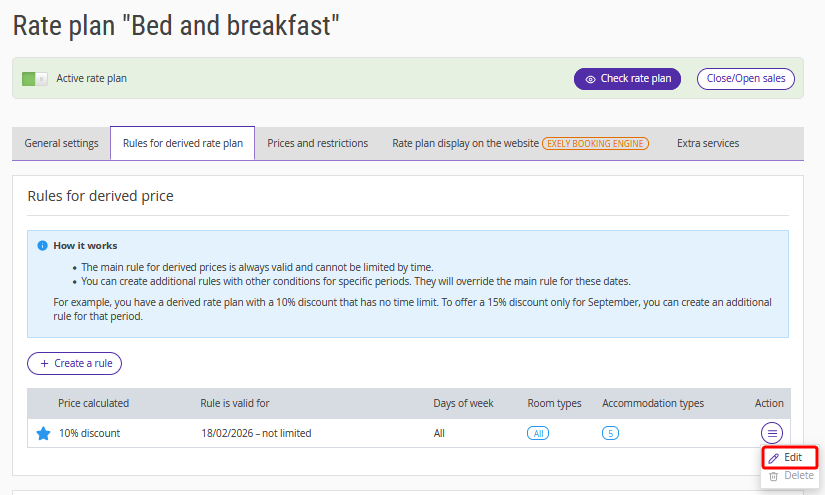
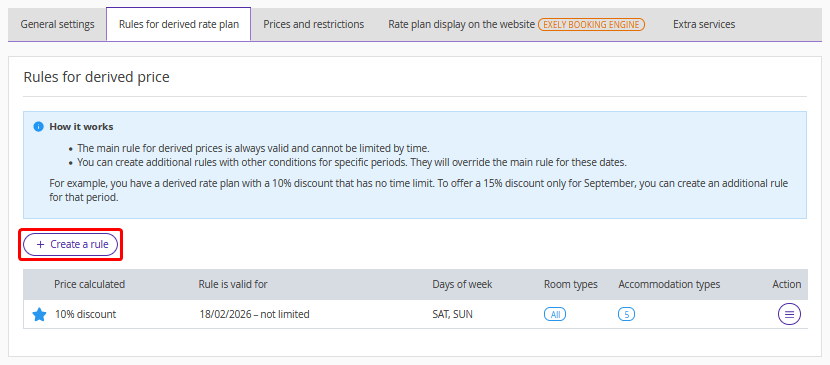
4. On the “Rules for derived rate plan” tab, in the “Rules for derived price” section, edit the automatically created rule if the validity period of this rule is not limited and it should apply indefinitely.
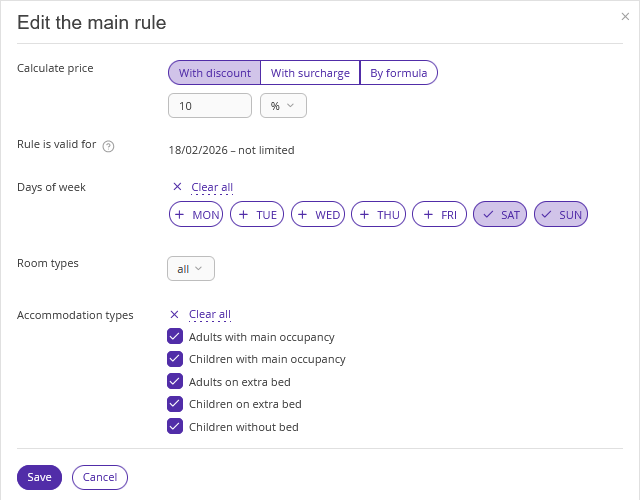
5. In the main rule settings, specify the discount or surcharge amount and the period the rule will be valid for. Select the days of the week when the rule will apply on the specified dates, and the room types and accommodation types to which the discount or surcharge will be applied. Save the settings.
6. In the “Rules for derived price” section, click “Create a rule”.
Make different settings for the discount or surcharge, days of the week, room types, or accommodation types. Save the settings.
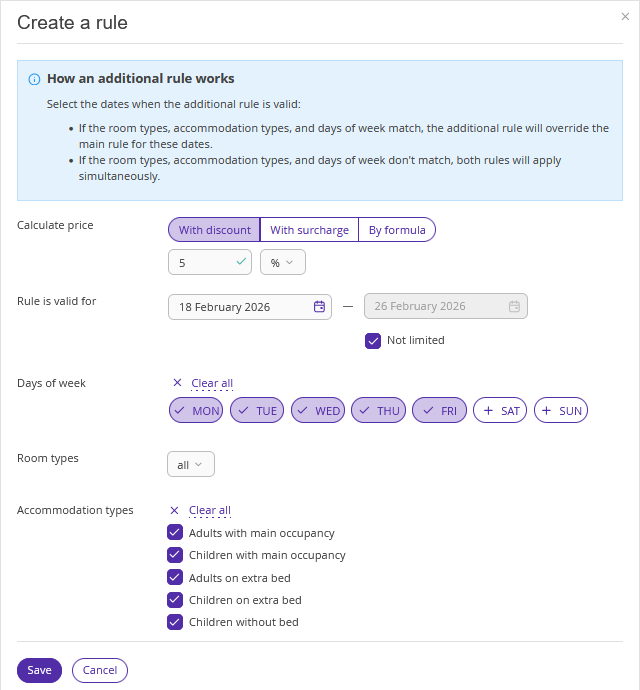
For details on derived rules settings, see the article “How to set rules for derived price in derived rate plan”.
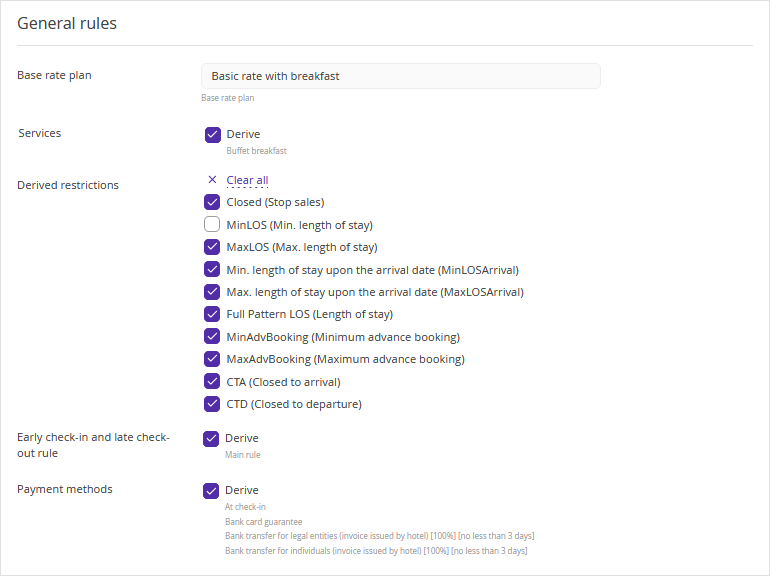
7. In the "General rules" section, select the restrictions and other parameters that should be derived from the parent rate plan. After making changes, click the "Save" button at the top or bottom of the page.
8. If, when creating the rate plan, you selected a meal service included in the rate plan, this service will be displayed on the "Services" tab for the rate plan.
If the service was not added to the rate plan during creation, you can add it later on the "Services" tab.
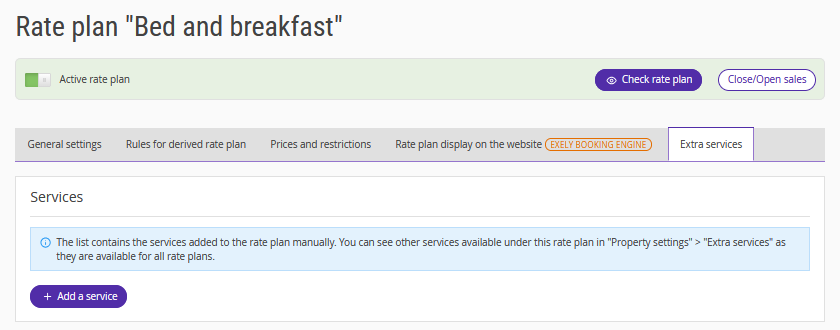
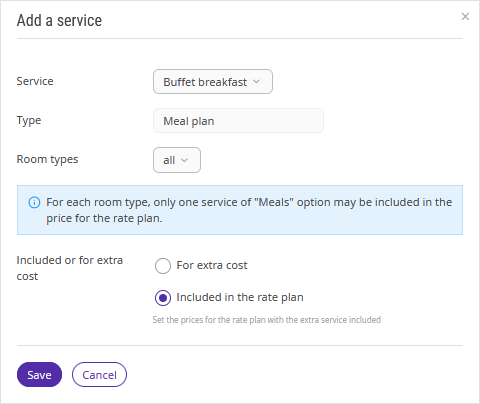
Click "Add a service" and select the required service in the opened window — for example, "Buffet breakfast. In the list of room types, tick check-boxes for the room types for which this service should be offered. In the "Included or for extra cost" field, select "Included in the rate plan" and click "Save".
For details on how to set the rate plan display on the website and open sales for it, refer to the article “How to create a derived rate plan”.
