If the check-in or check-out dates or time have changed in a group booking, you can update these parameters for all rooms in the group booking or only for selected ones.
1. In the Exely extranet, go to "Property management" > "Front Desk" and click any room within the group booking.
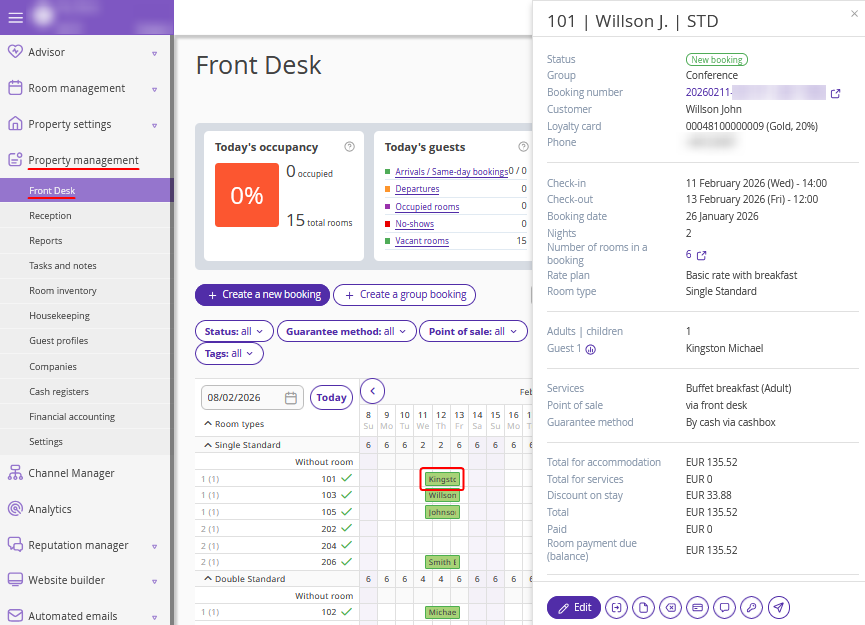
2. In the opened brief booking details window, click the value in the "Number of rooms in a booking" line.
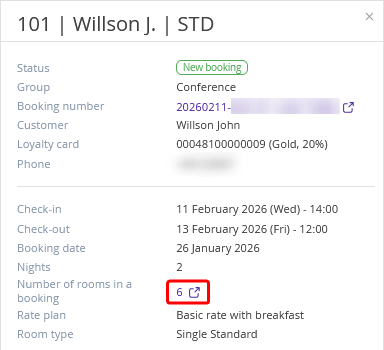
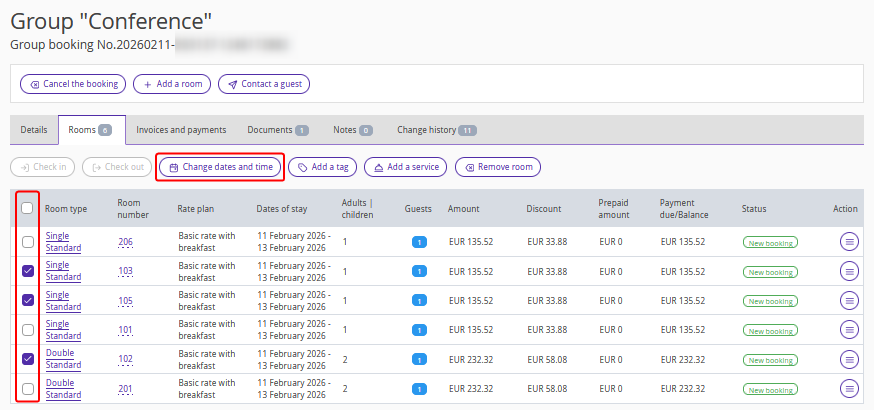
3. The group booking details page will be opened on the "Rooms" tab. Tick check-boxes for the rooms within the group booking for which you want to change the check-in or check-out dates or time, and click "Change dates and time".
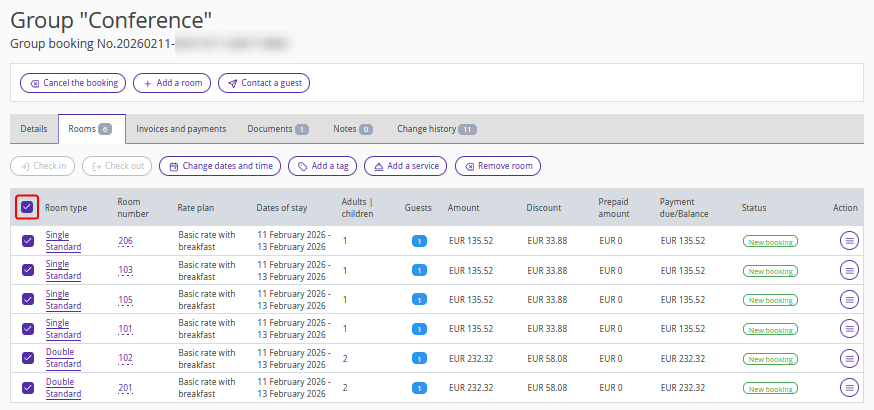
To select all rooms at once, tick the check-box in the table header.
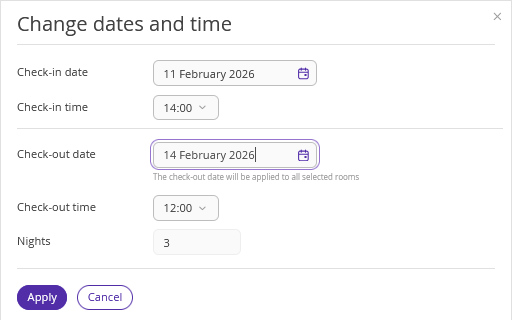
4. In the opened window, change the check-in or check-out dates and/or time. The new parameters will be applied to all selected stays.
5. If an early check-in time or a late check-out time is selected, an additional option "Surcharge" will appear.
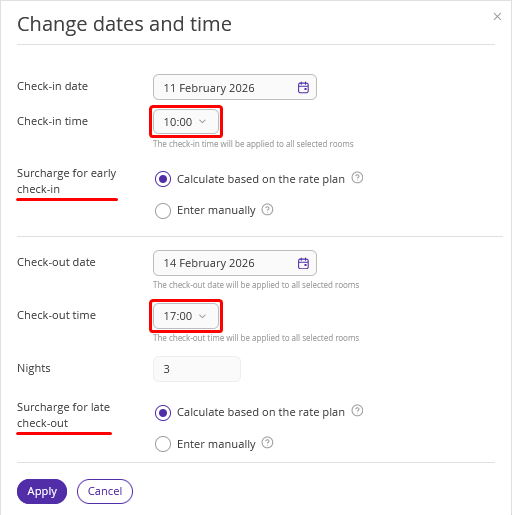
Select "Calculate based on the rate plan", and the surcharge amount will be calculated automatically according to the rate plan settings and the early check-in / late check-out rules.
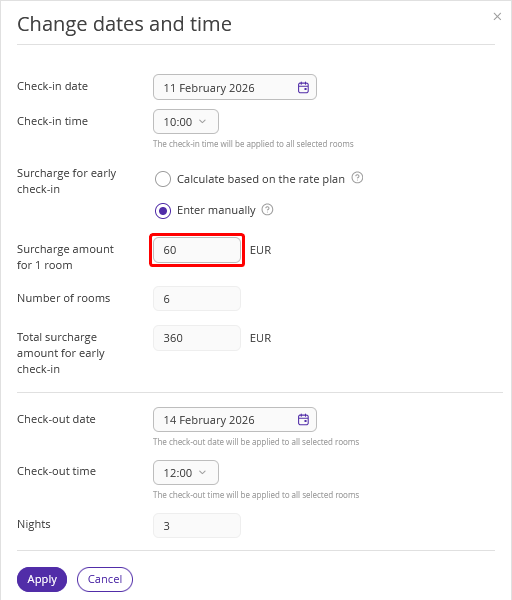
Or select "Enter manually" and enter the surcharge amount per room manually.
6. After making the required changes, click "Apply".
You can also change the check-in or check-out dates or time for each individual room in a group booking using the standard method. For details, see the articles “How to change dates of stay in a booking if you work in Exely PMS ” and “How to change a check-in and check-out time for a booking in Exely PMS”.
