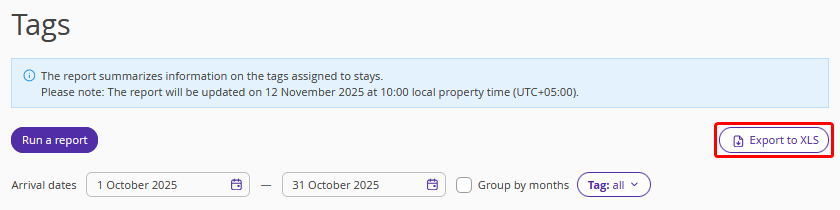
The “Tags” report allows you to conveniently filter bookings by tags.
Pay attention. The data in the report is updated once a day at 10:00 local property time.
This report is useful in the following cases:
If you need to analyse discounts that administrators provide to certain guests regardless of the rate plan, add a tag to such bookings. Later, you can easily filter them.
If you need to obtain data on bookings related to specific events such as a business forum, university games, or a festival, add the corresponding tag.
To analyse bookings with children, mark them with a special tag. This will help you evaluate revenue from such bookings.
You can find detailed instructions on creating and adding tags in the article “Tags for bookings in Exely PMS”.
How to generate the report:
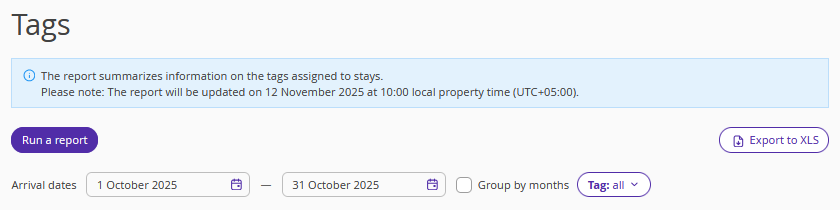
1. Select the date range in the “Arrival dates” fields.
2. In the “Tag” filter, select the required tag. You can generate a report for all tags. To group data by month, tick “Group by months”.
3. Click “Run a filter”.
The generated table contains the following metrics:
Name — the tag name.
Status — whether the tag is active or inactive.
Arrivals — the number of planned arrivals for the selected date for bookings with the chosen tag. Only active bookings are counted.
Departures — the number of planned departures for the selected date for bookings with the chosen tag. Only active bookings are counted.
Rooms booked — the number of rooms booked with the tag. Both active and cancelled bookings are counted.
Nights booked — the number of nights booked under bookings with the tag. Both active and cancelled bookings are counted.
Nights stayed — the number of nights for checked-in bookings with the tag. Only active bookings are counted.
Average length of stay (ALS) — the average length of stay for bookings with the tag (number of days guests stayed divided by the number of bookings). Only active bookings are counted.
Rooms cancelled — the number of cancelled rooms from bookings with the tag.
Nights cancelled — the number of cancelled nights from bookings with the tag.
Nights cancelled % — the percentage of cancelled nights out of the total number of nights booked from bookings with the tag.
Average cancellation window — the average time between the planned check-in date and the cancellation date for bookings with the tag. Only cancelled bookings are counted.
No-show rooms — the number of no-shows for bookings with the tag.
No-show nights — the number of nights from bookings with a no-show status.
No-show nights % — the percentage of no-show nights out of the total number of booked nights.
ADR — the average room price per night for bookings with the tag for the selected period. Both active and cancelled bookings are counted.
Revenue — the “Total per room” amount (from the booking details card) for active bookings with the tag.
Cost of cancellations — the “Total per room” amount for cancelled bookings with the tag.
Cost of no-shows — the “Total per room” amount for cancelled bookings with a no-show status. Only cancelled bookings are included in this column.
To download the report, click “Export to XLS”.