Types of non-cash payment methods in the Exely extranet
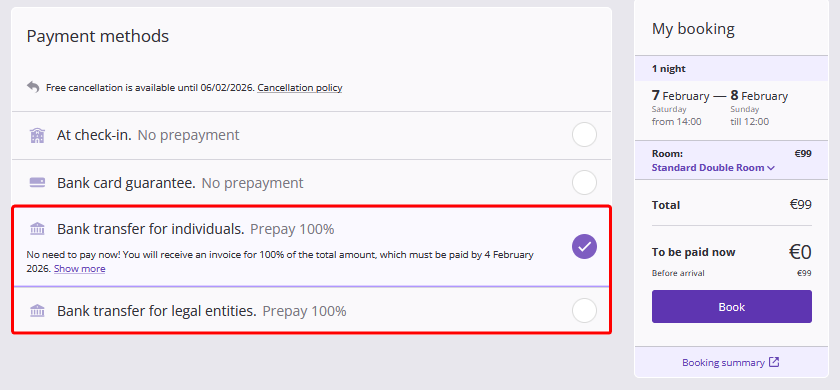
In the booking engine, guests can use non-cash payment for bookings:
bank transfer for individuals;
bank transfer for legal entities.
For each payment method, two invoice generation options are available depending on the property country:
Invoices are issued by the property — when a guest selects the payment method "Bank transfer for individuals" or "Bank transfer for legal entities", the property generates a payment receipt/invoice and sends it to the guest by email.
Invoices are issued automatically — when a guest selects the payment method "Bank transfer for individuals" or "Bank transfer for legal entities", a prepayment invoice is generated and sent to the guest automatically by Exely Suite.
After receiving the receipt/invoice, the guest makes a prepayment at the bank using the property’s bank details.
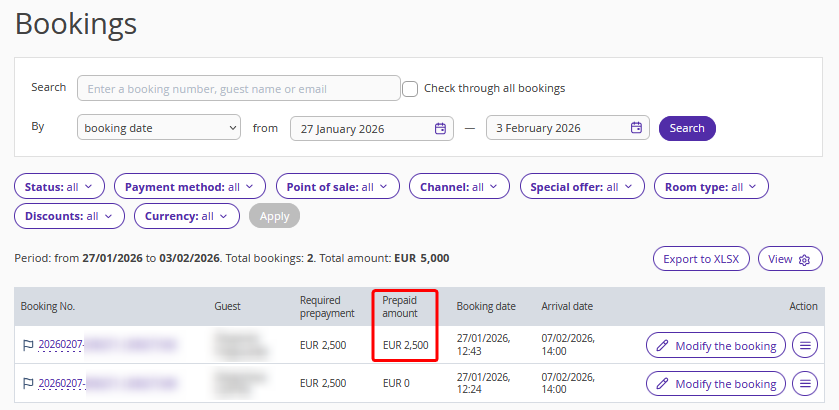
Pay attention. The prepayment is transferred directly from the guest to the property’s bank account, so Exely Suite will not be able to see the incoming payment or display the prepayment in the Exely extranet.
Non-cash payment methods with invoices generation by property
Non-cash payment methods with invoice generation by the property are available for all properties by default.
Non-cash payment methods with automatic invoice generation
For properties in Georgia, Kazakhstan, Kyrgyzstan, Ukraine, and Uzbekistan, it is possible to use non-cash payment methods with automatic invoice generation.
If your accommodation is located in one of these countries and you want invoices to be issued automatically when non-cash payment methods are selected, send a request to your Customer Support manager or Exely Customer Support team.
Pay attention. Before you start using non-cash payment methods with automatic invoice generation, you must fill in the bank details in the "Property settings" > "Bank details" section.
How to start working with non-cash payment methods
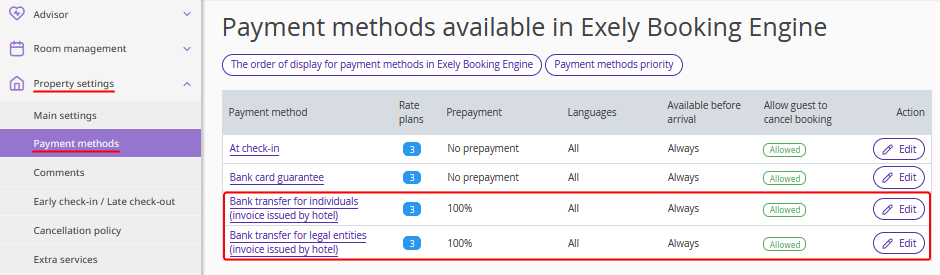
1. Go to "Property settings" > "Payment methods" and click the required payment method name or the "Edit" button for it.
2. In the "Main settings" section, set when the payment method will be available to guests:
"no less than" — the minimum period between the booking date and the arrival date;
"no more than" — the maximum period between the booking date and the arrival date;
"days" — the number of calendar days from the booking date to the arrival date;
"hours" — the number of hours from the booking date to the check-in time on the arrival date.

3. Specify the booking payment due date for guests from the booking date or up to the check-in date. By default, it is set to 3 days after the booking date.

The booking payment due date will be shown to the guest in the payment method description in the booking engine. You can add a comment to the description in the "Comments" section.

Pay attention. If the calculated payment due date is later than the arrival date, the booking arrival date will be shown.
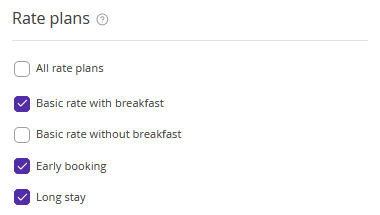
4. In the "Rate plans" section, select the rate plans that will be available for the non-cash payment method.
5. In the section “Payment method "..." is available in Exely Booking Engine when a guest selects a language”, all languages are selected by default. If you need to restrict the display of a payment method depending on the language version of the booking engine the guest selects, tick check-boxes only for the languages for which this payment method will be available. For more details, refer to the article “How to restrict display of payment methods depending on selected language in the booking engine”.
Additional settings for non-cash payment methods
1. By default, the prepayment amount is 100%. If you need to change the prepayment percentage for non-cash payment methods, send a request to your Customer Support manager or Exely Customer Support team.
2. The property can add additional information to payment methods in the section "Property settings" > "Comments" > "Comments for payment methods in booking confirmation" or "Payment methods in Exely Booking Engine". For more details, see the article “Comments in booking confirmation, for payment methods and for Exely Loyalty Program motivator”.
3. When using the payment method "Bank transfer for legal entities" with automatic invoice generation, you can upload the seal of the organization and a signature in the payment method settings.
To do this, go to "Property settings" > "Payment methods", click "Edit" for the payment method "Bank transfer for legal entities (invoice issued automatically)". In the "Account attributes for legal entity" section, upload the seal and signature and click "Save" on the top panel.
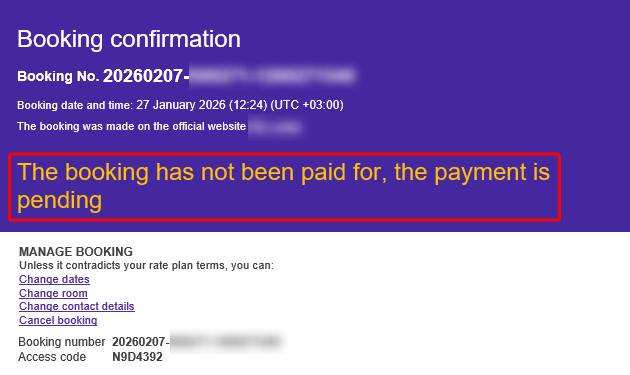
4. The "Payment is pending" status for bookings with non-cash payment can additionally draw the guest’s attention to the need to pay for the booking and allow the property to record receipt of payment in the account. This works only for non-cash payment methods with automatic invoice generation, filled-in bank details, and the set up tax system in the Exely extranet. To enable this feature, send a request to your Customer Support manager or Exely Customer Support team.
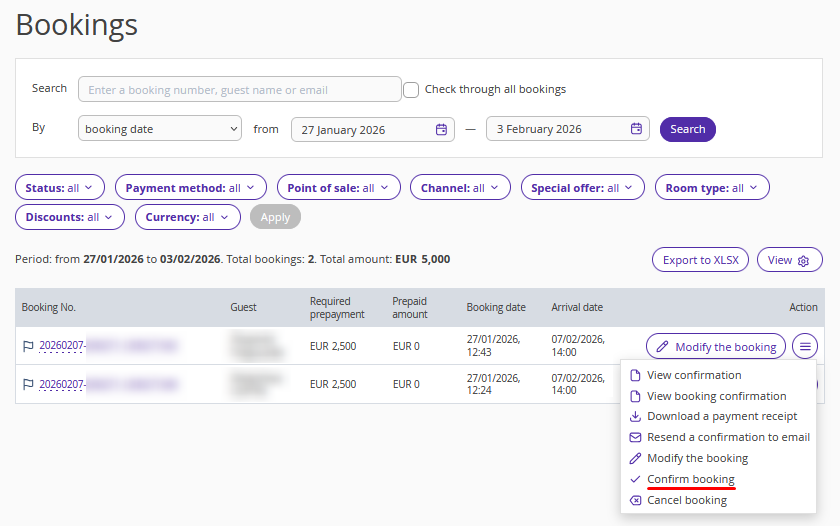
In the "Reports" > “Bookings” section, in the "Action" column, an option to confirm receipt of payment will appear:
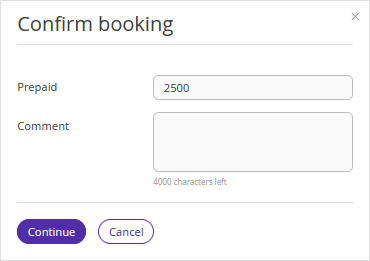
Enter the amount of the prepayment made and click "Continue".
Now the prepayment amount will be visible in the Exely extranet, and the guest will receive a new confirmation email showing the prepayment amount.