Properties using Fidelio or Opera Property Management Systems and the external TNG loyalty program can set up the integration with TNG in the Exely extranet. This allows regular guests to enjoy discounts using their loyalty cards or redeem points when making bookings on the website. The integration setup with TNG from the Exely side is free of charge.
How to set different points redemption rates for loyalty levels
How to pass information on partial payment of a booking with points to Opera or Fidelio PMS
What is the TNG loyalty program
The TNG loyalty program is a system of rewarding guests for staying at a property and services they used.
TNG supports two types of loyalty programs simultaneously: discount-based and points-based.
In the discount-based program, guests receive a loyalty card with a discount percentage that increases, when reaching a specific amount spent
In the points-based program, guests accumulate points that can be used to partially pay for their stay or services.
To set up TNG integration with Exely, select one type of the loyalty program: discount-based or points-based.
How to set the TNG loyalty program
To set up TNG integration with Exely, select one type of the loyalty program: discount-based or points-based.
Step 1. How to select the type of the TNG loyalty program
1. In the Exely extranet, go to “Guest management” > “Loyalty program”. There, click "Connect" for the TNG loyalty program.
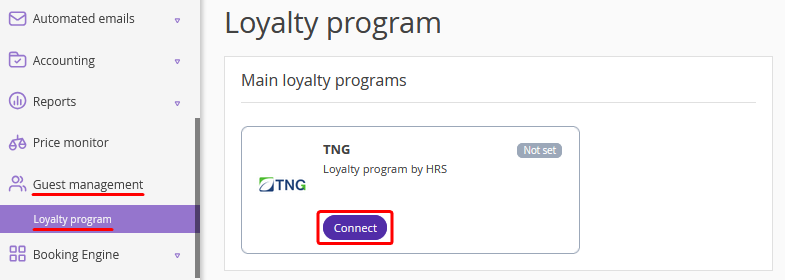
A loyalty program connection wizard will be opened.
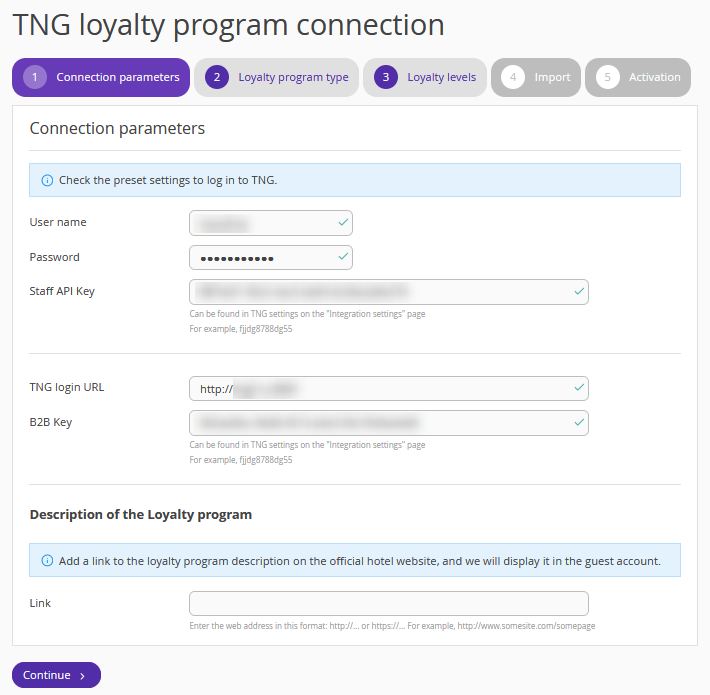
2. On the “Connection parameters” tab, fill in the following parameters provided by the TNG customer support:
Login
Password
Staff API Key
TNG login URL
B2B Key.
In the “Description of the Loyalty program” section, enter the link to the loyalty program description at your property’s website. Guests will see this link in their guest account at your website.
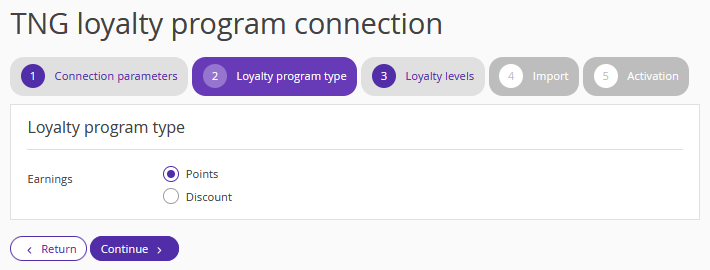
3. On the “Loyalty program type” tab, select the type of earnings that will be passed from TNG to Exely.
Step 2. How to set TNG "Discount" loyalty program
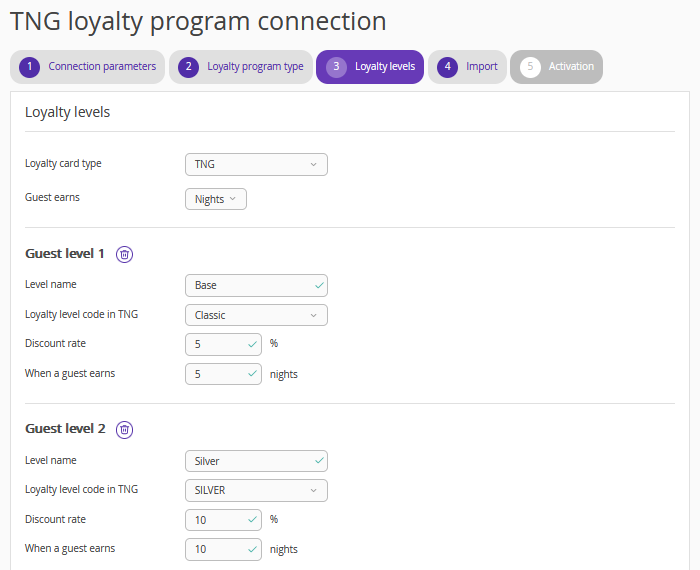
1. If you have selected “Discount” as the earnings type on the “Loyalty program type” tab, select the following on the “Loyalty levels” tab:
loyalty card type,
what guests will earn: nights or money.
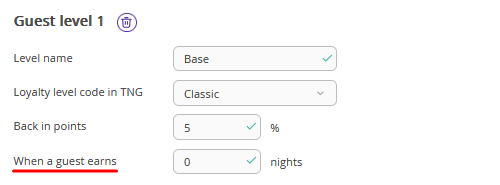
2. Create loyalty levels. When setting up a loyalty level, specify the name of the level in Exely and match it with the loyalty level uploaded from TNG.
3. Specify the discount percentage that guests will receive at a certain loyalty level.
4. Fill in the “When a guest earns” field (earnings threshold), if necessary. It is only displayed in the guest account and is not passed from TNG to Exely.
Pay attention. If you have set up automatic guest sign-up for TNG loyalty program, enter 0 in the “When a guest earns” field to allow your guests to immediately access the loyalty program benefits upon receiving the card.
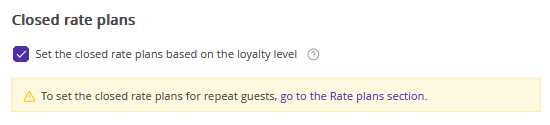
5. If required, set closed rate plans for loyalty program participants. Tick the “Set the closed rate plans based on the loyalty level” check-box.
Pay attention. When this option is enabled, you can specify in the “General settings” tab for a rate plan the loyalty levels for which the rate plan should be available. Loyalty program members of the selected levels will be able to book stays at this rate plan on your website.
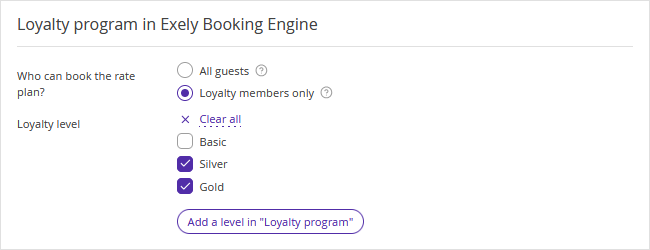
To learn more on how to set closed rate plans, refer to the article “Closed rate plans for members of Exely Loyalty Program”.
Step 2. How to set TNG "Points" loyalty program
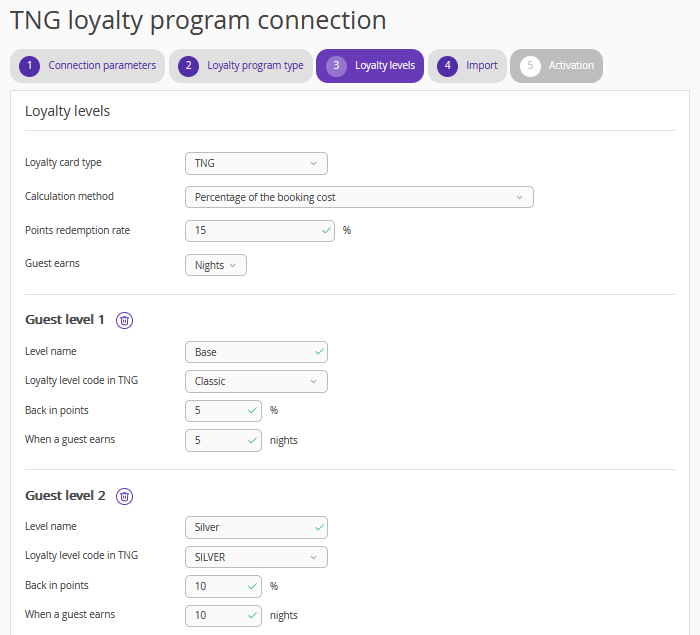
1. If you have selected “Points” as the earnings type on the “Loyalty program type” tab, select the loyalty card type. TNG supports multiple types of loyalty cards, each with its own accumulation conditions.
2. Select the calculation method: percentage of the booking cost or points per night.
3. Specify the points redemption rate: percentage of the booking cost that can be paid with points.
Pay attention. Payment by points is available in Exely Booking Engine for guaranteed and non-guaranteed payment methods. Payment by points does not apply to deferred payment methods (deferred payment by bank card, deferred payment by bank transfer for legal entities and individuals, or bank transfer for legal entities and individuals.
4. Select what guests will earn: nights or money.
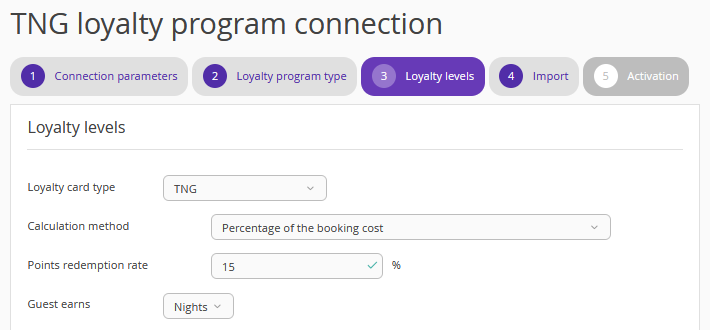
5. Create loyalty levels. When setting up a loyalty, specify the name of the level in Exely and match it with the loyalty level uploaded from TNG. The fields “Back in points” and “When a guest earns” (earnings threshold) are not obligatory, as they are only displayed in the guest account and are not passed from TNG to Exely.
Pay attention. When setting up loyalty levels, if you started filling in the fields for one level, fill in the fields for the remaining levels, otherwise the settings will not be saved.
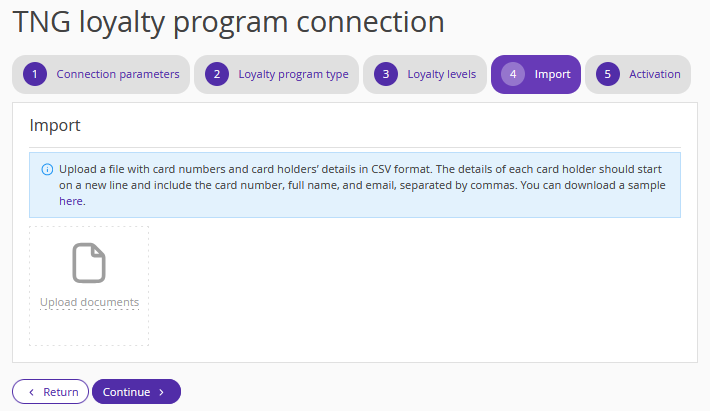
6. On the “Import” tab, import the list of loyalty cards created in the TNG system, if applicable, or skip this step.
5. On the “Activation” tab, specify the API Key and URL. These details should be added to the TNG settings to update existing loyalty cards and receive new ones from TNG.
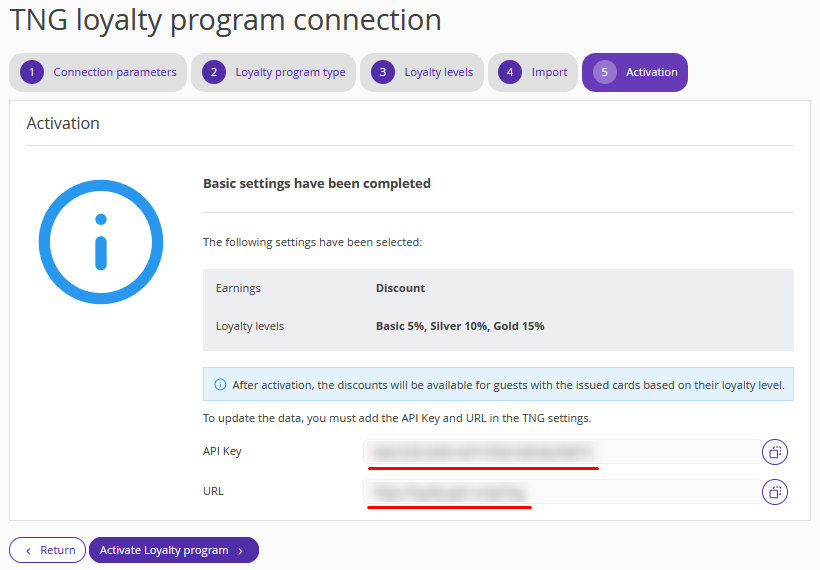
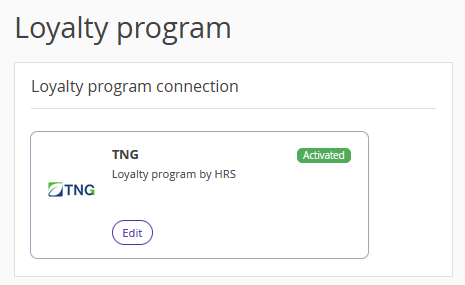
8. Click “Activate Loyalty program”. The loyalty program connection status will change to "Activated".
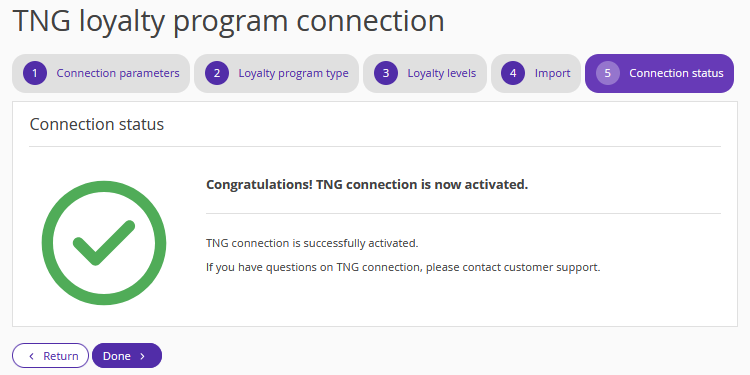
9. Click "Done" — you have activated the Integration with TNG loyalty program in the Exely extranet.
Setting outlet for TNG “Points” loyalty program
Pay attention. After completing the setup for TNG "Points" loyalty program, check the Outlet ID in the TNG integration settings in "Guest management" > "Loyalty program" > the "Points redemption" tab. This is required so that guests can redeem points in the TNG loyalty program when booking in Exely Booking Engine.
Outlet ID in TNG systems is a unique internal numeric identifier of an outlet used to process and register transactions (receipts) from external systems. It can be changed, if necessary.
How to change the Outlet ID for TNG
1. Request the current Outlet ID from TNG support.
2. In "Guest management" > "Loyalty program", switch to the "Points redemption" tab to edit the integration settings.
3. In the “Outlet ID” field, enter the ID. Only a user with administrator access can change the ID.
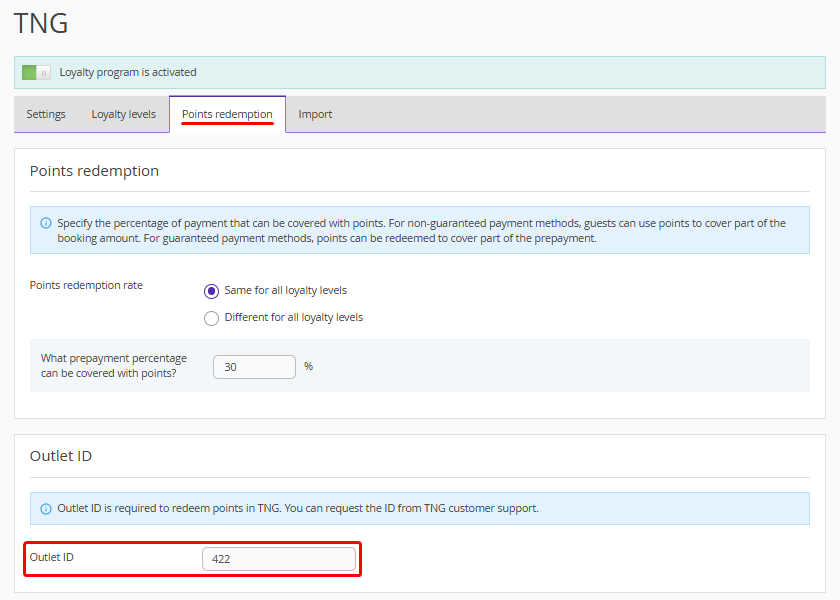
4. Save the changes.
How to change the Outlet ID for group properties
If the TNG loyalty program has a separate outlet configured for each property in the group, you need to change the Outlet ID in the integration settings.
1. Request the current Outlet ID for each property in the group from TNG support.
2. In "Guest management" > "Loyalty program", switch to the "Points redemption" tab.
3. Click "Add an additional Outlet ID".
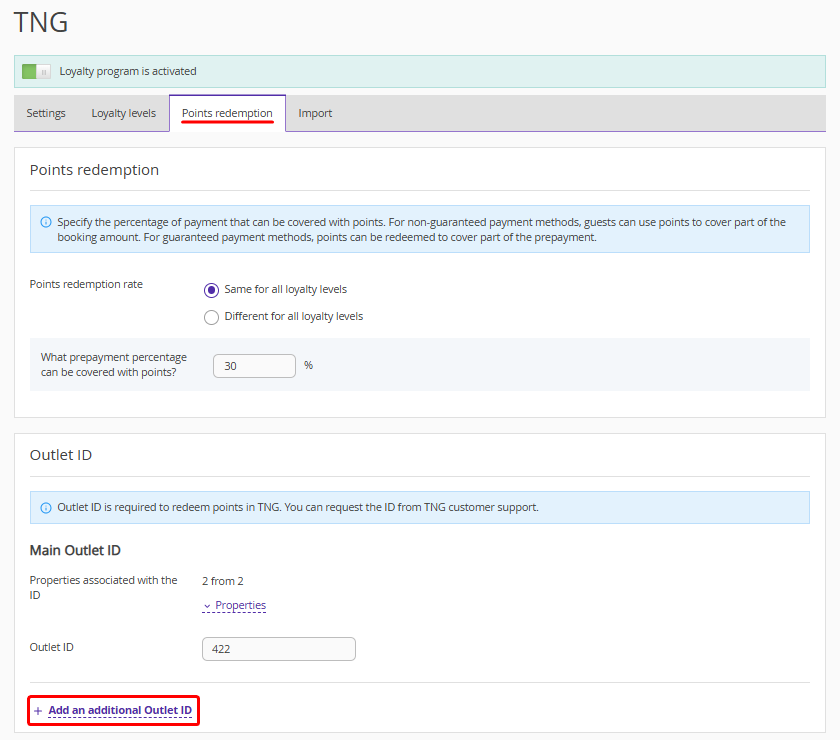
4. Select at least one property associated with the Outlet ID.
5. Enter the ID in the “Outlet ID” field.
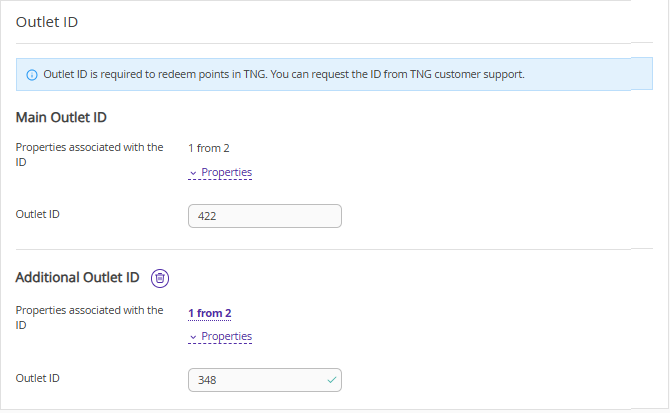
6. If necessary, repeat steps 3–5 for other properties in the group.
7. Save the changes.
Point redemption requests will be sent to TNG according to the specified outlets based on the configured settings.
How to edit the loyalty program
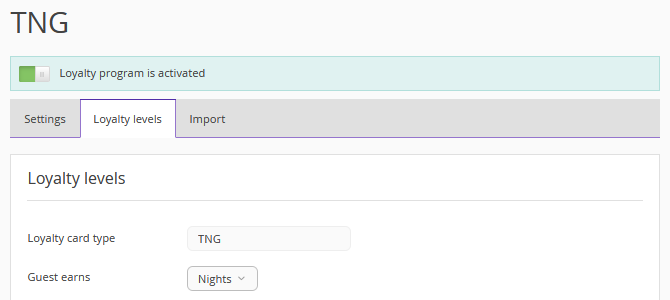
If after activation of your loyalty program, you need to adjust the settings, for example, specify the earnings threshold for a guest to move to the next level, go to the “Guest management” > “Loyalty program” section and click the “Edit” button.
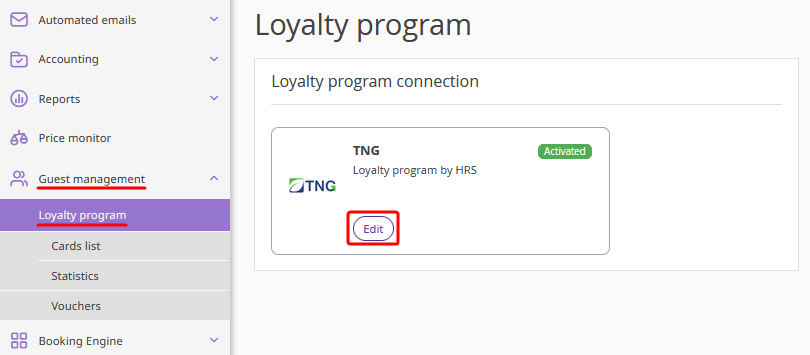
For TNG “Points”, you can make changes in the following tabs:
Settings,
Loyalty levels,
Points redemption,
Import.
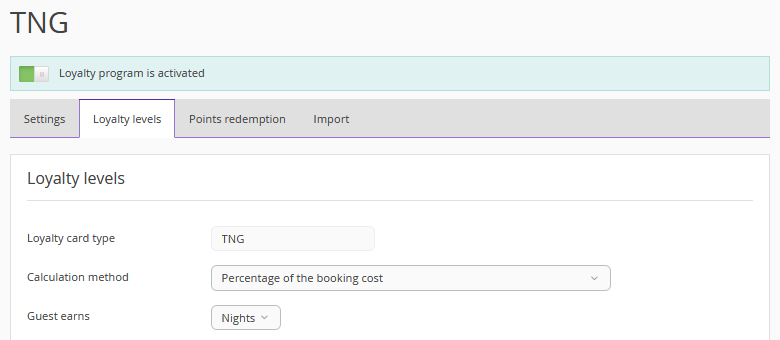
For TNG “Discounts”, you can make changes in the following tabs:
Settings,
Loyalty levels,
Import.
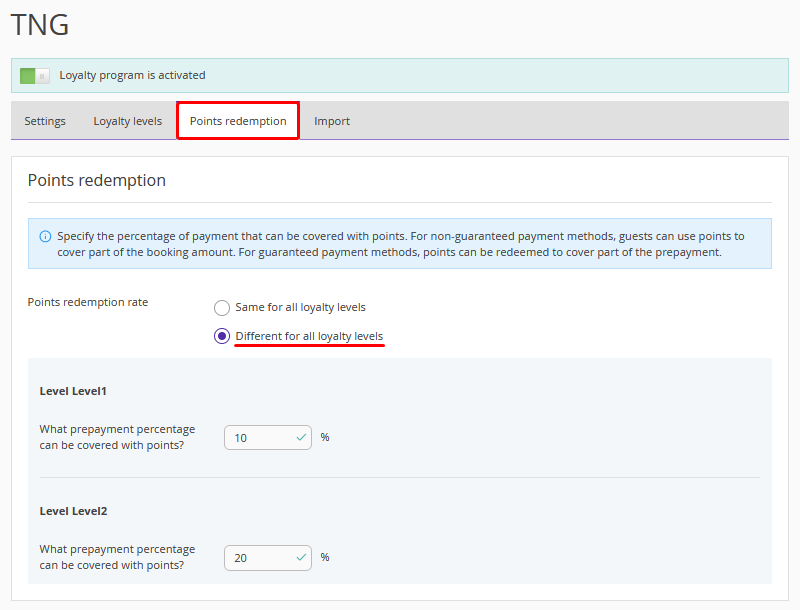
How to set different points redemption rates for loyalty levels
If you have the TNG loyalty program integrated with Exely, you can set different points redemption rates for loyalty levels. For this:
1. Go to “Guest management” > “Loyalty program” and click “Edit” for the TNG loyalty program.
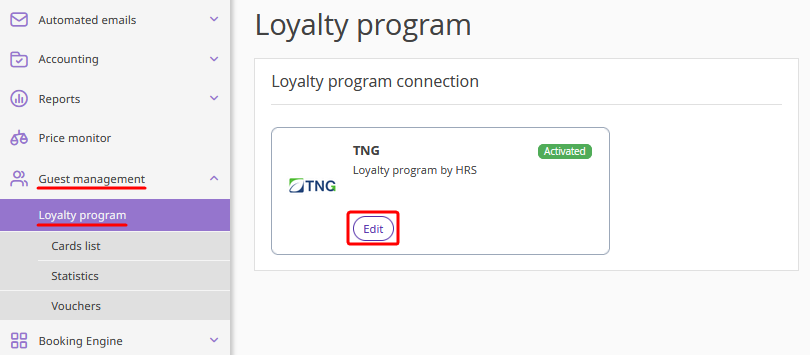
2. On the loyalty program setting page, switch to the “Points redemption” tab. In the “Points redemption” section, select “Different for all loyalty levels” and specify the percentage for all loyalty levels.
How to enable automatic guest sign-up for the property loyalty program
Guests can sign up for the property loyalty program on their own, if integration with TNG is set up.
To enable automatic guest sign-up, tick the "Automatically send data to TNG when guest signs up to the Exely Loyalty Program guest account" check-box in the settings for TNG loyalty program in the Exely extranet. Then, save the changes.
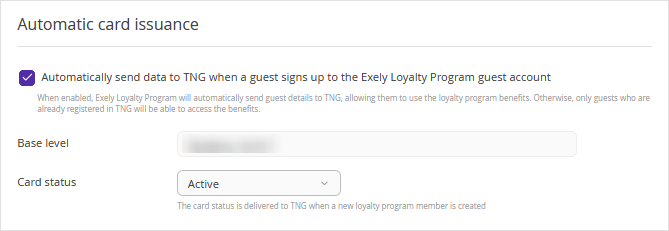
For details, refer to the article “Automatic guest sign-up for property loyalty program with set up integration with TNG”.
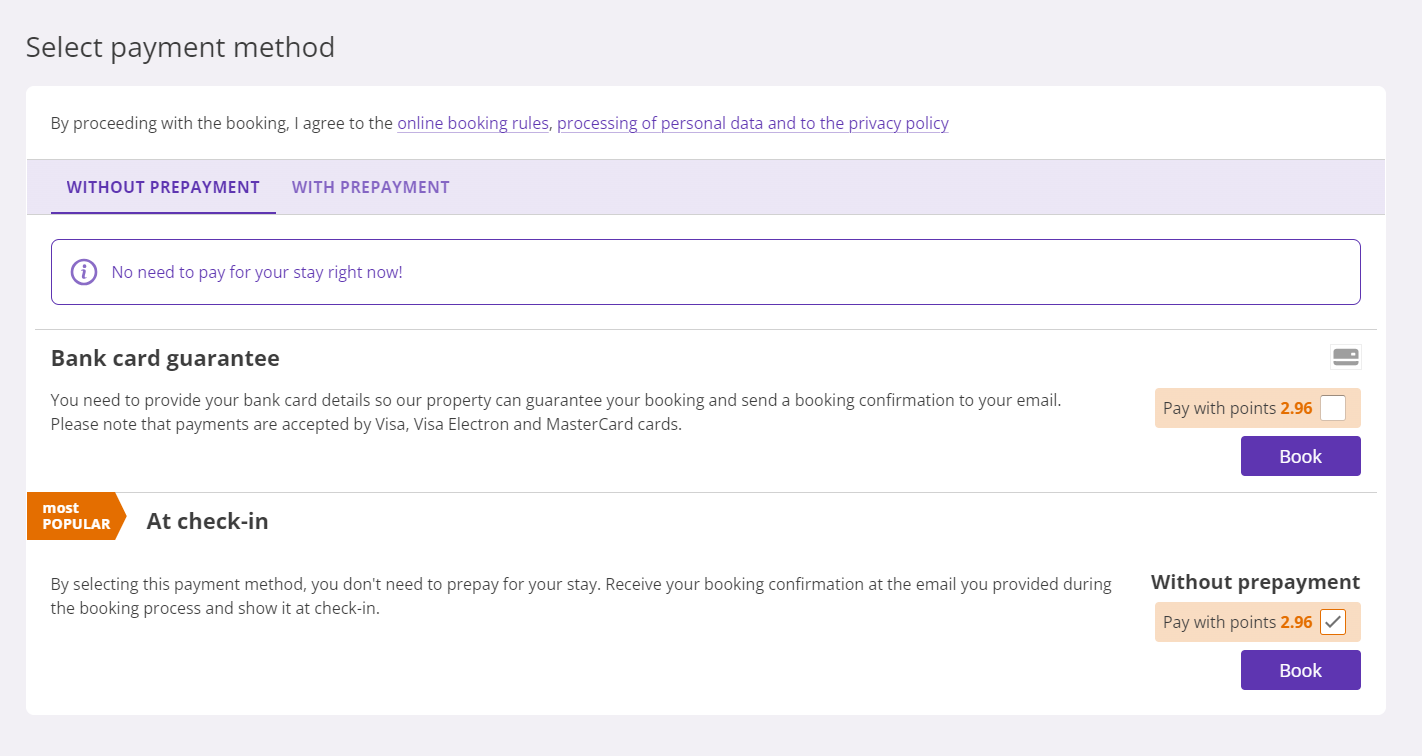
How guests can redeem points
To redeem points, guests need to log in/sign up to the guest account in Exely Booking Engine, if there is no external guest account on the property website. TNG searches for the loyalty card based on the guest's email. On the final step of the booking process, the guest can redeem points.
How to pass information on partial payment of a booking with points to Opera or Fidelio PMS
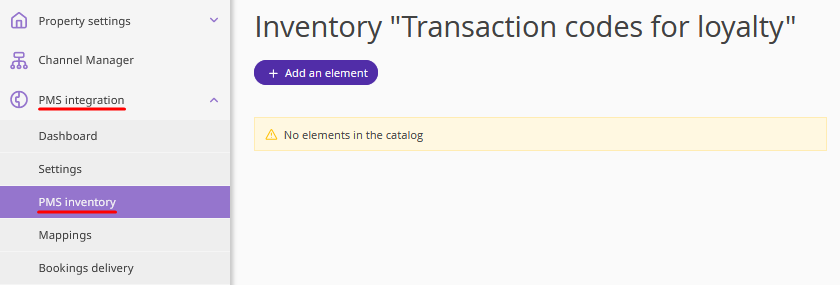
1. In the Exely extranet, go to the “PMS integration” > “PMS inventory” and click “Transaction codes for loyalty” (for Opera) or “Payment codes for loyalty program”.
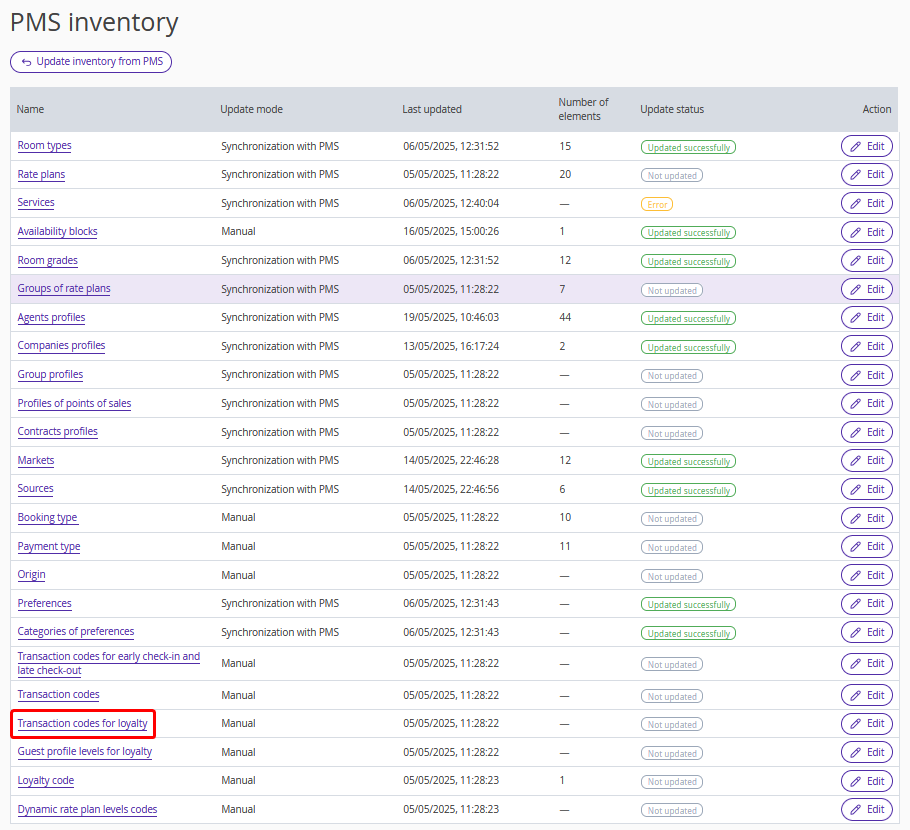
Add the code for redeeming points for the loyalty program. The code should be provided by the HRS support team.
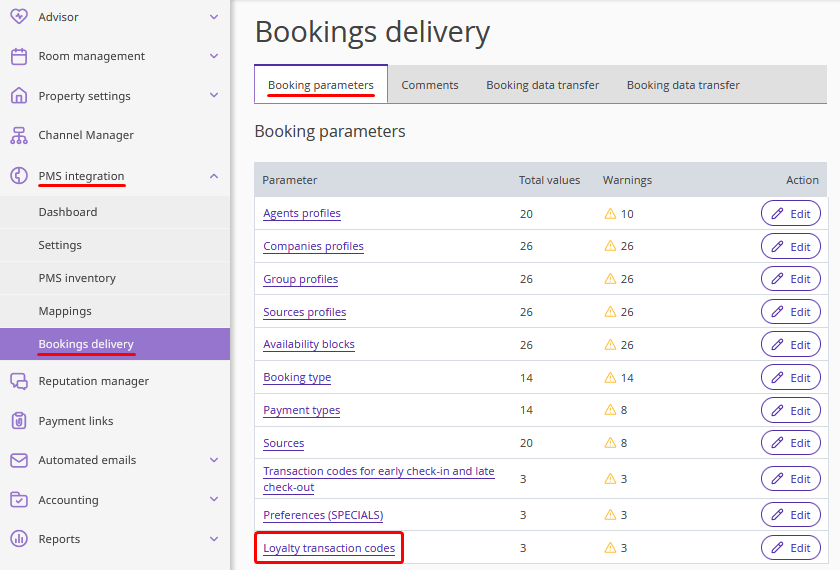
2. Go to “PMS integration” > “Booking delivery” > the “Booking parameters” tab and click “Loyalty transaction codes”.
3. In the "Settings for bookings from Exely Booking Engine" section, click “Main rule” and enter the code which you added in “PMS inventory” > “Transaction codes for loyalty” on the first step.
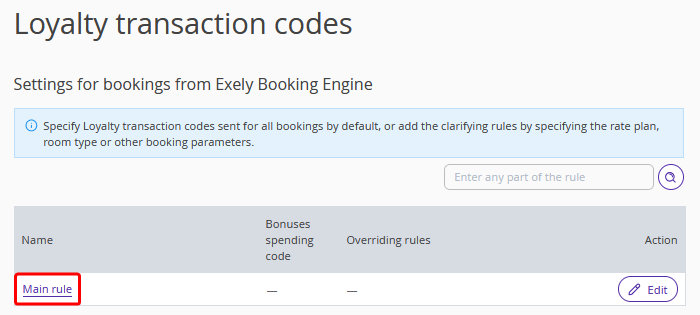
After that, points information will be displayed in the booking details in Opera or Fidelio PMS.
