Every day, properties receive bookings, and some of them come through agent companies: online booking platforms, travel agencies, and other sales channels. For each booking, the property pays the agent a commission — a percentage of the booking cost.
For example, for the travel agency "Travel", the commission is 15% until May and will be decreased to 12% starting May. For "Booking Channel", the rate is fixed at 10%. For a new partner, "Hotel Online", the rate is 8% and will be increased to 11% in two months.
To automate calculations, specify the commission percentage and the period during which it applies for each agent in Exely PMS. The data will be displayed in the commission report (currently under development).
This allows the manager to see how much revenue agents generate and how much is paid in commissions, which helps forecast income and expenses. The accountant will receive data for reconciliation with channels.
How to set a commission rate
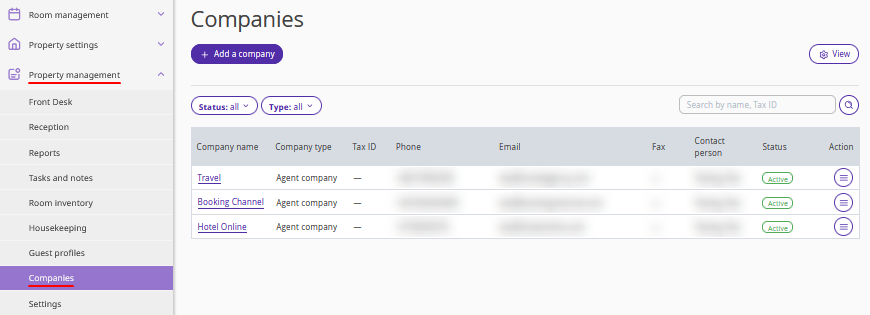
1. In the Exely extranet, go to "Property management" > "Companies" and select an agent company.
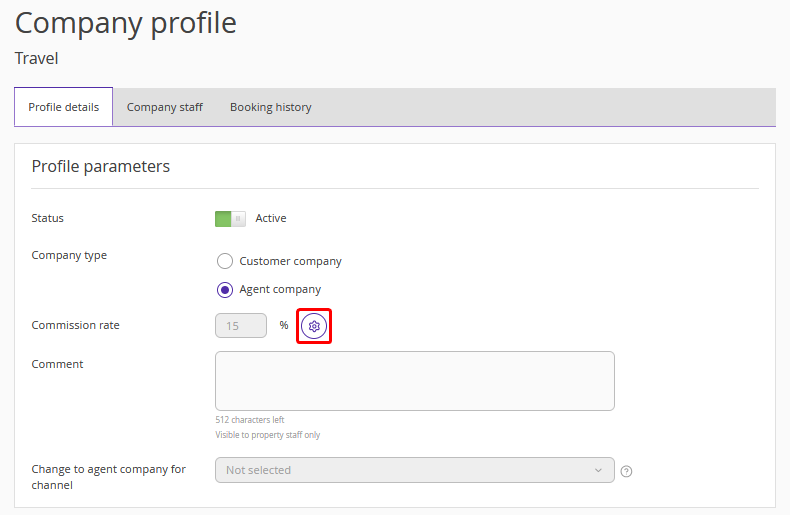
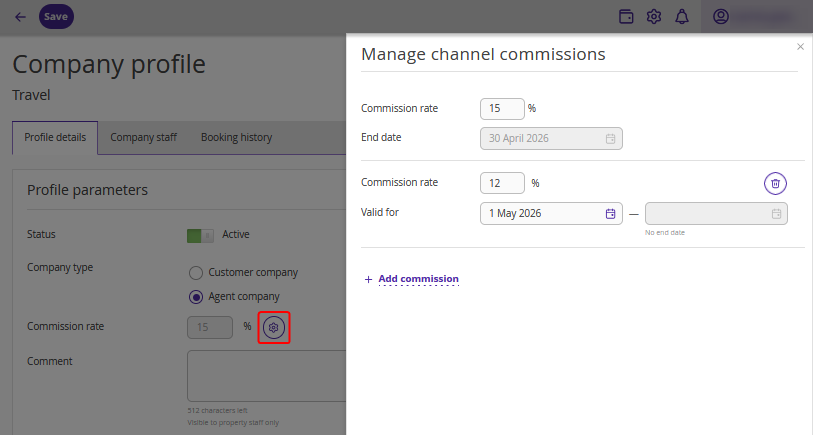
2. The agent company profile will be opened. In the "Commission rate" section, click the settings button.
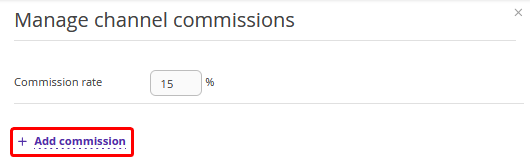
3. In the opened window, click “Add commission”.
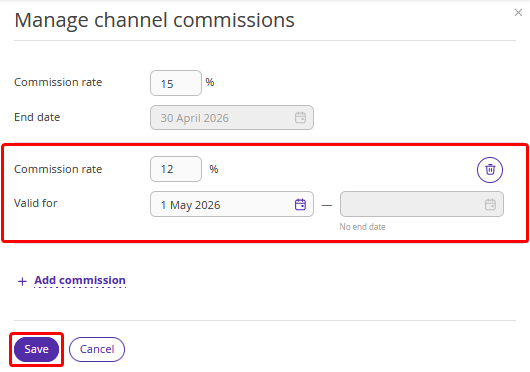
Specify the commission rate and the period the rate will be valid for. The end date is filled in automatically and depends on the next period start date. Save the changes.
4. Click the "Save" button at the top of the page.
The commission rate valid for the current date is displayed in the company profile.
To check the commission rate for an agent company, click the settings button — all records will be shown in the opened window. Here you can add new commission rates, edit existing ones, or delete unnecessary rates.
How the commission percentage is calculated
The commission percentage is determined based on the booking creation date.
For example, if a booking is created on October 1 and the check-in date is November 1, the percentage valid on October 1 will be used.
