How to Optimize Your Hotel Business Profile on Google


A hotel’s Google Business Profile can influence the booking decision before a traveler ever visits the property website. It brings together the details people usually check first: photos, amenities, reviews, prices, contact information, and booking options.
We’ve already covered how to set up a Google Business Profile for a hotel. This guide focuses on what to do once the profile is already in place: how to review it, fill the gaps, and keep the information accurate and useful for travelers. The recommendations below are based on Google’s own guidance.
Start with Profile Strength
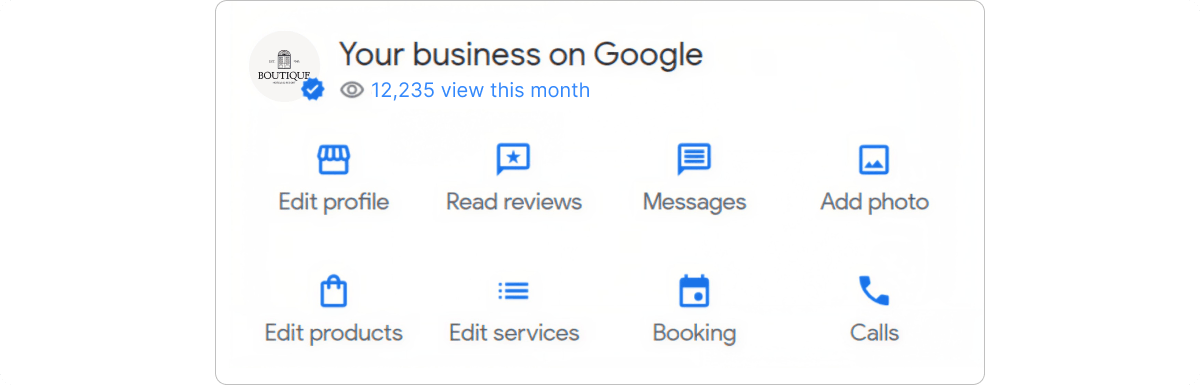
Before you start editing individual sections, check Profile Strength. Google uses this indicator to flag information that may be missing from a verified Business Profile, such as the description, contact details, photos, videos, or posts.
Open your Business Profile, select Profile Strength, and review the suggestions Google shows.
Treat it as a quick audit, not a ranking score. A higher percentage doesn’t automatically mean better visibility in search; the useful part is seeing which sections still need attention.
Step 1. Review the core hotel information
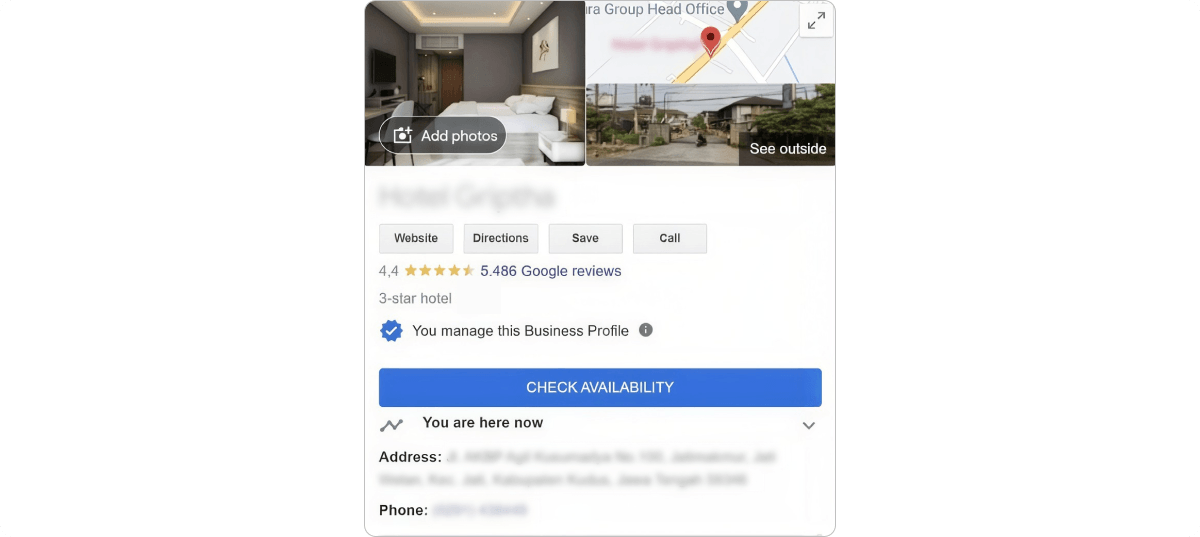
Start with the basic details Google shows about your property. Check the hotel name, category, address, phone number, website, and any other editable business information available in your profile.
Use the real hotel name
The profile name should match the name guests see on the hotel website, signage, and official materials. Don’t add location keywords or promotional claims that are not part of the actual business name.
Use:
Grand Park Hotel
Avoid:
Grand Park Hotel – Best Luxury Hotel in Central Prague
Check the address, phone, and website
Make sure the hotel is listed under the correct category and pinned in the right place on Google Maps. Use a phone number that reaches the hotel directly, and link to the official hotel website rather than an OTA or social media page. Update these details whenever they change.
Please note: Google doesn’t let hotels edit business hours. Hotel profiles are treated as open 24 hours to guests, so you may not see the same opening-hours controls available to other types of businesses.
Check how Google describes the hotel
Hotel profiles do not always offer the same editable fields as standard Business Profiles. Some hotel-specific information may be generated by Google from your Hotel Details and other sources.
That makes the next step especially important: review your amenities, services, policies, and other hotel attributes carefully so Google has accurate information about the property.
Step 2. Complete Hotel Details and amenities
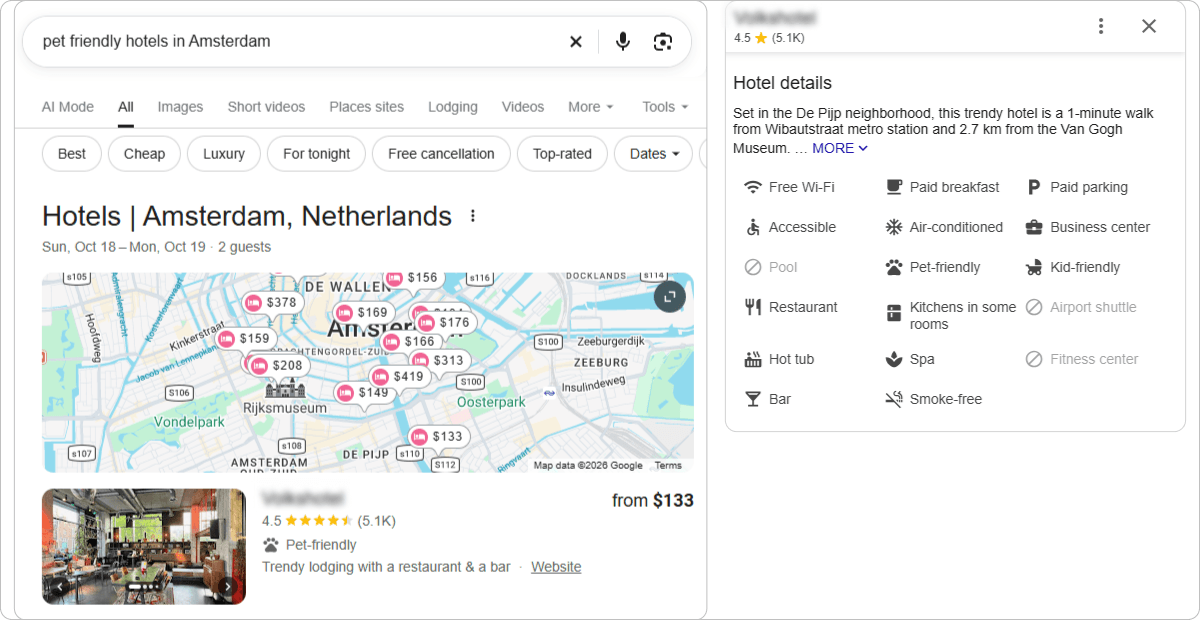
Hotel profiles include additional information that standard Business Profiles do not have. If your hotel profile is verified, you can edit services and amenities in the Hotel Details section. Depending on the interface, you may also see this under Edit profile → Hotel information. Google can show these details directly in Search and Maps.
Go through the available attributes one by one and check that they match the actual guest experience. Depending on your property, this may include Wi-Fi, parking, a pool, spa and fitness facilities, restaurant and breakfast options, pet policies, and accessibility features. Only add amenities that are actually available.
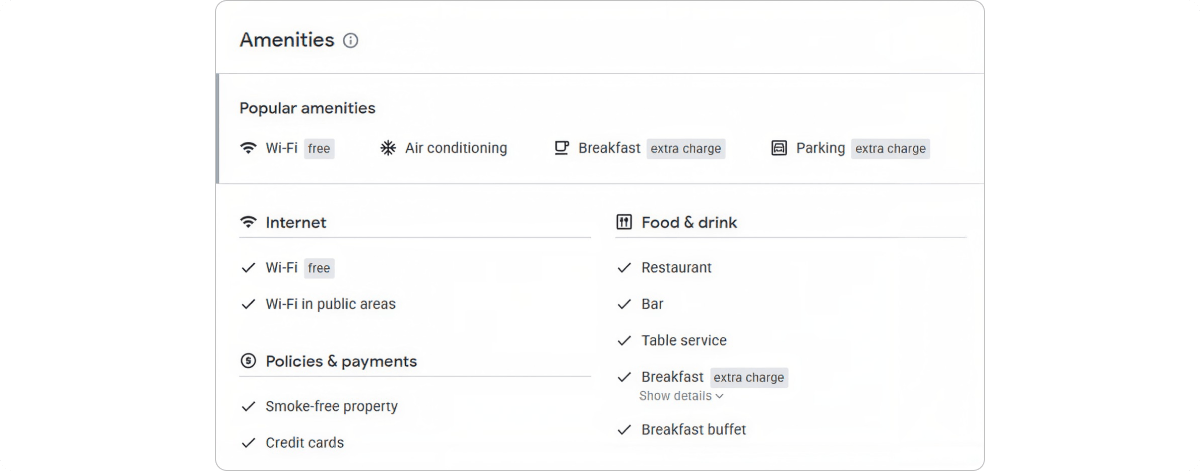
Google collects hotel amenity information from several sources, so you may sometimes find information that is incorrect. Properties can edit certain attributes directly; if you cannot correct an inaccurate amenity, Google recommends contacting support.
Don’t leave relevant fields blank
Travelers can see amenities directly in Google while comparing hotels. If your property offers parking, a pool, or another important service, make sure it is reflected in the profile.
Where available, review sustainability practices and eco certifications too. Google can display this information in the hotel’s Sustainability section.
What if your hotel has businesses guests can visit separately?
A restaurant, spa, shop, or lounge inside the hotel may qualify for its own Business Profile if guests can visit it independently of a hotel stay. Google can also link the two profiles with a “located in” relationship through support.
This is especially useful when the venue operates as a separate business with its own audience, contact details, and customer journey, rather than simply as a hotel amenity.
Step 3. Optimize your hotel photos
Photos should help travelers understand the property, not just make the profile look attractive. Google gives specific recommendations for hotel and business photos:
| Photo type | Google recommendation |
|---|---|
| Exterior | At least 3 photos |
| Interior | At least 3 photos |
| Common areas | At least 1 photo of each area |
| Guest rooms | At least 3 photos of the most popular rooms |
| Team | At least 3 photos |
| Food and drink | At least 3 photos where relevant |
Show the parts of the hotel guests actually want to see
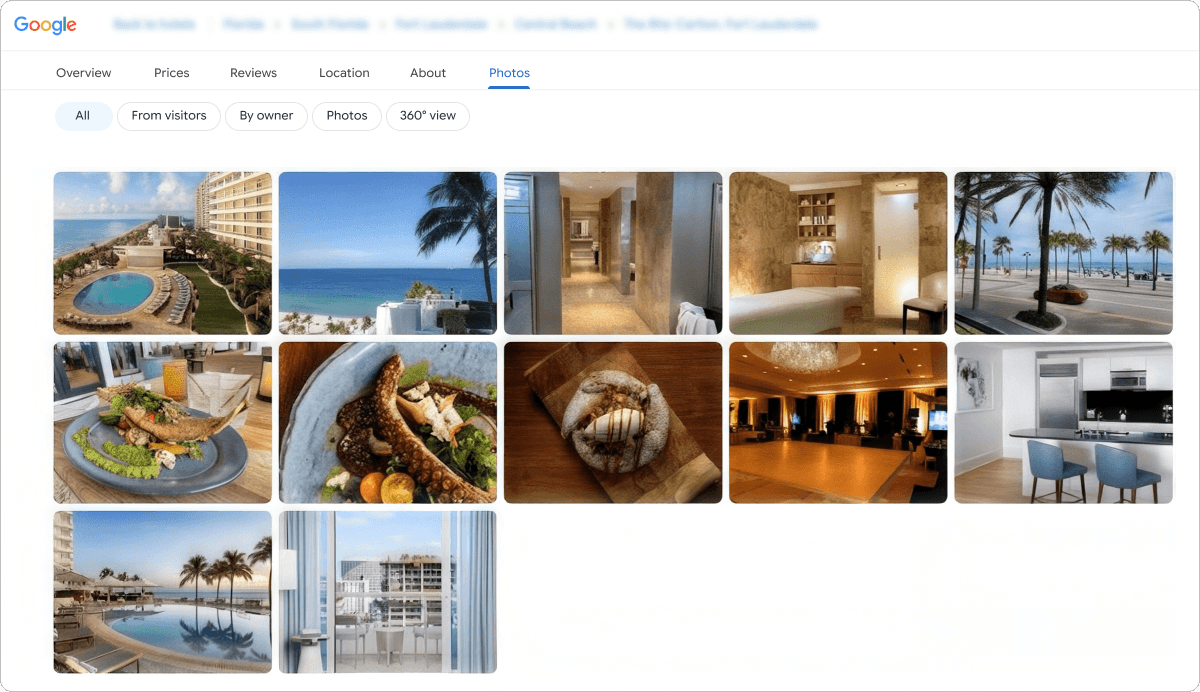
Make sure the photo set covers the property properly: the exterior and entrance, lobby, main room categories, bathrooms, breakfast or restaurant, key facilities, and outdoor or event spaces where relevant. Google specifically recommends showing different room types, as travelers rely heavily on room photos when deciding where to stay.
Prioritize the rooms guests actually book
Don’t upload only your suite or most photogenic room types. If Standard and Deluxe rooms account for most bookings, show them clearly from several angles so guests can understand the layout, bed setup, bathroom, and view.
Keep photos realistic and current
Google recommends images that are in focus, well lit, and not heavily altered or filtered. For technical quality, follow Google’s current recommendations:
- Format: JPG or PNG
- Size: Between 10 KB and 5 MB
- Recommended resolution: 720 × 720 px
- Minimum resolution: 250 × 250 px
After a renovation or room redesign, replace outdated photos. Check guest-uploaded images periodically too, especially if they no longer reflect the current property.
Review the cover photo and logo
Make sure the hotel logo is current and choose a cover photo that gives travelers a clear sense of the property. Don’t rely on the cover image alone. The full photo set should give a balanced view of the hotel.
Step 4. Check the website and booking path
A complete profile should make it easy for travelers to move from Google to booking. Start by opening the website link from the profile and check that it:
- leads to the official hotel website
- works properly on mobile
- doesn’t add unnecessary redirects
- makes the booking option easy to find
Hotels can also appear with prices and booking links through Google Hotel Ads and free booking links. If your booking engine or connectivity provider sends rates and availability to Google, check that the information travelers see is current.
For free booking links, Google recommends sending travelers directly to a landing page where they can see the room and rate they selected and continue to checkout. The landing page should load properly and make the selected option easy to find.
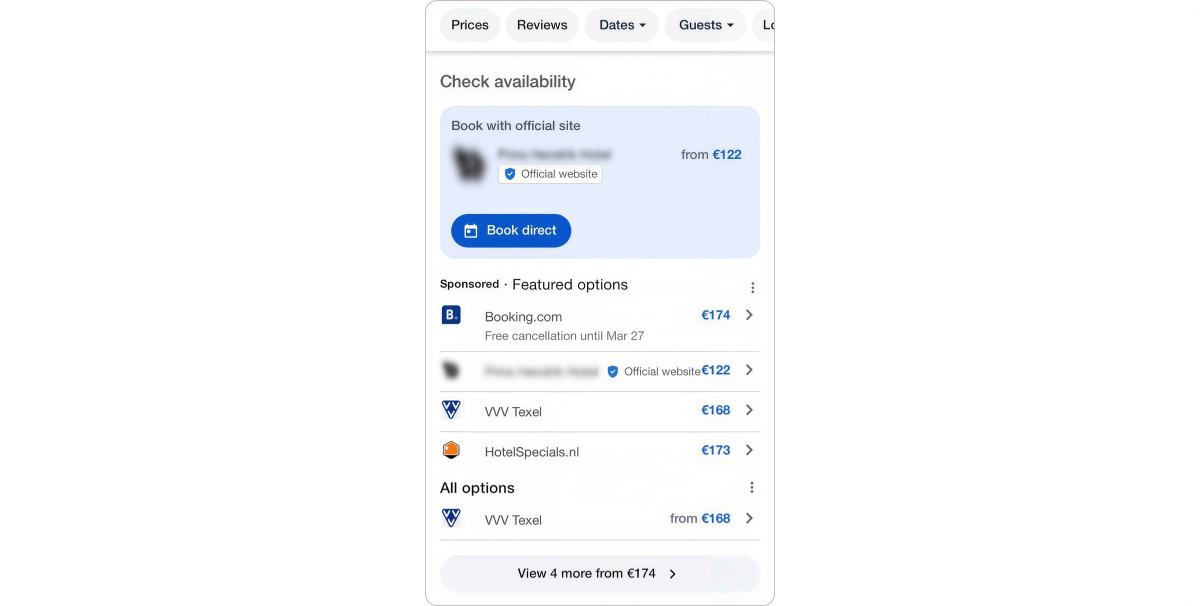
The booking path should be simple:
Google → Hotel website or booking link → Room and rate plan → Booking
Pay particular attention to consistency. Google uses landing page experience and historical price accuracy among the signals for ranking free booking links. The rate shown in Google should therefore match the price the traveler sees after clicking, including the required taxes and fees.
With Exely Booking Engine, guests can continue from the hotel website to current availability, rooms, and rate plans and complete the reservation directly online. This makes it easier to keep the path from Google to direct booking clear and consistent.
Google may also show an “Official site” badge next to a direct booking option. The badge is available to hotel owners, direct suppliers, central reservation systems, and integration partners, but not to OTAs.
Step 5. Review the profile as a traveler
Once the main information is complete, open the hotel in Google Search and Google Maps as a guest would. Check both desktop and mobile and ask whether the profile answers the questions a traveler is likely to have before booking.
Make sure they can quickly understand:
- what kind of hotel this is
- where it is
- what the main rooms look like
- which amenities are available
- what other guests think
- how to reach the official website
- how to book
Check hotel highlights and class rating
Google may show hotel highlights such as Pet Friendly, Free Wi-Fi, or Free Parking. Review what appears and make sure it matches the property.
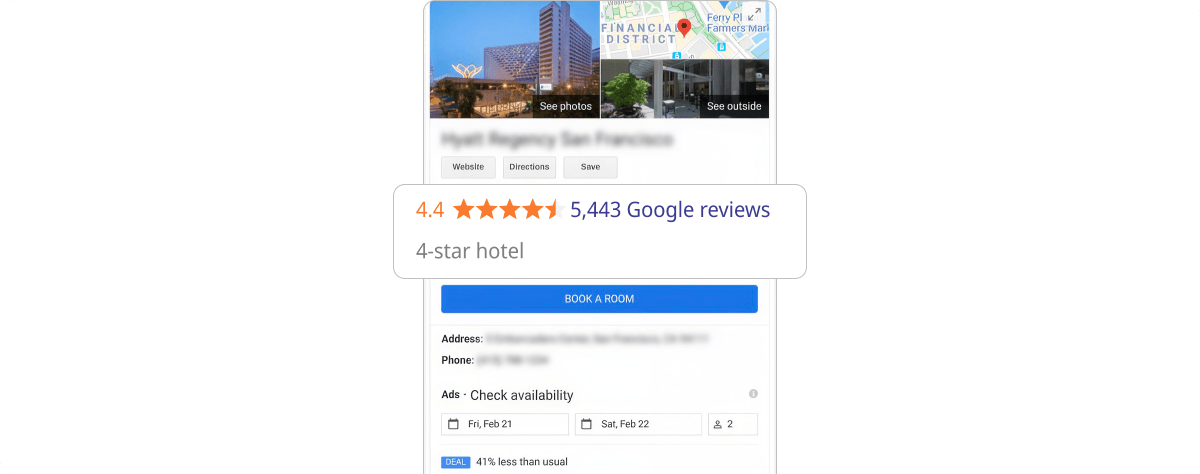
Also check the hotel class rating. This is separate from the guest review score and uses Google’s 1–5 star classification. If the rating is missing or looks incorrect, you can submit feedback to Google.
Check guest photos and reviews
Look at guest-uploaded photos as well as your own. Outdated or incorrect images can give travelers the wrong impression of the property.
Reviews can also highlight gaps in the profile. If guests repeatedly mention confusing parking information, difficult directions, or unclear breakfast details, check whether that information should be clearer in Google or on the hotel website.
Important: hotel posts have different rules

Hotels can publish timely updates through Business Profile, but Google doesn’t allow hotel Offer posts or posts that mention or link to deals, promotions, special offers, or discounts. Google also recommends using the profile’s call action instead of adding a phone number directly to the post.
If you find outdated or incorrect information during this check, update it immediately. If a hotel-specific detail cannot be edited directly, contact Google support.
Step 6. Review the profile regularly
Hotel information changes throughout the year, so review the profile whenever the guest experience changes.
Update contact details when they change, refresh photos after renovations, check amenities after service updates, and test website and booking links regularly. Reviews should be monitored on an ongoing basis, while hotel highlights and class rating are worth checking periodically.
You can also return to Profile Strength to see whether Google flags any missing information.
For a different view, check Performance. It shows how people find the profile in Search and Maps and what actions they take, such as website clicks, calls, directions, and bookings where available.
This can help you spot whether people are finding the profile but not continuing to the website, or whether a large number of searches are leading to calls, directions, or bookings.
Hotel Business Profile optimization checklist
Before you finish, check that:
- Hotel name, address, phone, and website are accurate
- Relevant Hotel Details and amenities are completed
- Main room types and key facilities are clearly photographed
- Photos are current and meet Google’s recommendations
- Logo and cover photo are up to date
- Website and booking links work correctly, including on mobile
- Hotel highlights and class rating are accurate
- Guest photos and reviews have been checked
- The profile looks correct in both Google Search and Maps
- Profile Strength doesn’t show any important missing information
Frequently Asked Questions (FAQ) about optimizing a Hotel Business Profile
-
How long does it take for changes to appear on Google?
Some edits can appear quickly, while others may take longer because Google reviews or verifies the information before publishing it. If an important change does not appear after a reasonable amount of time, check whether the edit is still pending or whether Google has rejected it. -
What should I do if Google rejects an edit?
First check whether the information follows Google’s Business Profile guidelines and matches the hotel’s real-world information. If the edit is correct but continues to be rejected, use Google Business Profile support and provide supporting evidence where possible, such as the hotel website or official documents. -
Why does Google show information I didn’t add?
Google can use information from multiple sources, including your Business Profile, your website, third-party data providers, user contributions, and Google’s own systems. That is why some hotel details may appear even if you didn’t enter them yourself. -
Can I remove photos uploaded by guests?
Not simply because you don’t like them. You can report a guest photo if it violates Google’s policies or is clearly unrelated to the property. Otherwise, the better approach is to keep your own current, useful photos well maintained. -
What should I do if the hotel changes its name or brand?
Update the Business Profile only when the new name is officially in use across the property, website, signage, and other public materials. For a major rebrand, also review the category, website, photos, logo, booking links, and any hotel-specific information that may still reflect the old brand.