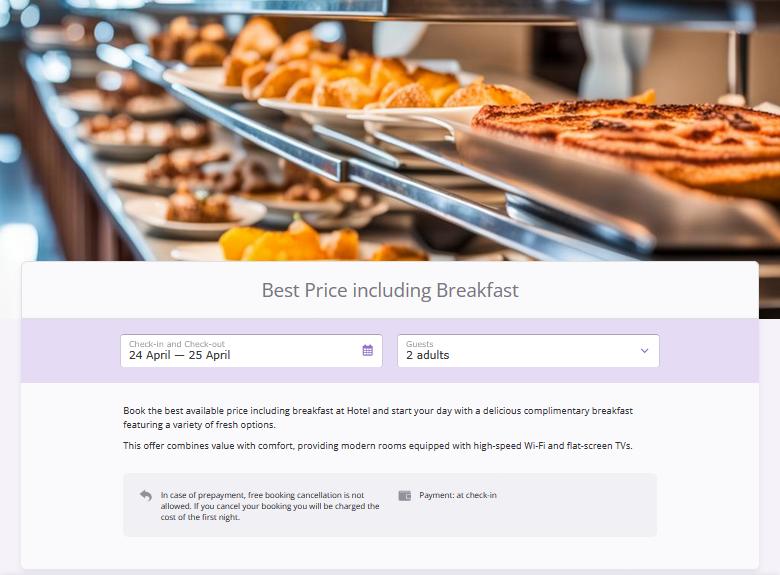
A rate plan page is a page describing a rate plan that helps promote it and is opened via a direct link. You can use the rate plan page for promotions and newsletters to direct the guest to the booking engine.
You can add a promo picture to the rate plan page.
How to add a promo picture
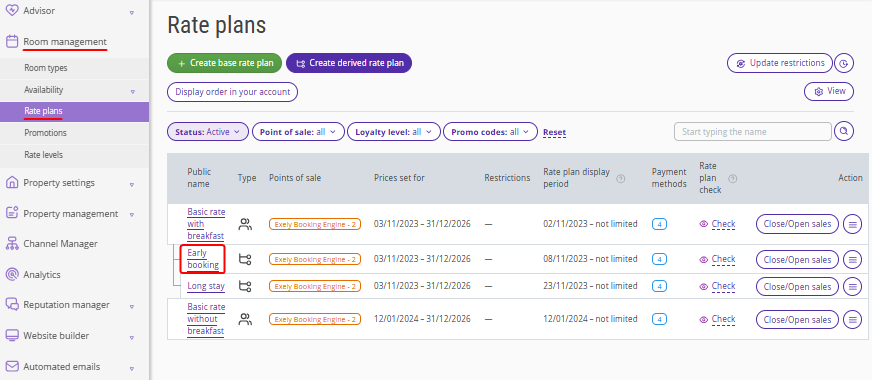
1. In the Exely extranet, go to “Room management” > “Rate plans” and click the required rate plan name to open the rate plan settings.
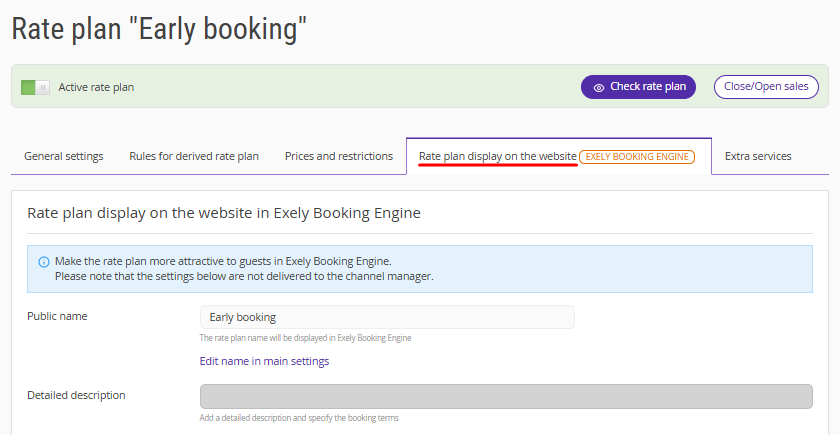
2. Switch to the “Rate plan display on the website” tab.
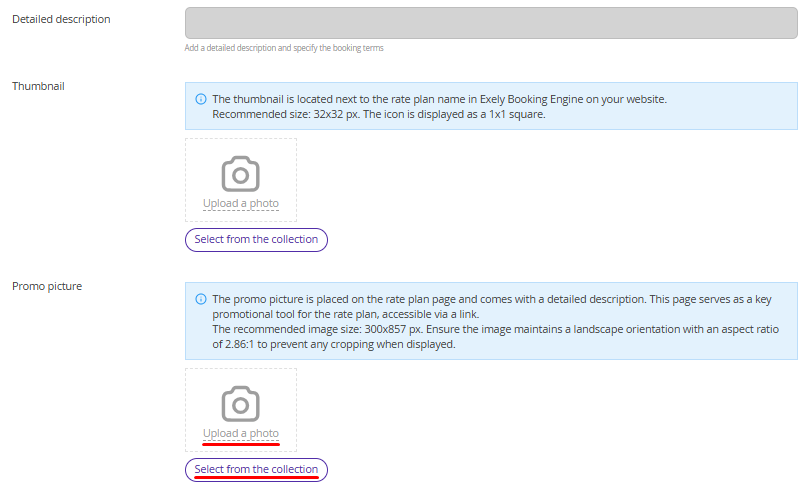
3. In the “Promo picture” section, click “Upload a photo” to select an image from your computer according to the guidelines above the photo icon, or click “Select from the collection” to choose from a selection of ready-made images.
If you clicked ‘Select from the collection’, choose an image in the opened window and click “Apply”.
5. Save the changes.
Pay attention. If you skip the step to upload or select an image, a standard image will be added to the rate plan.
How to send a guest a link to a rate plan
1. Go to “Room management” > “Rate plans”.
2. Click “Action” on the right of the required rate plan and select “URL to the rate plan”.
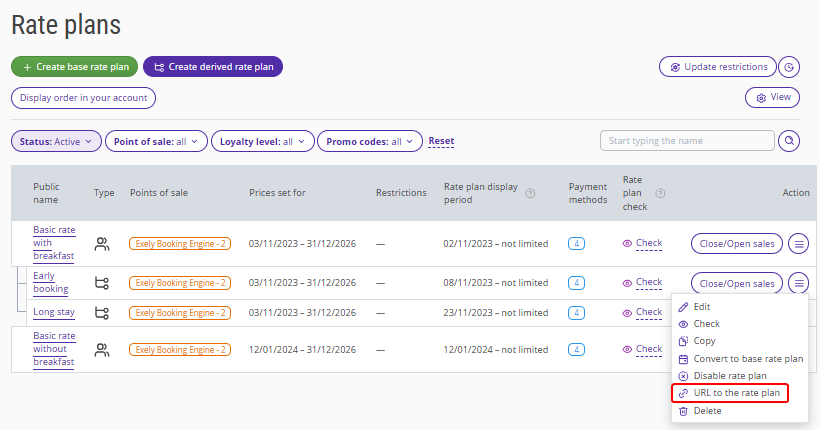
You can add parameters to the link, such as number of nights or room type, etc. For more information on this, see the article “How to create a link to a rate plan with different parameters”.
When you open the link, the selected image will be displayed on the rate plan page, as well as:
services included in the rate plan;
cancellation rules for the rate plan;
available payment methods.
Pay attention. The rate plan page will display the minimum price from the available room types for this rate plan for the specified dates.