A group booking is a booking of two or more rooms within a single order.
Value of group bookings
The average check for a group booking is 1.5–2 times higher than a single booking.
The share of group bookings is 8–9% of the hotel market, with growth potential due to tour operator integrations.
97–98% of all bookings are groups of 2 to 5 rooms.
Creating group bookings via Exely Connect for partners (tour operators, OTA):
Simplifies the booking process and manual handling.
Increases loyalty thanks to a convenient tool for working with groups.
Reduces API load and the risk of synchronization errors.
For properties:
Automates group booking management.
Reduces operation time and costs.
How to create a group booking
Group bookings are created using existing Exely Connect API methods.
To get started, you need additional access permissions. They are granted after successful testing and certification. Send a request to connectivity@exely.com to obtain access.
Search for a booking
Methods:
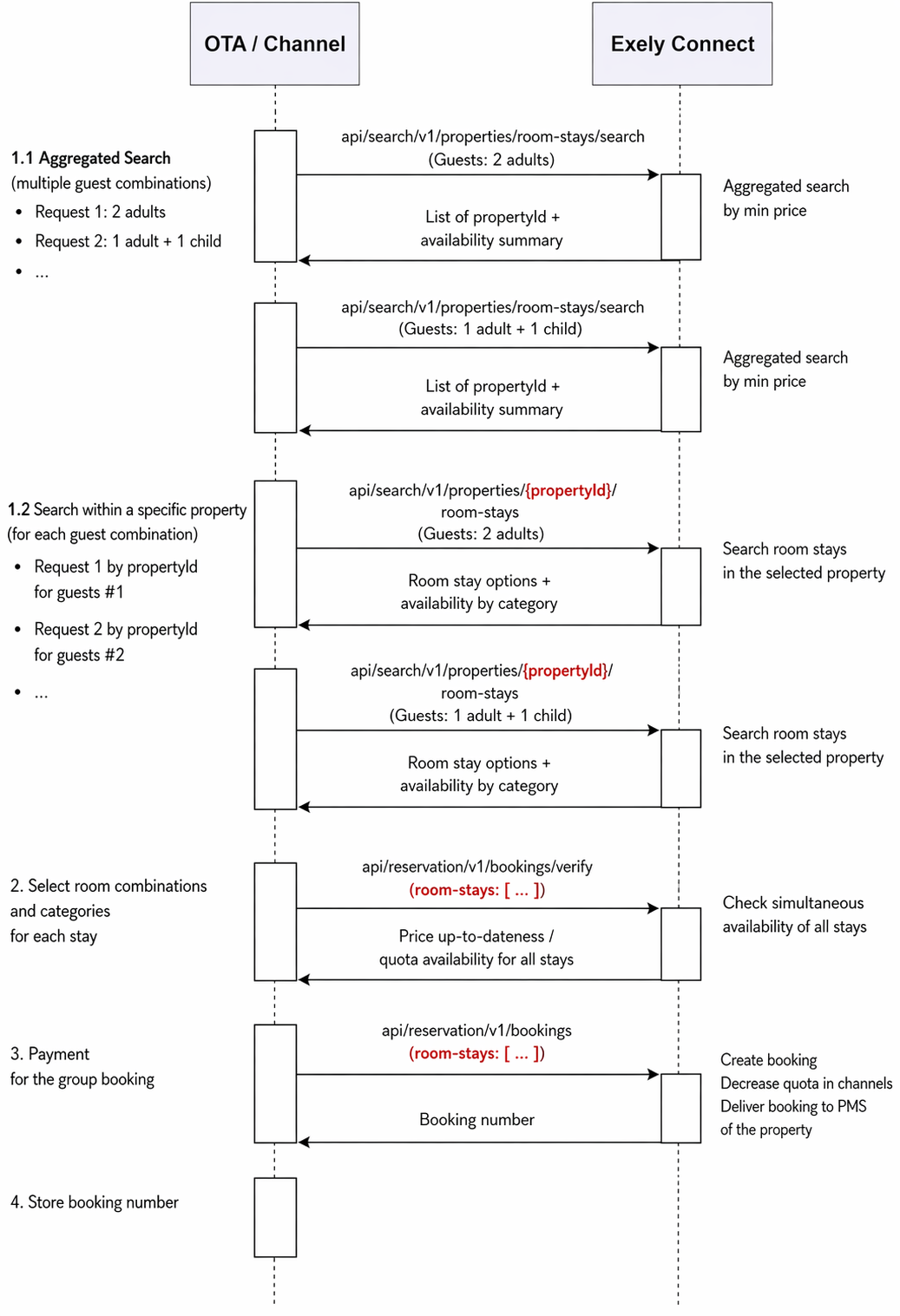
POST /v1/properties/room-stays/search — aggregated search.
GET /v1/properties/{propertyId}/room-stays — search within a single property.
For details on how to use the methods, see the article “Search API — search for available accommodations”.
The channel combines stays on its side and displays them to the customer.
How it works:
The channel sends multiple requests for aggregated search or search within a single property depending on the group booking composition. For example, the first request for 2 adults, the second request for 1 adult + 1 child, and then combines them in its interface. If the guest composition in all rooms is identical, only one request is sent.
The channel must take room availability into account. If availability for a room type equals 1, this room cannot be offered to another group within the same order.
Verify booking availability
Method POST /v1/bookings/verify — verify booking availability.
For details on how to use the methods, see the article “Reservation API — booking”.
How it works:
Exely Suite supports selecting multiple stays (room-stay) with different rate plans and room types within a single order.
The verification response will return a unique token (createBookingToken) that will link all rooms. Exely Suite allows specifying one customer for the booking and different guests for each room. It is also possible to add early check-in, late check-out, and extra services individually for each room.
If one of the stays becomes unavailable at this stage, Exely Suite will return an alternative offer (alternative Booking) in the verification response.
Booking creation
Method POST /v1/bookings — create a booking.
For details on how to use the methods, see "Reservation API — booking”.
How it works:
The "all or nothing" principle is applied. If at least one room in the group cannot be booked on the property side, the group booking will not be created.
Booking cancellation
Methods:
GET /v1/bookings/{number}/calculate-cancellation-penalty — calculate the current penalty.
POST /v1/bookings/{number}/cancel — cancel the booking.
For details on how to use the methods, see "Reservation API — booking”.
How it works:
Exely Suite allows canceling all rooms in the group in one action.
If different rate plans are used, the method GET /v1/bookings/{number}/calculate-cancellation-penalty calculates the total penalty across all rooms.
Cancellation is performed via POST /v1/bookings/{number}/cancel with the total penalty specified.
Booking modification
Methods:
POST /v1/bookings/{number}/verify — verify modification availability.
POST /v1/bookings/{number}/modify — modify the booking.
For details on how to use the methods, see "Reservation API — booking”.
Available modifications in a group booking:
editing guest names in individual rooms without changing stay conditions.
changing check-in and check-out dates for each stay .
Features:
Changing the check-in date to a later date is only possible for rooms with free cancellation.
Modification of early check-in, late check-out, and extra services is available in the standard mode.
Partial cancellation of rooms in a group booking is allowed if those rooms have free cancellation. If a room with a penalty should be canceled, the entire group booking must be canceled.
Group booking creation chart
Example request to verify booking availability with multiple stays (room-stay):
{
"booking": {
"propertyId": "7291",
"roomStays": [
{
"stayDates": { "arrivalDateTime": "2026-04-09T13:00", "departureDateTime": "2026-04-11T11:00" },
"ratePlan": { "id": "526233" },
"roomType": { "id": "340935" },
"guests": [{ "firstName": "John", "lastName": "Doe " }],
"guestCount": { "adultCount": 2 },
"checksum": "base64_hash_1..."
},
{
"stayDates": { "arrivalDateTime": "2026-04-09T13:00", "departureDateTime": "2026-04-11T10:00" },
"ratePlan": { "id": "457584" },
"roomType": { "id": "340936" },
"guests": [{ "firstName": "Mari ", "lastName": "Doe " }],
"guestCount": { "adultCount": 1, "childAges": [7] },
"checksum": "base64_hash_2..."
}
],
"customer": {
"firstName": "John ",
"lastName": "Doe ",
"contacts": {
"phones": [{ "phoneNumber": "+44 900 000 0000" }],
"emails": [{ "emailAddress": "test@example.com" }]
}
}
}
}
Logic of group booking modification
When retrieving group booking data, each object in the roomStays array is assigned a unique roomStayIndex parameter. This index is the key identifier for editing a specific stay within the group booking.
Example response for retrieving a booking (GET /v1/bookings/{number}):
{
"booking": {
"number": "20260409-7291-23379645",
"status": "Confirmed",
"total": { "priceBeforeTax": 2120, "currencyCode": "RUB" },
"cancellationPolicy": {
"freeCancellationPossible": false,
"penaltyAmount": 1010},
"roomStays": [
{"roomStayIndex": 1,
"stayDates": { "arrivalDateTime": "2026-04-09T13:00", "departureDateTime": "2026-04-11T11:00" },
"total": { "priceBeforeTax": 100 },
"ratePlan": { "id": "526233", "name": "Тест с НДС 0%" },
"roomType": { "id": "407809", "name": "люкс" },
"guests": [{ "firstName": "John", "lastName": "Doe" }],
"checksum": "eyJDaGVja3..."
},
{
"roomStayIndex": 2,
"stayDates": { "arrivalDateTime": "2026-04-09T13:00", "departureDateTime": "2026-04-11T11:00" },
"total": { "priceBeforeTax": 2020 },
"ratePlan": { "id": "429622", "name": "Payment Order Rate" },
"roomType": { "id": "407809", "name": "Suite" },
"guestCount": { "adultCount": 1, "childAges": [7] },
"checksum": "eyJDaGVja3..."}],
"customer": {
"firstName": "John",
"lastName": "Doe",
"contacts": {
"phones": [{"phoneNumber": "+44 900 000 0000"}],
"emails": [{"emailAddress": "test@example.com"}]
}
},
"prepayment": { "paymentType": "PrePay", "prepaidSum": 2120 }
}
}
How to modify a group booking
1. Use GET /v1/bookings/{number} method to retrieve the current booking state.
2. Send a request to POST /v1/bookings/{number}/verify method:
Pass the full booking structure in the request body, including roomStays that are not being changed.
Apply the required changes (stay dates, additional services, guest data) to the corresponding roomStays objects using roomStayIndex.
3. Send the final request POST /v1/bookings/{number}/modify. Use the data from the verified response in step 2.
Pay attention. You must pass the new checksum parameter obtained during the verification step to confirm acceptance of price or condition changes.
How to perform a partial cancellation in a group booking
When sending requests for verification and modification, exclude the corresponding roomStay object from the roomStays array.
The system will automatically recalculate the total booking cost without the removed room.
Pay attention. Partial cancellation is only available for rooms with free cancellation.
