NOTE. As the personal data controller, you are responsible for ensuring that guests, employees or representatives or that of a third party have given valid consent before their personal data is entered. See Part 2 under "WHAT PERSONAL DATA DO WE COLLECT?" in our Extranet Privacy Policy for details.
To create a booking for a legal entity, take the following steps:
1. Go to “Property management” > “Front Desk” and click the “Create a new booking” button.

2. Click "Specify the company name and details" either for “Customer company” or “Agent company” to enter company details.
- The customer company is the company to which you provide services.
- An agent company is a company that helps with the search for guests: OTA (online travel agencies, sales channels.
Pay attention. If the booking was made in a sales channel, the company data is automatically added to the booking.
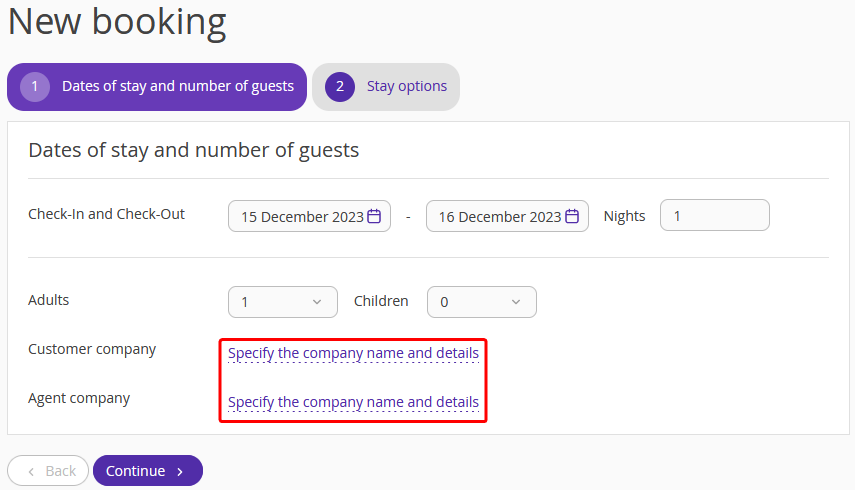
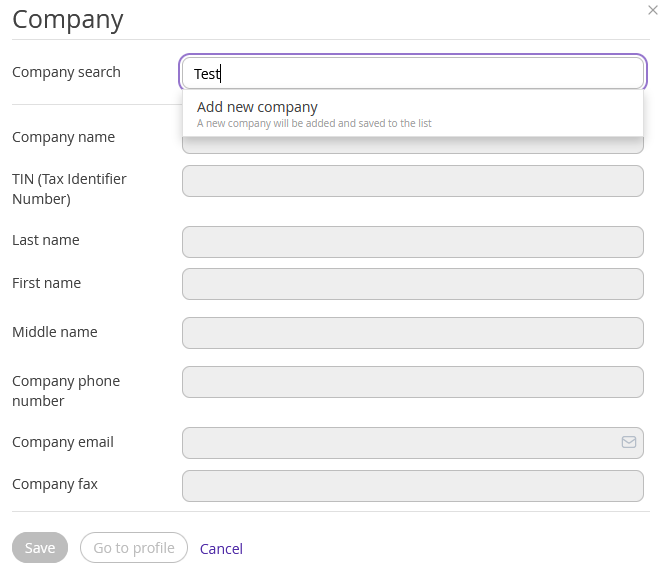
3. In the “Company” window, enter the company name in the “Company search” field. If the company exists in your hotel records, select it in the search results.
In case the company is not shown in the search results, click "Add new company" and fill in the fields. Then, click "Save".
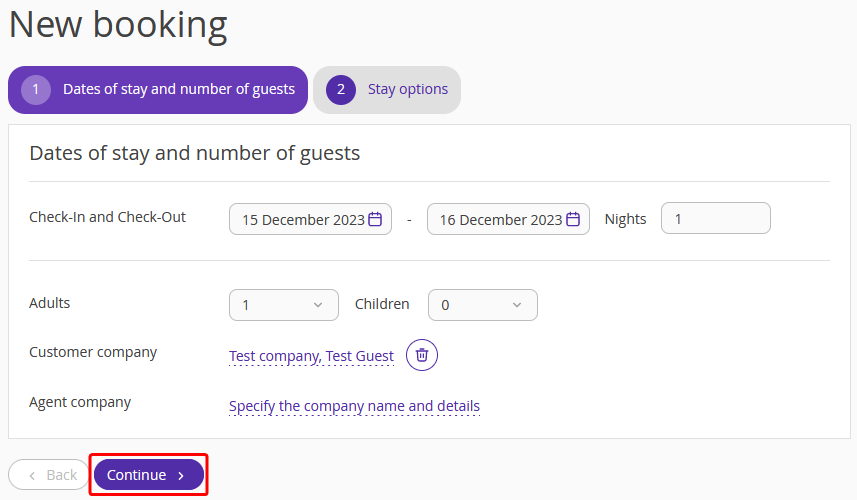
4. Once the required company is selected, click "Continue".
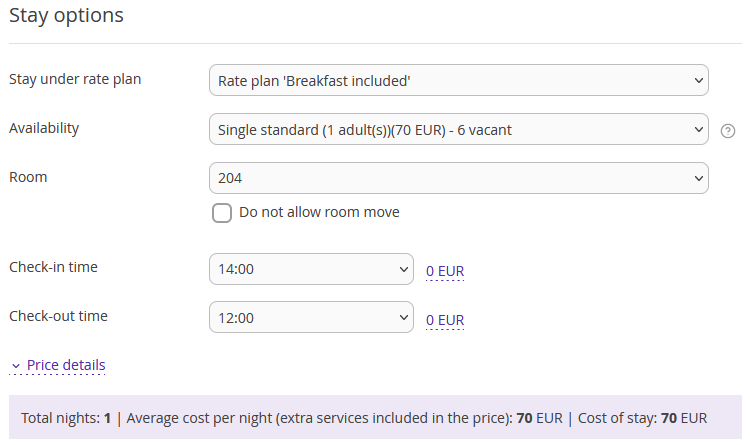
5. In the "Stay options" section, select the required rate plan, availability and check-in and check-out time.
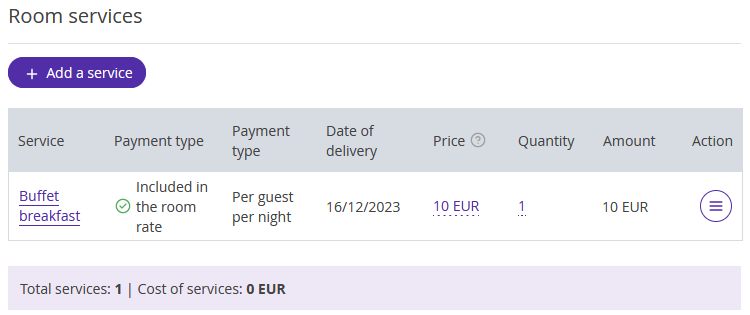
6. In the "Room services" section, select the required services.
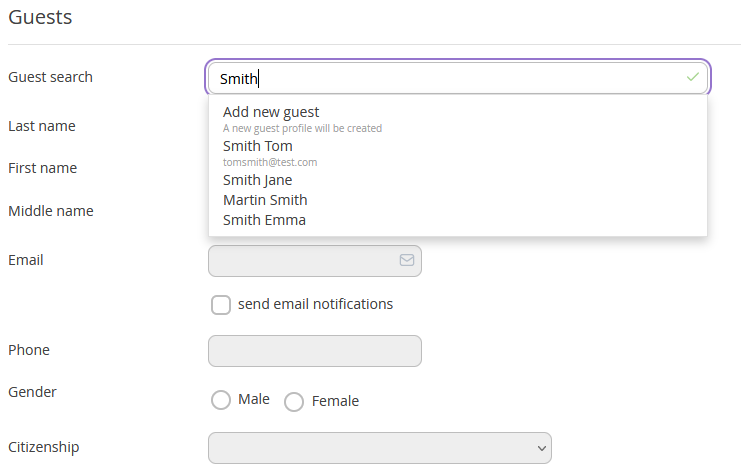
7. In the "Guests" section, enter the customer's name in the "Guest search" field. If the guest exists in your hotel records, select the corresponding guest profile in the search results. In case the guest is not shown in the search results, click "Add new guest" and fill in the fields.
Tick the “send email notifications” box. After you confirm the booking, the customer will receive the following: a booking confirmation, an invoice for the non-cash prepayment, and a work acceptance request. They are generated by the system automatically.
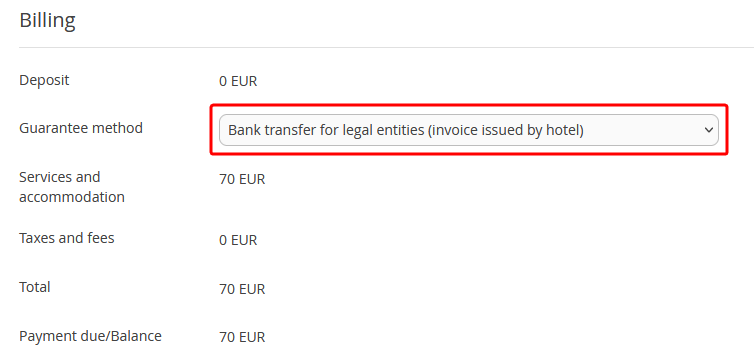
8. In the “Billing” section, select the “Bank transfer for legal entities” option.
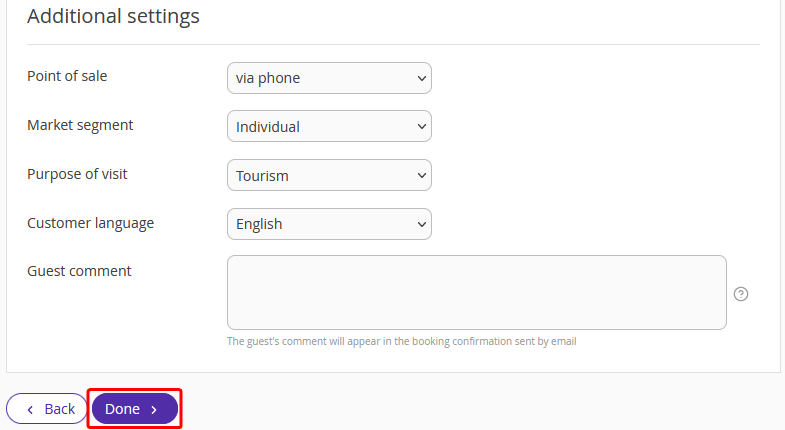
9. Make additional settings. If necessary, leave a comment that will be added to the booking confirmation. Click on the “Done” button.