You can add a guest profile not only when making a booking in the system, but also on the “Guest Profiles” page.
NOTE. As the personal data controller, you are responsible for ensuring that guests, employees or representatives or that of a third party have given valid consent before their personal data is entered. See Part 2 under "WHAT PERSONAL DATA DO WE COLLECT?" in our Extranet Privacy Policy for details.
To add a guest profile, do the following:
1. Go to “Property management” > “Guest Profiles”. Out of all the options, select the “Search”. On the page opened, click the “Add a guest” button.
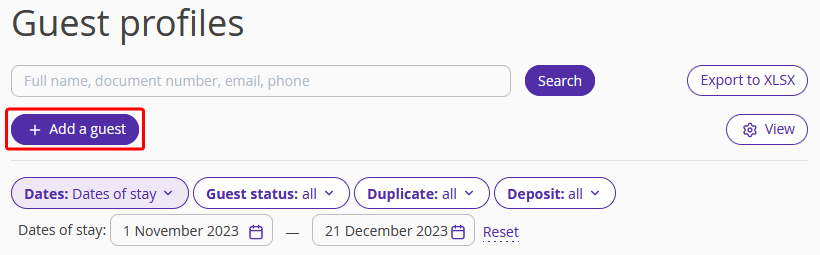
The “Creating a new profile” page will be opened.
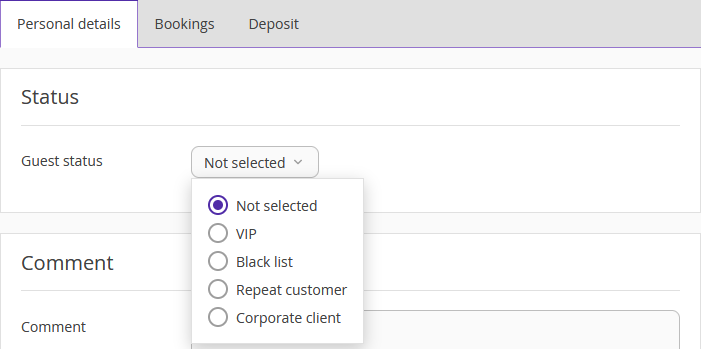
2. Select a guest status. It is either VIP, Black list, Repeat customer, or a Corporate client. Write a comment on the guest in the “Comment” section. Only the Exely PMS users will be able to view it.
Pay attention. Information about the guest's status is only visible in Exely PMS. The statuses are for informational purposes only and do not affect the ability of a guest or an employee of the hotel to make a reservation with this guest.
For example, a guest with the "Blacklist" status can book a room on the website or through the sales channel, as well as an employee of the accommodation facility can create a reservation for this guest in Front desk. A guest with VIP status, "Regular Customer" or "Corporate Customer" status does not receive additional privileges when booking.
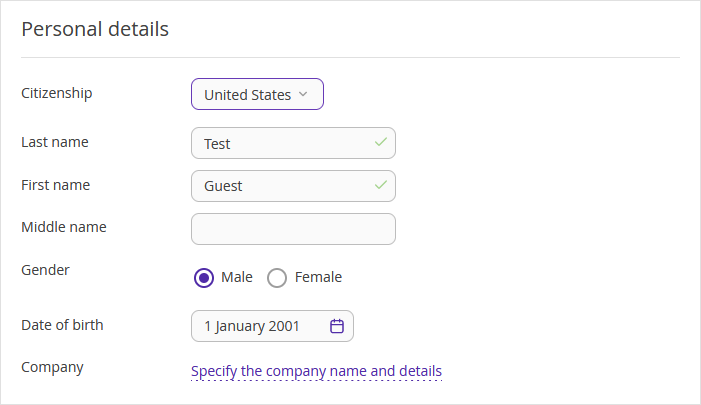
3. In the “Personal details” section, fill out guest details: first and last name, citizenship, and date of birth. Select a citizenship and a company if it is a corporate traveler.
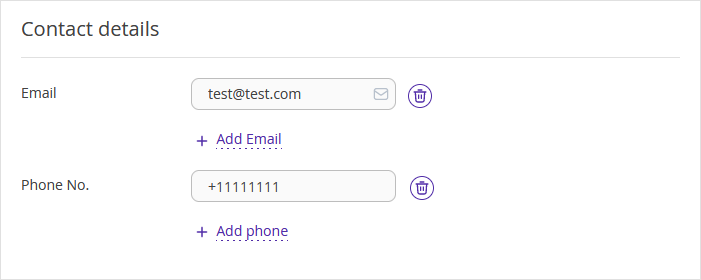
4. For the “Contact details”, write in guest’s email and phone number.
5. In the “Identity document” section, select a corresponding document and fill out other details.
6. Fill in the “Place of residence” section.
7. Click the “Save” button in the top left corner.
The guest profile is created. From now on, when making a booking for this guest, Exely Suite will fill out their details automatically. When opening the “Bookings” tab in a guest profile, you will see all the bookings made by the guest.
