Before making settings, check if you have a direct connection with Airbnb.
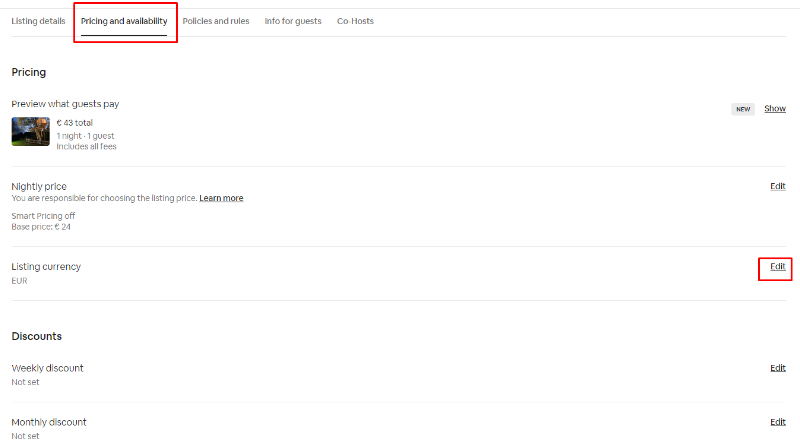
Note. Make sure that the listing currency is Euro. If the currency is not Euro, you should change it. To do this, open the listing settings > “Pricing and availability” tab.
Click “Edit”, change the currency, and save the changes.
If you have had a direct connection with Airbnb earlier
Disable the old connection to the channel to connect to Airbnb through Kross Booking. To do this, go to “Channel Manager” > “Manage Channels” and click the “Airbnb” channel.
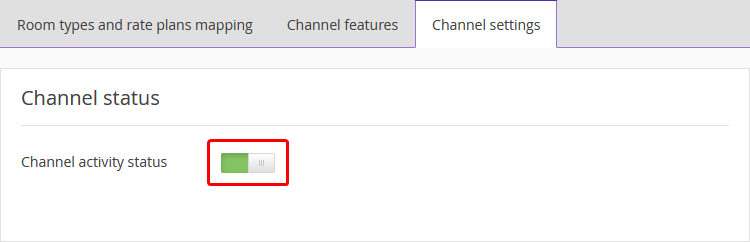
Switch to the “Channel settings” tab and toggle the switch off to deactivate the channel.
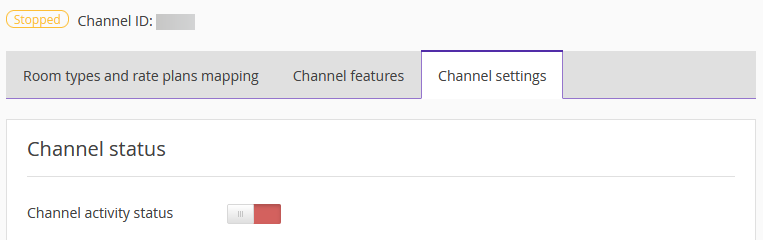
The channel status will switch to “Stopped”.
Next, go back to the "Connected channels" tab, click the “Action” button next to Airbnb, and select “Disconnect channel”.
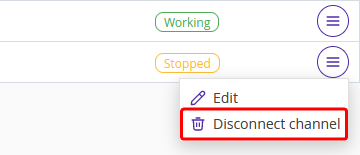
You have disabled the old connection to Airbnb. Now, you can make a new connection to Airbnb through Kross Booking.
How to connect Airbnb
Connect the Kross Booking channel
Note. To connect the Airbnb channel through Kross Booking, contact your Exely Customer Support manager or Exely Customer Support team. |
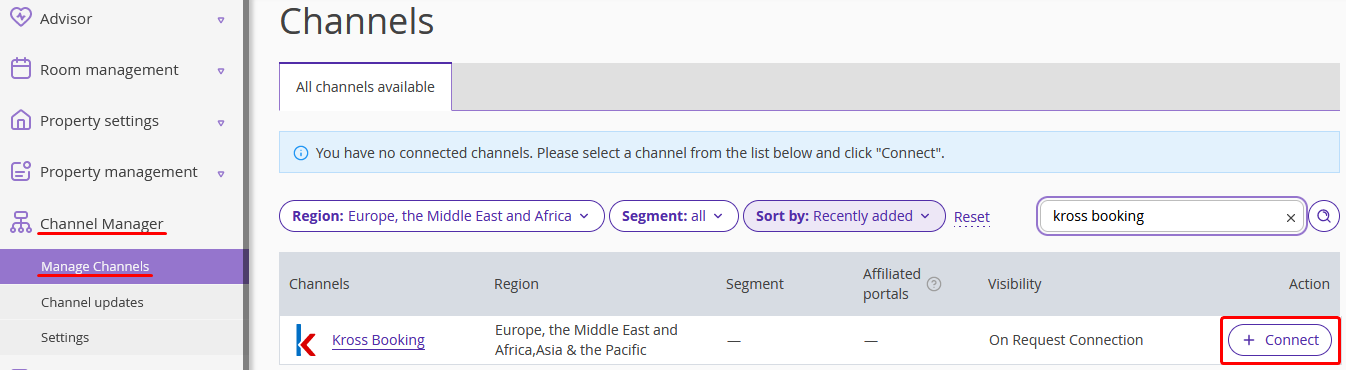
1. Go to “Channel Manager” > “Manage channels”. In the “All channels available” tab, find the Kross Booking channel and click “Connect”.
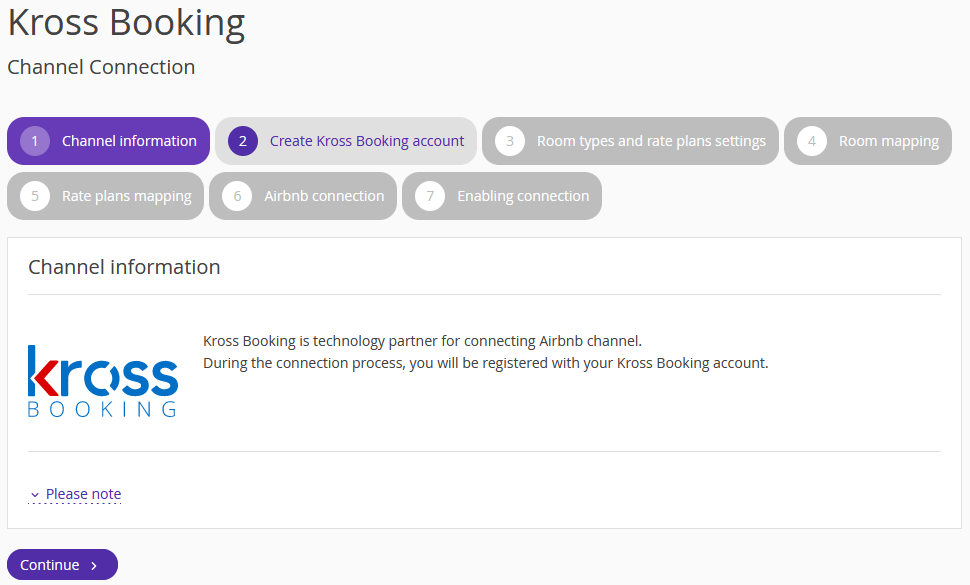
2. Check out the Kross Booking features and click “Continue”.
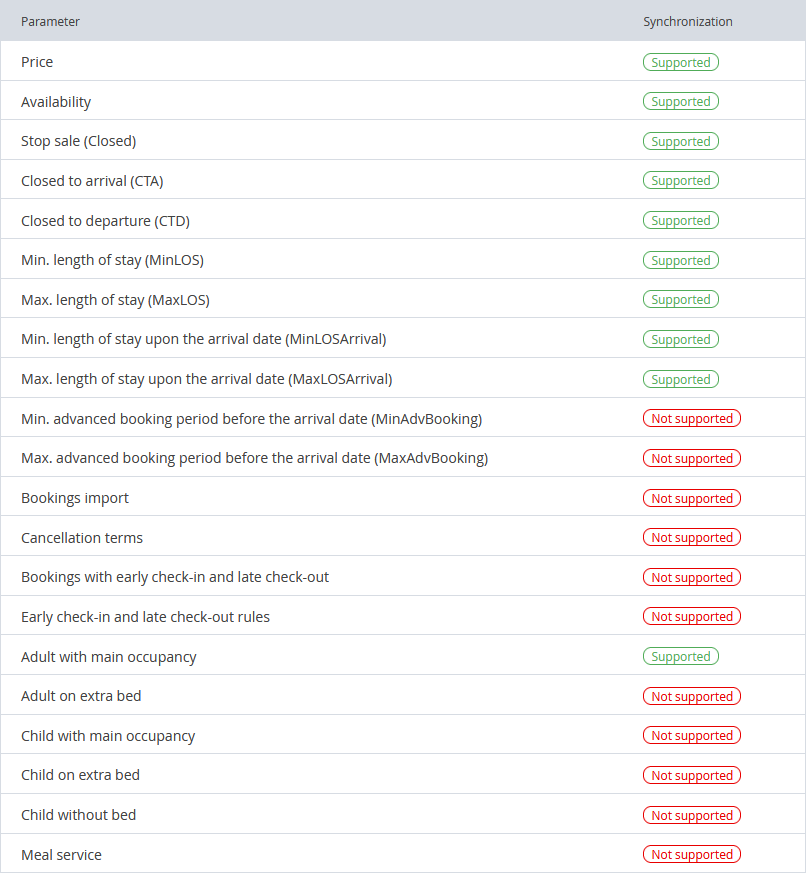
Note. These are the features of Kross Booking. Only the parameters supported by Airbnb can be transferred, such as prices, availability, and closed sales.
3. Click “Continue” and wait for the Kross Booking account to be created. It usually takes less than 1 minute.
Settings in Kross Booking
After creating an account, you will see the login and password for signing in to your Kross Booking account. Follow the link in the green field and enter your login and password. To view the password, click the eye icon next to the field.
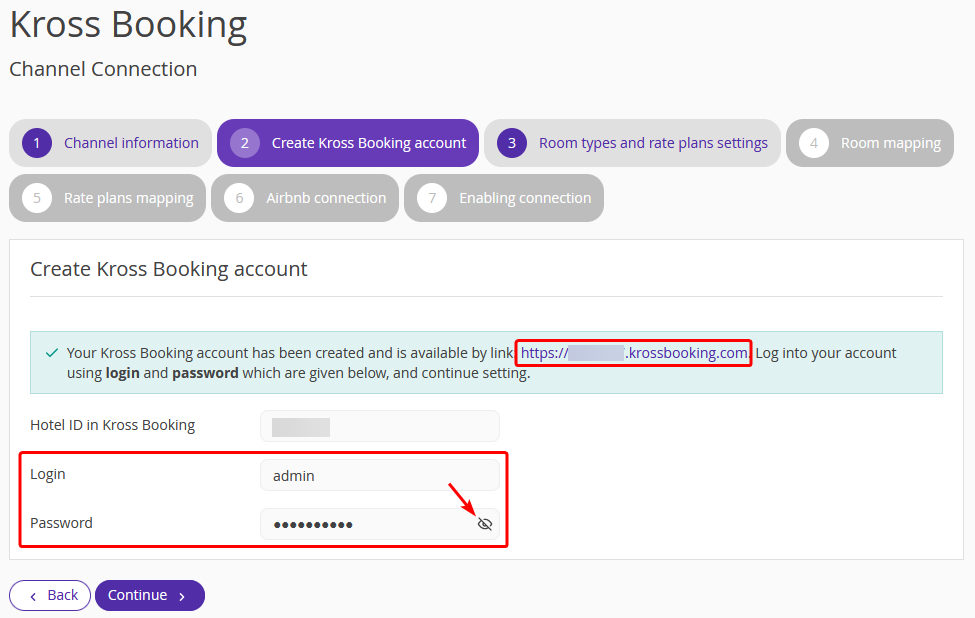
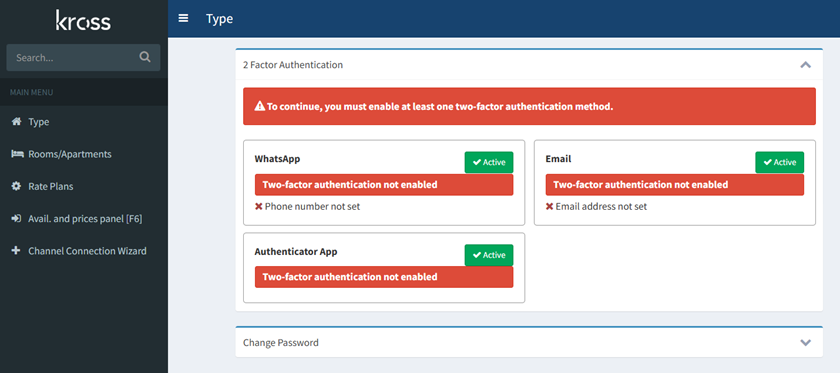
1. After logging in to your Kross Booking account, set up two-factor authentication. Select a verification method: WhatsApp, an authenticator app, or email.
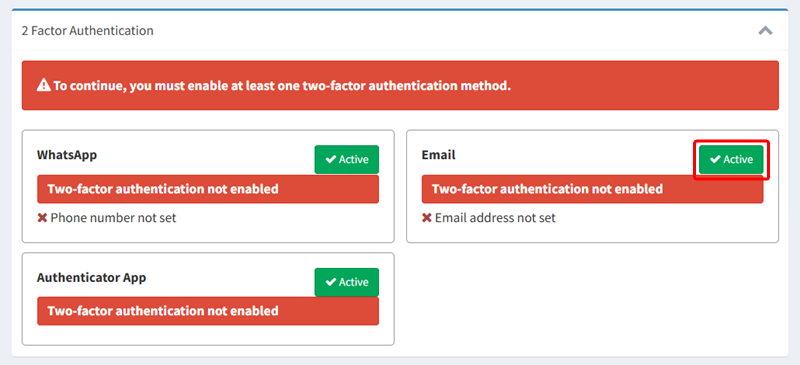
Let's look at how to set up two-factor authentication using email. Click "Active" next to "Email".
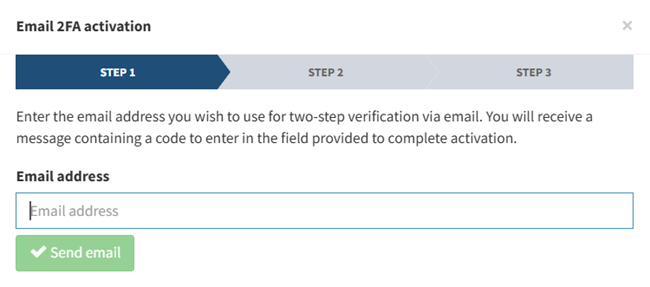
2. In the opened window, enter your email address and click "Send email".
3. A verification code will be sent to the provided email address. Enter it in the "Verification code" field and click "Verify code".
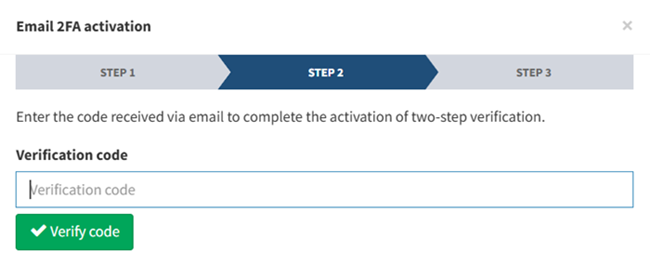
4. Two-factor authentication is set up. Close the window.
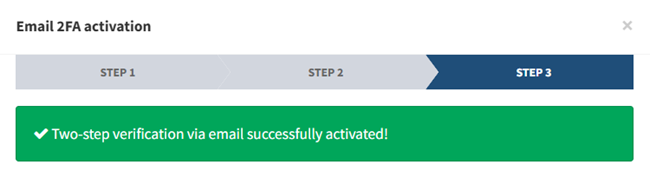
5. Create room types, which should be transferred to Airbnb. To do this, go to the “Type” menu item and click the “New Type” button.
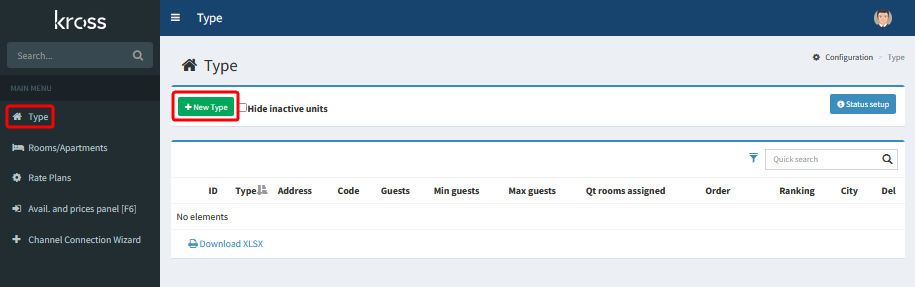
Enter the room type name and code.
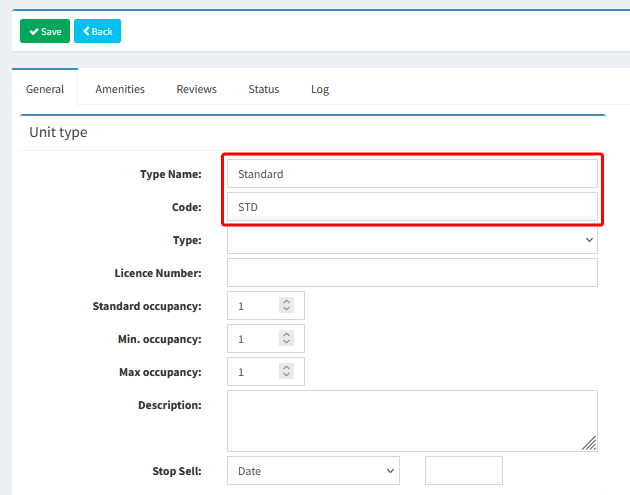
Enter “1” into the “Standard occupancy”, “Min. occupancy”, and “Max occupancy” fields and click “Save”.
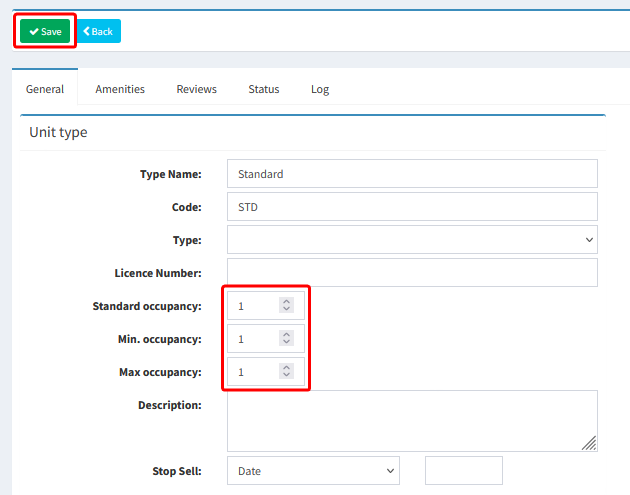
Pay attention. These values do not affect anything, as the prices for rooms are sent to the channel, not for accommodation types.
Go back to the “Type” menu item and create the remaining room types if required.
6. Go to the “Rooms/Apartments” menu item and check if rooms/apartments are created for the created room types. If the rooms/apartments were not created automatically, click the “New” button to create them.
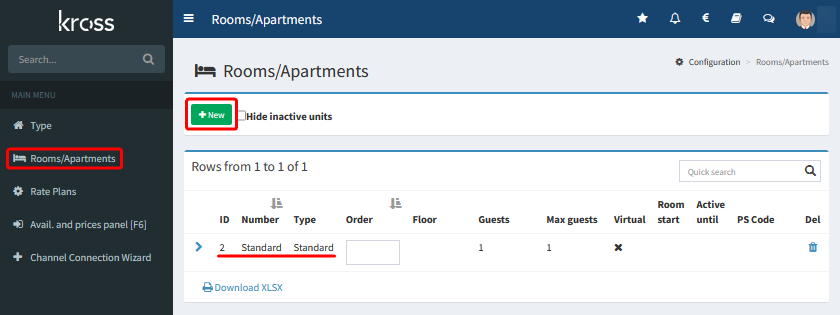
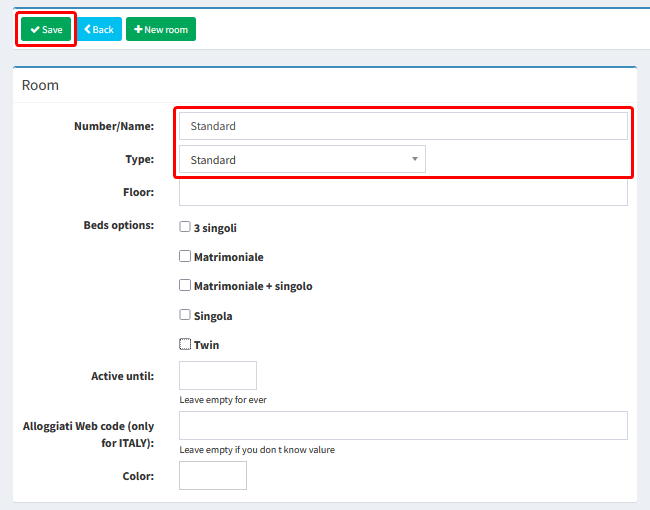
In the opened window, enter the room/apartment number or name and select the type. Click “Save”.
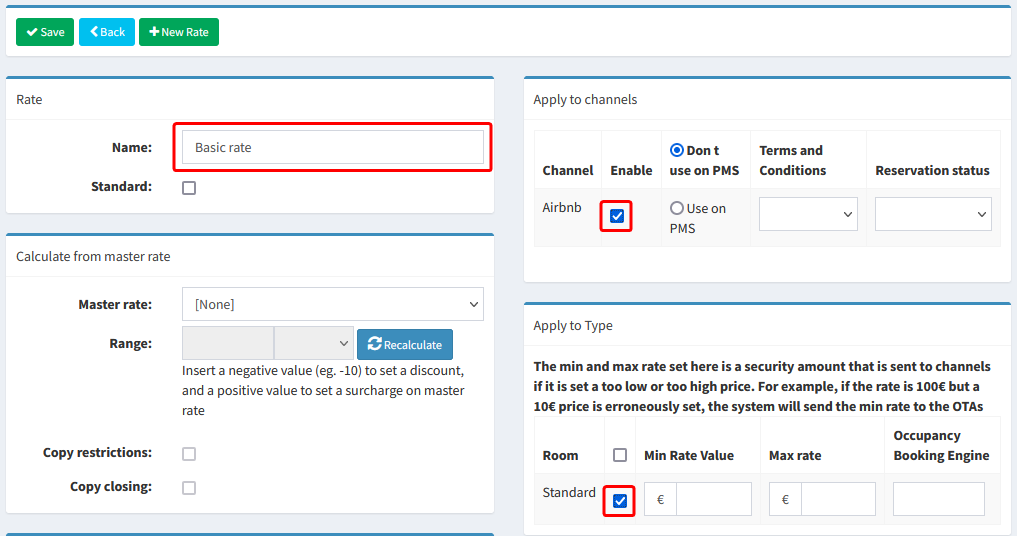
7. Create rate plans. For this, go to the “Rate Plans” menu item and click “New Rate”.
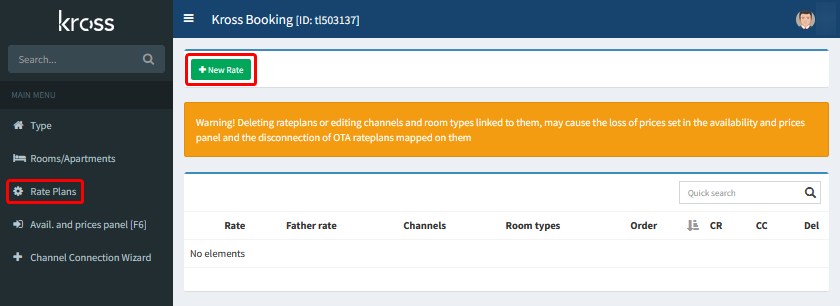
Pay attention. It is required to create only one rate plan in Euro.
Make the following settings:
Enter the rate plan name.
Tick the "Enable" check-box next to the “Airbnb” option.
Select the room types that should be passed to the channel.
Then, click “Save”.
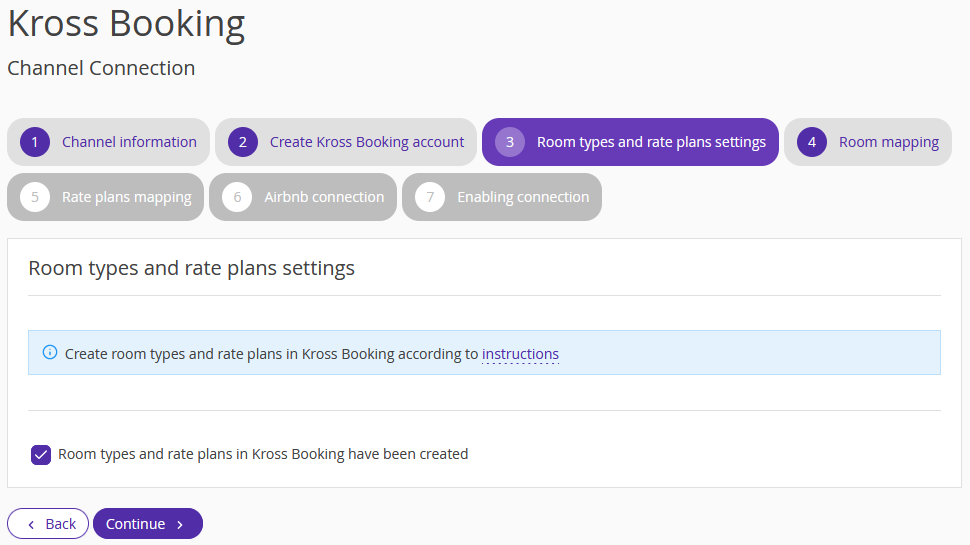
8. Go back to the Kross Booking connection page in the Exely extranet. Tick the “Room types and rate plans in Kross Booking have been created” check-box and click “Continue”.
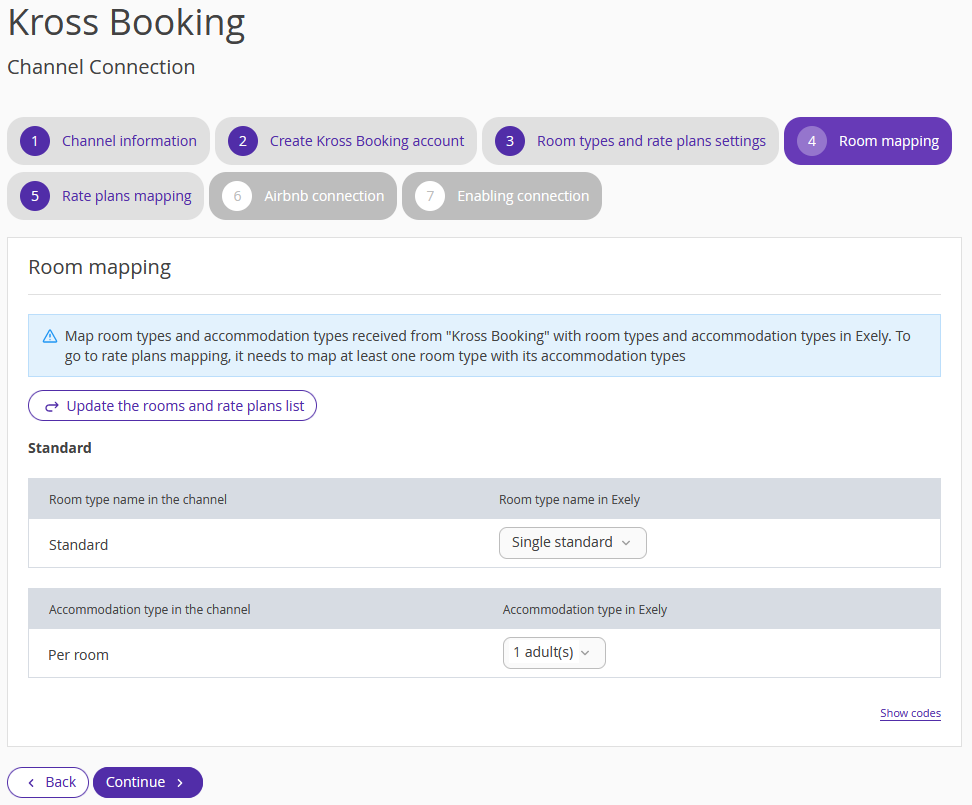
9. Map room types and accommodation types, and rate plans from Kross Booking with the ones in Exely. Select the Exely parameters on the right for the corresponding data in the channel on the left. Click “Continue”.
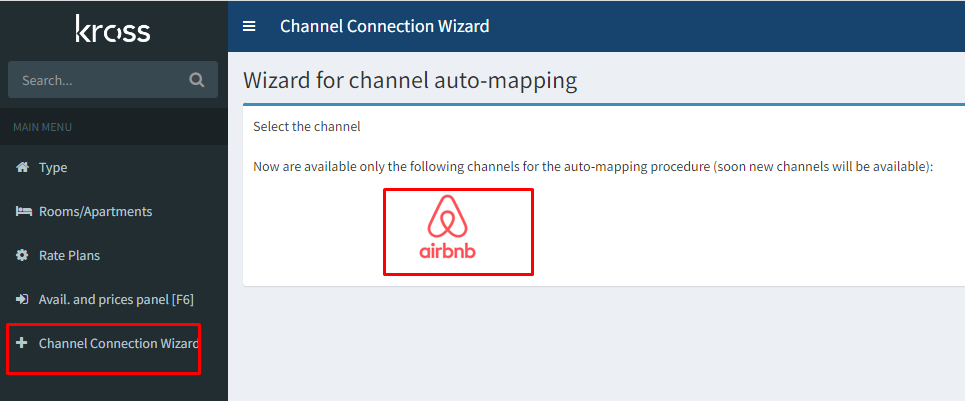
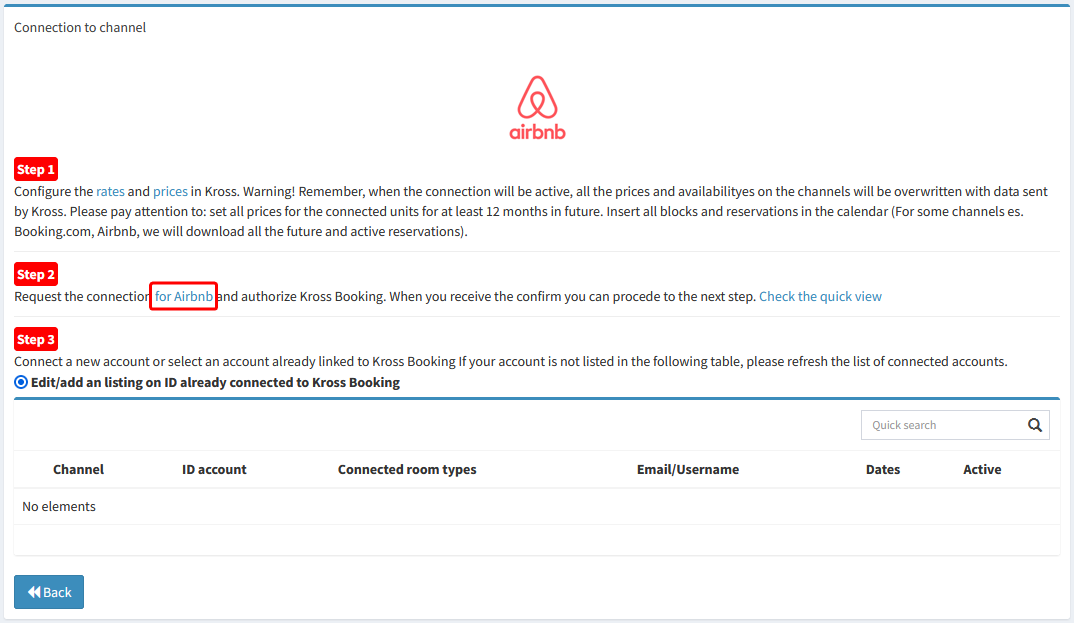
10. Go back to the Kross Booking account to set up the connection to Airbnb. Go to “Channel Connection Wizard” and click the Airbnb logo.
Click the “for Airbnb” link in the opened window.
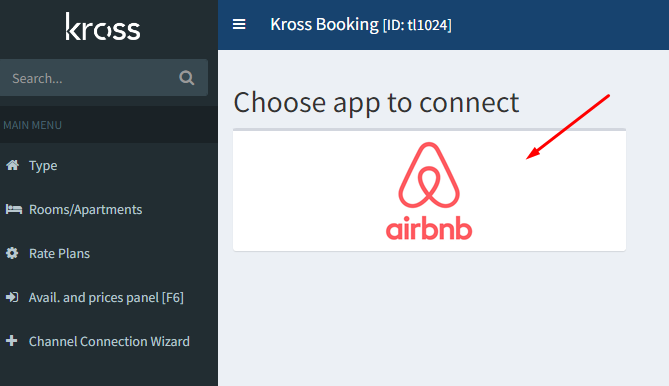
11. Click the Airbnb logo.
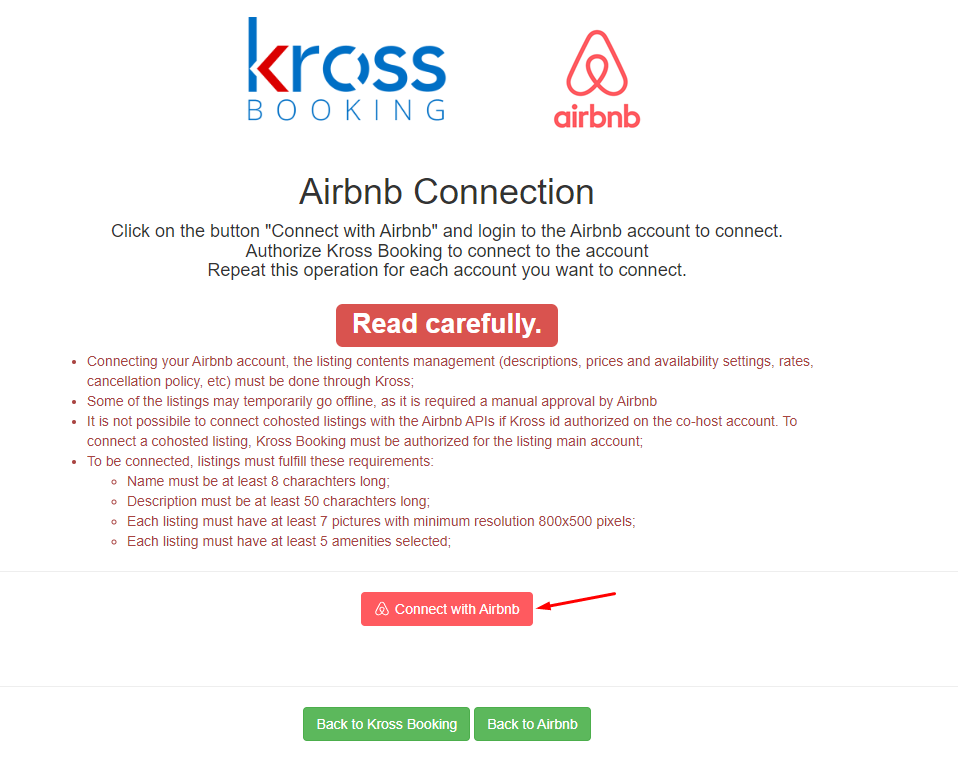
12. Click “Connect with Airbnb” in the opened window.
13. Sign in to your Airbnb account.
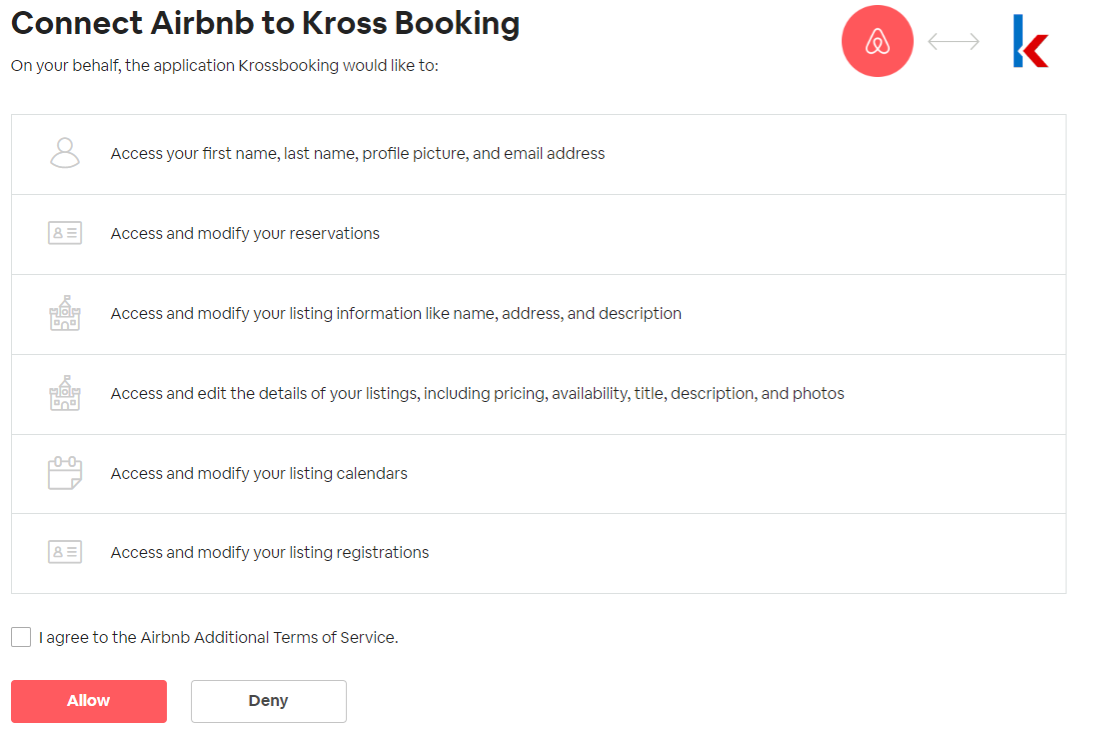
14. Tick the “I agree to the Airbnb Additional terms of Service” check-box.
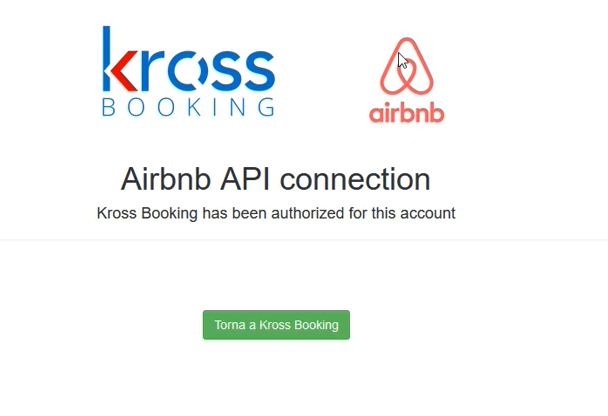
15. Click “Torna a Kross Booking” to go back to Kross Booking.
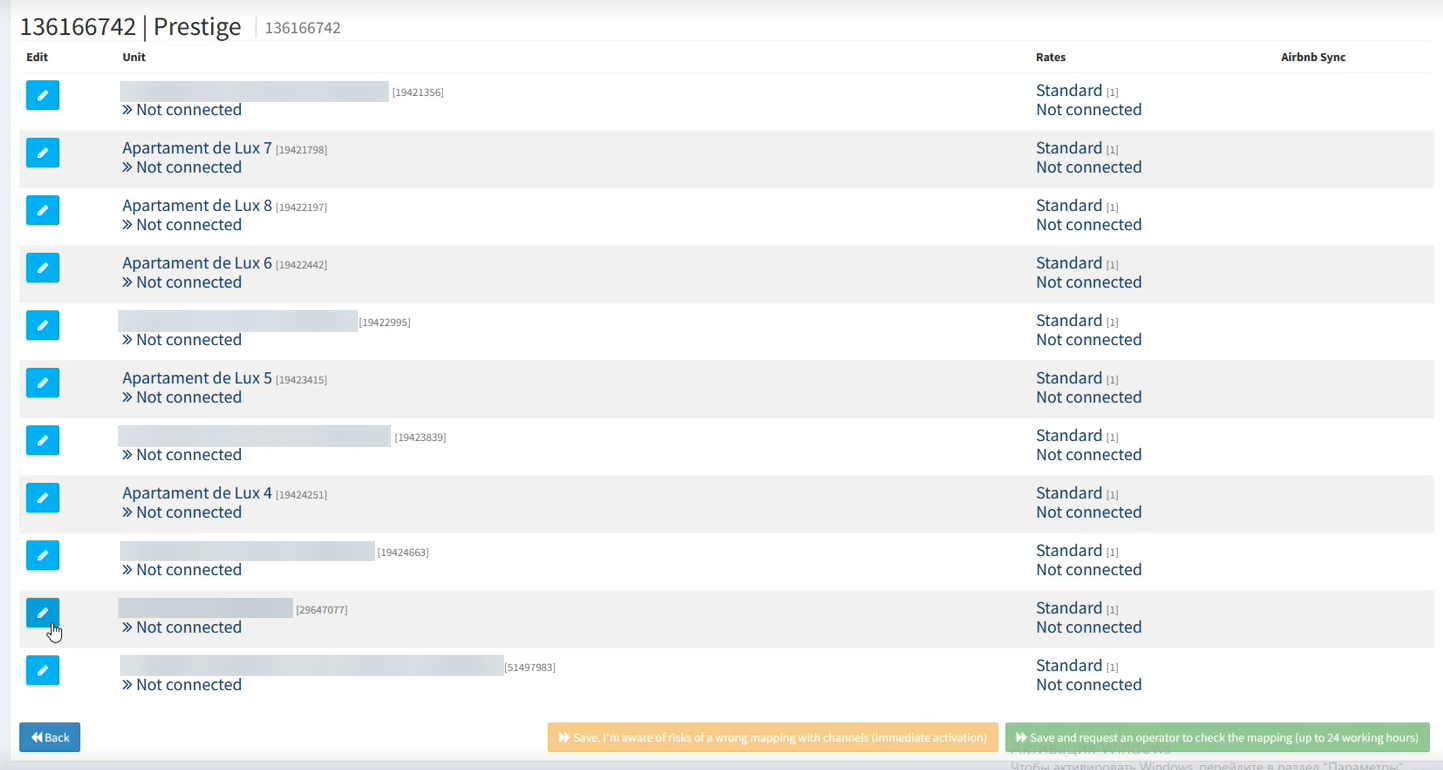
16. Click “Edit” and map room types from Airbnb with the ones in Kross Booking.
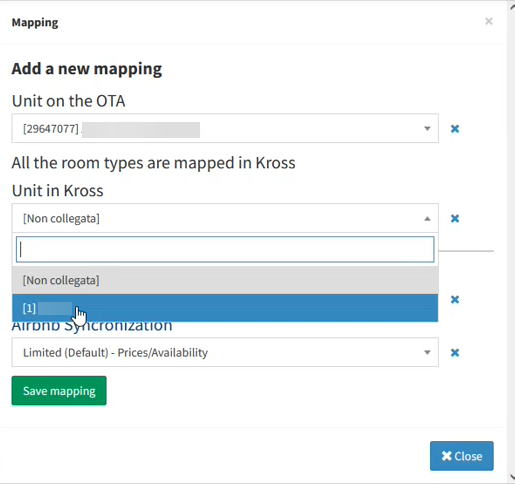
17. Select room types in Kross Booking, which correspond to these room types in Airbnb. Click “Save mapping”.
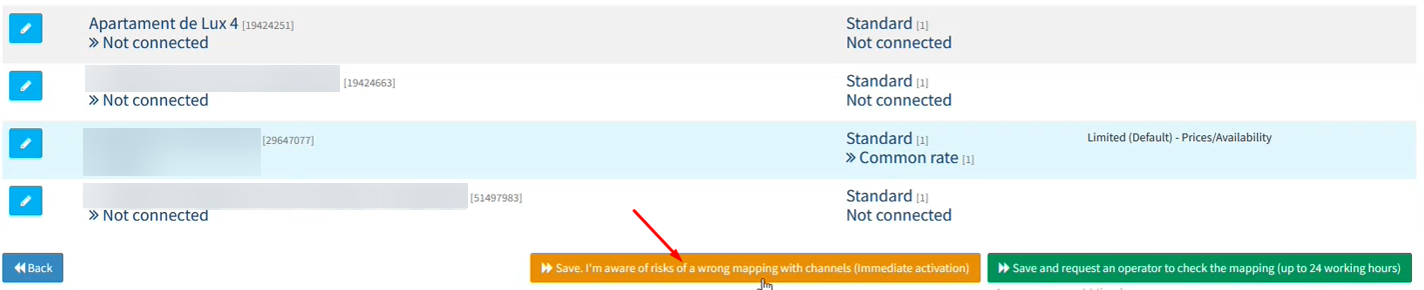
18. Map all the room types and click “Save. I’m aware of risks of a wrong mapping with channels”.
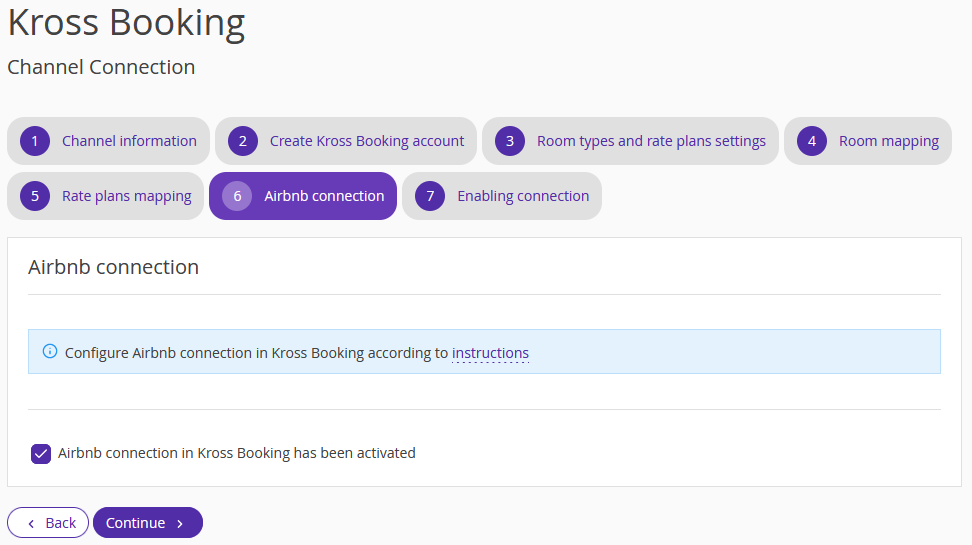
19. Go back to the Exely extranet. Tick the "Airbnb connection in Kross Booking has been activated" and click “Continue”.
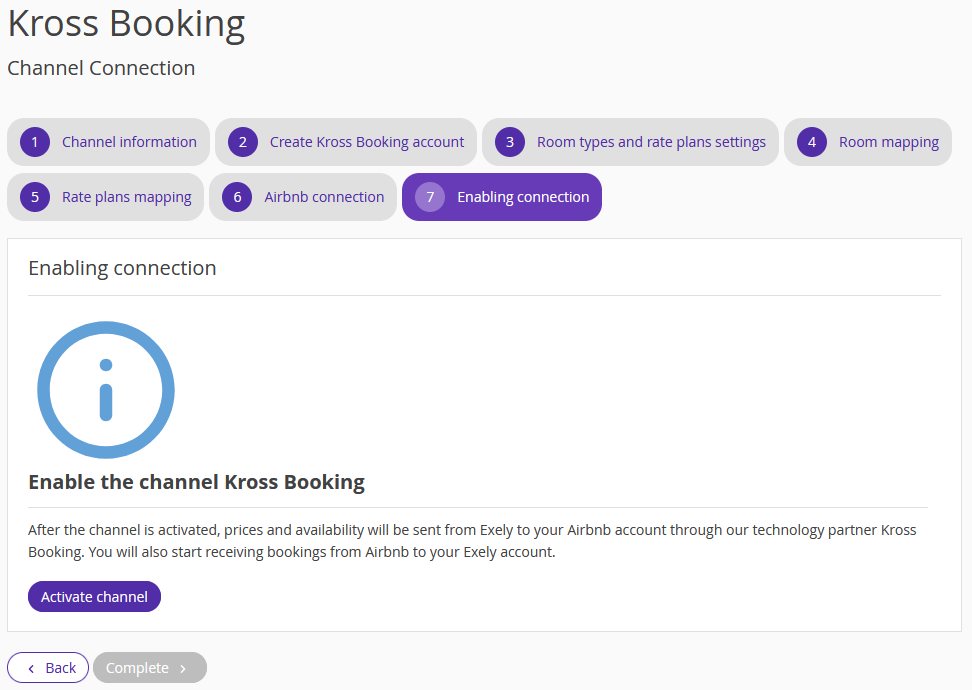
20. Click “Activate channel”. Then, click “Complete”.
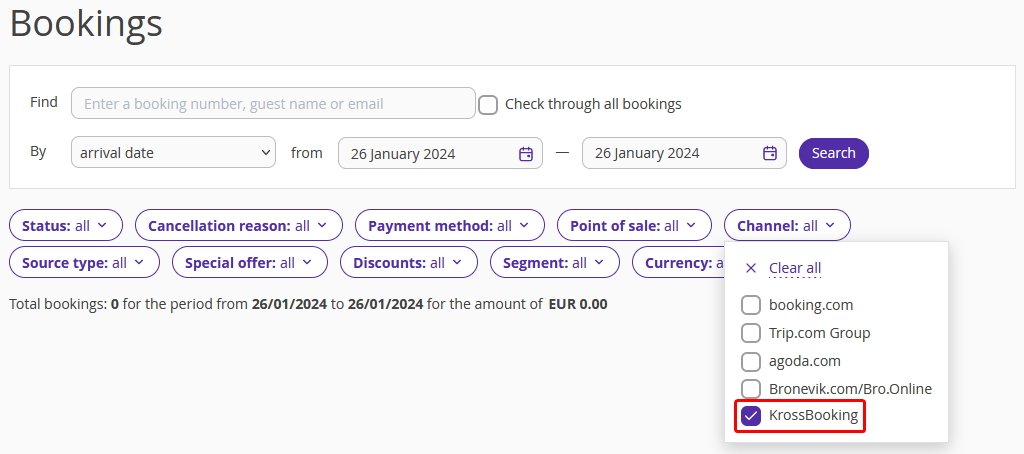
To view bookings from Airbnb using the Kross Booking connection, go to “Reports” > “Bookings” in the Exely extranet and select “Kross Booking”.
How to connect several Airbnb accounts to Exely through Kross Booking
After 1 account has already been connected:
1. Go to your Kross Booking account, open the “Channel Connection Wizard” tab, and click the Airbnb logo.
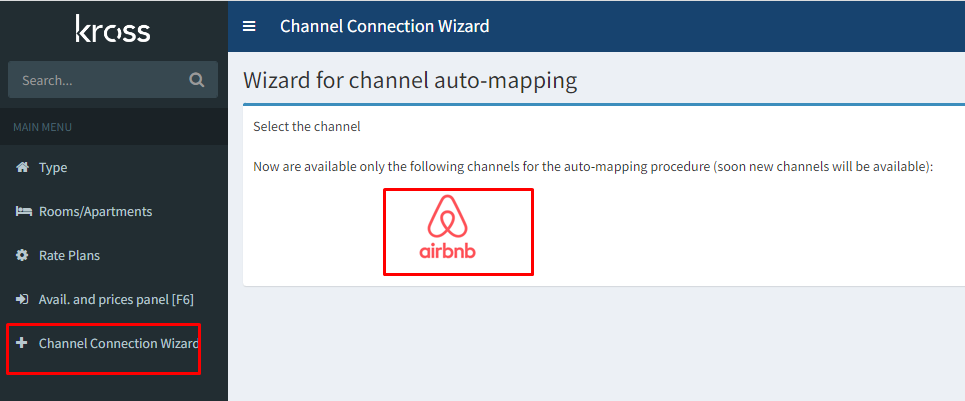
You will see a list of already connected accounts.
2. Click “for Airbnb”.
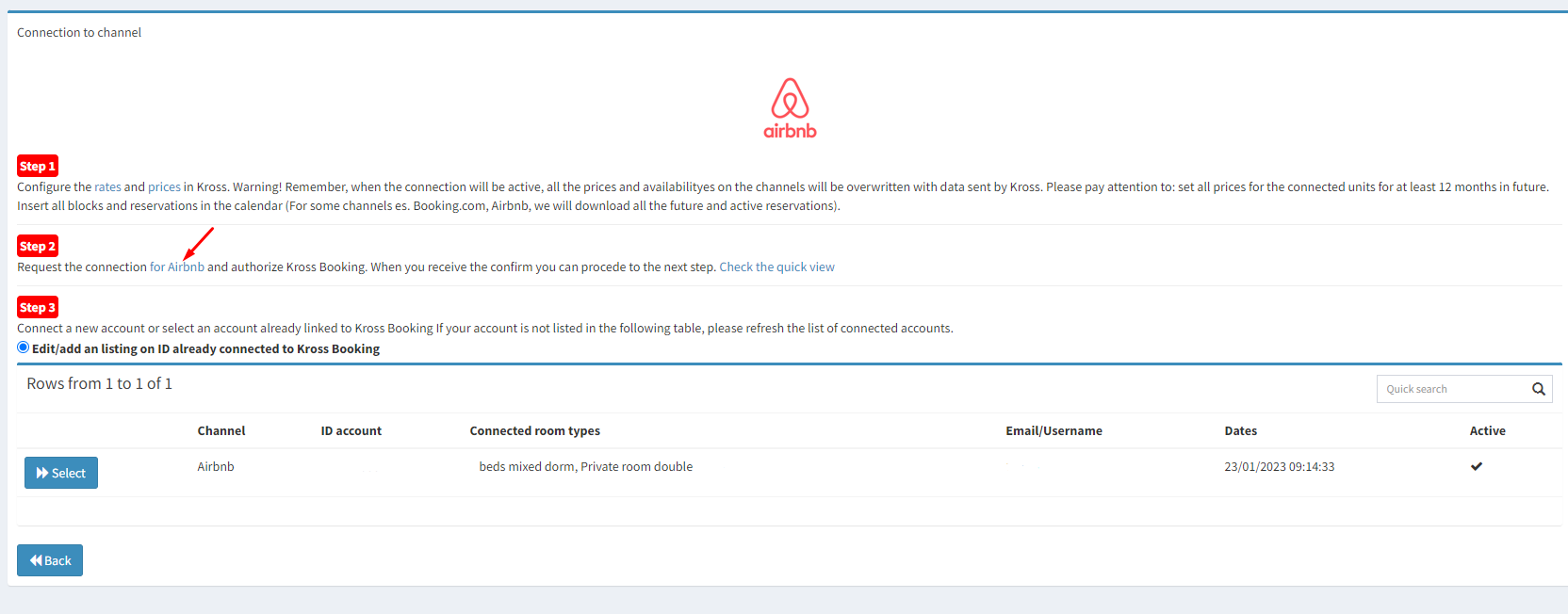
3. Repeat steps 10-17 described in the "How to connect Airbnb" instructions above.
4. In the Exely extranet, go to “Channel Manager” > “Manage Channels” and click "Kross Booking".
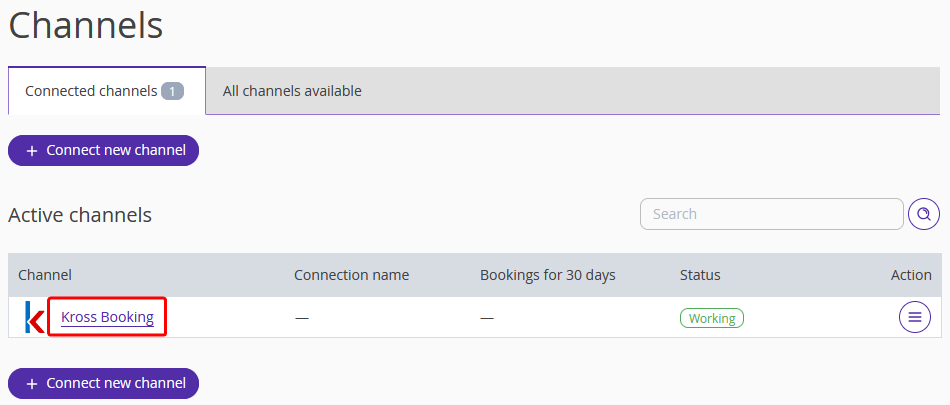
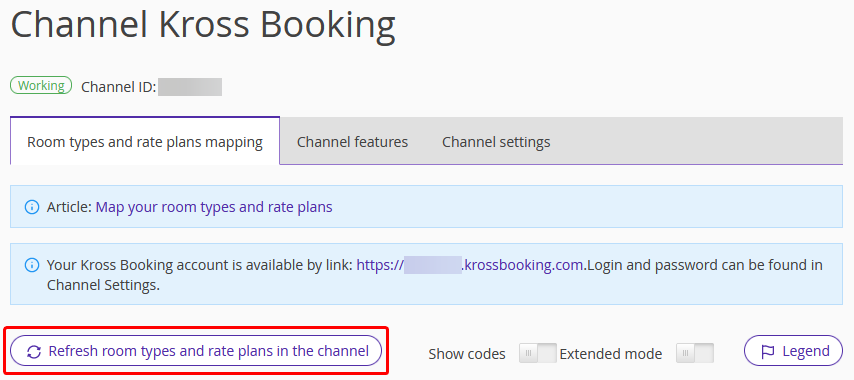
5. Click “Refresh room types and rate plans in the channel” and map new room types in the “Room types and rate plans mapping” tab.