The Exely extranet includes a section where you can create API connections yourself.
An API connection is used to configure access permissions for the external interfaces of Exely Suite. External interfaces allow direct access to the system's APIs, such as retrieving booking data or property information.
An API connection allows you to:
Provide your partners with access to bookings and property information.
Use the data for reporting or automation purposes.
You can create up to three API connections for each property.
Note. Exely Suite is protected by a permission control system, and only those users who have been granted the required permissions can access it. When you create an API connection, the system automatically generates a login (client_id) and password (client_secret) that provide access to the property's data.
To create an API connection:
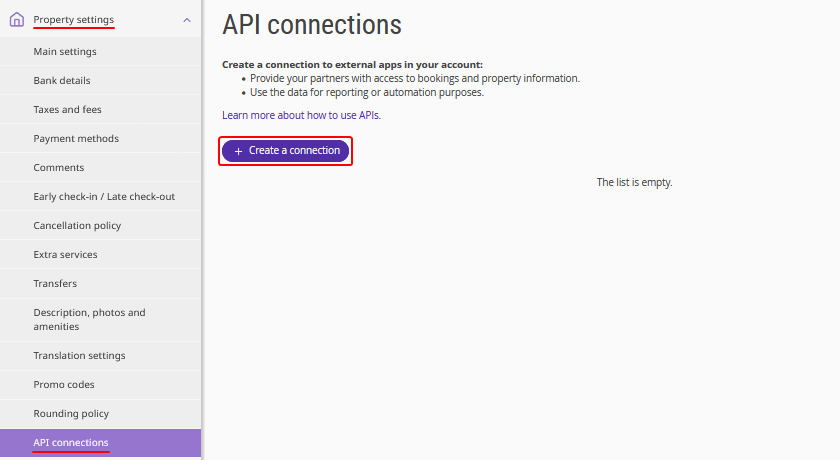
1. In the Exely extranet, go to “Property settings” > “API connections” and click the “Create a connection” button.
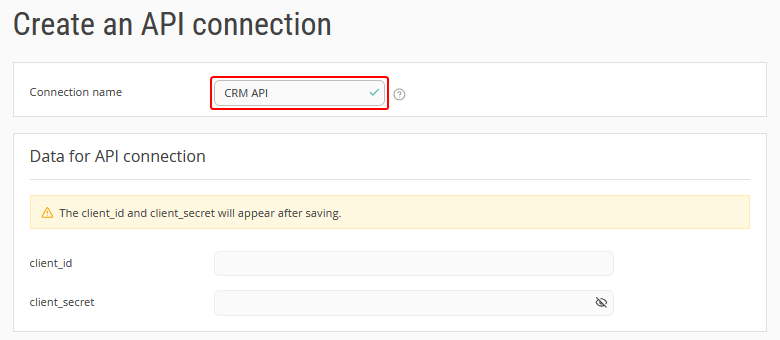
2. On the “Create and API connection” page, in the “API connection” section, specify the connection name. This can be the name of the program, system, or company with which the integration is being set up. For example, “API for reports” or “Restaurant system”.
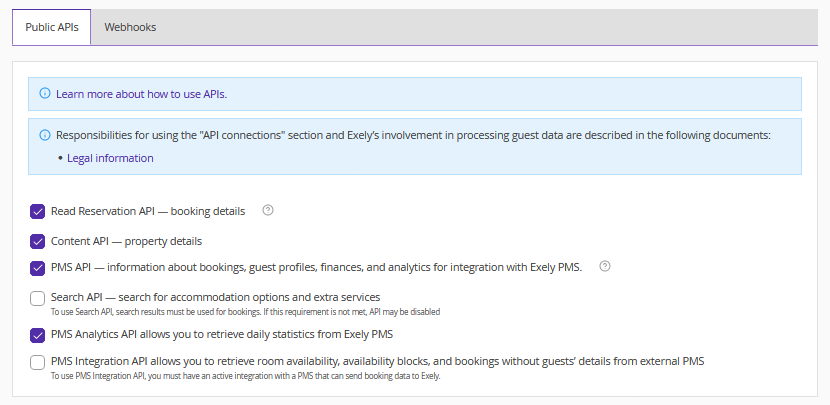
3. On the “Public APIs” tab, select the Exely Suite APIs you want to grant access to.
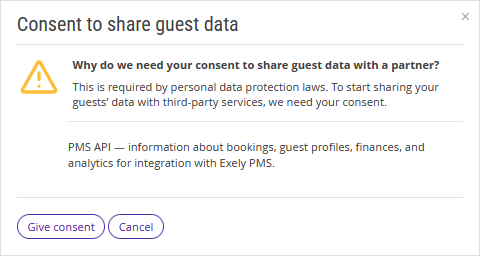
Pay attention. If the selected API provides access to guests' personal data, a window with a description will appear. To grant access, click "Give consent".
4. On the "Webhooks" tab, set up automatic notifications for events such as booking creation or cancellation. A webhook is a mechanism for transferring data between different systems.
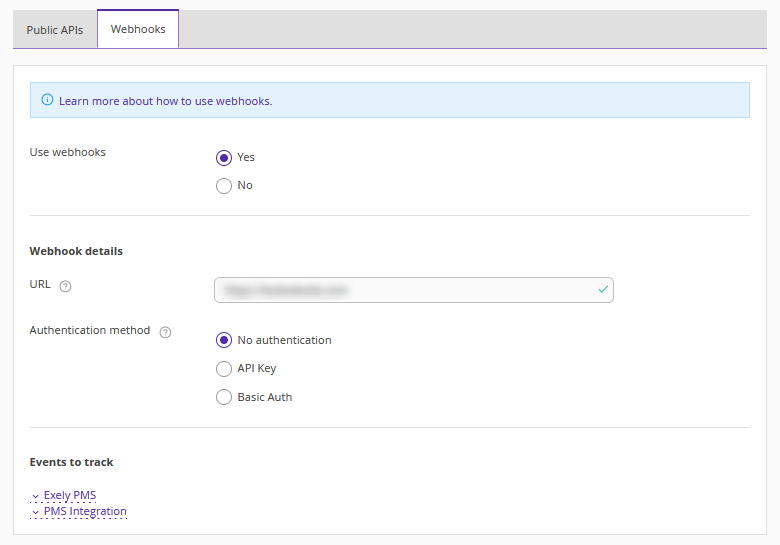
For more information about configuring webhooks, see the article "How to set up webhooks in Exely extranet".
5. Click the “Save” button at the top of the page to save the changes.
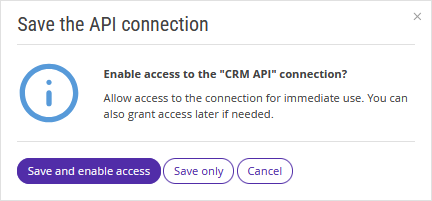
6. In the “Save the API connection” pop-up window, click “Save and enable access" if the access should be enabled right away. If you plan to enable access later, click “Save only”.
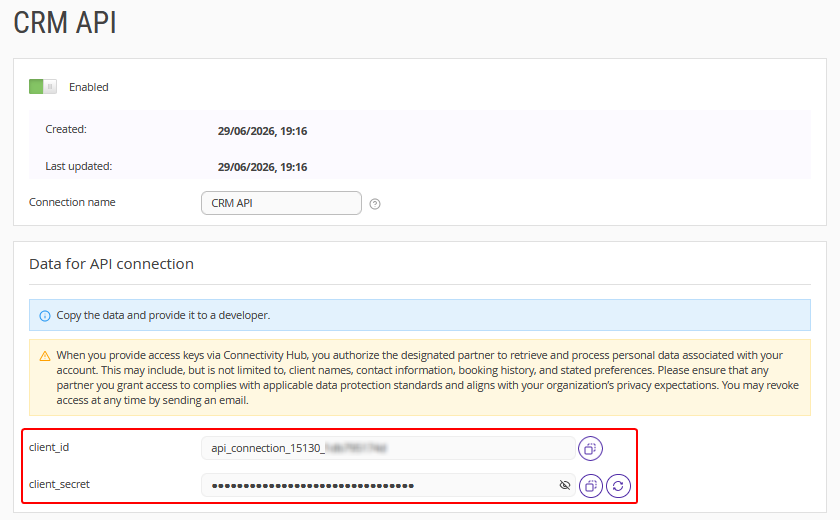
Pay attention. The “client_id” and “client_secret” fields will be filled in automatically after you save the changes on the “Create an API connection” page. Copy these values and pass them to your partner. They will be used to verify the connection security.
The new connection will appear on the "API connections" page.
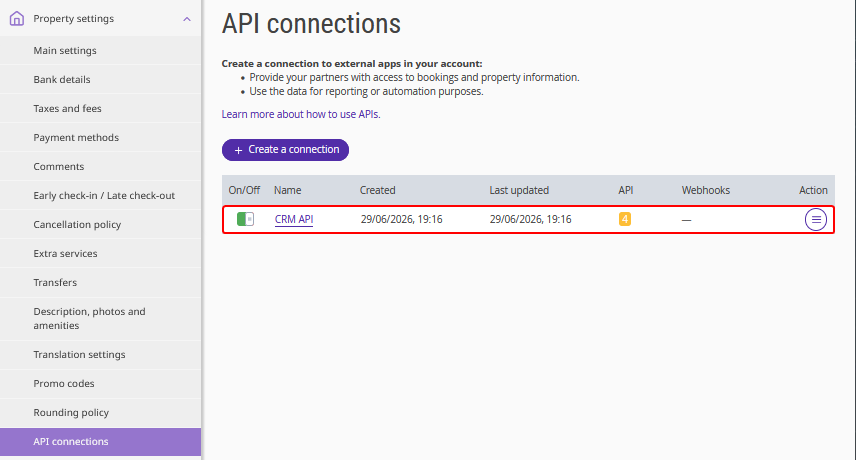
Note. You can create a maximum of three API connections in the Exely extranet. After the limit is reached, the "Create a connection" button becomes unavailable.
Available actions for API access
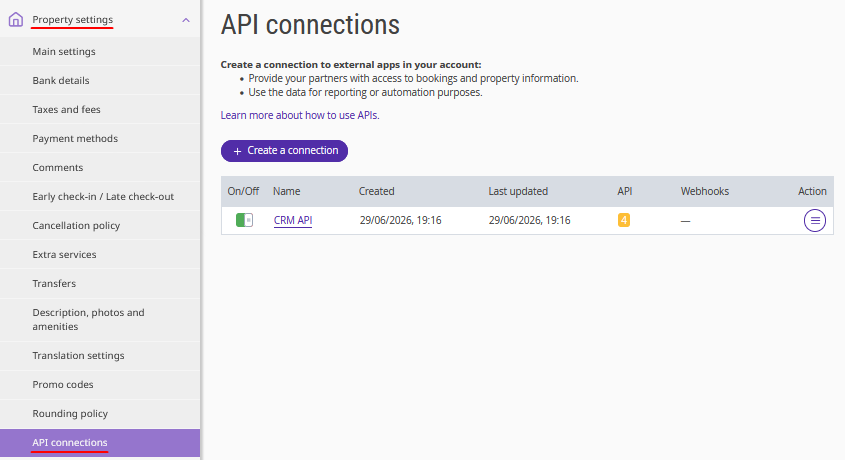
You can edit, enable, or delete an access. To see the list of previously created API connections, go to "Property settings" > "API Connections".
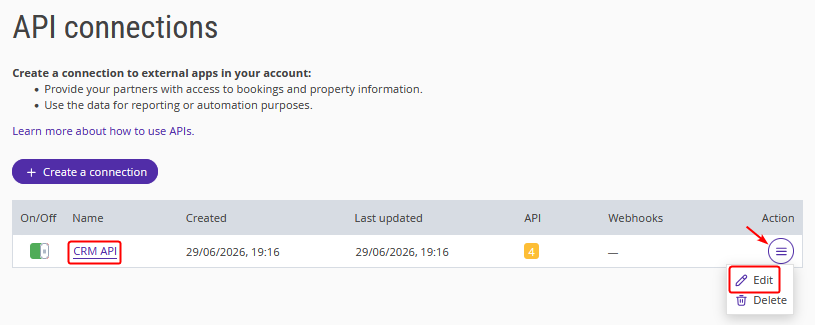
To edit the access, click the connection name in the list or “Action” > “Edit”.
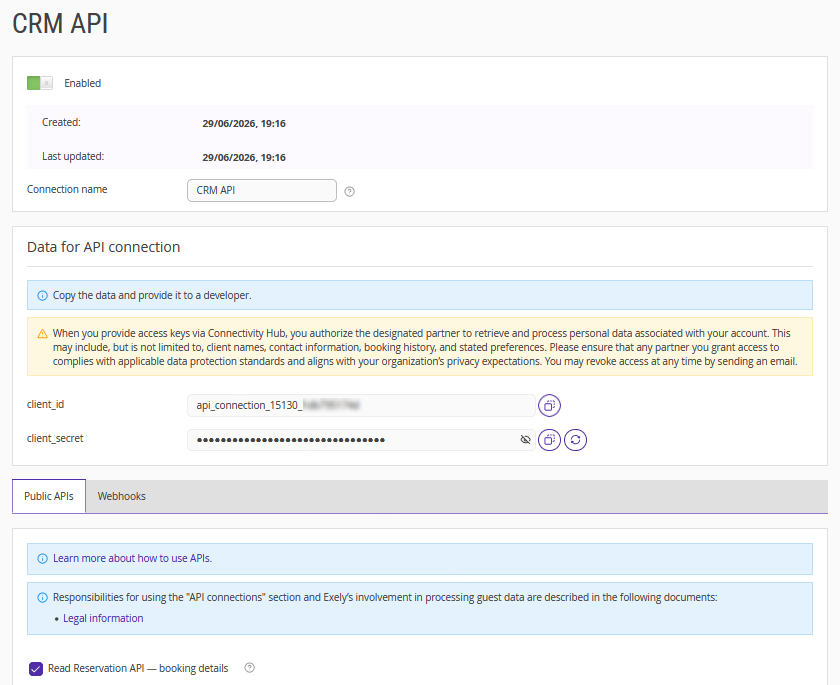
On the connection settings page, you can:
enable or disable access,
edit the connection name,
change the set of provided Exely Suite APIs,
Note. If you close the access or delete the connection, it will not be possible to use the Exely Suite API.
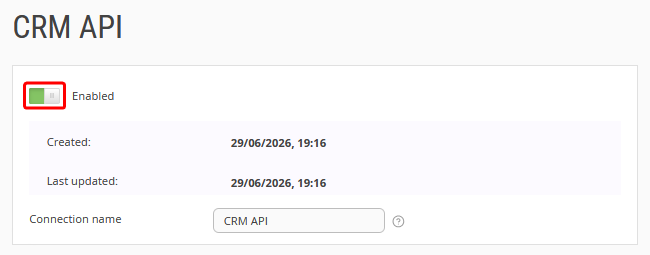
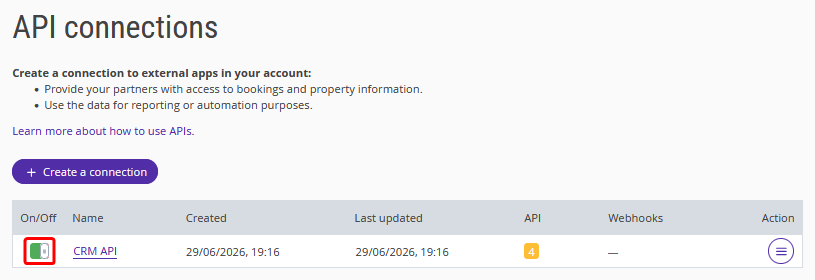
To disable or enable API access, use the toggle switch on the connection page:
Or on the "API connections" page:
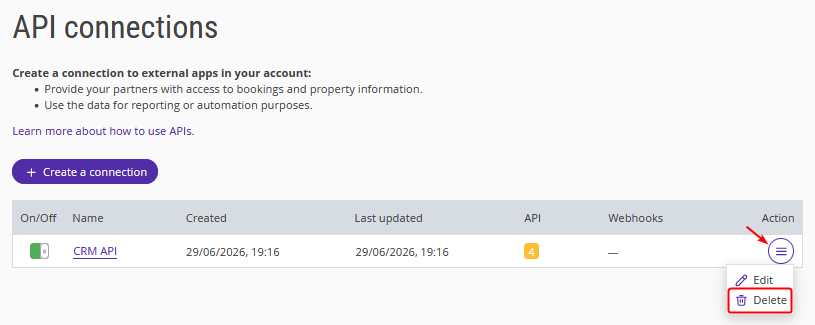
To delete a connection, find the required connection in the list and click “Action” > “Delete”.
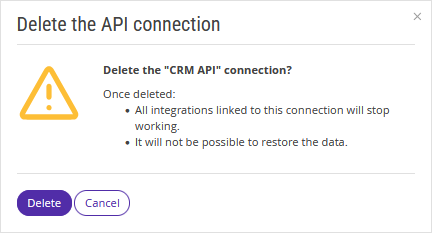
In the pop-up window, confirm the connection should be deleted.
For details on how to use API access, refer to the documentation on the Exely Dev Portal.