Exely Payment Links allows you to split an order payment into two installments. This makes it easier for properties to receive larger payments without creating two separate orders and track both payments in a single order. Guests can also benefit from the option to pay in installments.
How to create an order with installment payment
1. Go to "Payment links" > "Settings" > the "Payment" tab > the "Installment payment" section.
Pay attention. You can create orders with installment payment only in the "Payment links" section.
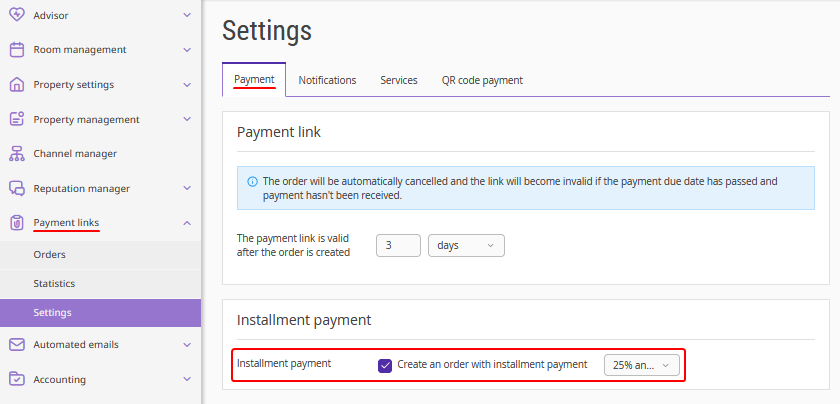
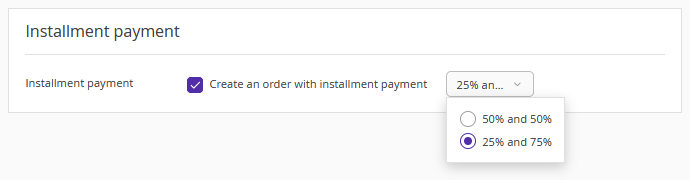
Tick the "Create an order with installment payment" check-box and select how to split the payment: 25% and 75% or 50% and 50%.
2. Go to "Payment links" > "Orders" and click "Create an order". You can now select installment payment when creating an order.
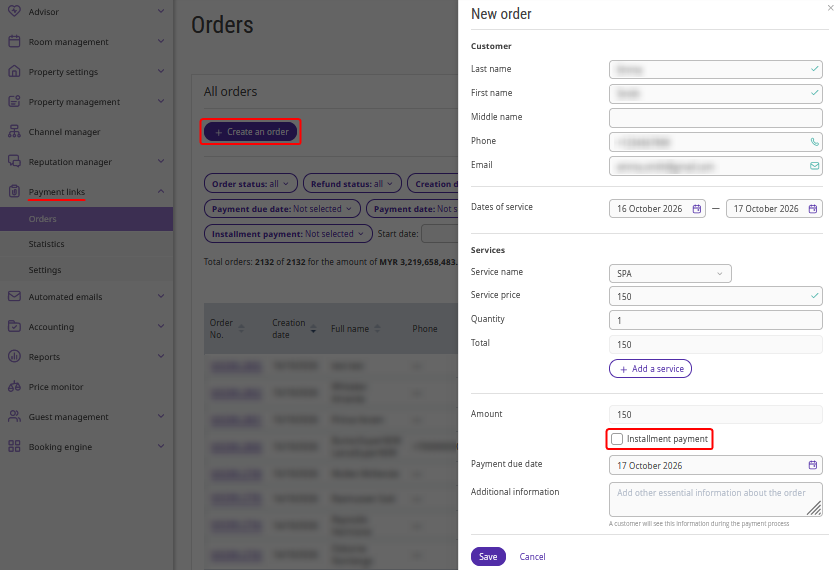
3. In the order creation window, tick the "Installment payment" check-box. By default, the payment is split according to the settings. You can change the amount of each installment.
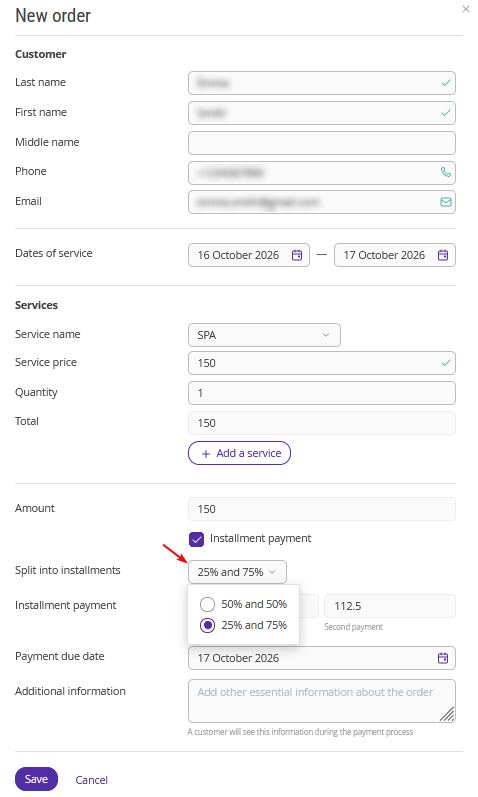
The amount of each installment is calculated automatically.
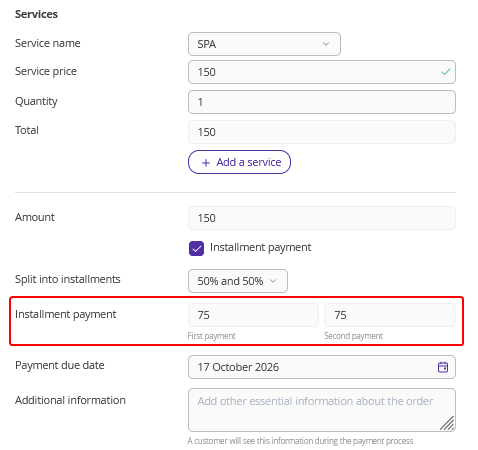
4. Save the changes. Once the order is saved, the payment link is automatically sent in business chats in Viber to the guest’s phone number indicated in the order. If the guest does not use Viber, the link will be sent via SMS. All messages are sent on behalf of Exely.
The guest will see the prepayment amount for each installment. Each payment link specifies the installment number and the amount due.
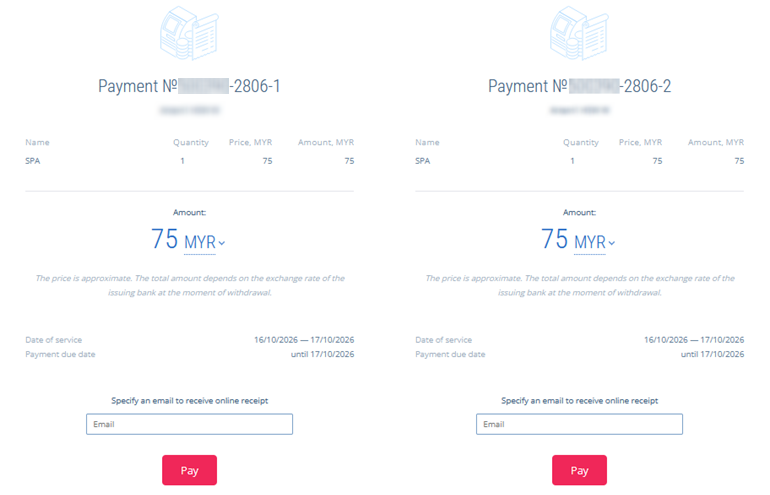
Both links have the same expiration date, and the guest can pay both installments in advance.
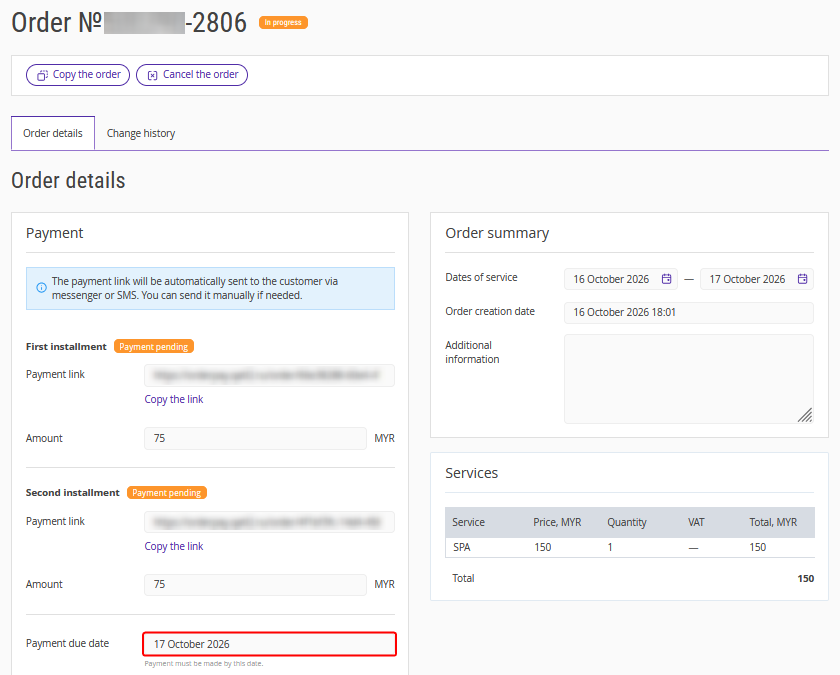
Once the guest makes a payment, it will appear on the order page.
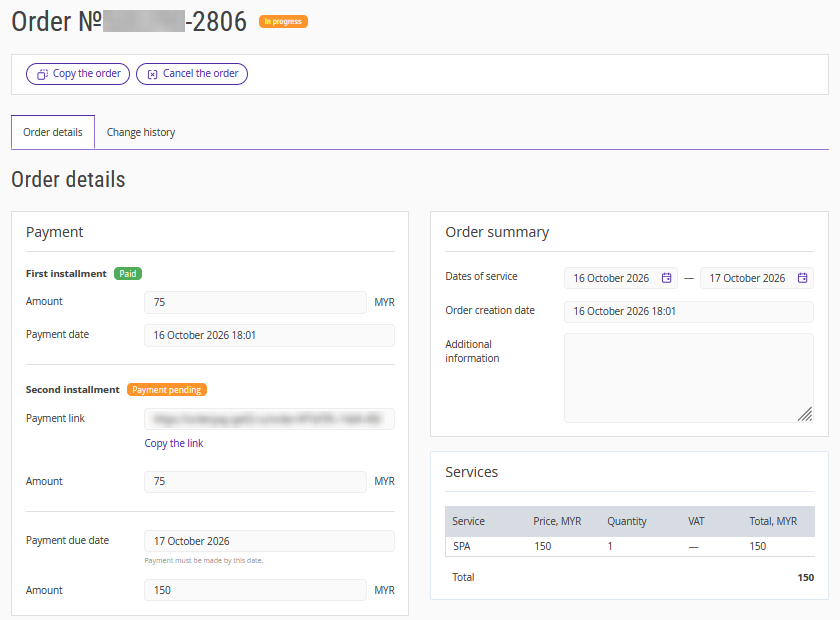
Order status
If the guest pays only one installment, the order status remains "In progress".

Once both installments are paid, the order status changes to "Paid".

If the guest pays the first installment but does not pay the second one in time, the link for the second installment will be deactivated and the order status will be changed to "Canceled". To collect the remaining amount, create a new order.
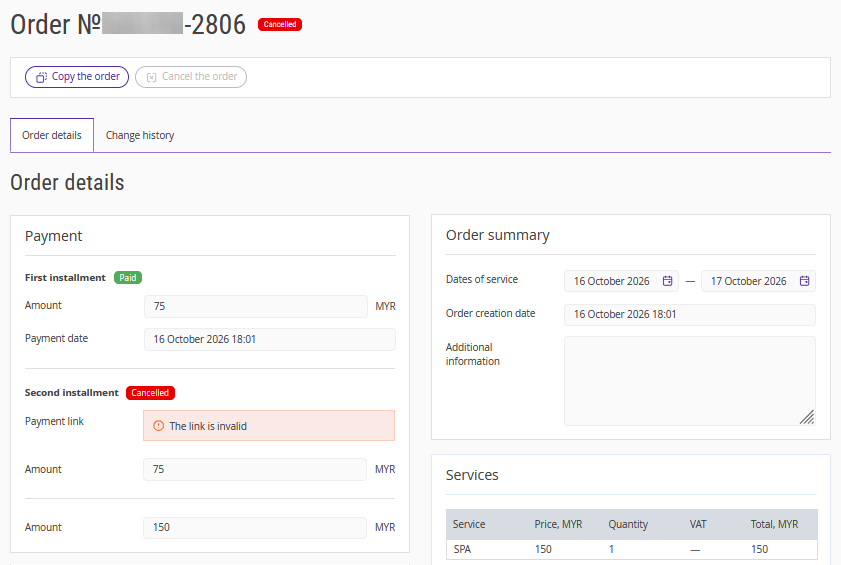
How to find orders with installment payment
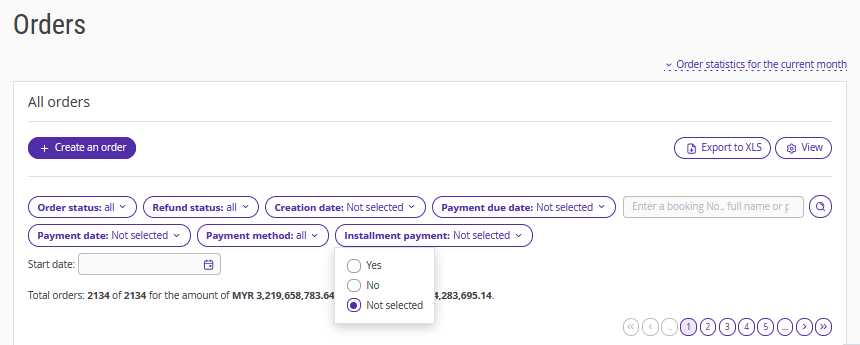
To find orders with installment payment, go to "Payment links" > "Orders" and use the "Installment payment" filter.