The “Meals” report is a useful tool for planning meals for specific dates. It helps accurately calculate the number of meal services provided to guests at the property.
Report features
Why the report is needed:
The report shows the number of guests who will receive meals during the selected period.
It helps plan meals for the specified dates.
You can download the report in Excel format so you can mark restaurant attendance by guests.
Features:
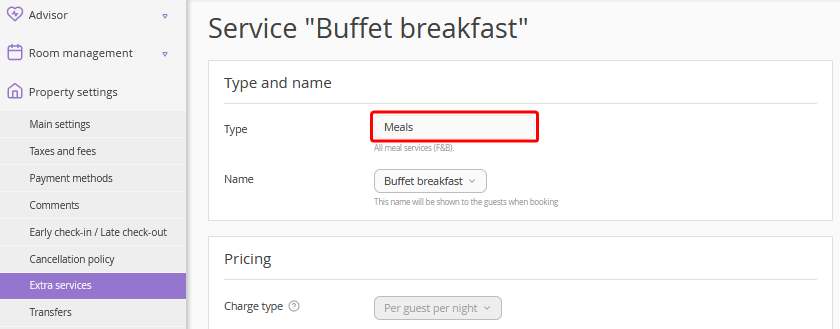
The report includes only services with the “Meal” type.
Services may be included in the rate plan or charged at extra cost.
The report includes services from bookings in rooms for which "Ignore in statistics" is selected in “Room inventory”.
How to generate the report
1. In the “For period” field, select the period for which the report must be generated.
2. In the “Report type” filter, choose how to display the values:
“Detailed” – shows a breakdown by bookings and the number of services for each booking (selected by default).
“Summary” – shows the total quantity for each service.
In the “Meal service” and “Room type” filters, select the specific meal service and room type. This allows you to generate a report not for all services, but based on the selected criteria.

3. Click “Run a report”.
The generated table includes the following fields:
Room – the room number where the guest is staying;
Room type – the name of the room type;
Meal service – meal type;
Adult – number of adults staying in the room;
Child – number of children staying in the room;
Total services – the number of meal services of the type for the selected period;
Check-in date – booking check-in date and time;
Check-out date – booking check-out date and time;
Guests – full names of guests listed in the booking.
If you use different prices for services for adults and children, the report will display columns with guest age ranges and the number of services for each age group.

Summary report
To see the total number of meal services for the period, select the “Summary” report type.

If you use different prices for services for adults and children, the report will display columns with guest age ranges and the number of services for each age group.

How to download the report
To download the report, click the “Export to XLSX” button.

To make the report easier to work with, the room type and guest count appear in separate columns in the file.
How the system calculates meals
Breakfast is counted to the check-out day, and lunch and dinner — to the check-in day.
The “Full board”, “Breakfast & lunch”, “Breakfast & dinner”, “Lunch & dinner” and “All inclusive” services may include breakfast, lunch, and dinner. For easier use, combined services are split into separate services and assigned to the corresponding days.
Pay attention. Check-in or check-out does not affect meal allocation in the report.
Check-in before 16:00:
|
Service |
Check-in day |
Check-out day |
|
“Full board” and “All inclusive” |
Lunch and dinner |
Breakfast |
|
“Breakfast & dinner” |
Dinner |
Breakfast |
|
“Breakfast & lunch” |
— |
Breakfast and lunch |
Check-in after 16:00 and check-out after 12:00:
|
Service |
Check-in day |
Check-out day |
|
“Full board” and “All inclusive” |
Dinner |
Breakfast and lunch |
|
“Breakfast & dinner” |
Dinner |
Breakfast |
|
“Breakfast & lunch” |
— |
Breakfast and lunch |
If check-in is after 16:00 and check-out is before 12:00, a guest will not have lunch:
|
Service |
Check-in day |
Check-out day |
|
“Full board”, “All inclusive”, “Breakfast & dinner” |
Dinner |
Breakfast |
|
“Breakfast & lunch” |
— |
Breakfast |
Report settings
You can change certain report settings in “Property management” > “Settings” > the “Main settings” tab > the “Meal report settings” section.

How to enable split meal services
For convenience, the “Breakfast & lunch”, “Breakfast & dinner”, “Lunch & dinner” and “All inclusive” services are split into categories in the report by default: breakfast, lunch, and dinner. If required, to change this display tick or untick the “Enable split meal services” check-box in “Property management” > “Settings” > the “Main settings” tab > the “Meal report settings” section.

How to change the calculation time for the “Full board” meal service
By default, meal calculation time for the check-in and check-out dates are 16:00 and 12:00. You can change the time according to property processes. For this, go to “Property management” > “Settings” > the “Main settings” tab > the “Meal report settings” section and select the required time.
Pay attention. This time is applied to calculation of the “Full board” meal type. Rules for other meal types are described above.

Guest groups in the report
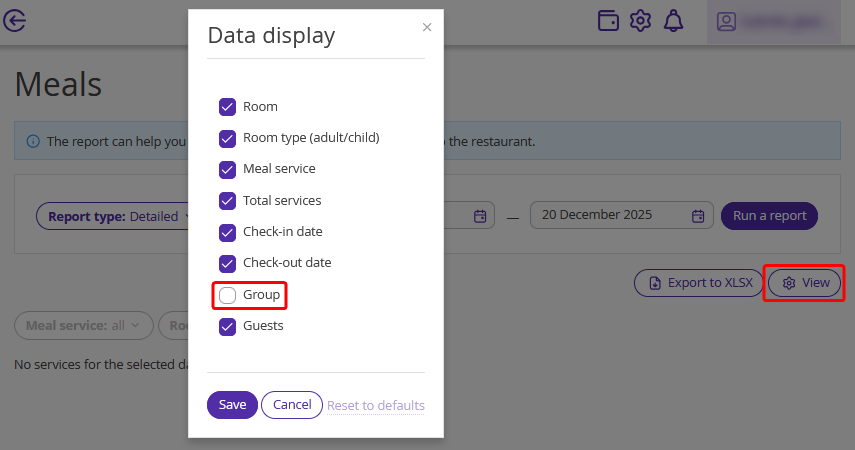
To simplify table seating, add the “Group” column to the “Meals” report: click the “View” button and tick the “Group” check-box.
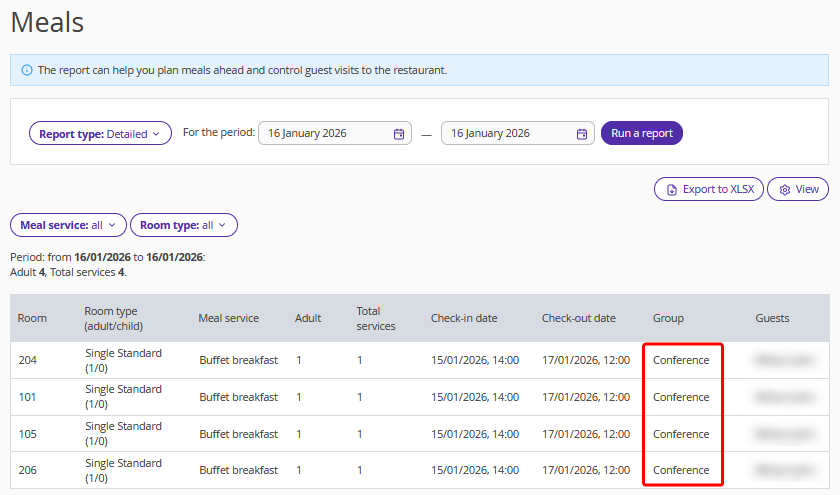
Guest group names will appear in the list:
Why a meal service is not displayed in the report
If a meal service is not displayed in the report, check its type — a common cause is selecting the “General” type instead of “Meal” when creating the service. Another reason may be that the guest purchased the service through a distribution channel. More details and troubleshooting can be found in the article "Why meal service is not displayed in “Meals” report".