Hotel Group Website Builder is a solution that allows you to automatically create a website with a list of properties included in one group. With the solution, you can switch to the websites of each separate property, created with Exely Hotel Website Builder, and manage the website content and website display.
How to connect Hotel Group Website Builder
Hotel Group Website Builder is available for
the properties that use Exely Hotel Website Builder. In this case, the option should be enabled in your Exely subscription;
the properties that plan to connect Exely Hotel Website Builder. In this case, Hotel Group Website Builder can be enabled together with Exely Hotel Website Builder.
Hotel Group Website Builder can be connected if the following conditions are met:
The group includes at least two properties with different Exely IDs.
The websites of all properties in the group are created with Exely Hotel Website Builder. You cannot add a property with its own website to a group if the other properties use Exely Hotel Website Builder.
A separate domain is required for the group website.
To have Hotel Group Website Builder enabled for your property, contact your Exely manager.
After you connect Hotel Group Website Builder and combine the properties in a group, the properties' data is synchronized. You can then manage the websites of all properties in the group from a single extranet, including updating, adding, or removing content.
Hotel Group Website Builder extranet
To attract new guests and maintain brand recognition among returning guests, the group website should match the overall design and visual style of all properties in the group.
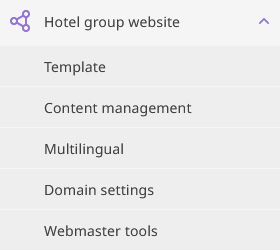
The “Hotel group website” extranet includes the following sections:
Template;
Content management;
Multilingual;
Domain settings;
Webmaster tools.
Template
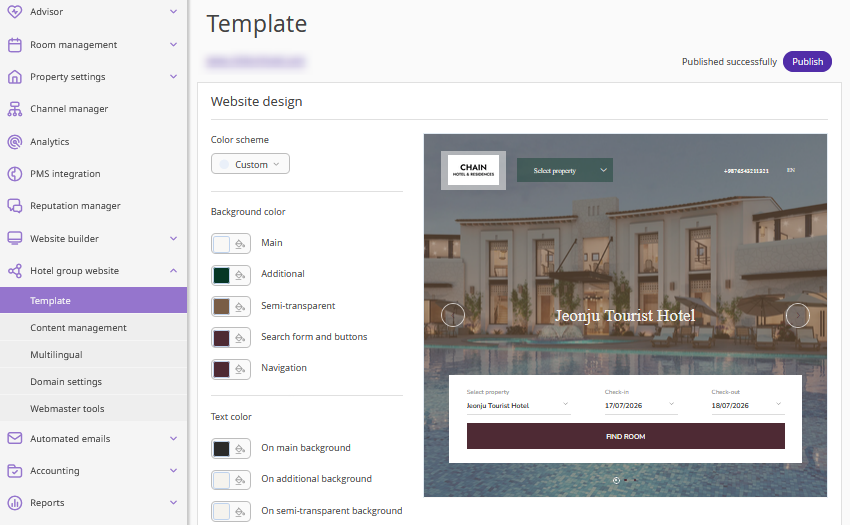
The "Hotel group website" > "Template" section includes the following 3 setting groups:
1. Website design
It allows to:
Select a color scheme for the website out of 10 ready color schemes, or set up your own color scheme using the “Dropper” tool.
Select colors for background and search form buttons.
Choose the header and text fonts out of 18 available options.
2. Logo
You can upload a website logo.
The hotel logo will be shown the following way:

3. Favicon
Upload a favicon to reflect it in the browser window.
Content management
The "Hotel group website" > "Content management" section includes 6 setting groups:
1. Photo gallery
The “Display a photo gallery on the website” setting enables a slider with photos on the hotel website main page.
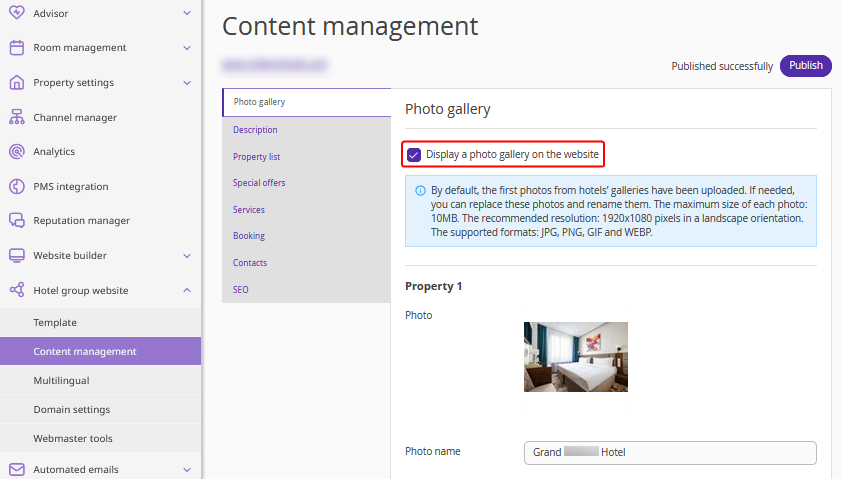
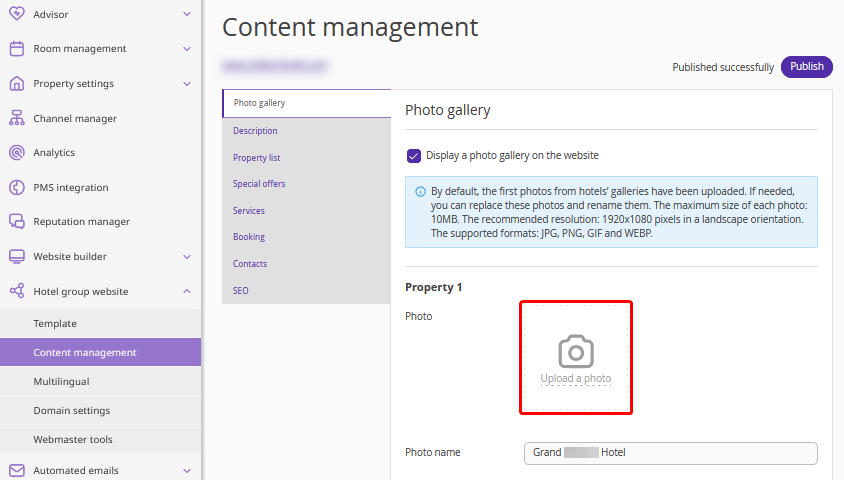
The property photo is taken from the slideshow gallery on the main page of the website, created with Exely Hotel Website Builder. You can change the image in the “Hotel group website” extranet section, but it will not be changed in the “Website builder” extranet section.
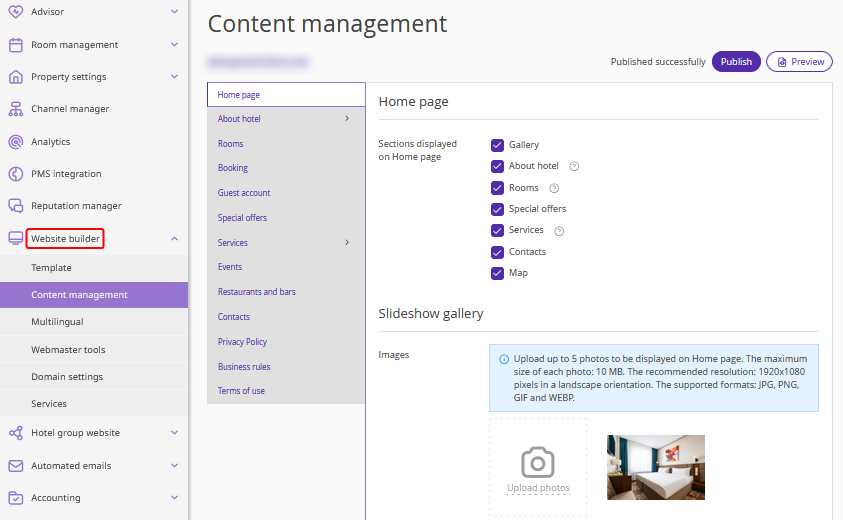
The photo name in the “Hotel group website” extranet section is taken from the “Property name” field in the “Website builder” extranet section. It is made as a link which is shown on the property website as a signature for the corresponding photo in the slideshow gallery on the main page.
The screenshot below shows how the property name from the “Website builder” extranet section is loaded to the “Hotel group website” extranet section.

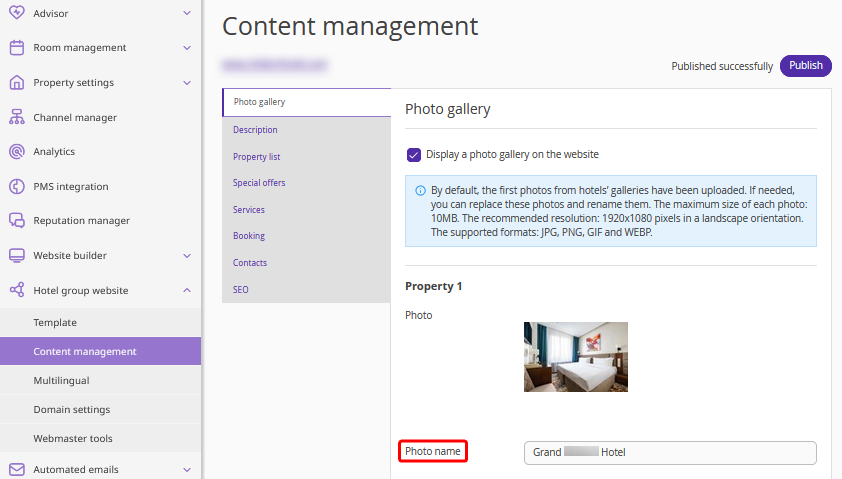
Pay attention. If the “Photo name” field is filled in in the “Property 1” section, but the photo is not uploaded, it will not be shown in the slider on the website main page. Slider is shown only if there are photos uploaded.
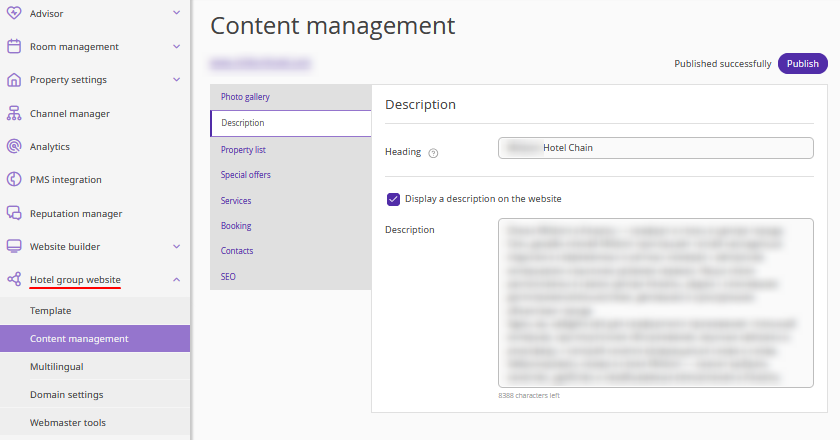
2. Description
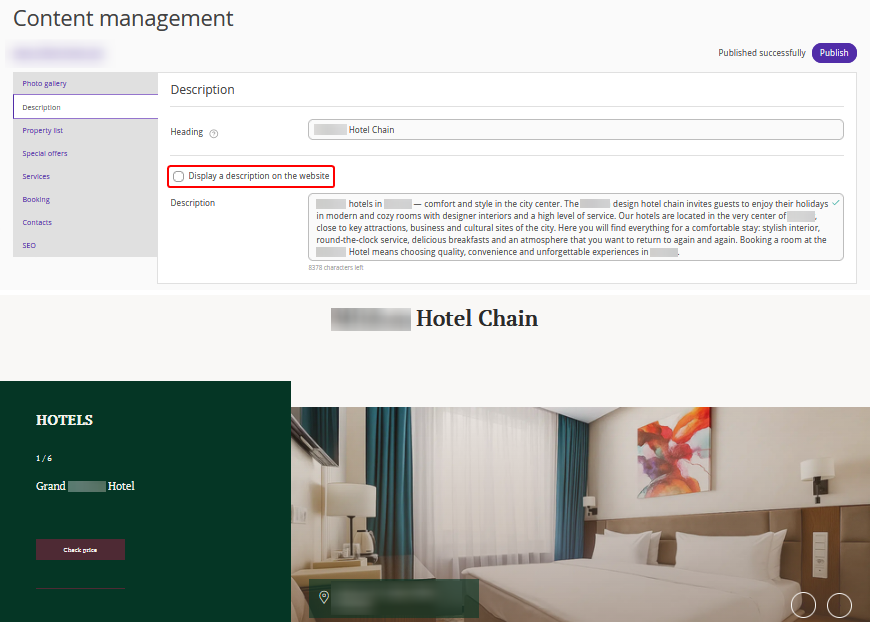
The “Heading” field is required.
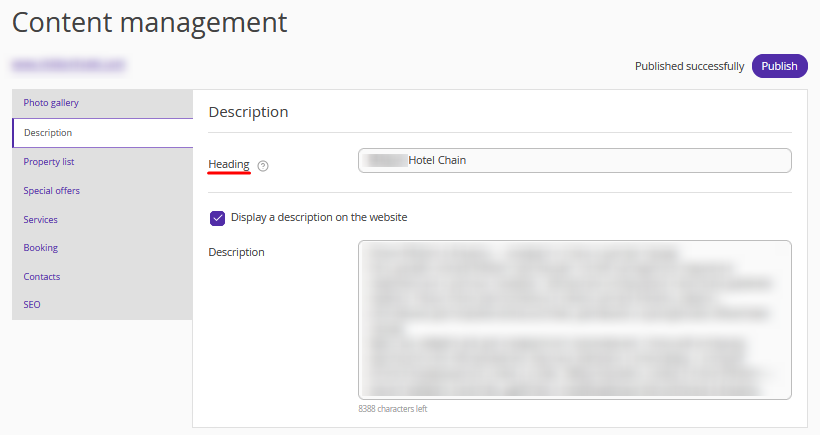
If the “Heading” field is not filled in, the system will mark it with a red color and will not allow switching to any other extranet section or saving the page.

To have the property group description text shown on the website, tick the “Display a description on the website” check-box.
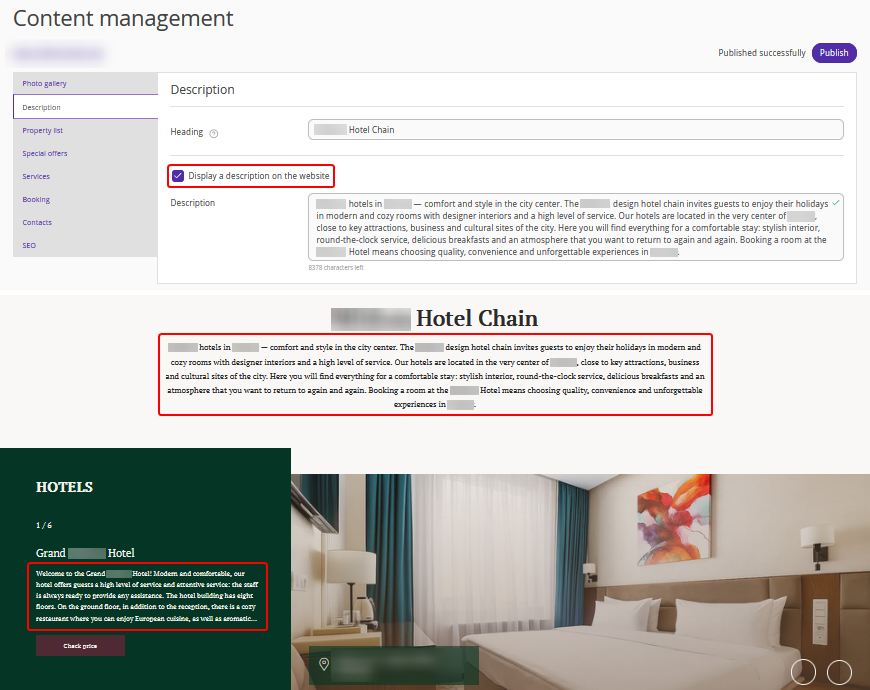
If this check-box is not ticked, the text will not be shown on the website.
3. Property list
Pay attention. This section is required.
The property details card in the list contains the property name and description. These details are taken from the “Website builder” extranet section of the properties included in the group.
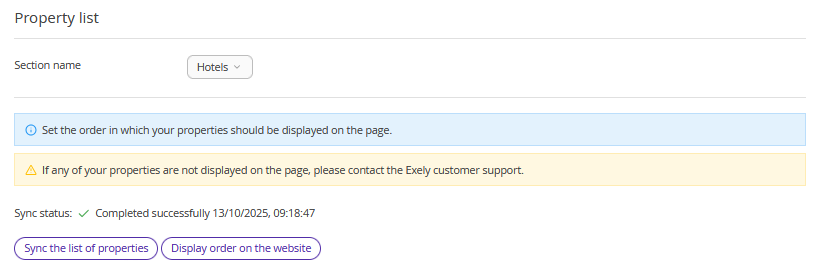
The “Sync the list of properties” button loads and syncs the details of the properties included in the group.
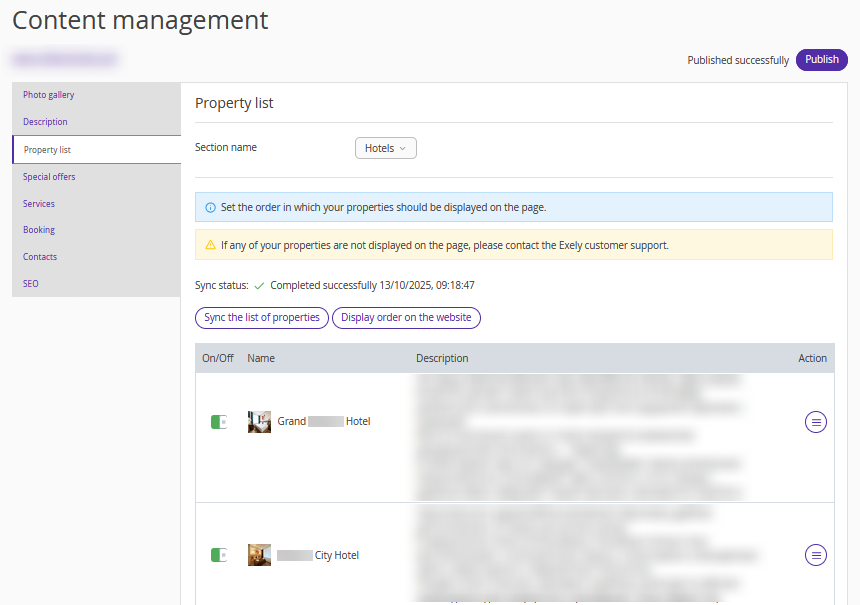
Pay attention. You can edit the description, name, and photos of the properties included in the group. The changes apply only to the "Group website" section. However, if you click "Synchronize property list", all manual changes will be removed, and the data will be loaded from the "Website Builder" section of all properties included in the group.
If you click the “Display order on the website” button, a window with the list of properties will be opened, where you can manage the display order of the properties on the website.
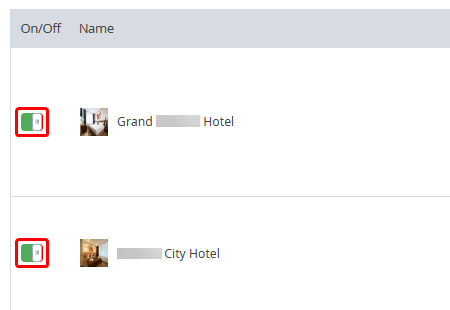
Using the “Hide on the website” button, you can hide a property on the main website page.
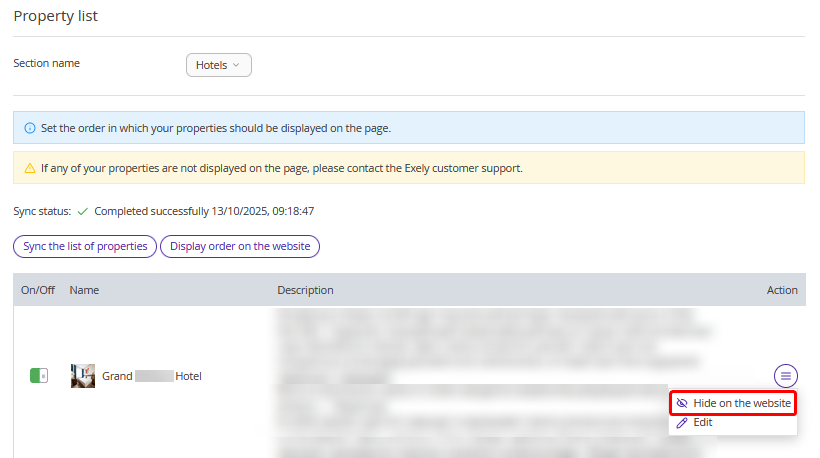
Pay attention. You can hide the property on the website as well by clicking the “On/Off” switch in the property list.
This is how the “Property list” is shown on the website:
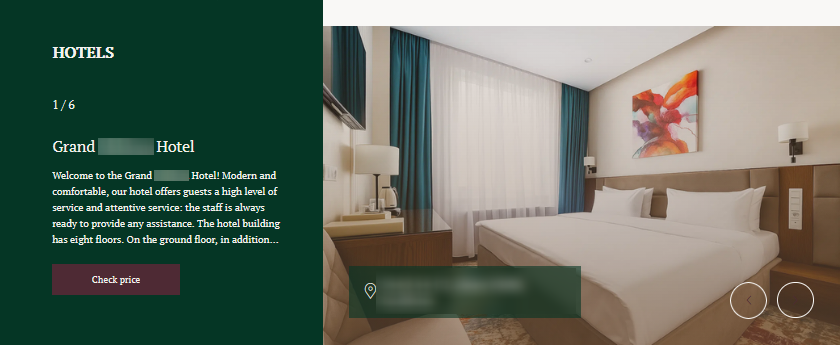
The "Check price" button on the website leads to the Booking Engine on the website of the selected property, created with Exely Hotel Website Builder.
The navigation buttons on the website switch the pages with the information about the properties included in the group.
4. Special offers
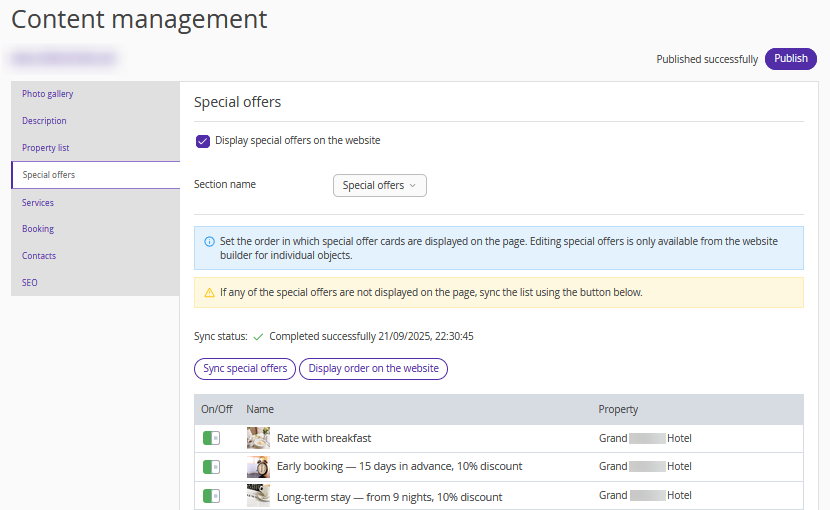
Using the “Synchronize special offers” button, you can upload the names, photos, and descriptions of the special offers from the properties “Website builder” extranet section to the “Hotel group website” extranet section.
The "Display order on the website" button lets you arrange special offers in the desired order on the website.
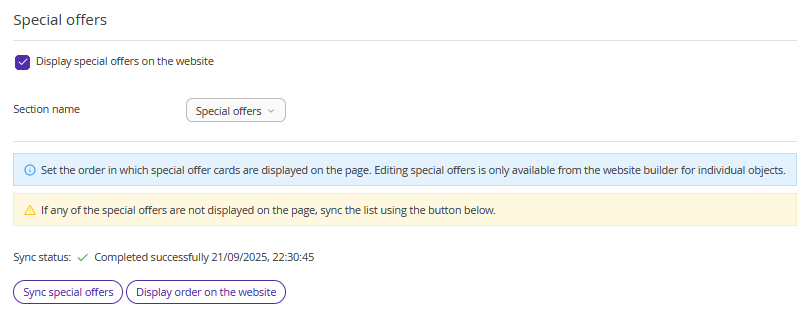
Pay attention. If a special offer display is disabled in the “Website builder” extranet section, it will not be loaded to the “Hotel group website” extranet section.
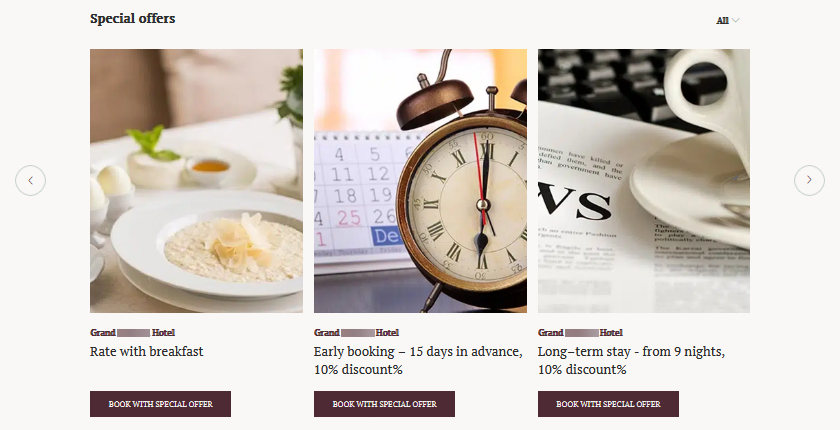
The “Book with special offer” button leads to the booking engine on the specific property website created with Exely Hotel Website Builder and opens the page with special offer parameters.
5. Services
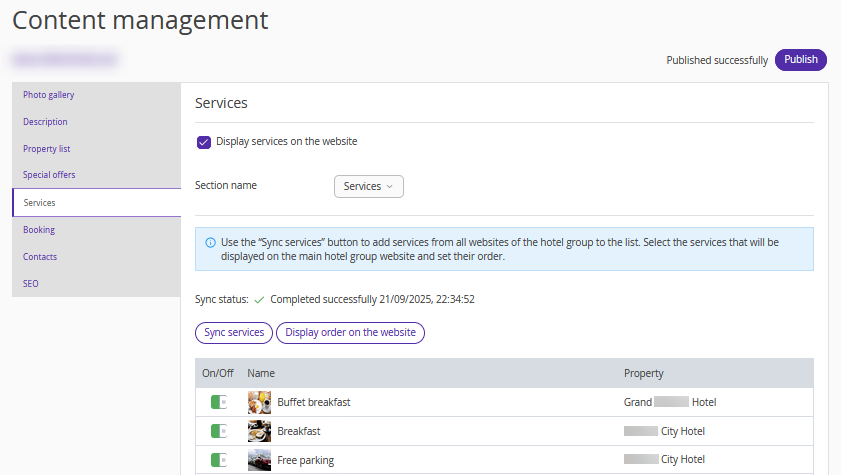
To display services on the website, tick the "Display services on the website" check-box.
Under "Section name", select one of the available options for the service category: "Services", "Amenities", "Help", or "Service". By default, "Services" is selected.
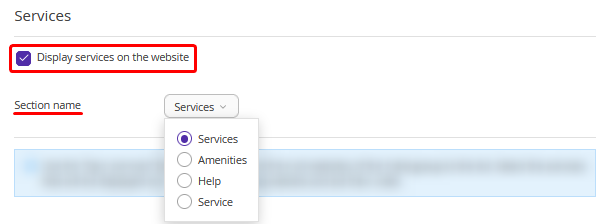
Pay attention. If you change the section name and save the page, the name will also be updated in the "Content management" menu.
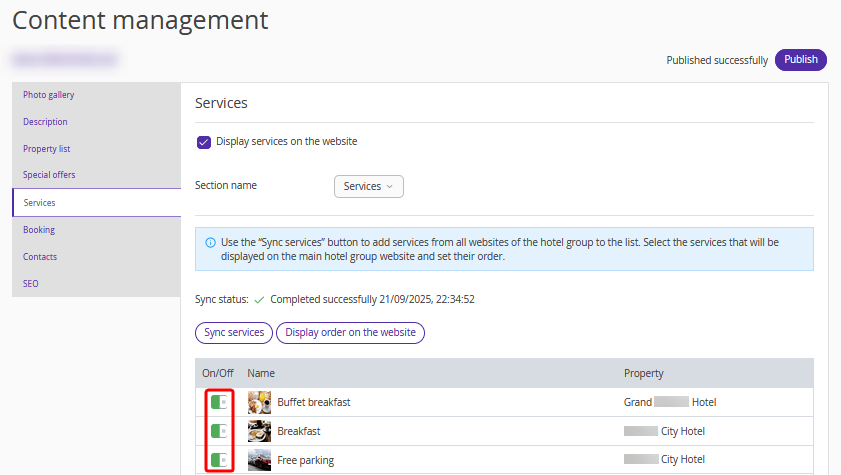
The "Synchronize services" button imports accommodation services and custom services from the "Services" section of the Exely Hotel Website Builder extranet for the properties included in the group. The group website extranet displays the service name, property name, and photo.
The "Display order on the website" button lets you arrange services in the desired order on the website.
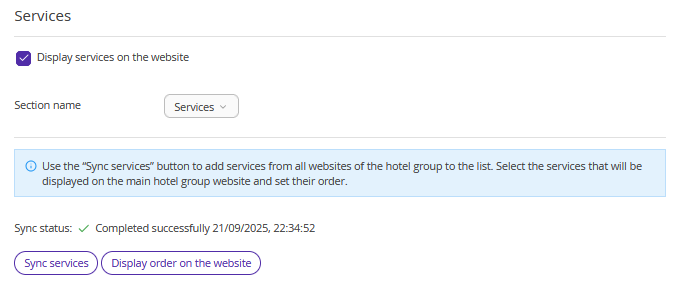
You can hide a service on the website by clicking the “On/Off” switch in the services list.
6. Booking
The "Booking" section lets you assign currencies to language versions.
For each language, select a currency from the drop-down list. This is what the final mapping of languages and currencies will look like.
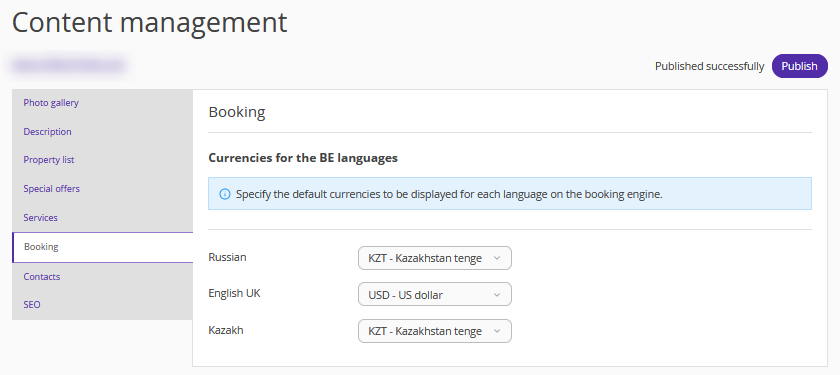
Pay attention. Currency settings are available only for the language versions selected in the "Multilingual" section.
The configured currencies are displayed in the date selection calendar in Exely Booking Engine.
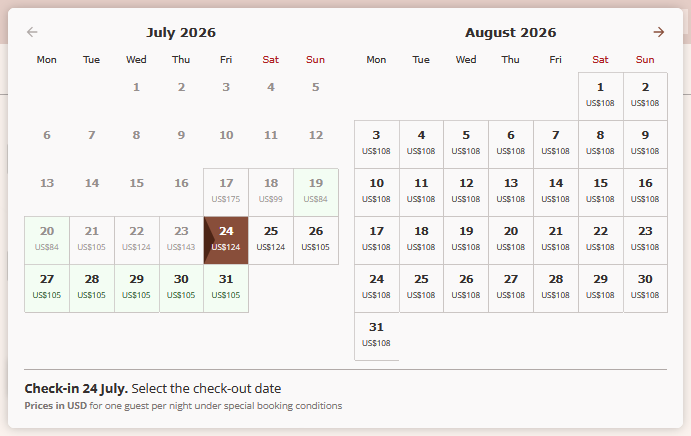
Pay attention. Currency settings apply to the entire group. You cannot configure a different currency for an individual property within the group.
7. Contacts and a map
The details for the “Phone” and “Email” fields are loaded from the "Contacts and map" section of the property where the group was created in the Exely extranet. Both the "Phone" and "Email" fields are required.
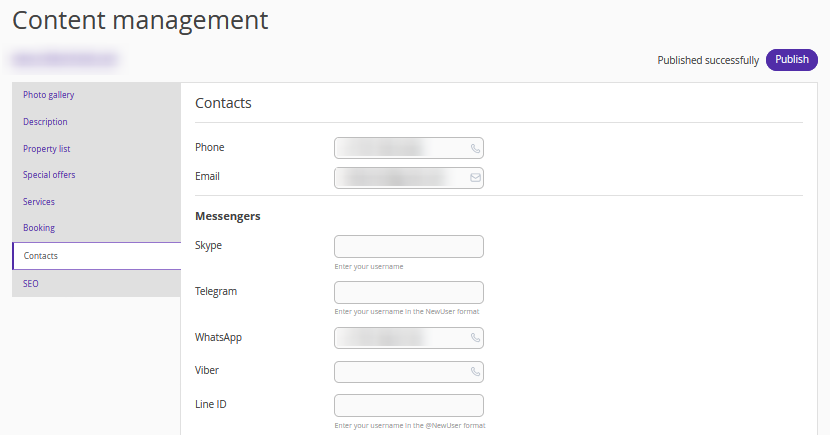
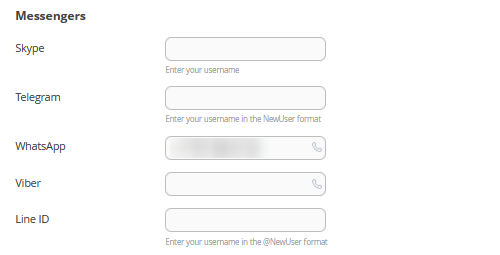
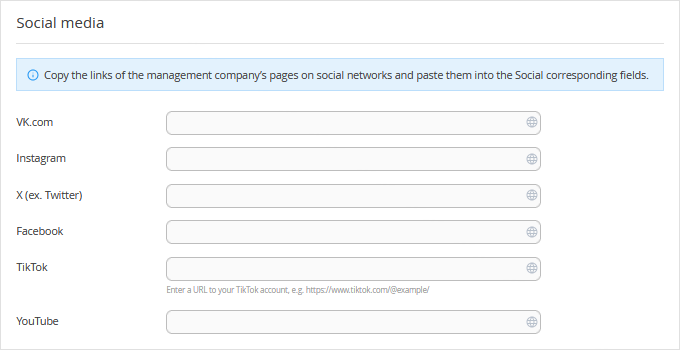
The fields in the “Messengers” and “Social media” sections are not required.
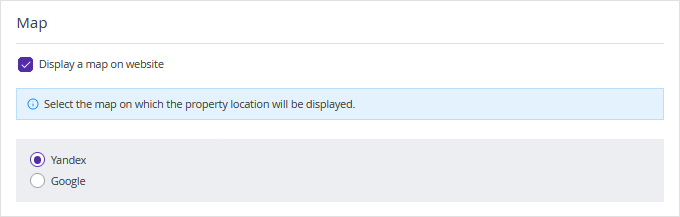
To have a map shown to the guests, tick the “Display a map on website” check-box and select the map.
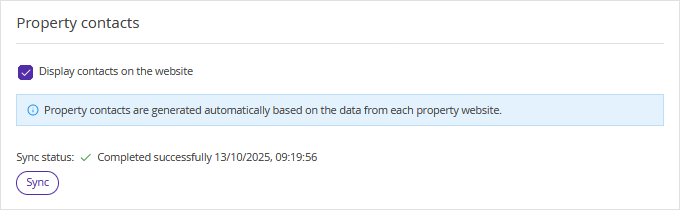
To display the properties contact details on the website, click the “Sync” button. The following data will be automatically uploaded from the “Website builder” section of the properties’ extranet: the property name, address, phone, and email.
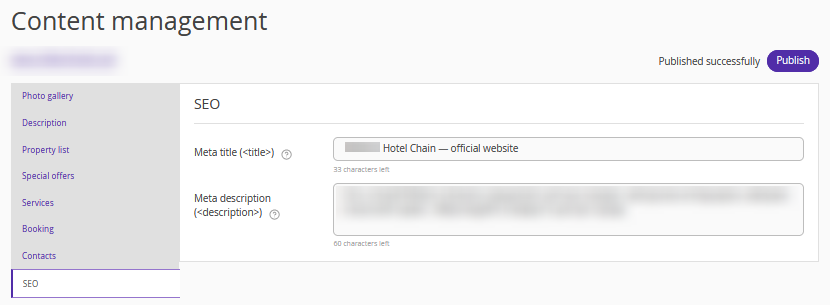
8. SEO
In the “SEO” section, you can see the filled-in data in the “Document title (<title>)” field and can edit it, if required.
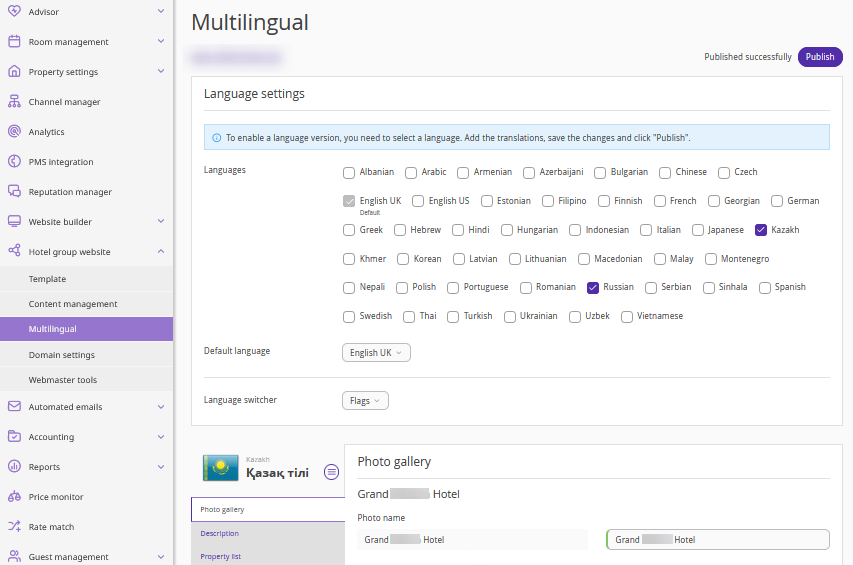
Multilingual
This section works the same way as the corresponding section in the “Website builder” extranet section. The details are available in the article "How to translate the website into different languages".
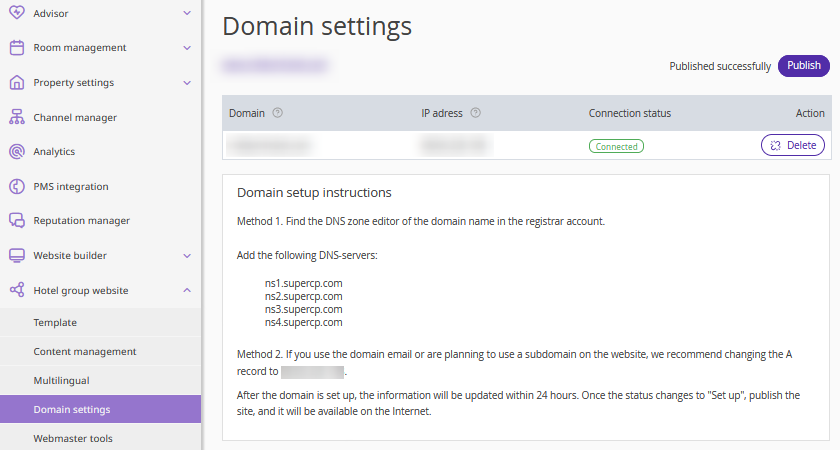
Domain settings
A separate domain is required for the Hotel Group Website Builder website.
The “Domain settings” section is similar to the corresponding section in the "Website builder" extranet section. In the "Domain settings" section, configure the domain for publishing the group website. For detailed instructions, see the article “How to assign a domain name to the Website builder”.
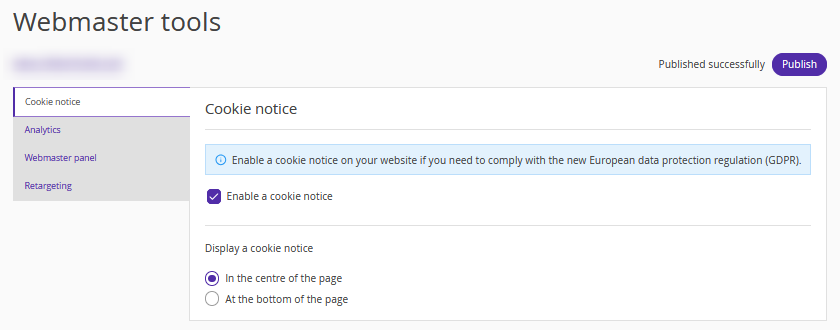
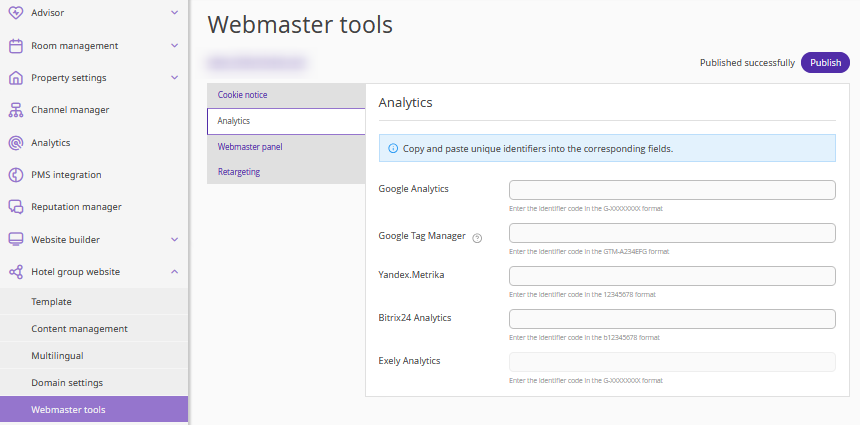
Webmaster tools
Group website analytics help you understand how users interact with your website, which pages they visit, where they come from, and what actions they take.
In the "Webmaster tools" section, you can add analytics tracking IDs. The main purpose of this section is to implement analytics tools on your website to collect user behavior data and evaluate website performance.
For more information about the available tools and how to configure them, see the article "Webmaster tools in Exely Hotel Website Builder".
Pay attention. Even if you have not added analytics tracking IDs in this section, make sure to tick the "Enable a cookie notice" check-box in "Webmaster tools" > "Cookie notice". This is required because the booking engines on your websites collect guest data.