How to modify a booking with the “Pay in two installments” payment method
How to cancel a booking with “Pay in two installments” payment method
The "Pay in two installments" payment method allows guests to pay for a booking in two installments: the first installment is paid at the time of booking, and the second is paid via a link in the booking confirmation by the due date you set.
You can configure automatic booking cancellation if the guest does not pay the second installment on time. Automatic cancellation is disabled by default.
The payment method is available when using third-party payment system’s acquiring and Exely Payment Links.
How the “Pay in two installments” payment method works
1. When making a booking on the property website, the guest selects the payment method marked "The rest is paid by link" and makes a prepayment.
2. After booking, the guest receives a confirmation email with the due date for paying the second installment and the "Go to payment" button.
3. The guest clicks the button and is redirected to the Exely Payment Links payment page, where they pay the remaining amount.
4. After payment, the guest receives an electronic receipt and an updated booking confirmation showing that the full amount has been paid.
Pay attention. If the guest does not pay the second installment by the specified due date, the next steps depend on the automatic booking cancellation setting. If automatic cancellation is enabled, the booking will be canceled automatically. If it is disabled, the booking will remain active.
Connection requirements
Exely Booking Engine.
Exely Payment Links.
Third-party payment system’s acquiring.
To enable the “Pay in two installments” payment method, contact your Customer Support manager or Exely Customer Support team.
In your request, specify the amount of the prepayment guests must make when booking on the property website: as a percentage of the booking price or as a number of nights.
Guests will pay the second installment using the link in the booking confirmation.
How to set up the “Pay in two installments” payment method
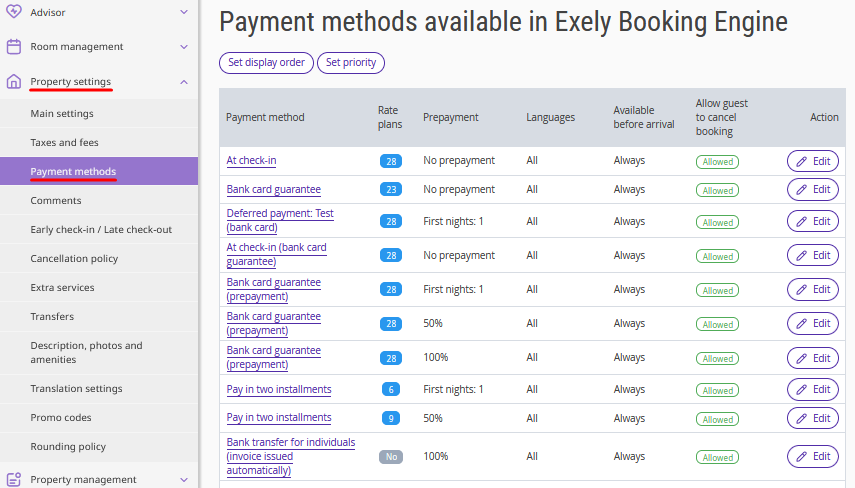
1. In the Exely extranet, go to "Property settings" > "Payment methods".
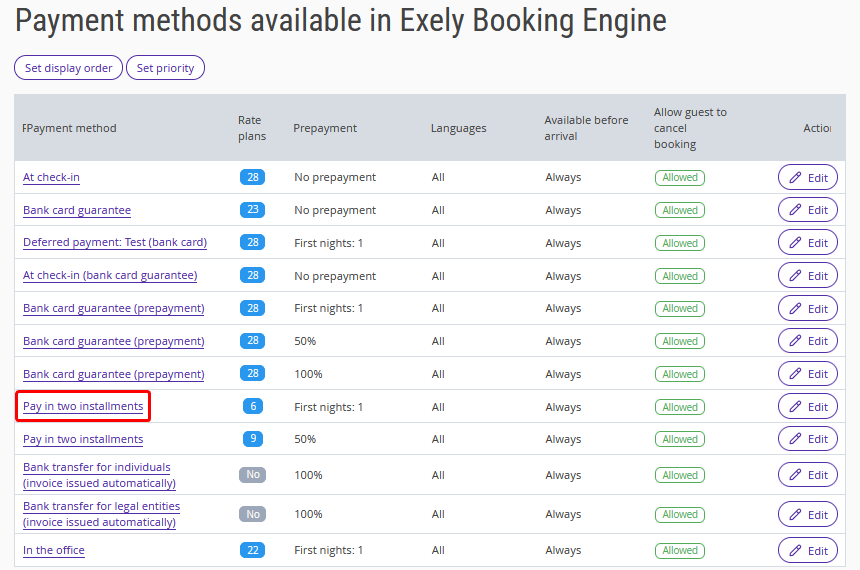
2. Select "Pay in two installments" from the list of payment methods.
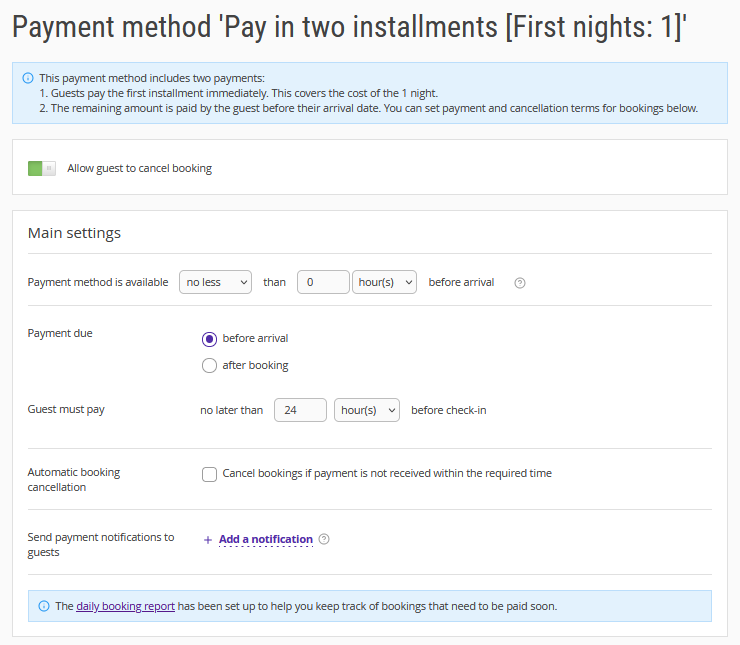
3. In the "Main settings" section, specify when the payment method is available and the payment due date:
"Payment method is available" — how long before check-in the guest can select this payment method.
"Payment due" — the point from which the payment due date is calculated:
"Before arrival" — the due date is calculated from the check-in date and time.
"After booking" — the due date is calculated from the time the booking is created.
"Guest must pay" — specify the due date for making the prepayment based on the selected countdown option.
For example, if you select "Before arrival" and specify 3 days, the guest must pay the second installment no later than 3 days before the date and time of arrival.
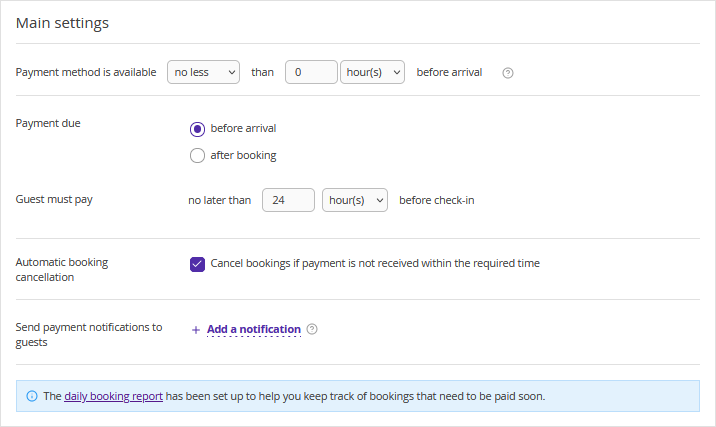
4. Configure automatic booking cancellation.
Under "Automatic booking cancellation", tick the "Cancel bookings if payment is not received within the required time" check-box if you want unpaid bookings to be canceled automatically when the guest does not pay the second installment on time.
If the check-box is not ticked, the booking will not be canceled automatically, even if the guest does not pay the second installment by the specified due date.
Automatic booking cancellation is disabled by default.
Pay attention. Changes to the automatic cancellation setting apply only to new bookings. Bookings created earlier retain the cancellation terms that were in effect when they were created.
For example, if automatic cancellation was enabled and you then disable it, previously created unpaid bookings will still be canceled automatically on the specified due date. New bookings will not be canceled automatically.
5. If necessary, configure payment notifications for guests.
In the "Send payment notifications to guests" field, specify how many hours or days before the payment due date the reminder should be sent. To add another notification, click "Add a notification".

Note. You can create up to three notifications.
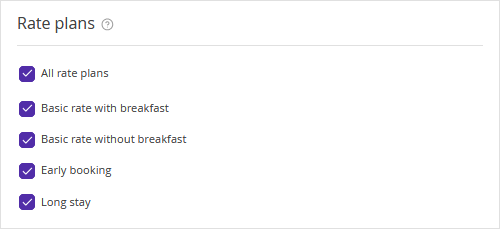
6. In the "Rate plans" section, tick the check-boxes for the rate plans for which deferred online payment will be available.
7. Select the languages of the booking engine for which this payment method should be available.
8. Click the “Save” button at the top of the page.
How guests pay for a booking
Pay attention. In Exely Booking Engine, the "Pay in two installments" payment method is displayed with the "The rest is paid by link" label.
1. At the payment method selection step, the guest selects the method marked "The rest is paid by link" and clicks "Book".
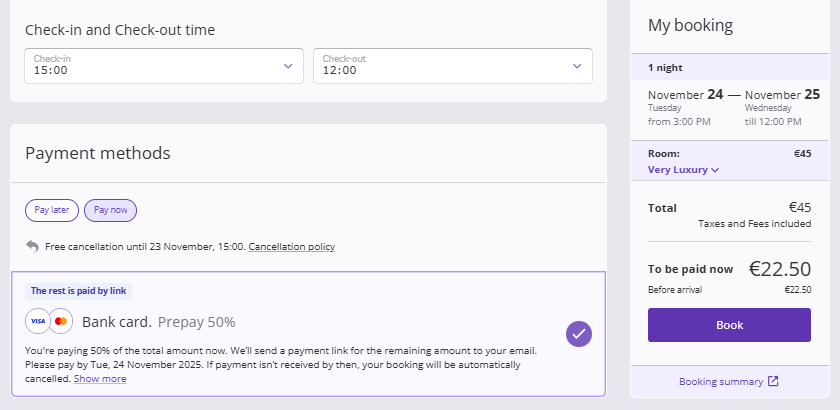
2. The guest makes the prepayment and receives a booking confirmation email containing a link to pay the second installment.
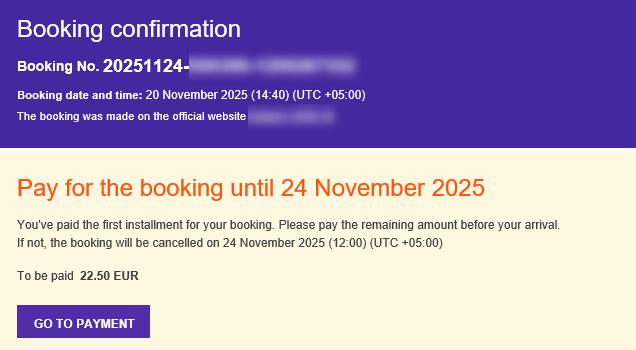
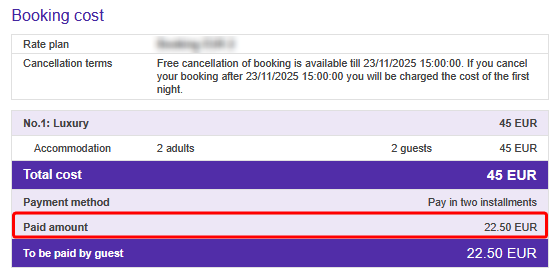
The booking confirmation shows the amount of the prepayment made.
The guest can also proceed to payment when modifying the booking by clicking "Pay" in the "Payment expected" banner.
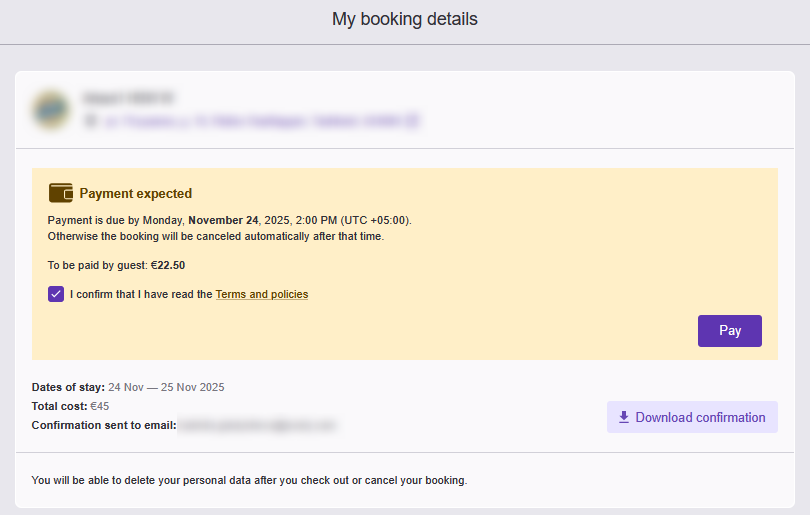
3. The guest clicks "Go to payment", is redirected to the Exely Payment Links payment page, enters an email address to receive the electronic receipt, and clicks "Pay".
4. After paying the second installment, the guest receives a receipt and an updated booking confirmation showing the total amount paid.
How to track unpaid bookings
You can track booking payments using the Bookings report and the Daily report on unpaid bookings.
“Bookings” report
To find bookings with pay in two installments:
1. Go to "Reports" > "Bookings".
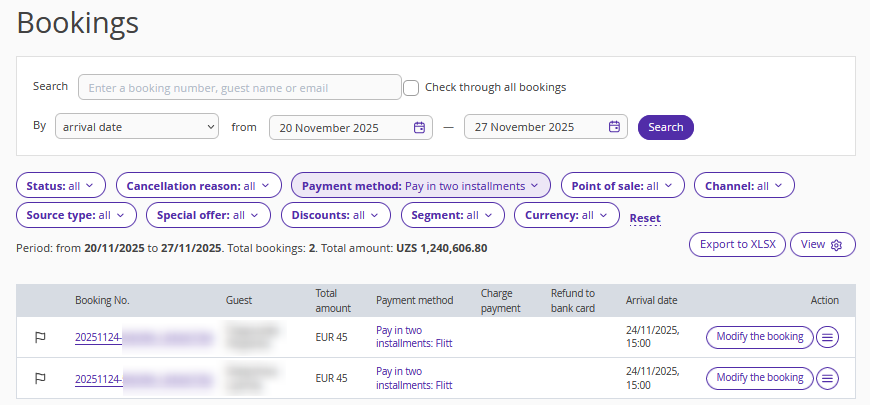
2. Open the "Payment method" filter.
3. Tick the "Pay in two installments" check-box in the drop-down list.
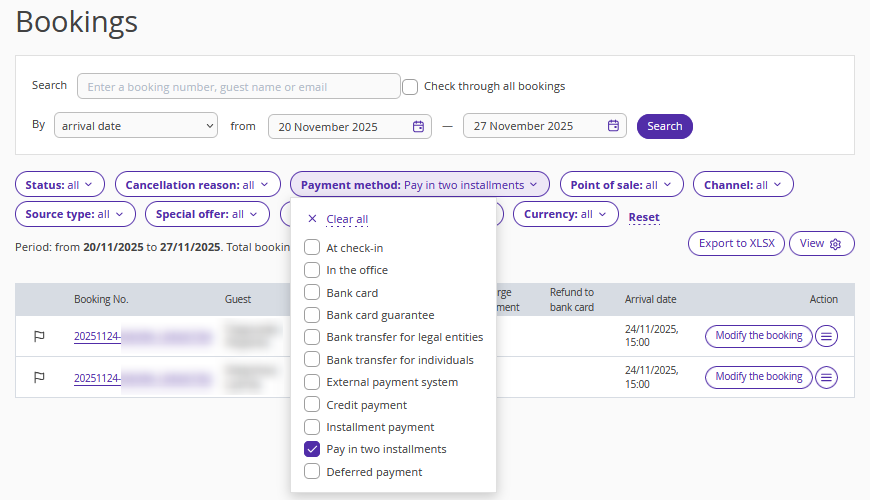
You can receive payment on the "Bookings" report page.
Daily report on unpaid bookings
To track bookings with overdue payments and bookings for which the payment due date is approaching, configure the daily report on unpaid bookings to be sent by email.
The report includes active bookings that meet all of the following conditions:
The guest has not yet paid the required amount.
The check-in date has not yet passed.
The report includes bookings regardless of whether automatic cancellation is enabled.
For more information about configuring the report and its contents, see the article "Daily report on unpaid bookings".
How to modify a booking with the “Pay in two installments” payment method
The procedure for modifying a booking depends on whether the guest has paid the second installment.
Modifying a booking before the second payment
If you or the guest modifies the booking before the second installment is paid, a new order will be created. The remaining amount to be paid will be calculated based on the current booking price, taking the prepayment into account.
For example, a guest books a two-night stay for EUR 200 and makes a prepayment of EUR 100. The guest then modifies the booking and adds one more night. The booking price increases to EUR 300. The second payment will be EUR 200.
Pay attention. Guests can modify their bookings themselves only before the second installment is paid.
Modifying a booking after the second payment
If you modify the booking after the second installment has been paid:
The original online prepayment will be taken into account in the calculation.
If a refund is required, you must process it manually in the payment system account.
What happens when stay dates change
If the stay dates in a booking change:
The date and time for sending payment notifications are recalculated automatically.
If automatic cancellation is enabled, the automatic cancellation due date is recalculated based on the new stay dates.
How to cancel a booking with “Pay in two installments” payment method
Automatic and manual booking cancellation
If the guest does not pay the second installment by the specified due date, the booking will be canceled automatically only if the "Cancel bookings if payment is not received within the required time" setting was enabled when the booking was created.
If automatic cancellation was disabled, the booking will remain active. If necessary, the guest or the property can cancel it manually.
How the penalty is calculated
When a booking is canceled, the penalty is calculated according to the configured cancellation rule.
For bookings with the “Pay in two installments” payment method, the penalty amount is calculated based on the first prepayment made in the following cases:
The booking is canceled automatically because the second installment was not paid.
The guest paid both installments and the booking was then canceled.
How the first payment is refunded
The refund of the first prepayment depends on the configured cancellation rule:
If the first prepayment is subject to a penalty, you will not be able to refund it to the guest.
If the first prepayment is not subject to a penalty, you must process the refund manually in the payment system account.
