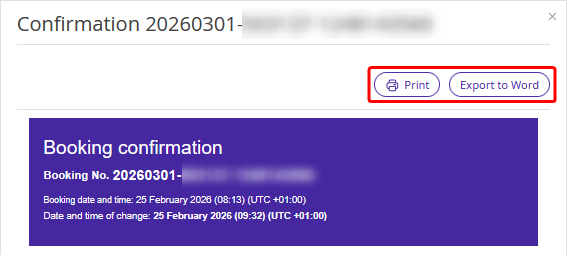
In Exely PMS, the following documents are generated automatically in a booking:
Invoice. Instructions on working with invoices are available in the article “How to issue an invoice in Exely PMS”.
Booking confirmation.
You can also upload your own document template. For details on this, see the article “How to create a document template in Exely PMS”.
How to view, download, and print a document
In the Exely extranet, go to “Property management” > “Front Desk”. Find the booking you need and click it.
There are two ways to view the documents:
The first way
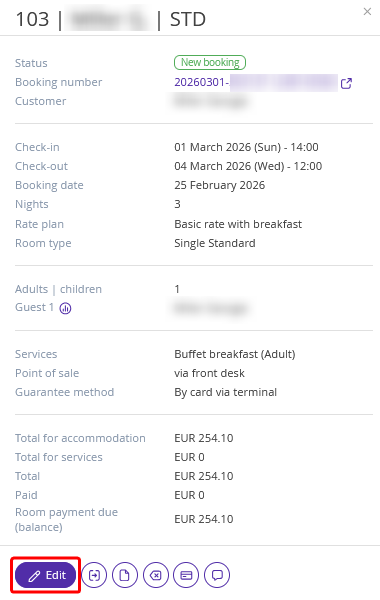
1. In the opened window, click the “Edit” button.
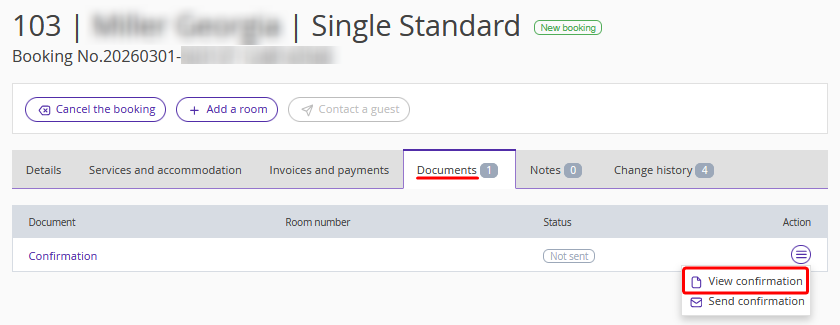
2. In the booking details page, go to the “Documents” tab and find the required document.
Click the “Action” button on the right and select to view the document.
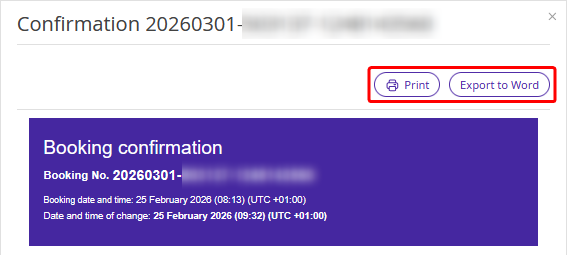
3. Print the document or export it to a Word file.
The second way
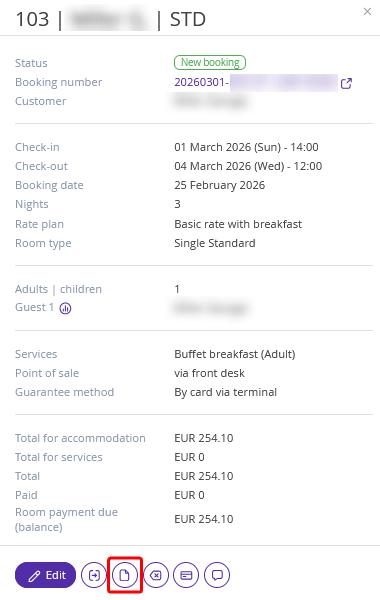
1. In the opened window, click the “Documents” button.
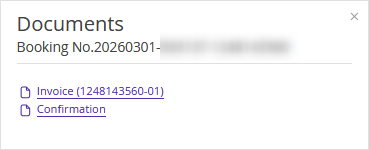
2. In the pop-up window, select the required document and click it. For example, "Confirmation".
3. Print the document or export it to a Word file.