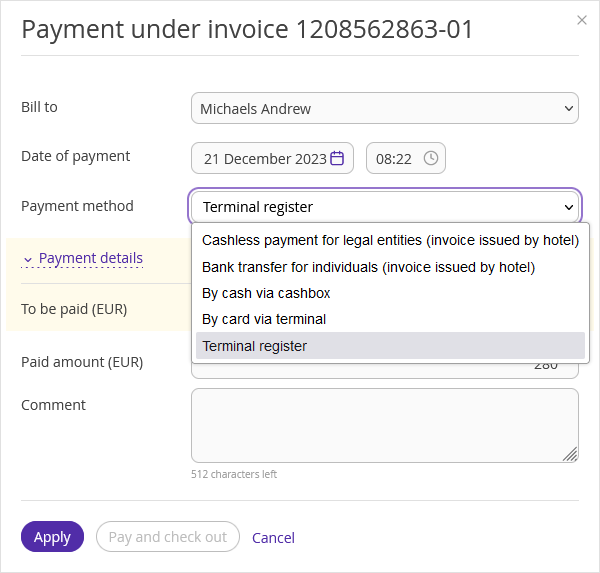
To make payments by payment methods that are not available by default in Exely PMS, you can add custom payment methods.
To add payment methods to make payments in Exely PMS:
1. In the Exely extranet, go to “Property management” > “Settings” > the “References” tab.
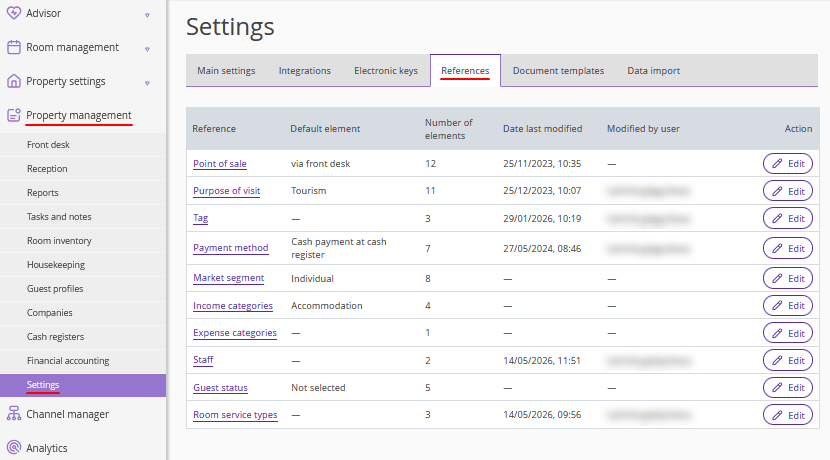
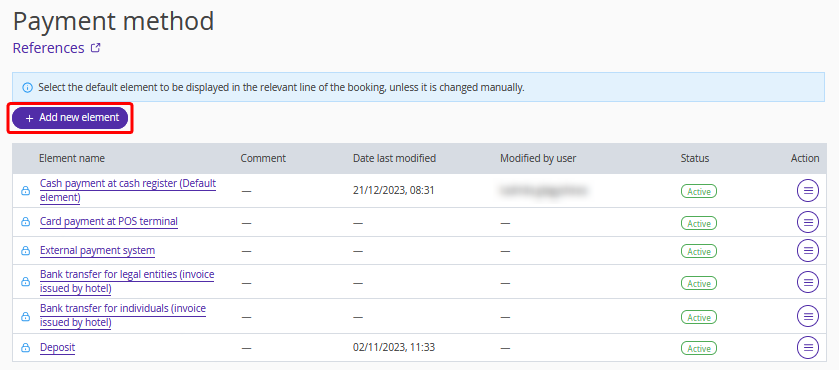
2. Open the “Payment method” reference. There, you will find the Exely default payment methods. They cannot be removed, disabled, or renamed.
3. Click the “Add new element” button to create a custom payment method.
4. In the pop-up window, enter the payment method name and select the “Active” status. You can write a comment for the new payment method.
If required, tick the check-boxes: "Allow receipt printing", “Set as default element in "Payment method", and “Allow check-out of guests with non-zero balance”.
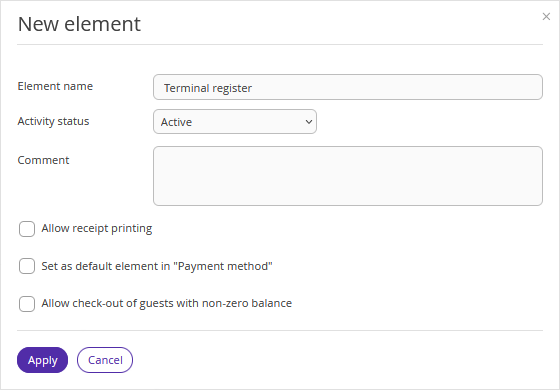
"Allow receipt printing" — when a booking is paid using this payment method, users can print a receipt. If the "Allow receipt printing" check-box is not ticked for a payment method, the receipt printing option will not be available when processing a payment for a booking.
"Set as default element in "Payment method" — this payment method will be displayed first when processing a booking payment in Front Desk.
"Allow check-out of guests with non-zero balance" — for each payment method, you can allow check-out of guests with non-zero balance. If this box is not ticked, you cannot check out a guest that has a payment due.
5. Click the “Apply” button.
6. Click the “Save” button at the top of the page.
The created payment method will become available when making a payment in Exely PMS.