A promo code is a combination of letters and numbers that provides a discount or access to a special rate.
How to create a promo code
1. In the Exely extranet, go to "Property settings" > "Promo codes" > "Groups of promo codes" and click "Create a group of promo codes".
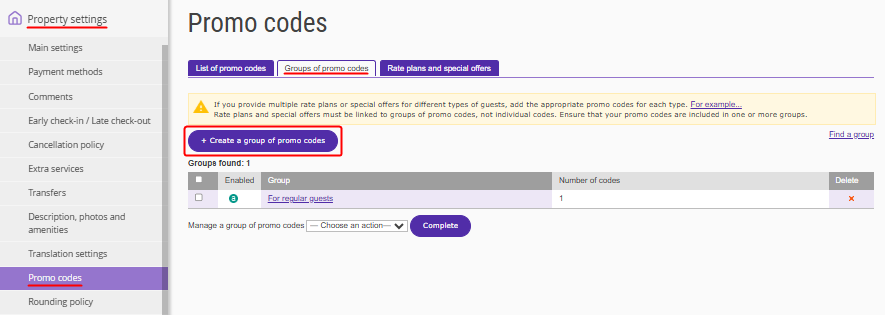
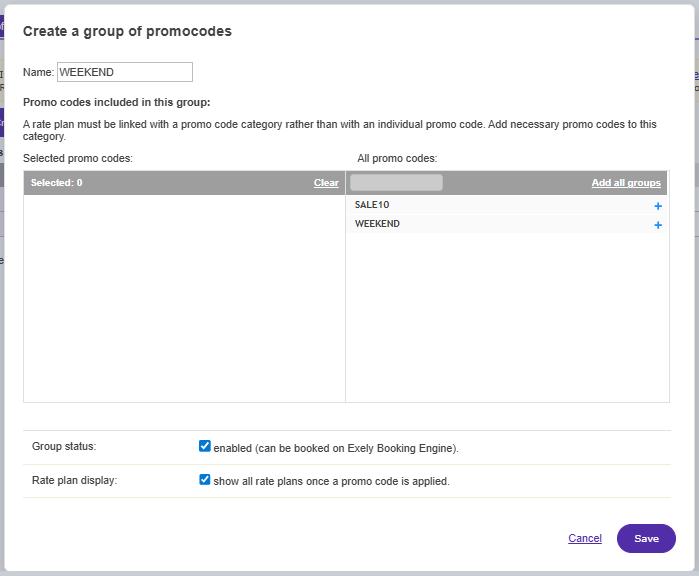
2. Enter a group name, for example "WEEKEND", and click "Save".
3. Go to the "List of promo codes" tab and click "Add promo codes". Enter a promo code, for example "WEEKEND". On the right side of the table, select a group and click "Create".
Pay attention. We recommend not using spaces in promo codes, as different browsers may interpret spaces differently.
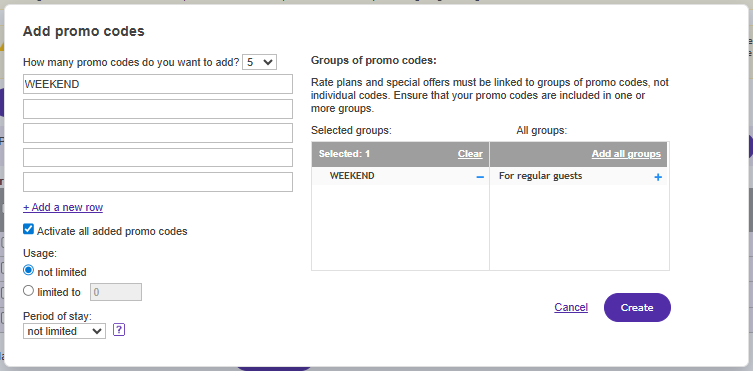
When creating promo codes, you can specify from 1 to 15 codes at a time. To make promo codes active immediately after creation, select "Activate each added promo code, i.e. make it available for booking".
4. Configure additional promo code parameters:
1) Usage:
not limited;
limited to — for example, if you set 1, the promo code can be used only once.
2) Period of stay:
not limited;
valid through — for example, if a guest with stay dates February 1–10 uses a promo code active only in January, the special offer will not be displayed. The booking start and end dates must fall within the specified period.
5. Click "Create". The promo code will appear in the list of active promo codes.
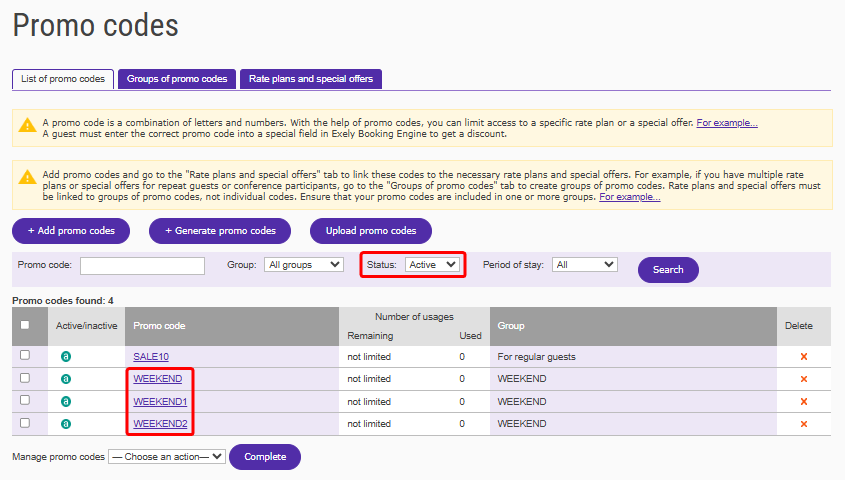
Available actions with promo codes
1. Deactivate.
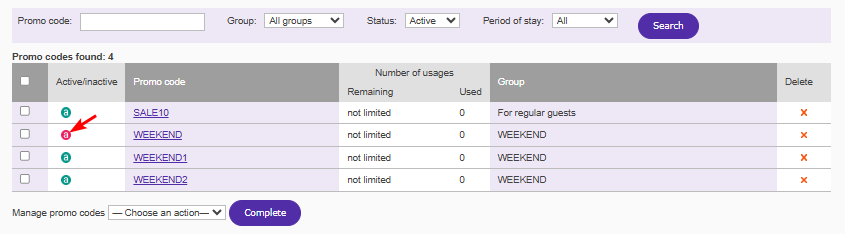
To deactivate a promo code, click the green "a" icon on the left. The icon will turn red — the promo code is deactivated. Guests will not be able to use it.
2. Delete.
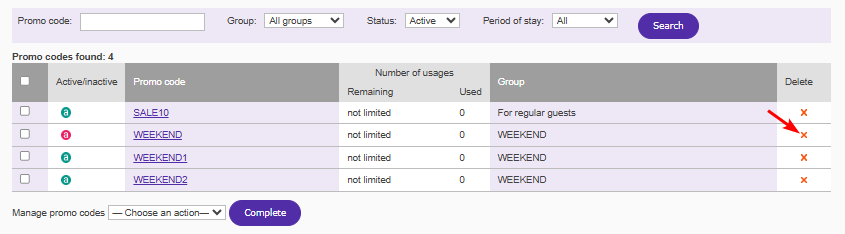
To delete a promo code, click the cross icon on the right. A deleted promo code cannot be restored.
3. Activate.
To activate a deactivated promo code, select "Inactive" in the “Status” filter above the promo codes list and click "Search". In the list, select the required promo code and click the red "a" icon on the left. The icon will turn green — the promo code is activated.

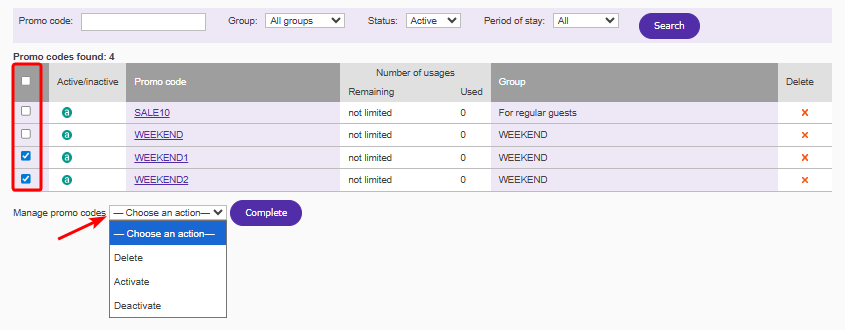
4. You can delete, activate, or deactivate multiple promo codes at once. To do this, select the promo codes using check-boxes on the left, choose the required action below the list, and click "Complete".
How to use a promo code
1. Create a promo code-based closed rate or a rate with a closed price.
For more details, see the articles:
2. Set up a promo code discount.
To provide a discount for open rate plans for guests with a promo code, configure a promo code discount. For more details, see the article "How to add promotions displayed in the Booking Engine".
