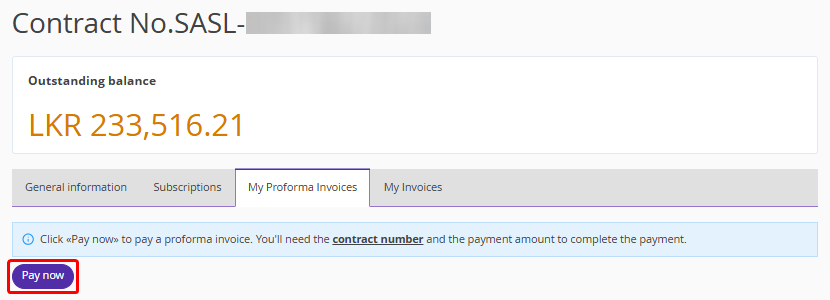
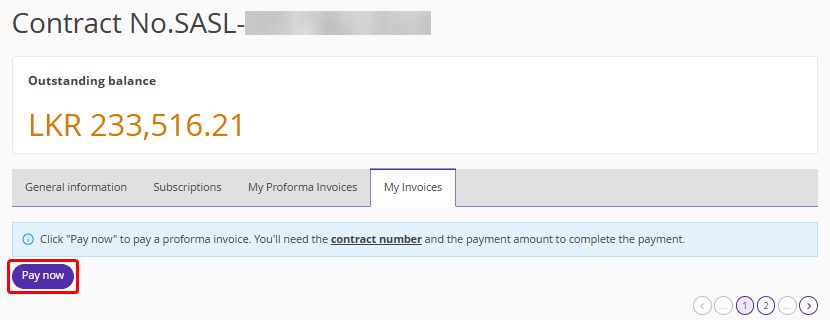
Exely Customer Portal is a section of the Exely extranet that contains information about contracts with Exely and the users list.
How to access Exely Customer Portal
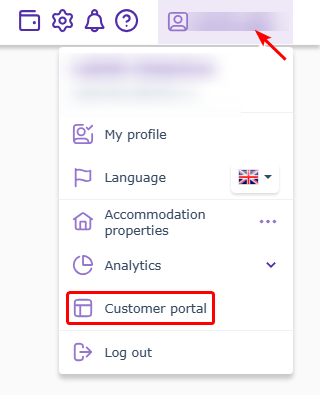
To access the Exely Customer Portal, click your user login in the top right corner of the Exely extranet and click “Customer Portal” in the drop-down list.
What information is available in Exely Customer Portal
In Exely Customer Portal, the “Documents” section contains information about all signed contracts: the contract number, contract start date, connected Exely solutions.
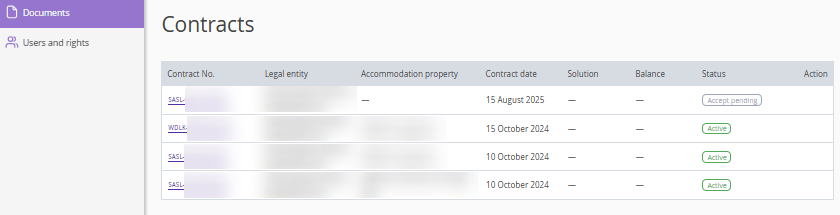
To open detailed information about the contract, click the contract number. A page will be opened with information about the contract, including the amount of outstanding balance in case it exists.
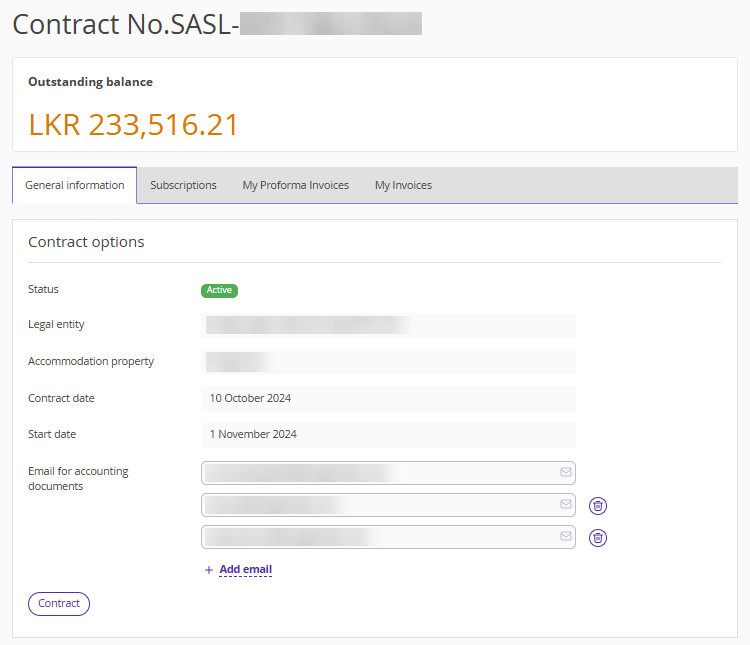
The “General Information” tab provides basic information about the contract. You can view and download the contract text and terms of use of the software, as well as add or change email for accounting documents.
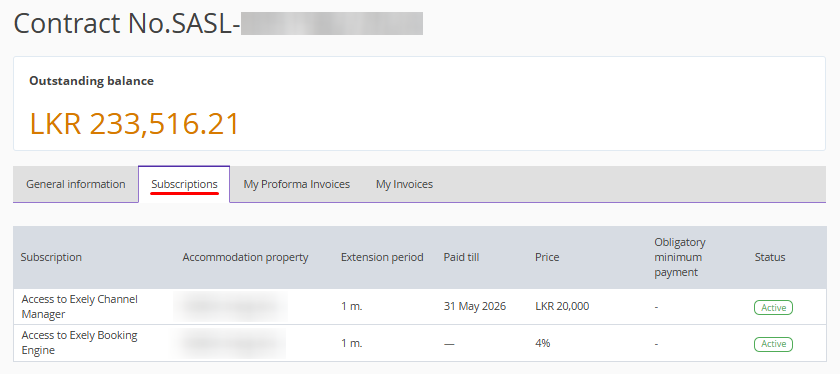
On the “Subscriptions” tab, you can see for which subscriptions to Exely solutions the contract is valid and for how long the subscriptions are paid.
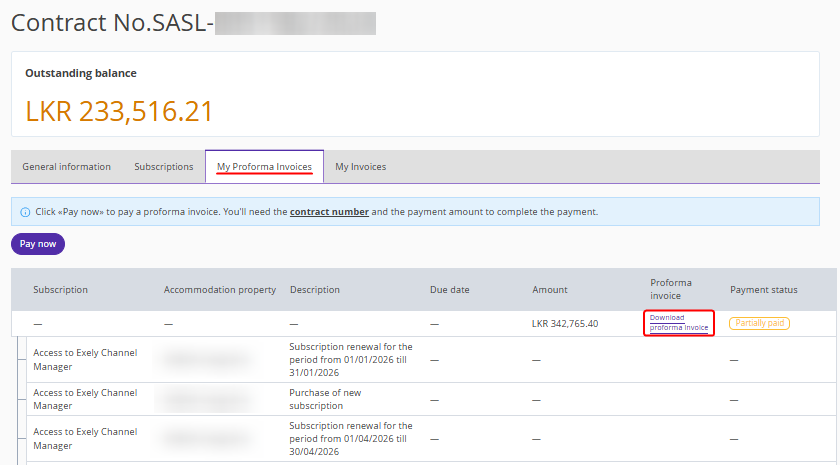
The “My Proforma Invoices” tab contains all pro-forma invoices issued under the selected contract. The table displays information about the subscription for which the proforma invoice has been issued, the invoice amount and the payment status. To download a proforma invoice, click the “Download proforma invoice” link.
The “My Invoices” tab contains invoices. The table displays information about the subscription for which the invoice has been issued, the due date, amount due and payment status. To download an invoice, click the “Download Invoice” link.
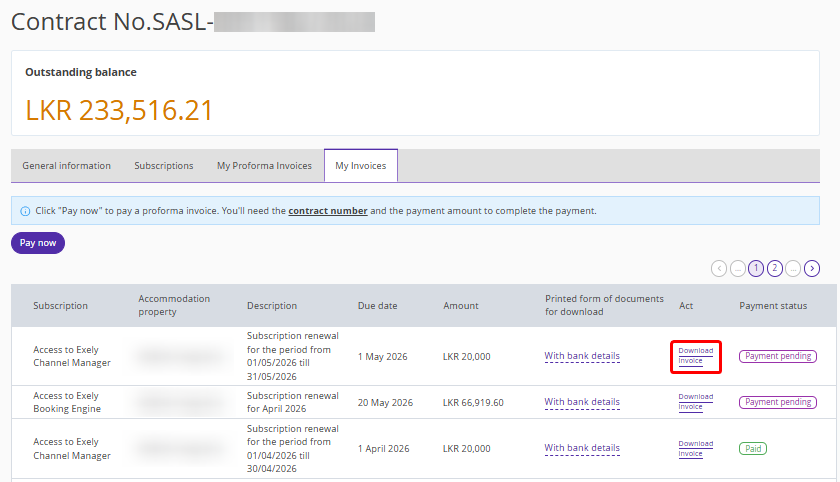
To pay an invoice, click the “Pay now” button on the “My Proforma Invoices” or ‘My invoices“ tab.