To upload photos for a room type:
1. In the Exely extranet, go to "Room management" > "Room types". Click the room type name to open it for editing.
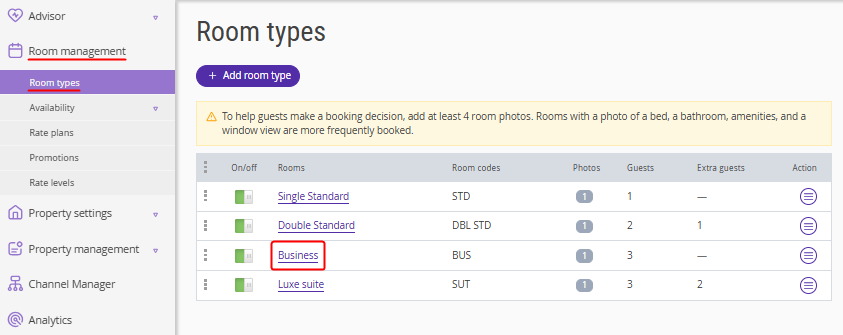
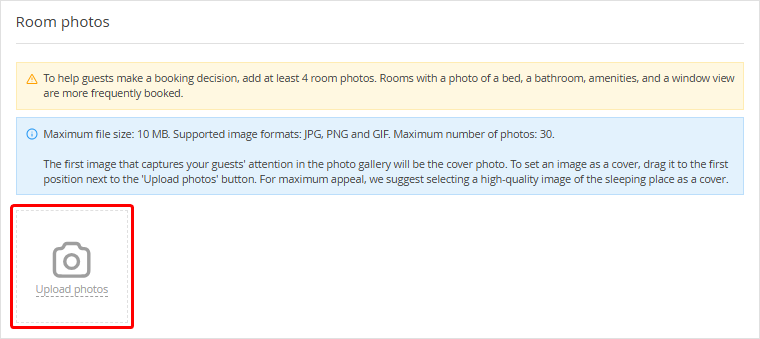
2. At the bottom of the page, find the "Room photos" section. Click "Upload photos" and select images from your computer.
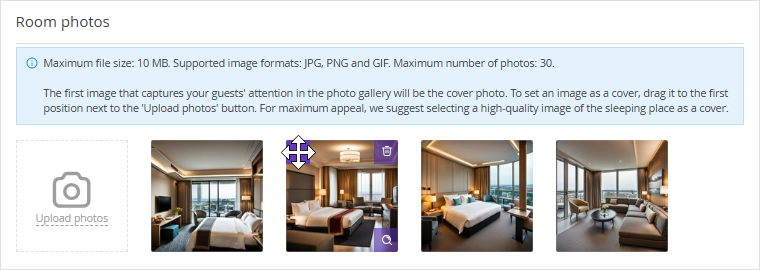
3. Arrange the photos in the desired order right away, as guests will see them in the same order when booking. To move a photo, hover over the image, click the move icon in the top left corner, and drag the photo.
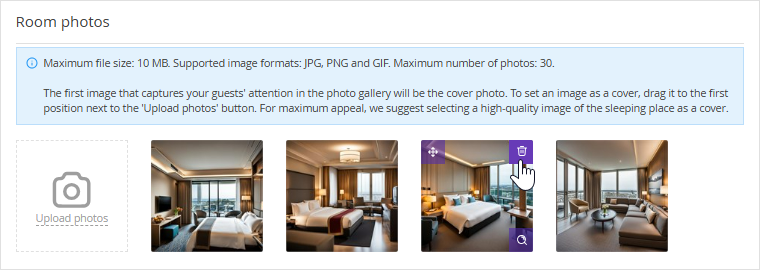
4. To delete a photo, click the trash icon in the top right corner of the image.
Pay attention. The photo will be deleted immediately. To add it again, click "Upload photos" and select the file from your computer.
5. To enlarge an image, click the magnifier icon in the bottom right corner.
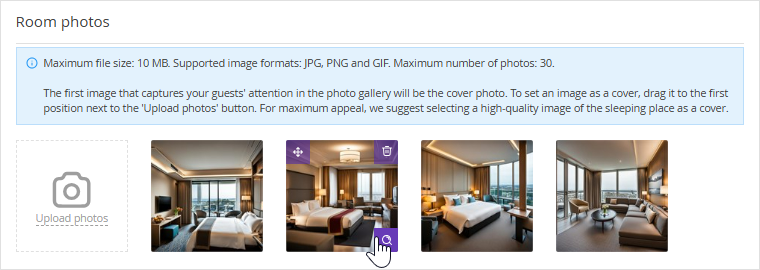
6. Click the "Save" button at the top of the page.
We recommend uploading at least 3 photos of the room: a general view of the room, the bed, and a general view of the bathroom. Use high-quality images.
The maximum image size is 10 MB. Supported formats are JPG, PNG, and GIF. The maximum number of photos is 30.
