Imagine that a group of guests is coming to your property for a corporate or sports event. You need to:
check in all guests;
change check-in dates;
mark bookings with different tags;
add breakfasts;
remove rooms where guests canceled their trip;
merge invoices into a single document.
In Exely PMS, these tasks can be completed in just a few clicks using bulk actions and automated invoice merge.
Bulk actions
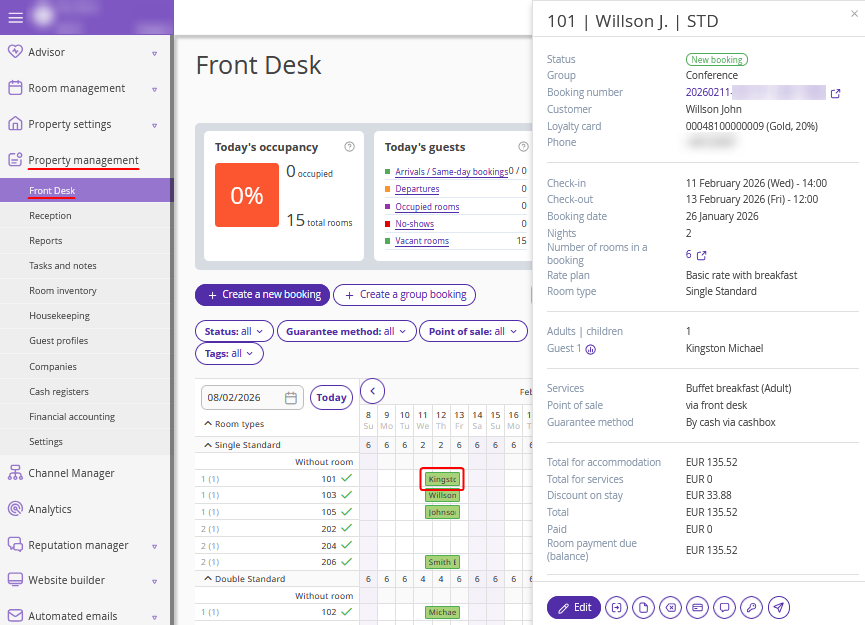
1. In the Exely extranet, go to "Property management" > "Front Desk" and click any stay within a group booking.
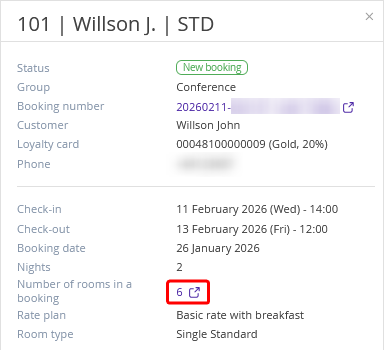
2. In the opened brief booking details window, click the number of rooms in the booking.
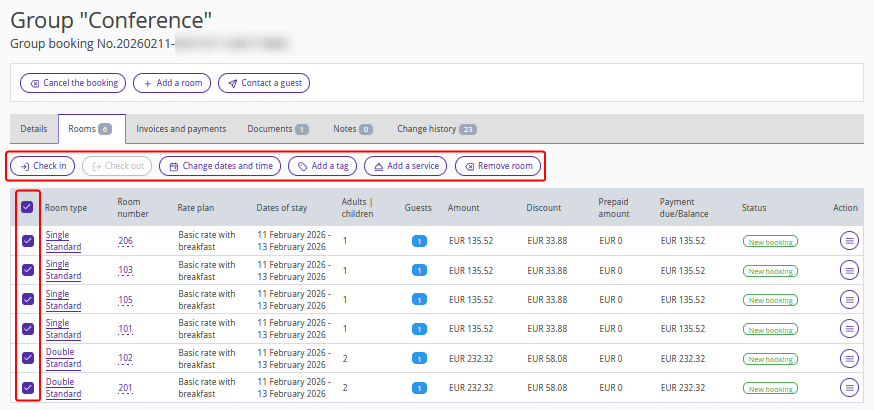
3. The group booking details page will be opened on the "Rooms" tab.
Select the required rooms using checkboxes — the bulk action buttons will become active. Here you can:
check in and check out bookings,
change dates and time,
add a tag,
add a service,
remove rooms.
Let’s take a closer look at each action.
Check in or check out rooms
In Exely PMS, you can quickly check in or check out a group of guests with a single action. This saves time, especially if all guests’ data is available in their profiles in the booking.
To do this, open the group booking details page, go to the "Rooms" tab, select rooms using checkboxes and click the "Check in" button. Choose the check-in date and time — they will be applied to all selected rooms.
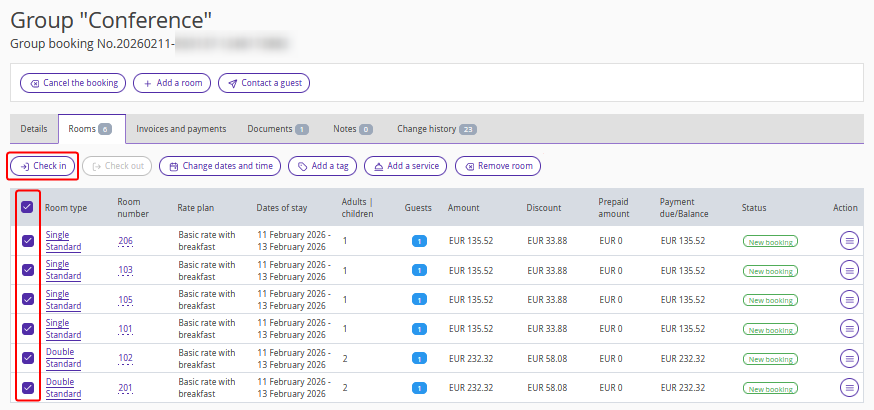
The "Check out" button becomes available when the check-out date arrives.
More details are available in the article: "How to check in and check out a group booking in Exely PMS".
Change check-in or check-out dates and times
If the group wants to arrive earlier or leave later, you can change dates and times using a bulk action.
To do this, open the group booking details page, go to the "Rooms" tab, select rooms using checkboxes and click "Change dates or time". Specify the new dates or time and enter the surcharge amount for early check-in or late check-out, if needed — the changes will be applied to all selected rooms.
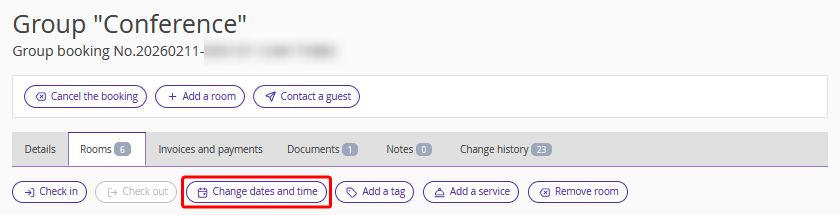
More details are available in the article: “How to change check-in or check-out dates and time in a group booking in Exely PMS”.
Add a tag
Tags are keywords used to label bookings.
If you need to highlight bookings related to a local festival, sports event, or conference , use tags to quickly find them in the Front Desk or in the “Tags” report.
First, create tags in the "Property management" > "Settings" section > the "References" tab. Then, on the group booking details page, go to the "Rooms" tab, select rooms using checkboxes and click "Add tag". Choose tags from the list.
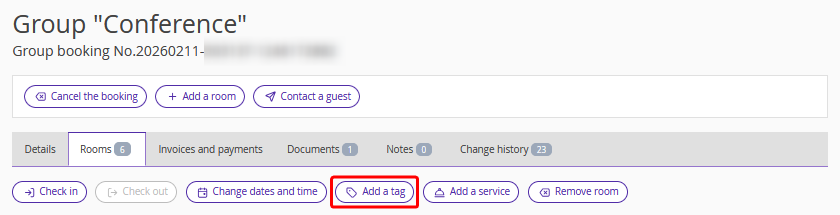
For details on how to create and use tags in bookings, refer to the article: “How to add a tag to a group booking in Exely PMS”.
Add a service
Has the group decided to order breakfast or another service?
Adding breakfast manually to each booking takes time. With a bulk action, the service appears in every room instantly.
To do this, open the group booking details page, go to the "Rooms" tab, select rooms using checkboxes and click "Add service". Select the service from the list.
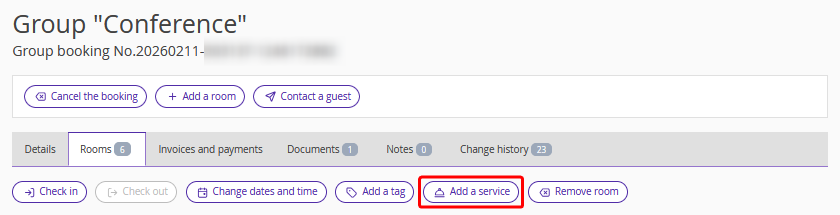
Detailed instructions are available in the article: “How to add services in a group booking in Exely PMS”.
Remove a room
If guests inform you they cannot come, you can remove their room from the group booking in Exely PMS. If several rooms are canceled, use a bulk action.
To do this, open the group booking details page, go to the "Rooms" tab, select rooms using checkboxes and click "Remove room".
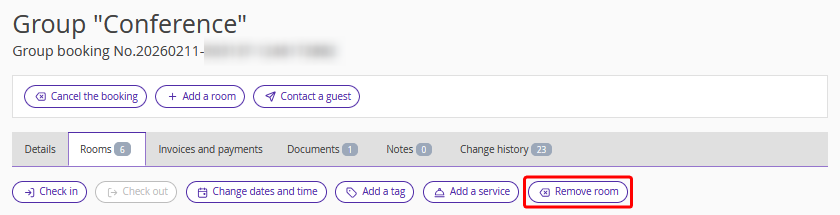
For details, see the article: “How to remove a room from a group booking in Exely PMS”.
Merge invoices
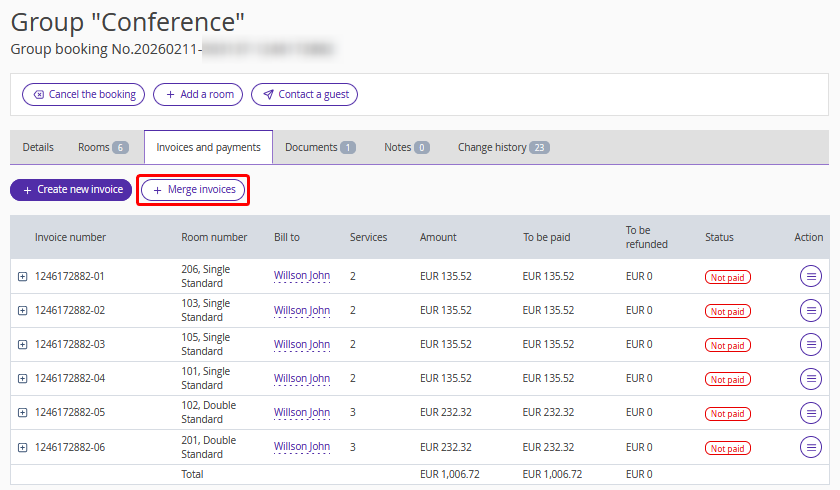
The group has completed their stay and requests a single invoice for payment. In Exely PMS, this process is automated using the "Merge invoices" button.
Open the group booking details page, go to the "Invoices and payments" tab and click "Merge invoices". All invoices will be merged into one document, and individual invoices will be removed.
More details are available in the article: “How to merge multiple invoices in a group booking in Exely PMS”.