In the Exely extranet, in the “Guest management” > "Guest relations" > "Emails" section, you can create an automated email in two ways:
How to create an automated email from the "Create automated emails for each step of the guest experience" section
1. On the "Emails" page, click the required automated email type in the "Create automated emails for each step of the guest experience” section.
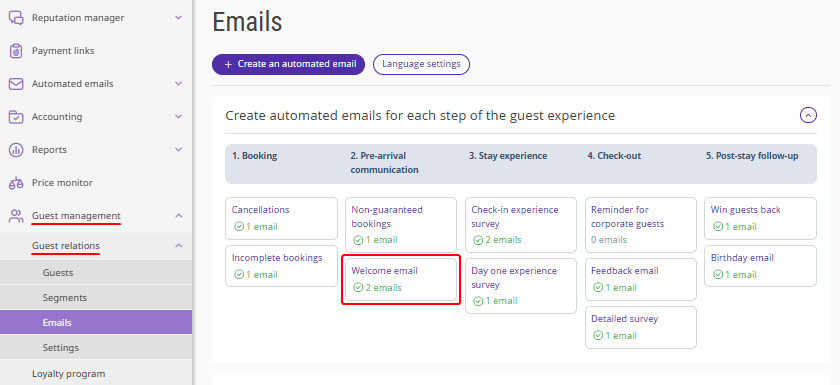
The email setup page will be opened.
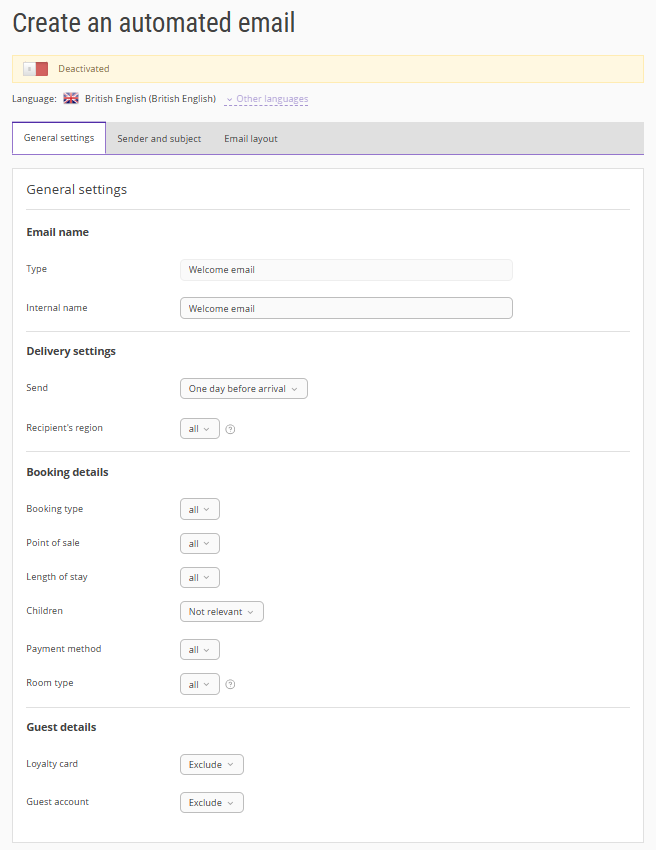
2. Set the automated email following the instructions.
You can find all available email types in the article “What types of automated emails can be set up in Exely Guest Relations”.
How to create an automated email using the "Create an automated email" button
1. On the "Emails" page, click the “Create an automated email” button.
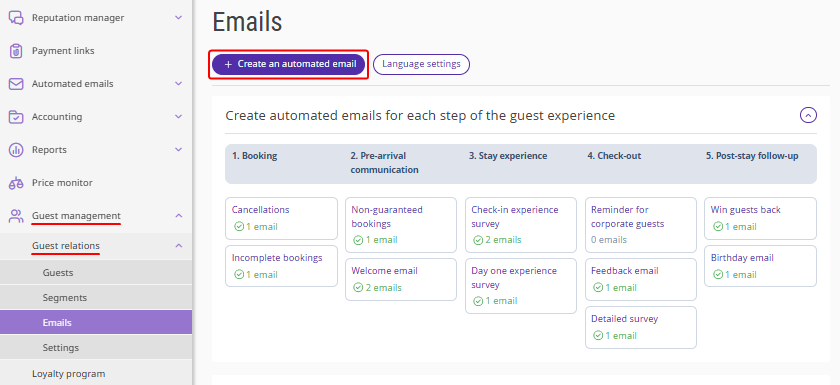
2. On the “Create an automated email” page, select the required email template.
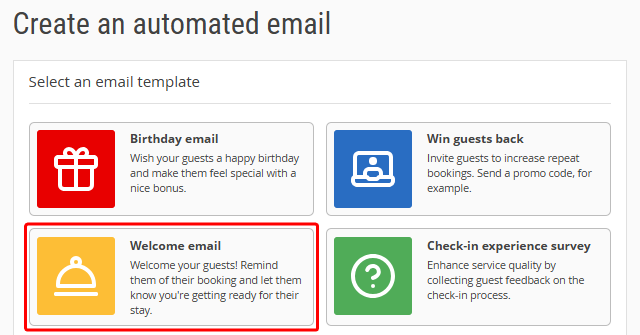
The email setup page will be opened.
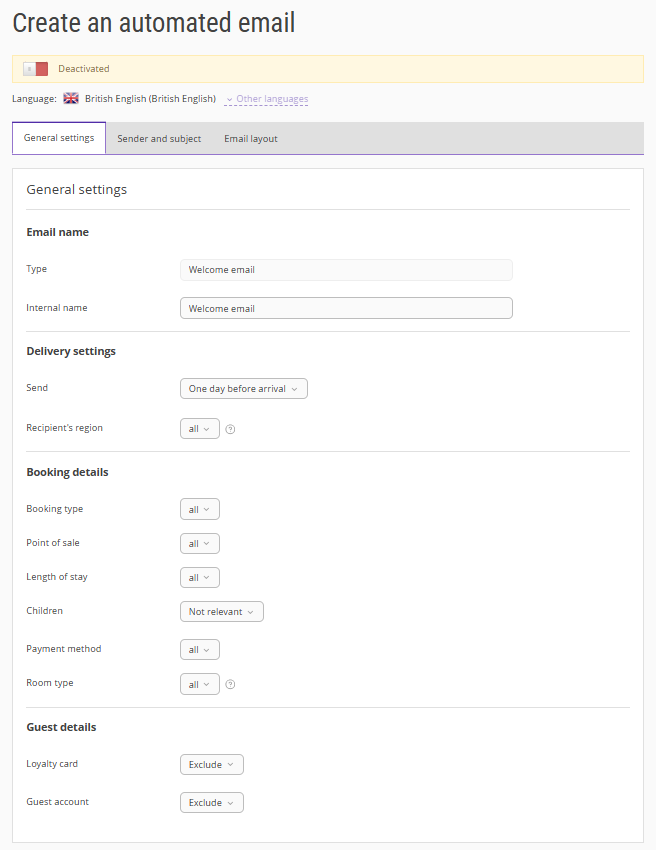
3. Set the automated email following the instructions.
You can find all available email types in the article “What types of automated emails can be set up in Exely Guest Relations”.
