Step 2. Specify sender and subject
Step 5. Set up feedback report
Step 6. Save and activate automated email
The “Check-in experience survey” automated email includes a short feedback form to improve the reception team service level.
The check-in process is the guest’s first interaction with the property. A low rating of this process can negatively affect the overall impression of the stay.
In the Exely extranet, go to "Guest management" > "Guest relations" > "Emails", click "Create an automated email", and select “Check-in experience survey”. The "General settings" tab will be opened. For more details on how to create an automated email, see the article "How to create automated emails in Exely Guest Relations".
Then follow these steps:
Step 1. Make general settings
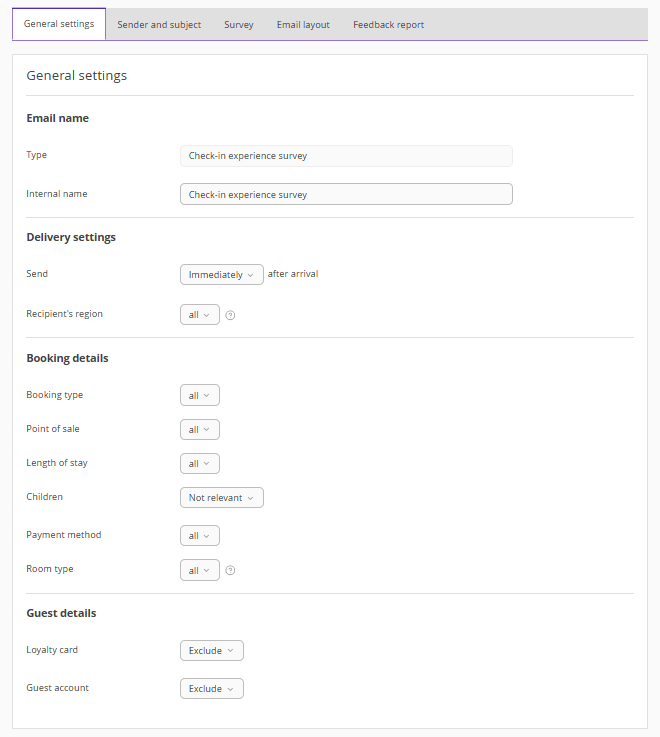
1. On the "General settings" tab, enter the internal name for the automated email. It is visible only to Exely extranet users. Statistics will be displayed based on the name and email type.
The automated email type is added automatically and cannot be edited.
2. Set delivery settings: when the email will be sent and recipient’s region. The regions specified in guest profiles in Exely PMS or a third-party PMS are taken into account.
3. Select the booking details that will be used to trigger automated emails:
Booking type — first-time or repeat. Only successful (not canceled) bookings are considered.
Point of sale — where the booking came from: Exely Booking Engine, sales channels, Exely PMS, or third-party PMS.
Length of stay — number of nights in the booking: one night or two or more.
Children — whether children are included in the booking.
Payment method — payment methods available to guests when booking.
Room type — room types available to guests when booking.
4. Specify guest details: whether the guest has an account and a loyalty card. The settings are available only if the loyalty program and guest account are enabled for the property.
Step 2. Specify sender and subject
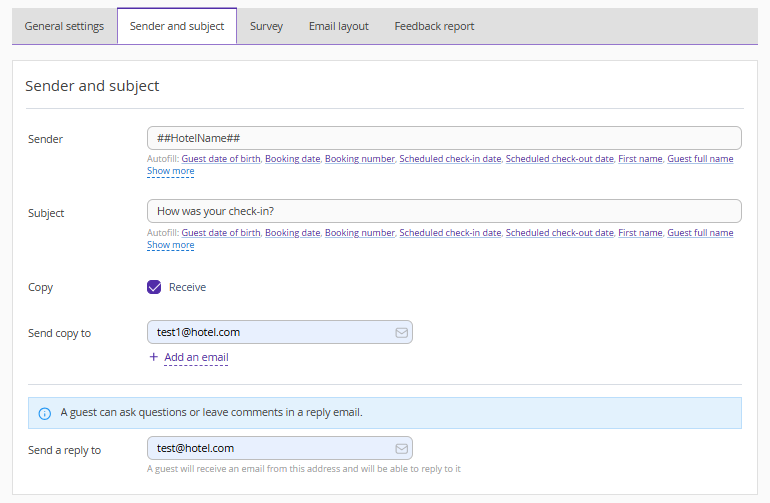
1. On the "Sender and subject" tab, specify the sender, for example, the property or department name. Use variables.
2. Enter the email subject. Use variables.
3. Tick the “Receive” check-box and specify an email address to send copies of emails to the property employees, if required.
4. Check or edit the reply-to email address.
Step 3. Set up survey
On the "Survey" tab:
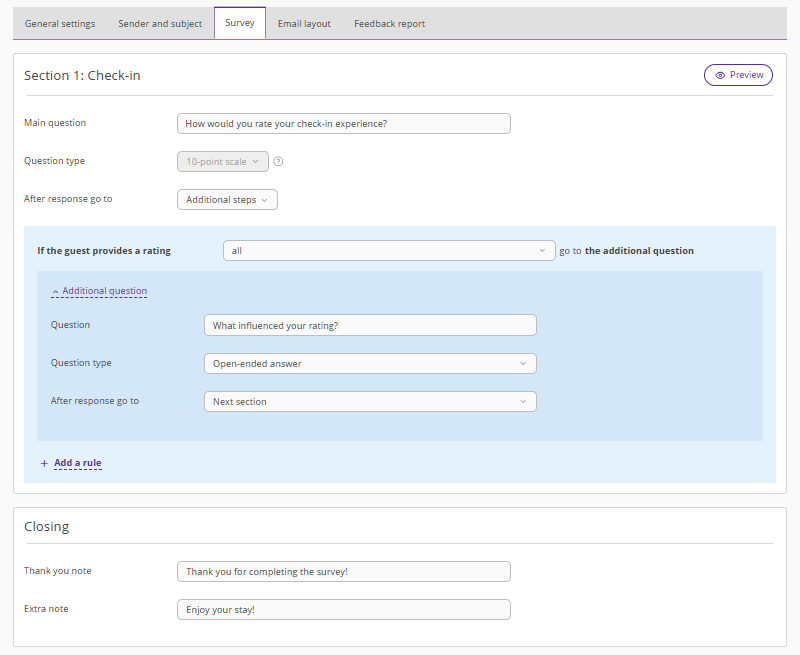
1. In the "Section 1: Check-in" section, in the "Main question" field, enter a question that the guest can answer using a 10-point scale. By default, the main question is "How would you rate your check-in experience?".
2. The "Question type" field for the main question is not editable — it is always a 10-point scale. Survey statistics can be viewed in the list of all emails in the "Emails" section > in the "Overall rating" column.
3. In the "After response go to" field, select the next action:
Next section — the guest proceeds directly to the end of the survey;
Additional steps — the guest proceeds to an additional question.
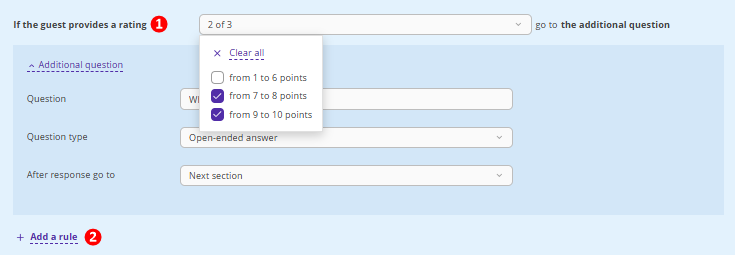
4. Configure an additional question if "Additional steps" is selected. In the "If the guest provides a rating" field, select the rating range for which the guest will be asked a follow-up question:
from 1 to 6 points,
from 7 to 8 points,
from 9 to 10 points.
You can create multiple variations of additional questions depending on the guest’s rating. For example, for high ratings, ask what they liked most; for low ratings, ask the guest what they think could be improved in the check-in process.
5. Edit the additional question text if needed.
6. In the "Question type" field, select how the guest should respond:
Open-ended answer — allows the guest to express their opinion freely.
Multiple choice — allows selecting several predefined answers. To add more options, click "Response option". The "Other" option adds a field for a free-form response.
Single choice — allows selecting one predefined answer. To add more options, click "Response option". The "Other" option adds a field for a free-form response.
Yes/No question — allows the guest to choose between "Yes" and "No".
7. In the "After response go to" field, select the next action:
Next section — the guest proceeds directly to the end of the survey;
Additional question — create a second question that the guest will proceed to.
A maximum of two additional questions can be created for the selected rating ranges.
8. Add additional questions for other rating ranges.
Pay attention. To configure a new condition, one or two rating ranges must be selected in the first additional question (1), since conditions (2) can only be added for different ratings.
9. Configure the closing. The guest will see it after completing the survey. The default text can be changed.
10. Check the survey in preview mode. Survey data is not saved or sent.
Step 4. Set email layout
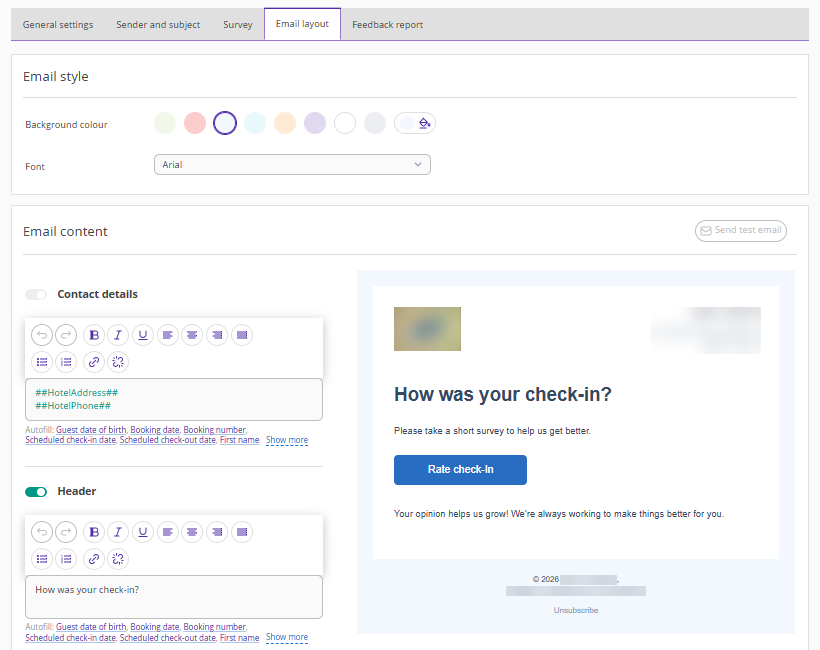
On the "Email layout" tab, make settings in the following sections:
Email style
1. Select a background color. To ensure you match your brand’s colour exactly, use HEX codes (hexadecimal colour codes).
2. Choose a font.
Email content
1. Fill in the main elements:
header;
body text;
additional text.
Use variables if needed so booking data is automatically inserted into the email.
2. Set up the button to go to the survey — enter the button text and select its colour in "Button styles".
Pay attention:
The logo and contact details are added automatically from property settings and cannot be edited.
The "Contact details" and “Button” fields cannot be disabled.
Some fields can be disabled using a switch.
Test email
1. Click the “Send test email” button.
2. Enter an email address and click "Send".
HTML mode
If the standard email settings are not sufficient, you can use HTML mode (HTML stands for Hypertext Markup Language). In this mode, the template is displayed as code that you can edit to create a unique email style.
For more information on working in HTML mode, see the articles:
Pay attention. Changes made in HTML mode cannot be undone. If you edit the code and save it, you will no longer be able to return to the block editor in this automated email.
Step 5. Set up feedback report
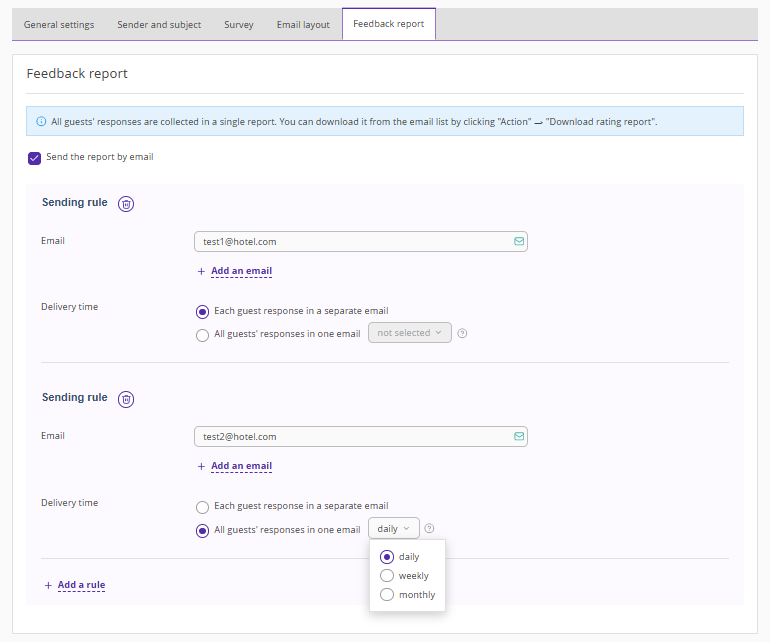
On the "Feedback report" tab, set up automatic reporting:
1. Enable report sending — tick the “Send the report by email” check-box.
2. Specify the recipients — enter the employees’ email addresses.
3. Select the delivery time:
each guest response in a separate email;
all guests’ responses in one email: daily, weekly, or monthly.
You can add multiple rules.
Reports are sent during the first hour of the next day after the reporting period ends, according to the property’s local time:
day — 00:00–01:00 of the next day;
week — 00:00–01:00 on Monday of the following week;
month — 00:00–01:00 on the first day of the next month.
A report with responses can be downloaded at any time from the created emails list. To do this, go to the "Emails" section, click "Action" > "Survey report".
Step 6. Save and activate automated email
Save the changes and activate the automated email.
Set up language versions
For details on setting up language versions, refer to the article “How to create emails for international guests in Exely Guest Relations”.
How emails are sent
Emails in Exely Guest Relations are sent to the guest’s email address specified in the profile at the time set in the settings. Emails start being sent according to the settings from the moment the email is activated.
The timing is based on the actual check-in time, if you use Exely PMS. In other cases, the expected check-in date and time specified in the booking are used.
Survey results
The overall rating based on the first question is displayed in the list of created automated emails. Detailed responses can be viewed:
In the guest profile in the "Guests" section, in the "Guest ratings" section or on the "Emails" tab. If a guest completed the survey multiple times for different bookings, the average rating will be shown.
In the exported Excel report in the "Emails" section > "Action" > "Survey report". For more details on how to download the survey report, see the article "How to work with automated email statistics in Exely Guest Relations".
