Exporting prices and restrictions to Excel is a convenient tool that eliminates the need to manually copy rate plan settings. You can export prices and restrictions either together or separately.
How this helps different teams:
For the front desk and reservation teams: helps quickly provide guests with accommodation prices and share up-to-date pricing with partners.
For revenue managers: allows analyzing pricing policies and planning future sales strategies.
For managers: helps prepare data for external audits and maintain a history of price changes.
Who can use this feature
The option to export prices and restrictions to Excel is available to all users who have access to rate plans.
How to export prices and restrictions
1. In the Exely extranet, go to "Room management" > "Rate plans".
2. At the top of the page, click "Export to Excel".
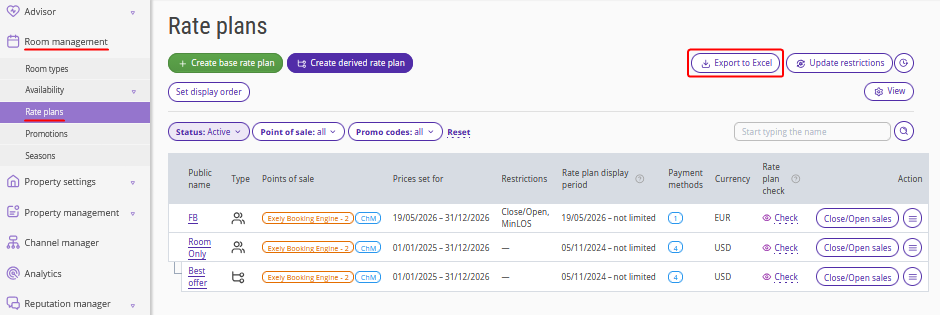
3. In the opened window, select the export period.
By default, Exely Suite suggests a three-month period starting from the current date, but you can choose any period within the next two years.
4. Tick check-boxes for rate plans for which you want to export prices or restrictions.
If you have many rate plans, use the search bar or filters by status and point of sale.
Note. You can export up to 25 rate plans in a single file. Dynamic rate plans, combined rate plans, and the "Free nights" rate plan cannot be exported.
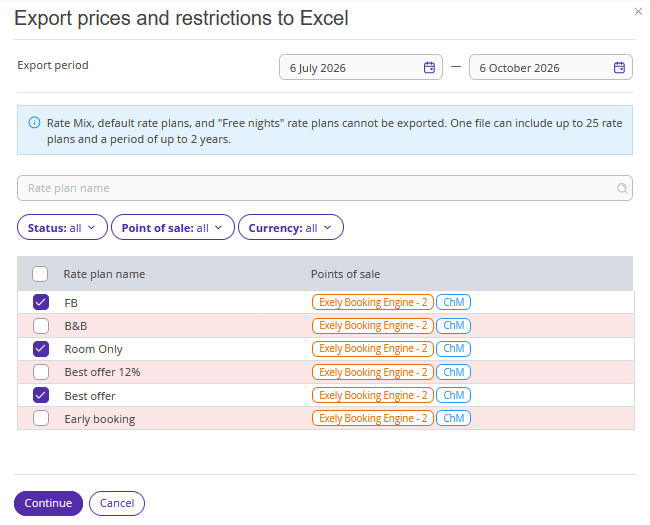
5. Click "Continue".
6. On the next step, select the room types, accommodation prices, and restrictions you want to include in the file.
To export data, select at least one room type and either occupancy prices or restrictions, or all three parameters at once.
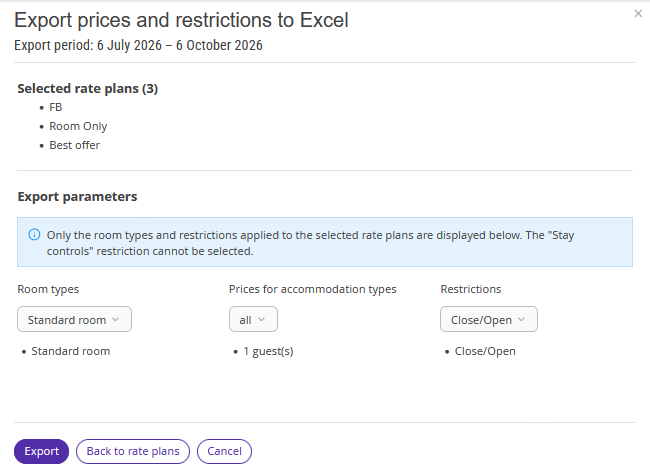
7. Click "Export".
A "Generating a file" message will appear. You can close the window while the system generates the file in the background. The export process may take up to 10 minutes.
When the file is ready, a notification will appear in the export window in the "Rate plans" section.
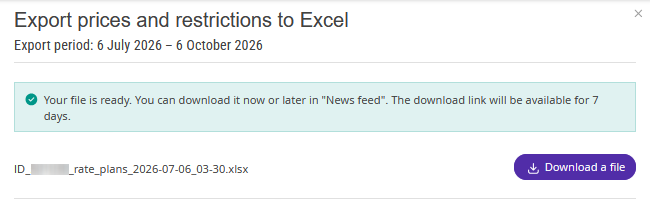
If you closed the window before the export was completed, you can find the notification in:
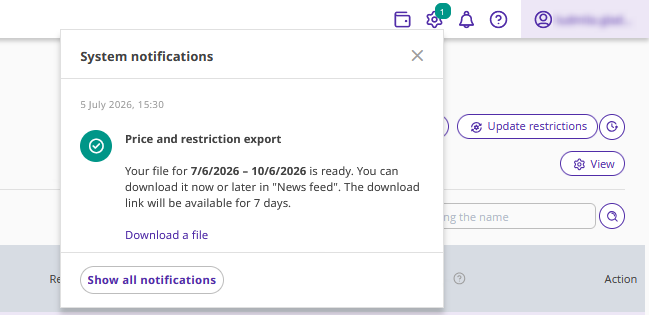
The system notifications icon in the top right corner of the screen.
The "News feed" section.
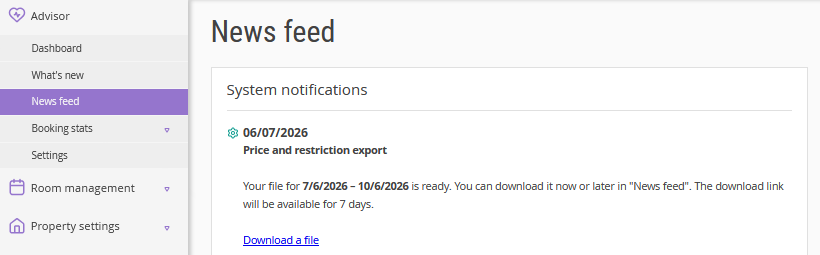
8. Click "Download file" in:
the export window;
the system notifications icon;
the "News feed" section.
The download link in the "News feed" section remains active for seven days.
The Excel file will be saved to your device. The file name is generated automatically and includes the property ID, as well as the date and exact time the export was created.
Information in the file
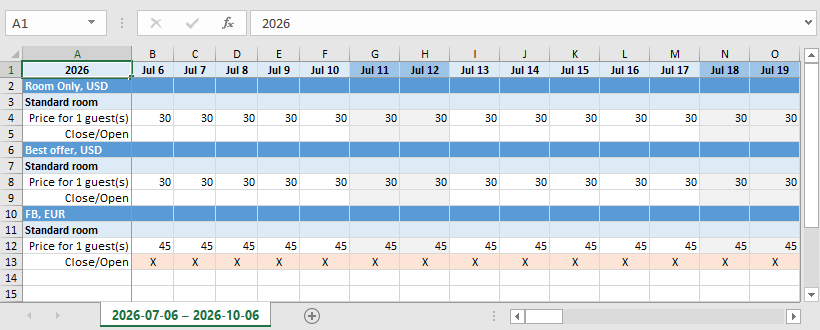
The exported Excel file is a table where columns represent dates, and rows are grouped by rate plans and room types. The file displays occupancy prices and restrictions in sequence for each room type.
Closed dates and CTA (Closed to arrival) or CTD (Closed to departure) restrictions are marked with an "X" on a light red background. Other rules (for example, minimum length of stay) are displayed as numeric values.