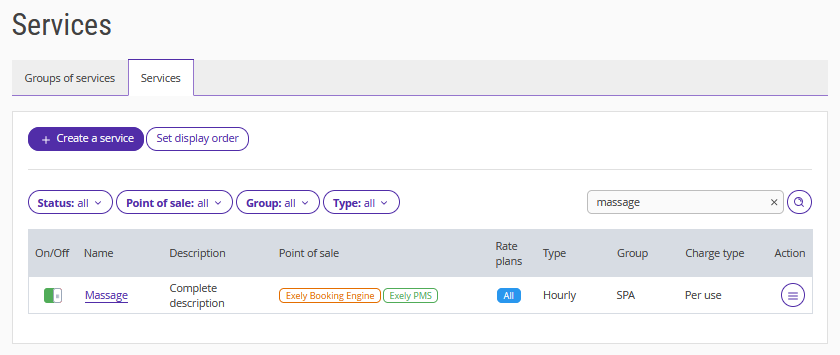
In the Exely extranet, you can create a service in the "Service management" > "Services" section.
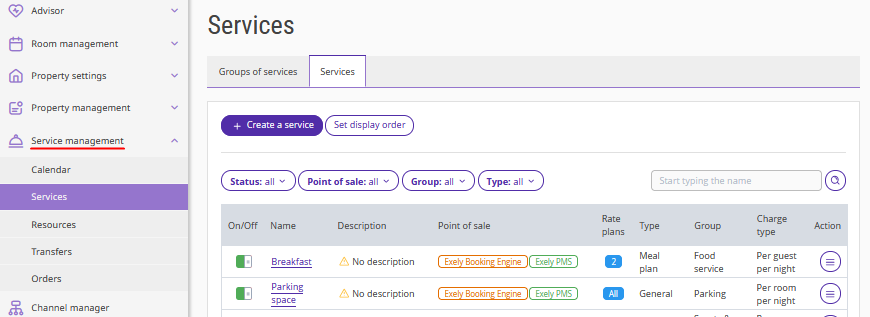
Pay attention. In the booking engine, hourly services can only be offered to guests for an extra fee. They cannot be included in the rate plan.
To create an hourly service:
1. Click "Create a service".
2. Select the "Hourly" service type.
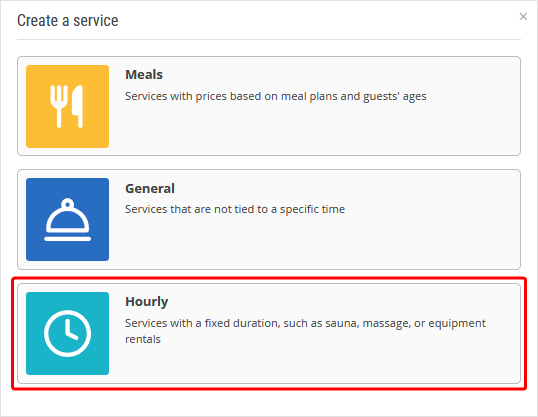
Then complete the following five steps.
Step 1. Resources
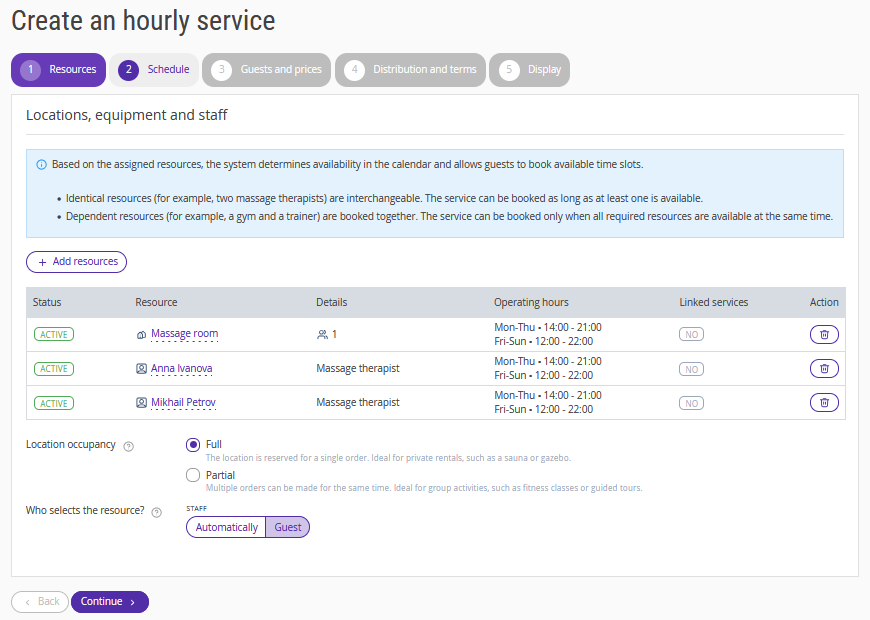
1. Add the location, staff, or equipment required to provide the service. Exely uses resources to determine availability in the calendar and allow guests to book the service. You can add resources of different types at the same time. For details, see the article "How to create resources for hourly services".
Note. Identical resources (for example, two massage therapists) are interchangeable: the service is available as long as at least one of them is available. Different resources, such as a location and an instructor, are linked: the service can be booked only if both are available at the same time.
2. Set the location occupancy:
Full — the location is blocked for one order, and other guests cannot book the service with this resource.
Partial — several orders can be created for the same time, allowing several guests to use the resource simultaneously. This option is suitable for spa or gym visits.
3. If you have added two or more interchangeable resources (a location and a staff profile) to the service, select in the "Who selects the resources?" setting whether the resource will be selected automatically or by the guest.
Step 2. Schedule
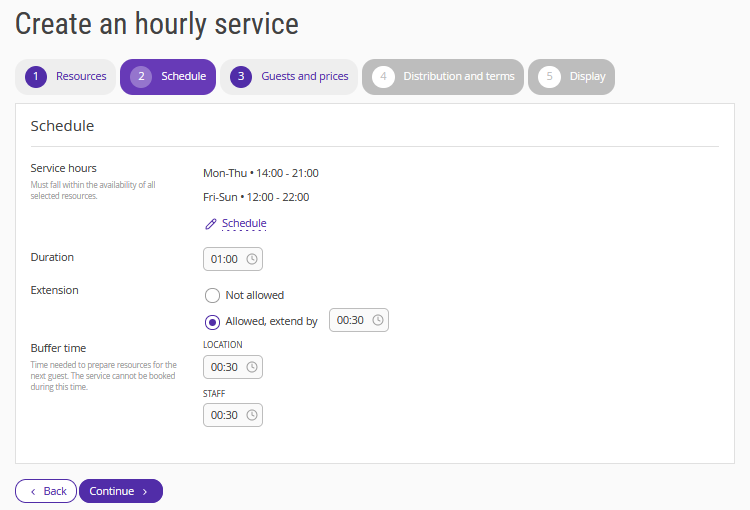
1. Set the service hours: working days and hours. You can specify different schedules for different days of the week.
The "Apply to days" setting allows you to apply the same time interval and working hours to several days of the week at once. This simplifies the setup of an hourly service schedule when the settings are repeated.
2. Specify the service duration. For example, 1 hour or 45 minutes.
3. Select whether service extensions are allowed or not. If extensions are allowed, specify the extension interval. The service can be extended as long as the resources are available during the service hours.
4. Specify the buffer time for all resource types.
During this time, the service will be unavailable for booking. For example, if cleaning the sauna takes 30 minutes, guests will not be able to book the next session until the specified time has passed.
Step 3. Guests and prices
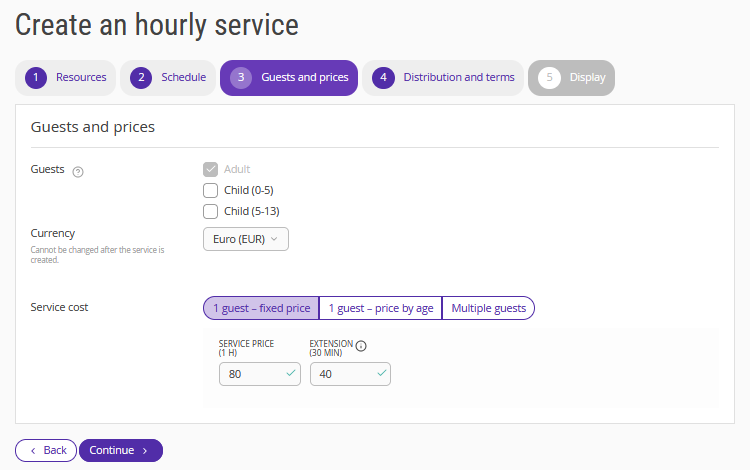
1. Select the guest categories for which the service will be available.
2. Specify the currency.
3. Select one of the three service cost options:
1 guest – fixed price — a fixed service price per guest that does not depend on age. For example, bicycle rental.
1 guest – price by age — a separate price for adults and children. For example, a spa visit.
Multiple guests — the number of guests included in the service price and the option to add extra guests. This option is suitable, for example, for sauna rental.
Note. If service extensions are enabled in the "Schedule" step, an additional field for specifying the price of each extension interval will appear.
Step 4. Distribution and terms
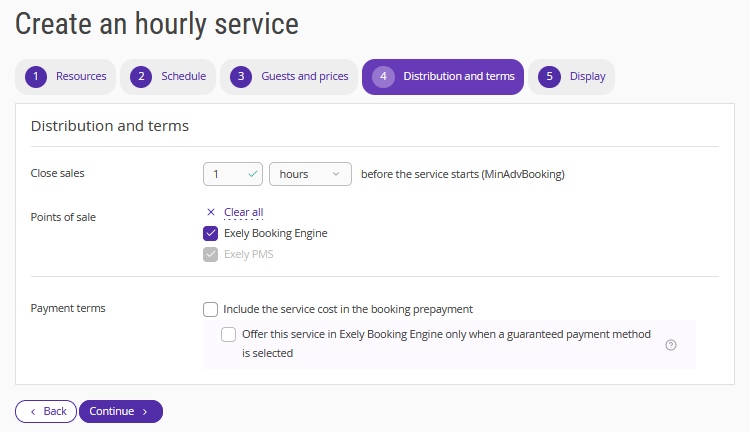
1. Specify how long before the service starts sales will close.
2. Select the points of sale: Exely Booking Engine, Exely PMS.
3. Select the payment terms for the service:
Include the service cost in the booking prepayment.
Offer this service in Exely Booking Engine only when a guaranteed payment method is selected.
Step 5. Display
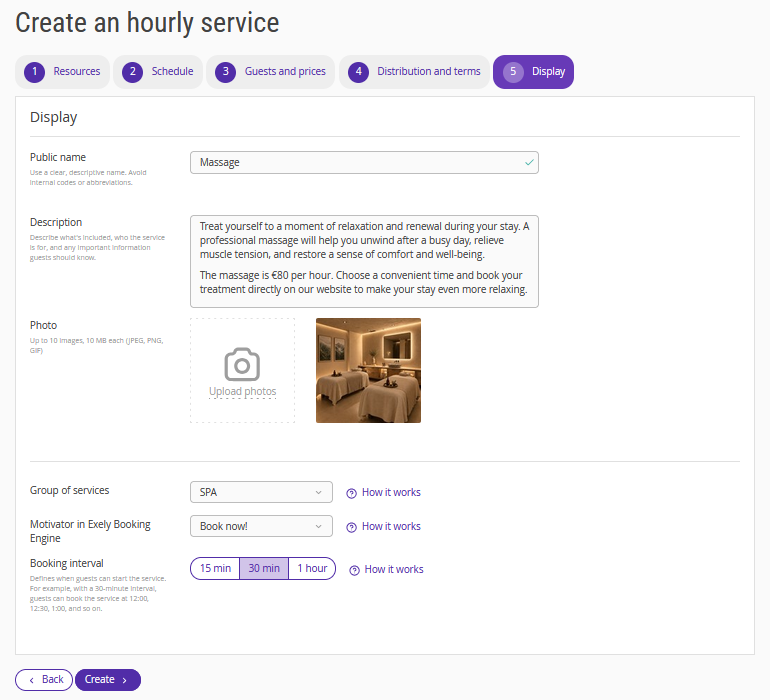
1. Specify the public name — guests will see it in the booking engine.
2. Add a description — explain what the service includes, who it is suitable for, and what rules apply. This will help guests make a decision.
3. Upload up to 10 photos in JPG, PNG, or GIF format, up to 10 MB each. Guests are more likely to book services with photos.
4. Group similar services together, such as spa, entertainment, health, and other services.
5. Add a motivator to attract guests' attention in the booking engine, for example, "Book now!".
6. Select the booking interval — the time interval at which the service will be offered to guests. For example, with the following intervals:
15 min — 11:00, 11:15, 11:30 will be available for booking.
30 min — 11:00, 11:30, 12:00.
1 hour — 11:00, 12:00, 13:00.
Note. If there is no buffer time after the service, select a 1-hour interval or an interval equal to the session duration. If there is a buffer time, set an interval equal to it, for example, 15 min. This allows you to offer the next session to guests without losing time due to downtime.
7. Click "Create".
The hourly service will then appear in the Exely Booking Engine if you selected this source in the settings, and guests will be able to book it. For details, see the article "Hourly services in Exely Booking Engine".
Services booked by guests will appear in the "Calendar" section. For details, see the article "Hourly services in Calendar".
How to find an hourly service in the service catalog
The created service is added to the list on the "Services" page. Use the following filters to work with the list of services:
Status: active and inactive services.
Sales sources: Exely Booking Engine, Exely PMS.
Group: default service groups and custom groups.
Type: meals, general, hourly.
To display only hourly services in the list, use the "Type" filter and select "Hourly".
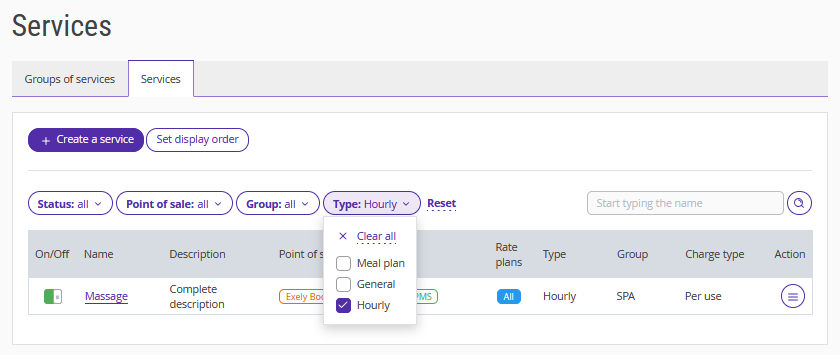
You can also use the search field to find a service by name.