In Exely Booking Engine, guests can book hourly services at the extra services selection step. Only services available to the guest on the specified stay dates are displayed.
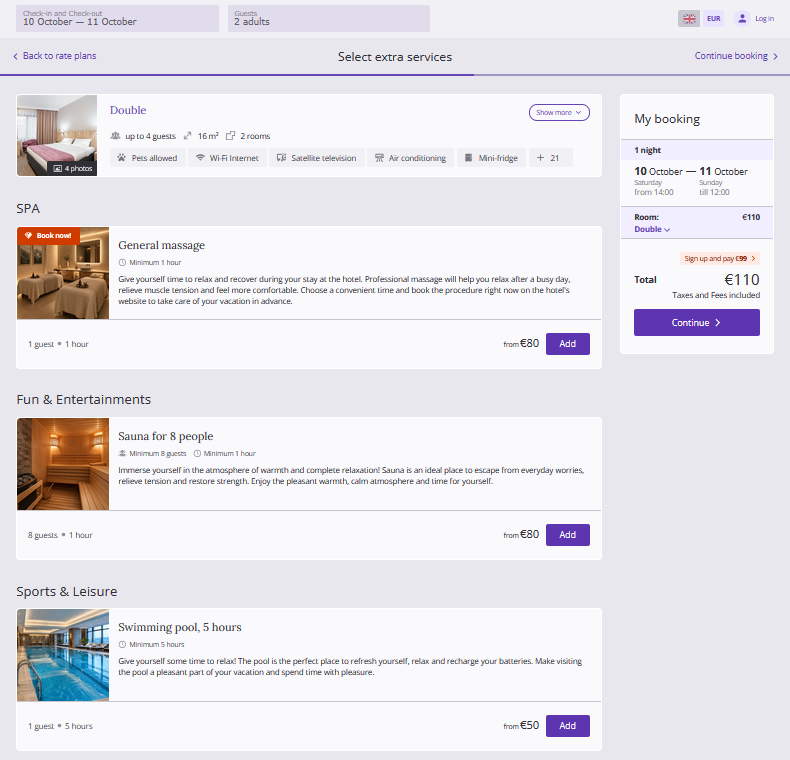
How a guest books an hourly service
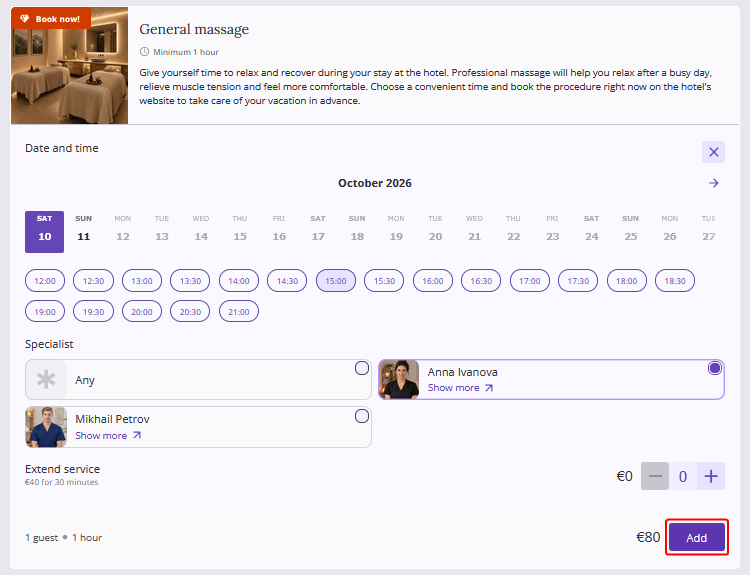
1. At the "Select extra services" step, the guest selects a service and clicks "Add".
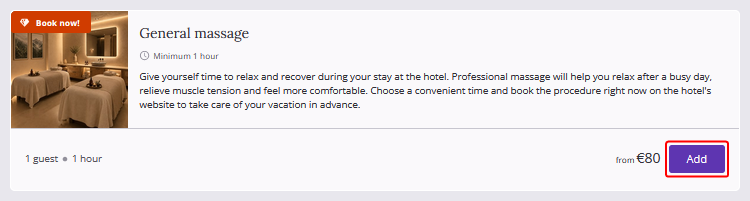
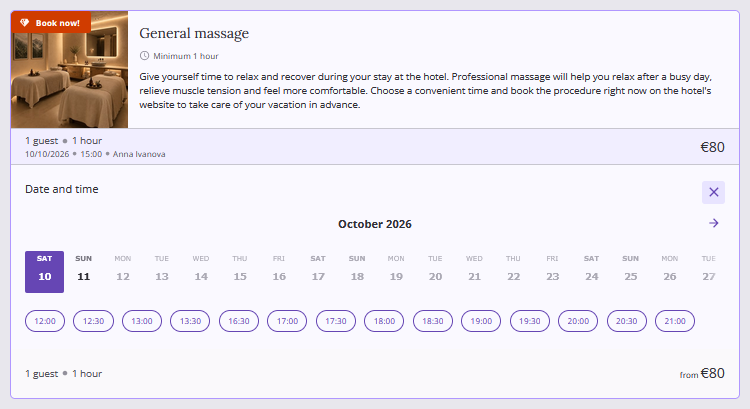
A calendar with available booking dates within the guest's stay period is opened in the service card.
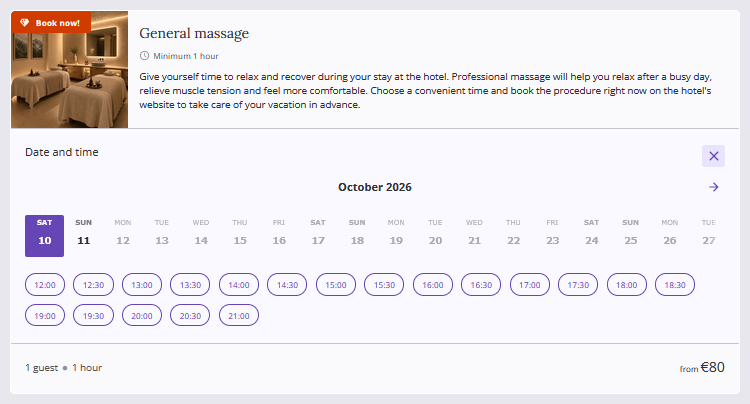
2. The guest selects the date and time of the service.
Additional parameters are opened in the service card:
Parameter |
When it is displayed |
Selecting a location or a specialist 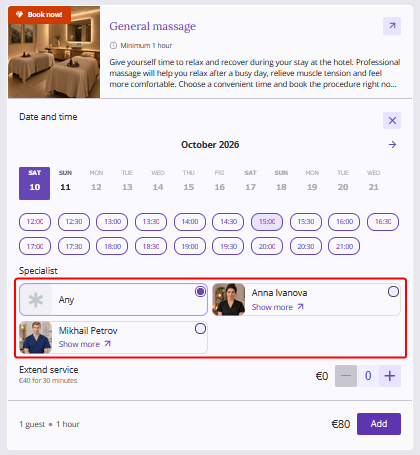
|
If "Guest" is selected in the "Who selects the resource?" setting when creating the service 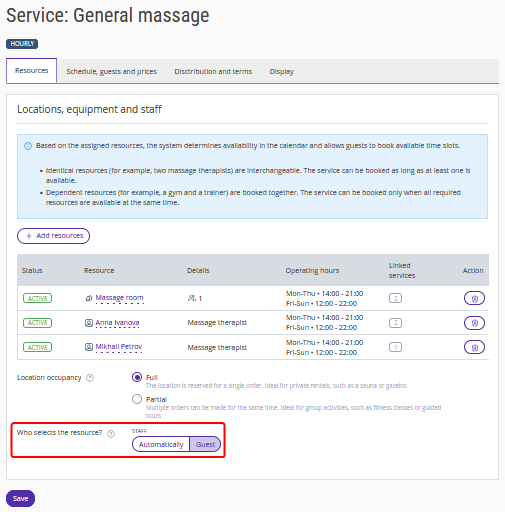 |
Selecting the number of guests with different prices by age 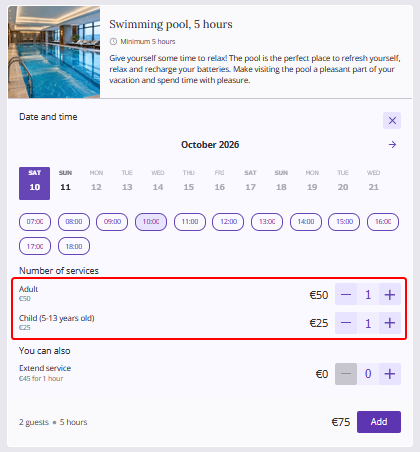
|
If "1 guest – price by age" is selected as the service cost when creating the service 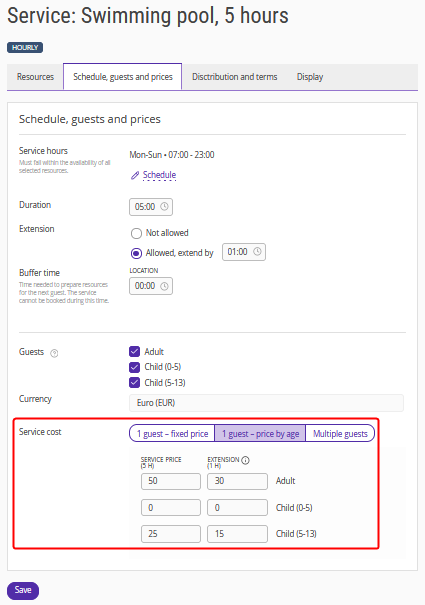
|
Selecting the number of guests with the same price regardless of age 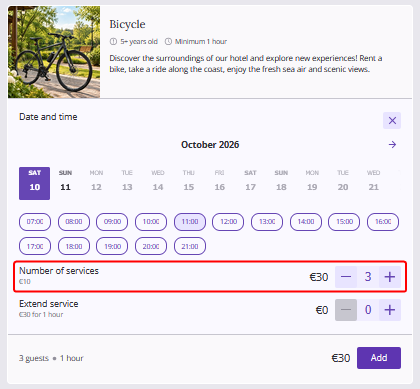
|
If "1 guest – fixed price" is selected as the service cost when creating the service 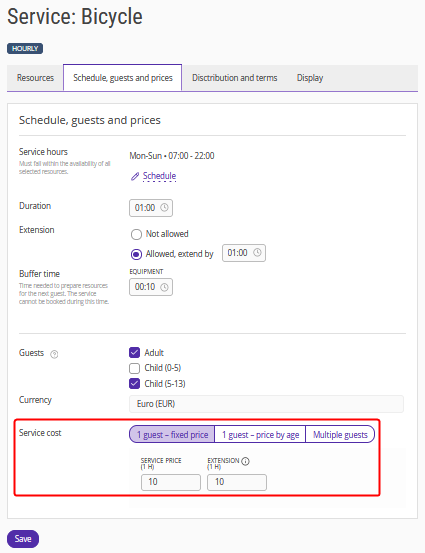
|
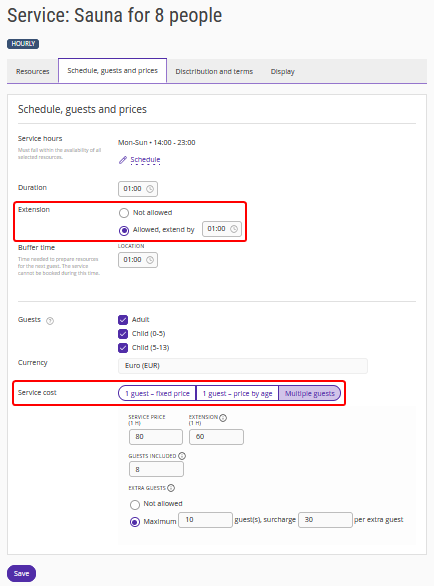
Extending the service and adding extra guests 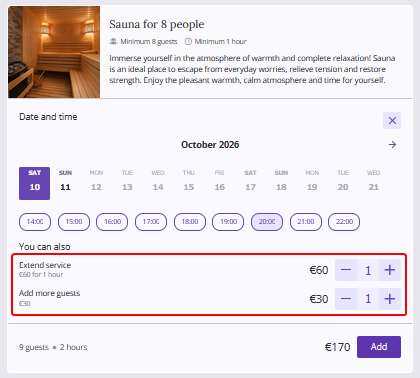
|
If, when creating the service:
|
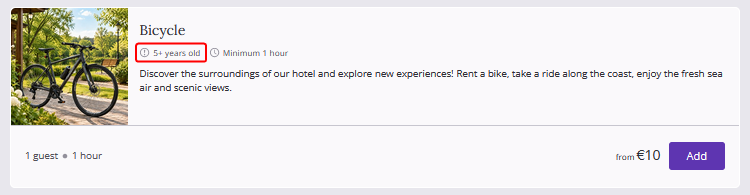
Note. If a minimum age for the service is specified in the service settings, a special label will be displayed in the service card in the booking engine.
For more details about creating and setting up hourly services, see the article “How to create hourly services”.
3. The guest specifies the required parameters and clicks "Add".
The service will be added to the booking.
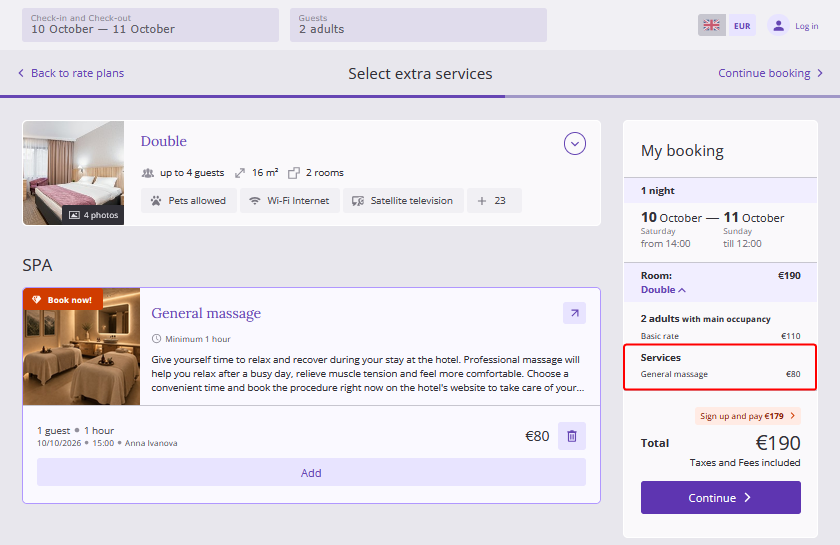
4. By clicking "Add", the guest can order the same service again for a different time or date.
Note. The number of guests staying in the room does not limit the number of services that can be ordered. Guests can add any number of services for different dates and times within the stay dates specified in the booking.
The service card displays the service price, date, and time.
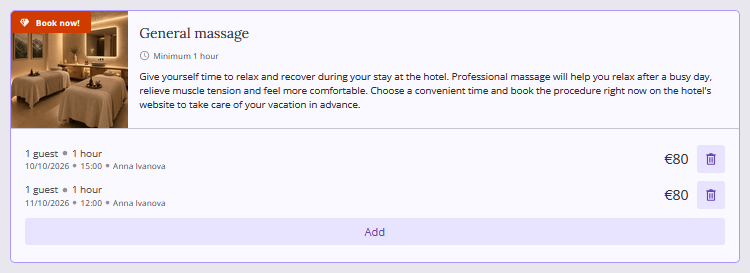
Pay attention. The guest cannot edit an added service and can only delete it. To do this, the guest needs to click the trash can icon in the service card.
After the booking is completed, the guest will receive a confirmation with a detailed breakdown of the services.
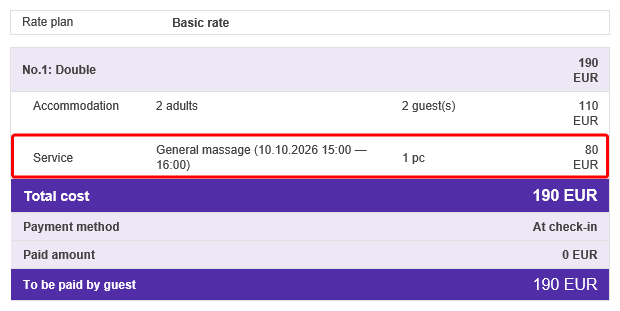
Pay attention. The guest cannot edit a booking with hourly services, they can only cancel it.
All hourly services booked by guests will appear in the Exely extranet in "Service management" > "Calendar". For details, see the article “Hourly services in Calendar”.
Hourly services in the mobile version of the website
In the mobile version of the booking engine, hourly services are displayed to guests as follows:
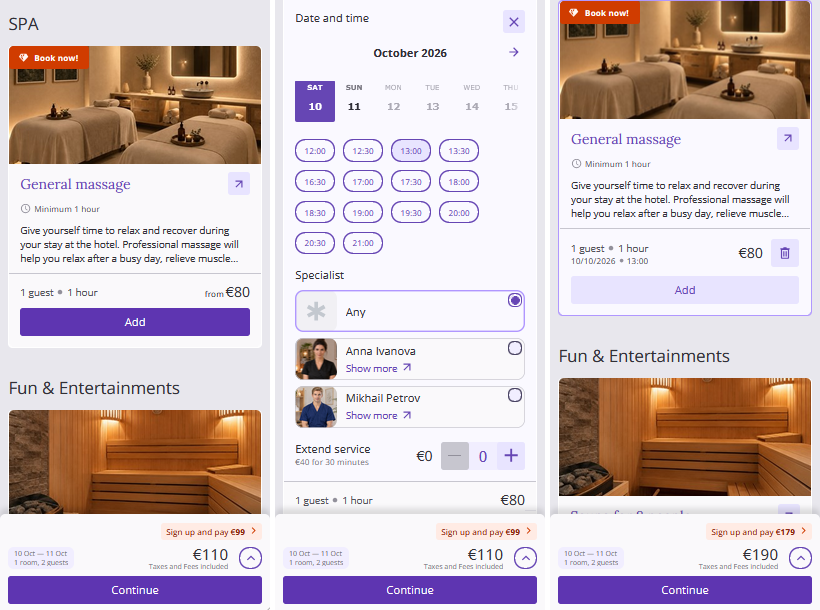
The guest's path when booking a service in the mobile version is the same as in the web version. Guests can book hourly services at the extra services selection step.
Note. Hourly services are set up and managed in the web version of the Exely extranet. For details, see “How to create hourly services”.
