The "Orders" section in the Exely extranet helps you manage hourly services and analyze demand for them. All information about booked services is collected in one place.
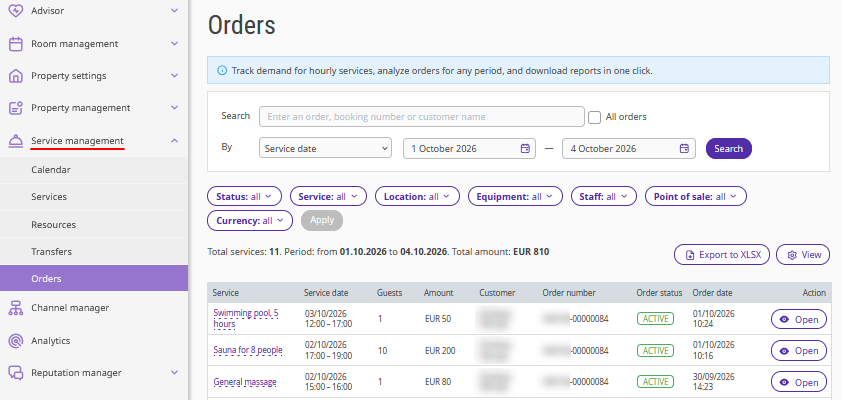
The "Orders" section helps employees at different levels, from managers to administrators.
Managers can use the section to analyze demand for services, track revenue, and monitor resource and staff occupancy. This helps them make informed management decisions and optimize business processes.
Spa, sauna complex, and activity administrators can use the tool to simplify daily operations: quickly create schedules for specialists or instructors, monitor upcoming occupancy, and plan purchases of necessary supplies in advance.
Front desk administrators can get a list of all services booked for a selected date in one click and promptly share the information with the relevant departments — restaurant, spa, rental, or sauna complex — so that employees can prepare for guests' arrival in advance.
How to customize the table view
In the Exely extranet, only hourly services are displayed in the "Service management" > "Orders" section.
Each row in the table corresponds to one booked service. The table displays the following parameters:
Service — service name.
Service date — service start and end date and time.
Guests — total number of guests, including extra guests.
Amount — total service cost, including extra time and extra guests, in the property's currency.
Customer — full name of the guest who made the order.
Customer contacts — guest's phone number and email address. If no details are available, a dash is displayed.
Order number — unique order number.
Order status — current order status, for example, "Active" or "Canceled".
Order date — date when the service was ordered.
Point of sale — channel from which the order was received.
Location — name of the booked resource, for example, a gazebo, treatment room, tennis court, etc.
Equipment — name of the booked equipment or inventory item.
Staff — first and last name of the specialist providing the service, for example, a massage therapist or instructor.
Booking number — stay booking number, if the service is linked to a stay.
To customize the columns displayed:
1. Click the "View" button above the table.
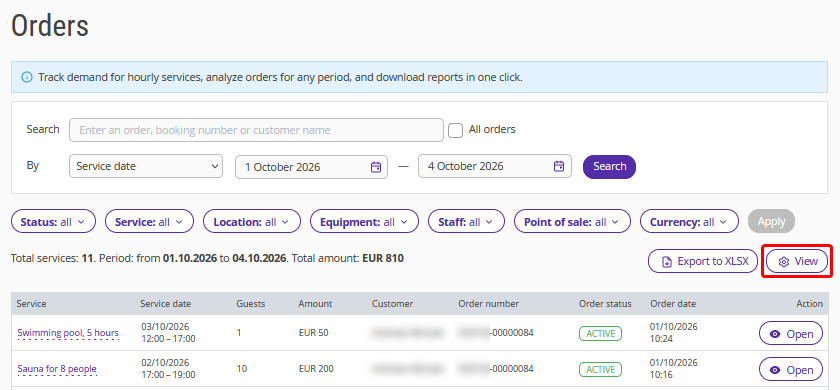
2. In the opened window, tick the check-boxes for the columns that should be or untick the check-boxes for columns to be hidden.
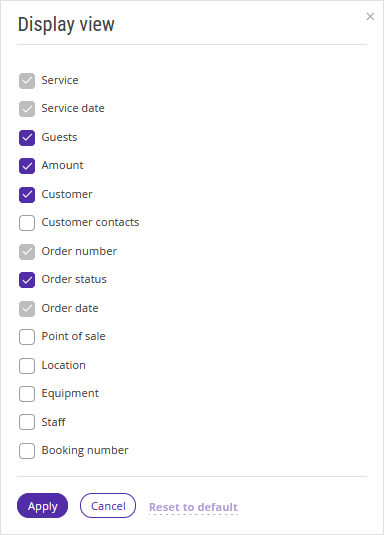
Note. The "Service", "Service date", "Order number", and "Order date" columns are always displayed and cannot be hidden.
3. If necessary, click "Reset to default" to restore the standard table view.
4. Click "Apply". Only the selected columns will be displayed in the table.
How to generate the report
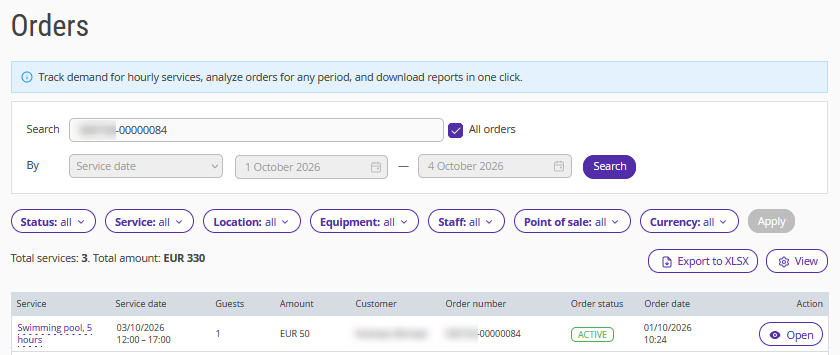
1. Select the required service or booking dates in the calendar at the top of the page and click "Search".
Note. By default, the "Orders" page is filtered by service date for the next seven days, starting from the current date.
2. To view all orders regardless of dates, tick the "All orders" check-box.
3. Use the filters above the table to generate a list of services for the report:
Status: active or canceled orders.
Service: active and inactive services.
Resources: locations, equipment, and staff to include in the report.
Currency: prices and the total amount in the report.
Note. All selected filters are saved for your user account. You will not need to set them up again the next time you open the section.
4. Use the "Search" field to find the required order by:
service order number;
stay booking number;
customer's full name.
Note. The search also includes data from hidden columns. For example, if the "Customer" column is hidden in the table view settings but you enter a guest's full name in the search field, all orders associated with that guest will be found.
5. Click "Export to XLSX" to generate the report.
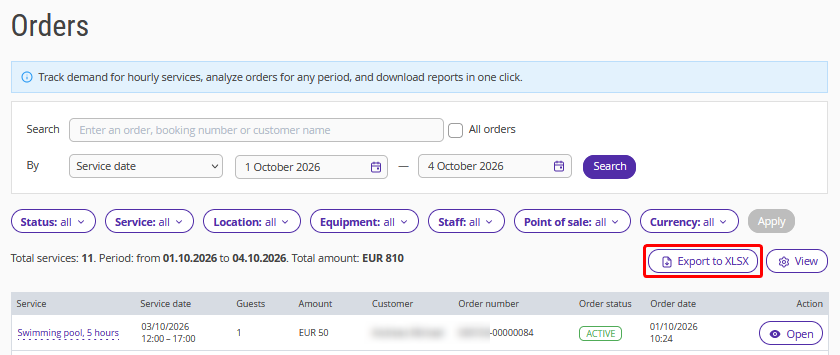
A file with all applied filters and configured columns will be automatically downloaded to your device.
Actions with orders
To view the details of a booked service, click the service name or the "Open" button in the "Action" column.

A side panel with detailed order information will be opened on the right. In the order window, the service opened from the table will be displayed first in the list.
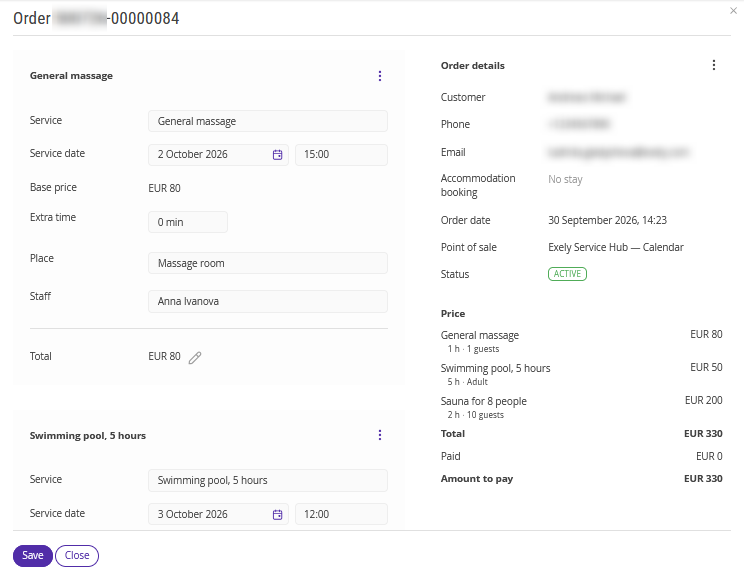
Note. Order details are available for viewing only. When you click the stay booking number, the following page will be opened in a new tab:
Booking card — if you use Exely PMS;
Booking report (filtered by this booking) — if you have an integration with a PMS.
Features of the "Orders" section
The table always displays the service and resource names that were current when the booking was made. If you rename a service in the reference, existing orders in the table will retain their historical names. When you filter by service, the table displays all orders for that service, including those with the current and previous names.
The "Total services" row calculates the sum of all filtered services in the property’s currency.
