Create an order manually if a guest contacts you by phone, messenger, or in person to book a service. An order in Exely Service Hub is a record of services booked by a specific guest for selected dates and times.
You can add several services to an order, change their prices, or cancel one or all services. To include services in the stay booking, select its number when creating the order.
Pay attention. In Exely PMS, you can add a new service to a booking, change the service date or time, or delete it. To change the price, open the order in "Service management" > "Calendar" or in the "Orders" report.
When to create a service and when to create an order
Create a service when you need to add a new offering to the catalog and set up its sales terms: schedule, duration, price, and available resources.
For example, create the "Classic massage" service to specify its price, duration, working hours, and available massage therapists.
Create an order to book a service for a specific guest at a specific date and time.
For example, Emma Smith calls the front desk and asks to book a classic massage on October 10 at 4:00 PM. The administrator creates an order manually. After the order is saved, the selected time and massage therapist will be occupied.
How to create an order in the calendar
You can create an order in one of two ways:
With a stay booking — if the guest is staying at the property. The services will be linked to the booking, and the stay and services will be included in one invoice.
Without a stay booking — if the guest is visiting the property only for services. This option is suitable for day use — using the property's services or facilities during the day without an overnight stay. For example, for visiting a spa or renting a sauna.
Pay attention. Before creating an order, make sure there is at least one active hourly service in the Exely extranet. Otherwise, the "Create an order" button will be unavailable.
Specify the customer and booking
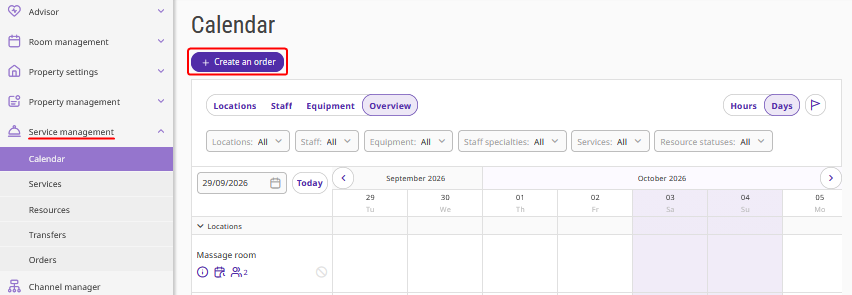
1. Go to "Service management" > "Calendar" and click "Create an order".
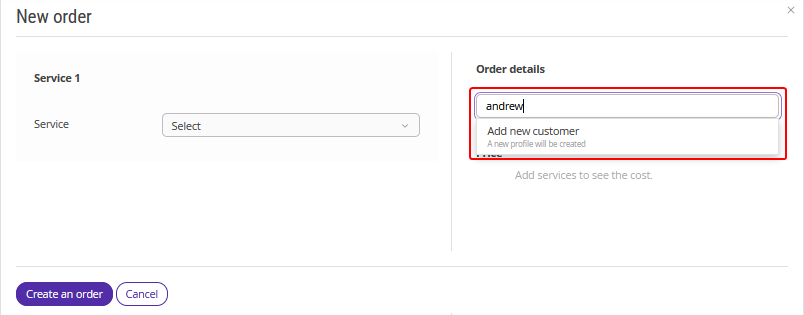
2. Find the customer by last name, first name, middle name, email, or phone number.
If the customer is not found, click "Add new customer" and enter their full name, phone number, and email address.
3. Link the order to a booking or create it without a stay booking:
link the order to the guest's booking if the service is provided during their stay. Check the booking selected automatically and select another one if necessary;
create the order without linking it to a booking if the guest is visiting the property only for services.
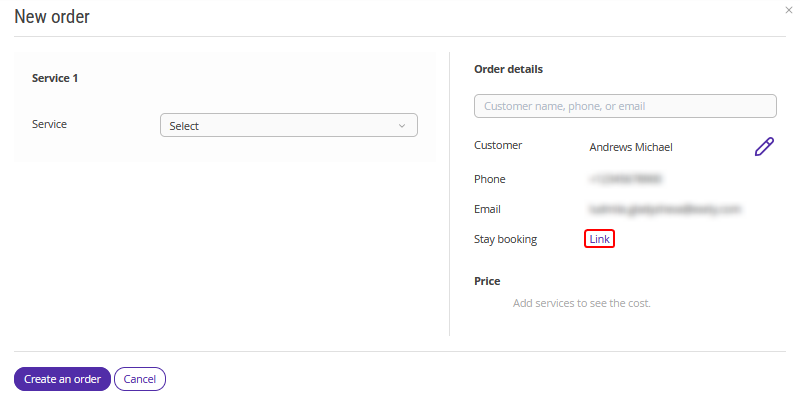
Pay attention. Select a booking in the same currency as the services. You cannot change the customer or booking after the order is created.
Add a service
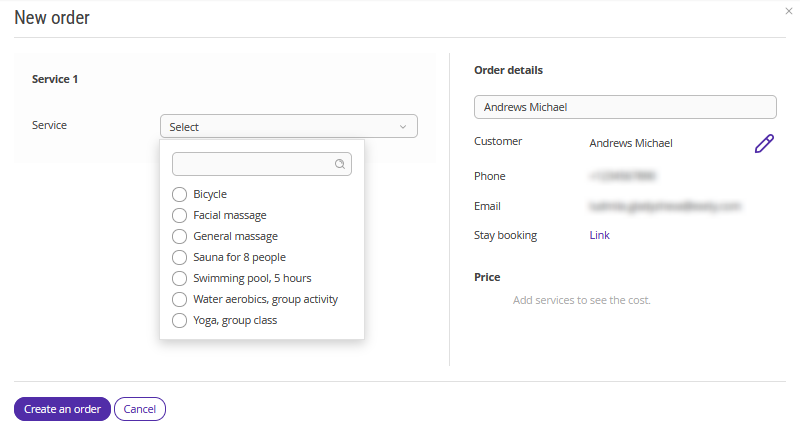
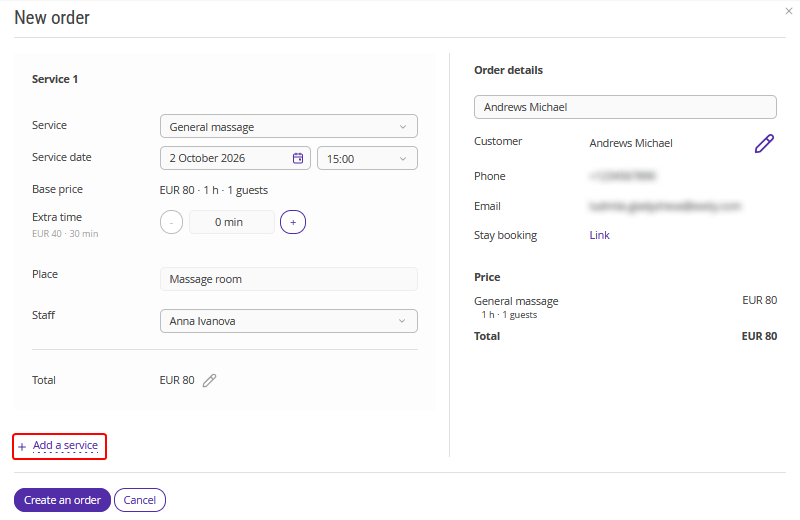
1. Select a service.
2. Specify the date and time and select a resource. If the order is linked to a booking, the service date must fall within the stay period.
3. Set up the service parameters and price.
4. Click "Add a service" if you need to include another service in the order, and specify its parameters.
Save the order
1. Click "Create an order".
2. Make sure that a success message appears.
The services will be displayed in the “Calendar” section and the "Orders" report.
How to open an order
Open an order in the “Calendar” section or the "Orders" report.
1. Go to "Service management" > "Calendar".
2. Click the service card if there is only one service in the cell.
3. Select the service name if there are several services in the cell.
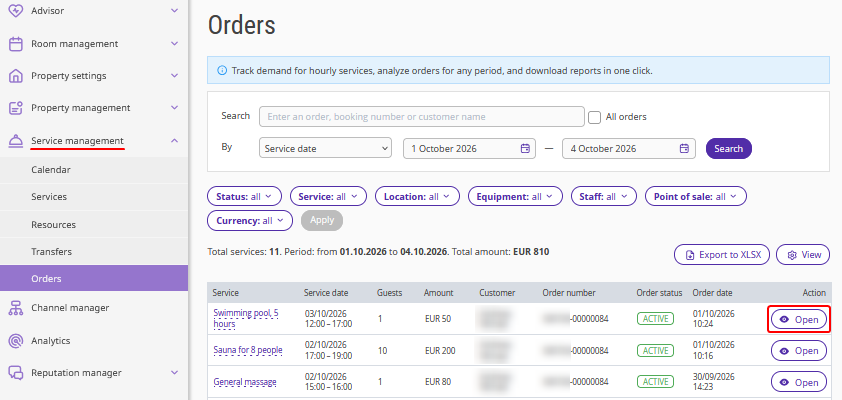
To open an order from the "Orders" report, click the service name or the "Open" button on the right. The order will open in the side panel.
Pay attention. You cannot change the date, time, or resource of a saved service. These parameters are available for viewing only.
How to add a service to an order
1. Open the required order.
2. Click "Add a service".
3. Select a service in the order's currency.
4. Specify the date and time, resource, extra time, and number of guests. If the order is linked to an accommodation booking, select a date within the stay period.
5. Save the order.
How to delete or cancel a service
1. Open the required order.
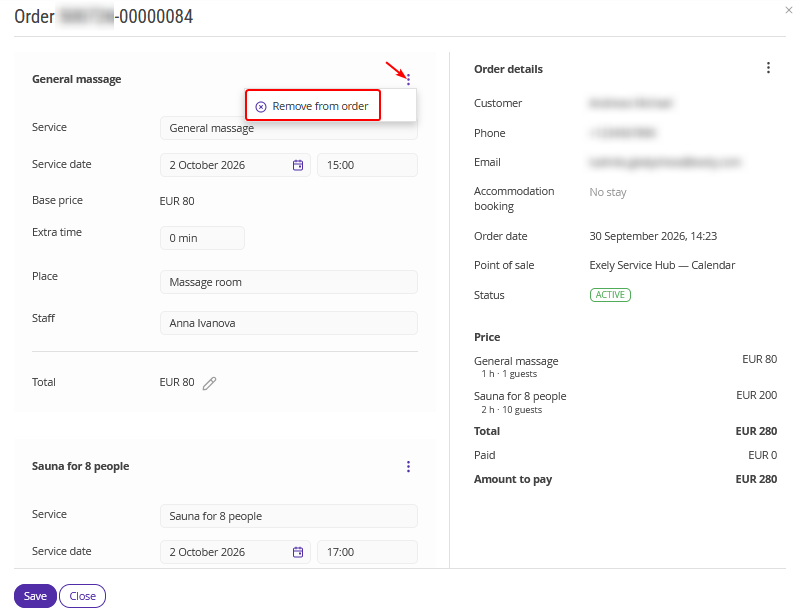
2. In the service card, click "Actions" (three vertical dots) > "Remove from order".
3. Check whether the order contains other services:
remove the selected service and save the order if other services remain in the order;
cancel the entire order if the selected service was the only one.
4. Click "Save".
Pay attention. Canceling the only service cancels the entire order.
How to cancel an order
1. Open the required order.
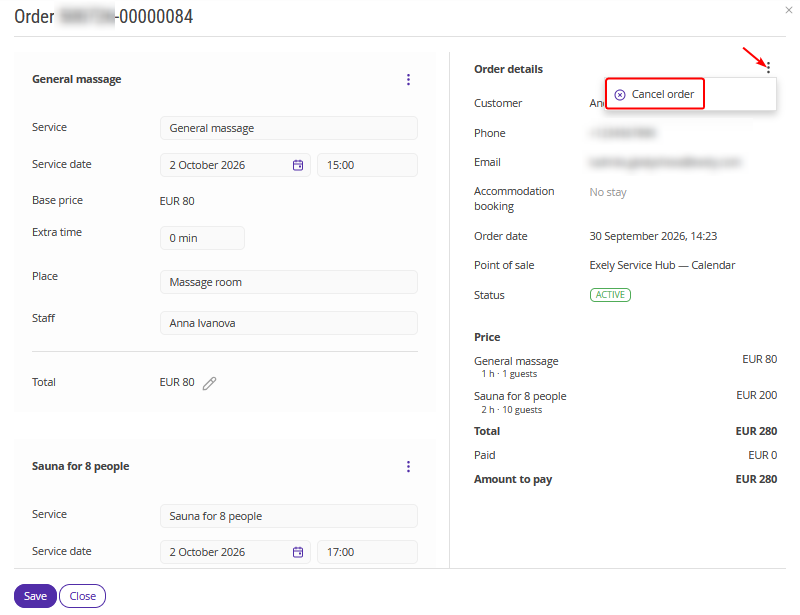
2. In the "Order details" section, click "Actions" (three vertical dots) > "Cancel order".
3. Confirm the cancellation.
4. Make sure that a success message appears.
After the cancellation, the side panel will close, and the order's services will remain in the "Ordered services" report with the cancellation status.
How to change the service price
You can change the base price, the price of extra time, and the surcharge for extra guests. The available fields depend on the service settings.
1. Click the pencil icon next to the price or the "Changed manually" button.
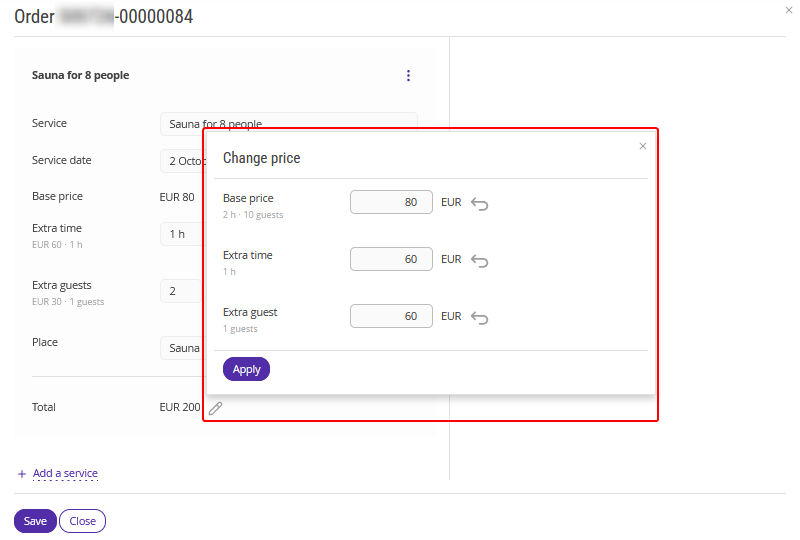
2. Specify the new price. To reset the changes, click the "Reset to default price" icon next to the currency name.
3. Click "Apply". Then, click “Save”.
Pay attention. If you close the form without clicking "Apply", the price will not change.
Features of working with orders
Customer search starts after you enter at least three characters from the beginning of the word.
The customer's active booking is selected automatically.
You can edit details only for a customer added manually.
If the customer has several active bookings, you can select the required one from the list.
Changes to guest details in the booking are not transferred to the service order. If the linked booking is canceled, the service order is canceled automatically.
You can edit only one service in an order at a time.
If only one time is available for booking the service, it is selected automatically. By default, the first available resource is selected.
After the order is saved, you cannot change the customer or linked booking.
If the service becomes unavailable or is deleted, the order will not be saved, and the service card will be opened for editing.
If the price changes or some of the extra time becomes unavailable before the order is saved, the data will be updated and a warning will appear.
