In Exely PMS, you can keep room status information up to date every day using the Housekeeping extension. The extension is available in two versions — basic and full. This article explains how the basic version of the Housekeeping extension works.
What the basic version of the Housekeeping extension looks like
The Housekeeping extension is located in the "Property management" > "Housekeeping" section.
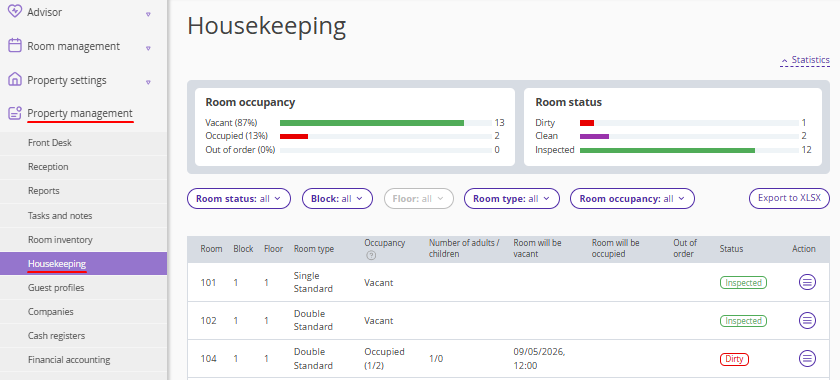
The extension displays basic room information: room number, room type name, housekeeping status, etc. You can customize the displayed data using filters: room status, block, floor, room type, room occupancy.
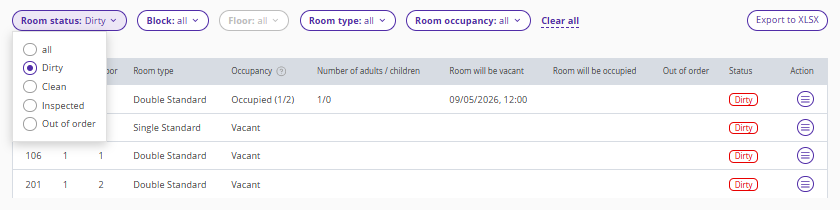
For example, to find all rooms that require cleaning, select the "Dirty" room status. Save the resulting table to your device using the "Export to XLSX" button — you can print it and use it to create a housekeeping plan.
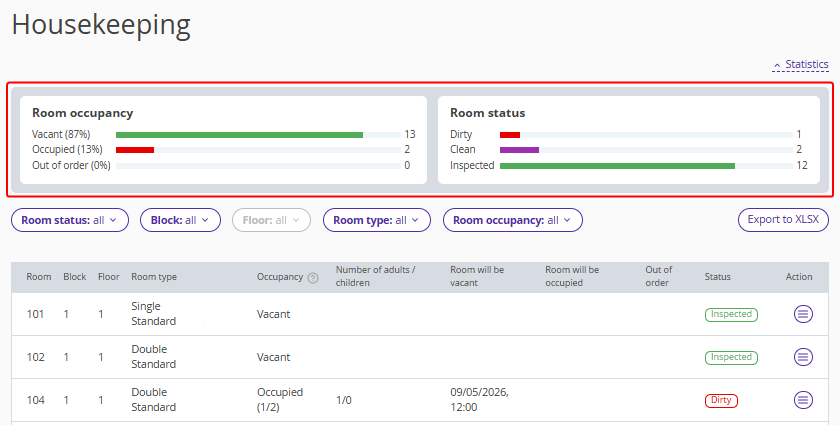
In addition to the room information, the extension also displays current room occupancy and room status statistics.
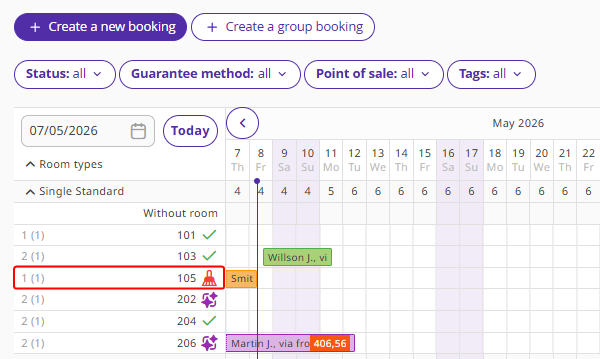
Room status in Exely PMS Front Desk
After a guest checks out, the room status is automatically changed to "Dirty".
In the "Housekeeping" section, the status will also be changed to "Dirty".
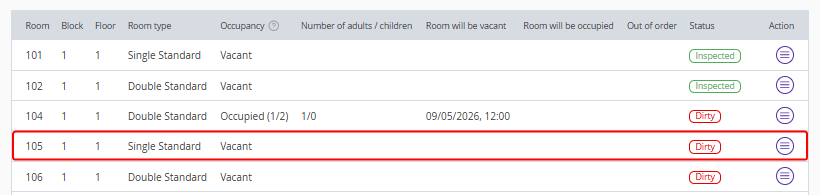
If the room has been cleaned, mark it either in the Front Desk or in the "Housekeeping" section. Since the statuses are synchronized, the information will be the same in both sections.
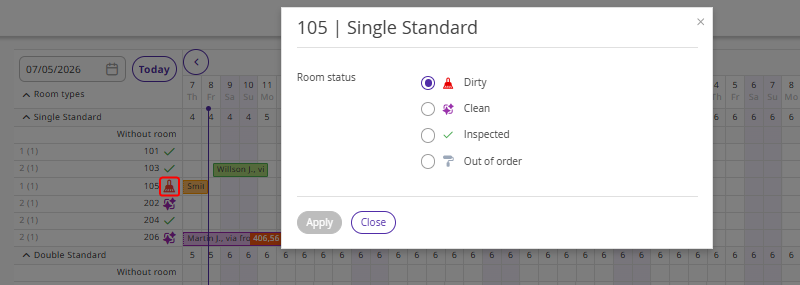
In the Front Desk, click the "Dirty" status > in the opened window select the "Clean" or "Inspected" status and click "Apply". The "Dirty" status will be replaced with "Clean". In the "Housekeeping" section, the status will also be changed to "Clean" or "Inspected".
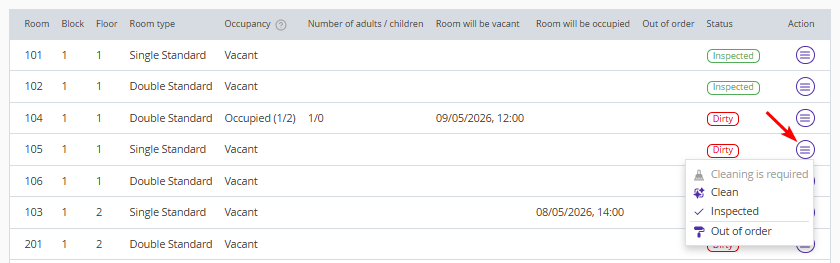
Or, in the "Housekeeping" section, click "Action" next to the required room and select the "Clean" or "Inspected" status. The status will be changed to "Clean" or "Inspected", and the "Dirty" status in the Front Desk will also be changed.
How to schedule cleaning
The basic version of the Housekeeping extension includes three standard housekeeping statuses: "Cleaning is required", "Clean", and "Inspected". After check-out, the room automatically becomes dirty. In other cases, housekeeping statuses must be set manually — for example, if bed linen or towels need to be replaced.
To assign cleaning, go to the "Property management" > "Housekeeping" section. Find the required room and click "Action" > "Cleaning is required".
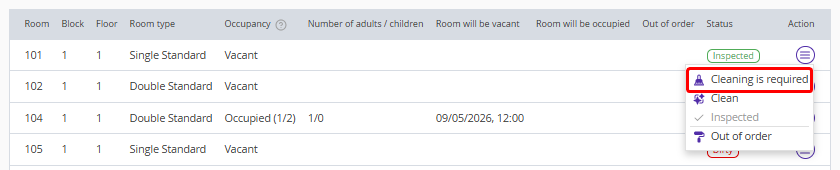
If the room has been cleaned, mark this in the "Housekeeping" section or change the housekeeping status in the Front Desk.
How to schedule maintenance
If maintenance work is being carried out in a room and you need to close it for sales for some time, use the "Out of order" status.
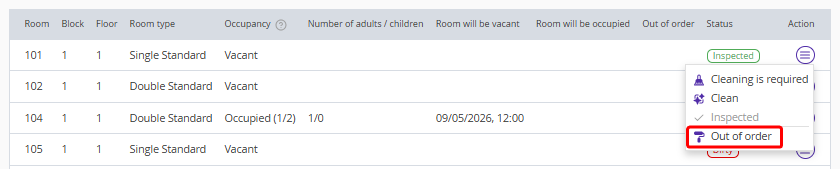
1. Go to the "Property management" > "Housekeeping" section. Find the required room and click "Action" > "Out of order".
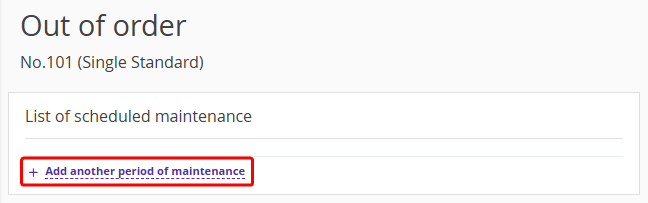
2. On the opened page, click "Add another period of maintenance".
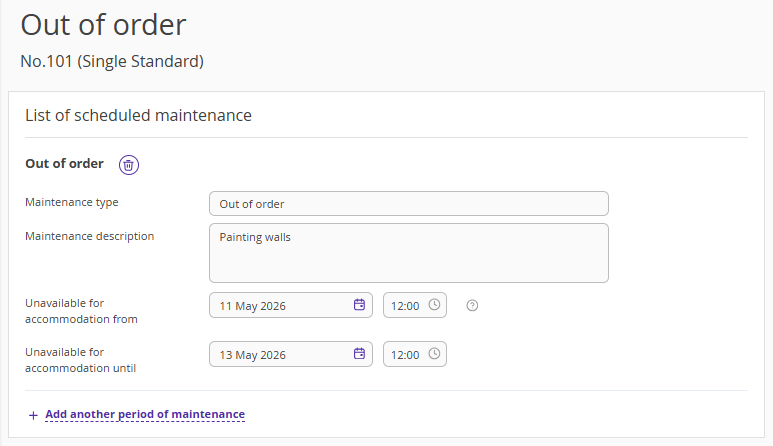
3. Enter the maintenance description and select the period in the "Unavailable" fields when the room will not be available for accommodation. You can add several periods. Click "Save".
The maintenance period will appear in the Front Desk. If you click the maintenance icon in the Front Desk, a window with detailed information will be opened.
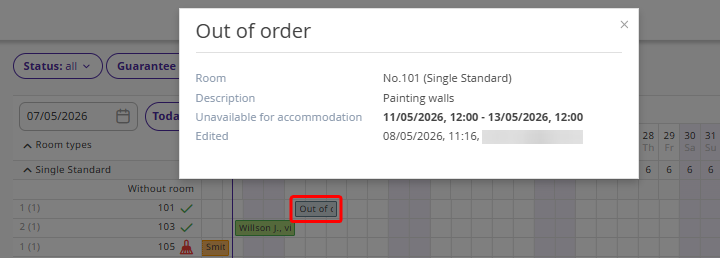
Maintenance reduces the number of available rooms in the Front Desk. For example, if maintenance is scheduled from May 11 to May 13, availability from May 11 to May 12 inclusive will be decreased.
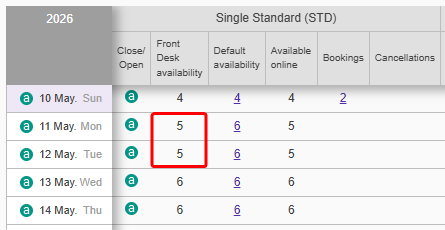
The number of days for which room availability decreases depends on the maintenance start and end time.
For details about working with the "Out of order" status, see the article "How to schedule maintenance in the basic version of Housekeeping extension".
Housekeeping plan
In the basic version of the extension, the housekeeping plan is exported in XLSX format and looks like a list of rooms with housekeeping statuses. The plan is generated for the current date.
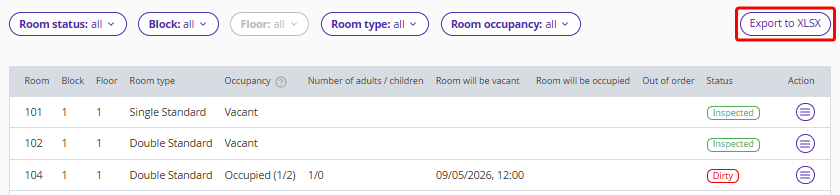
You can first filter rooms by housekeeping status — for example, export only dirty rooms. You can also find and export all dirty rooms in a specific block or on a specific floor, for example, if this is important for dividing housekeeping responsibilities.
If rooms require maintenance, you can easily find and export them into a convenient table using the "Out of order" room status — the table will include all rooms under maintenance for the current day.
How to check guests in only to clean rooms
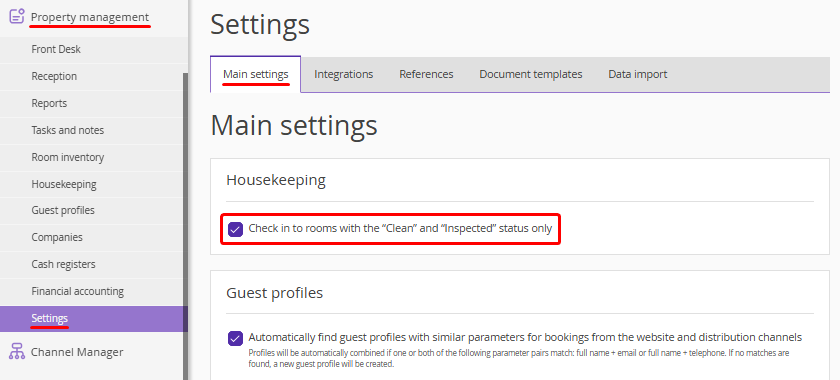
To make sure guests are checked in to clean rooms, set a special restriction. Go to the "Property management" > "Settings" section > the “Main settings” tab. In the "Housekeeping" section, tick the "Check in to rooms with the "Clean" and "Inspected" status only" check-box. Save the changes.
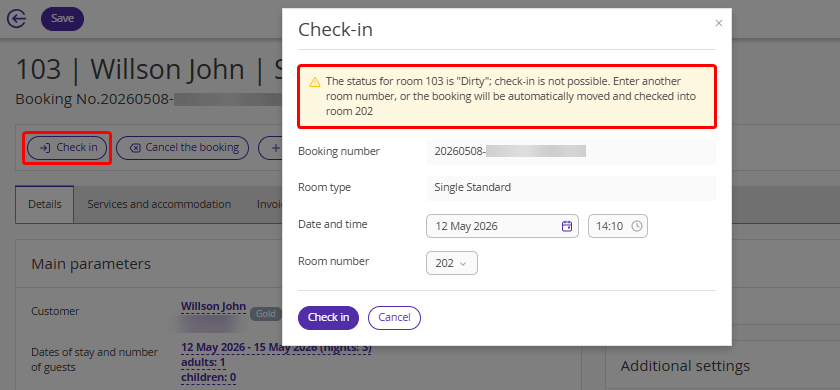
Now bookings can only be checked in to clean rooms. The system will warn you that you need to select another room manually or that the booking will be automatically moved to a clean room.
The Housekeeping extension and the Exely Hotelier mobile app
Only the full version of the Housekeeping extension is available in the Exely Hotelier mobile app. It displays rooms assigned for cleaning and allows you to change housekeeping statuses.
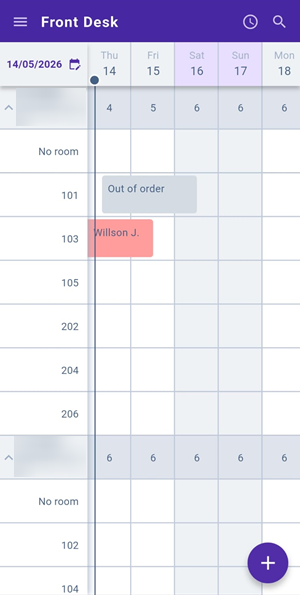
With the basic version of the extension, the dashboard will display rooms under maintenance. To manage housekeeping, switch to the web version of the extranet.
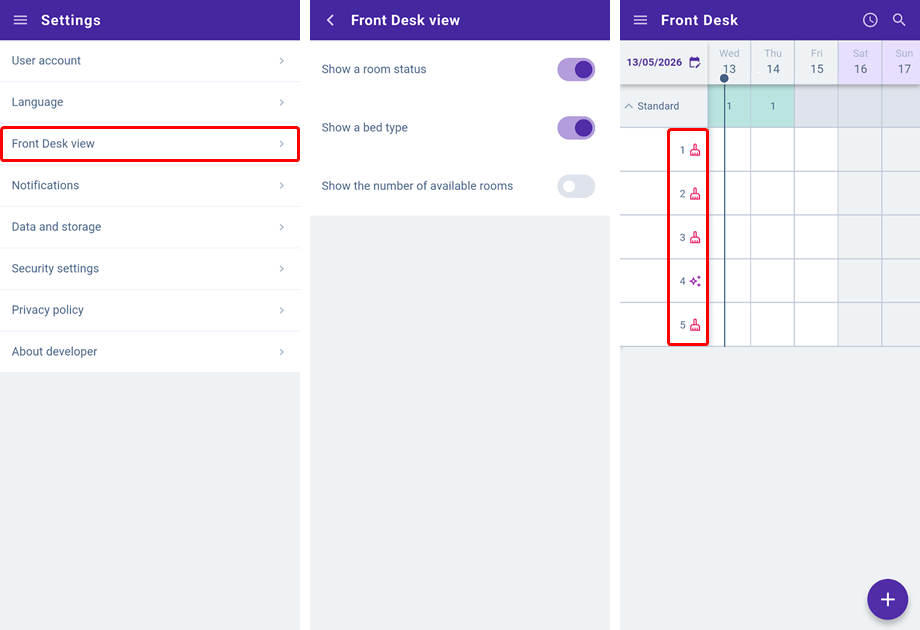
You can set the housekeeping status display in the mobile app. To do this, go to the "Settings" > "Front Desk view" section and select the "Show a room status" option.
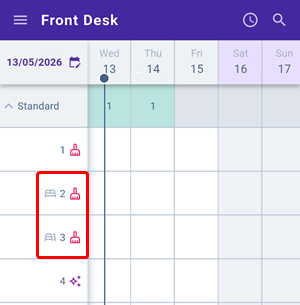
Note. If bed types are set in the room inventory, select "Show a bed type" — an icon of one large bed or two separate beds will appear next to the room number.
Additional Information
We reviewed the basic version of the Housekeeping extension. To learn more about the features of the full version, see the articles "Full version of Housekeeping extension" and "Differences between basic and full versions of Housekeeping extension".
