How to connect Exely Loyalty Program: Discounts for a property group
How to apply loyalty program discounts to different rate plans for group properties
How to connect Exely Loyalty Program: Points for a property group
How to set different rules for rewarding points for properties within a group
For properties managed by the same organization, a unified or group loyalty program is available.
This means that a guest can use the same set of benefits at any property within a group:
If a guest signs up in Exely Booking Engine of one property within the group, they can log in to the same account on the websites of other properties in this group.
Properties receive a unified list of guests' loyalty cards across all group properties.
Loyalty card balances and accruals are valid at all properties in the group.
A group loyalty program can be discount-based (Exely Loyalty Program: Discounts) or points-based (Exely Loyalty Program: Points). You can connect only one of these programs for your group properties.
How to connect Exely Loyalty Program: Discounts for a property group
1. Set up Exely Loyalty Program: Discounts for one of the properties.
2. Send a request to your Customer Support manager or Exely Customer Support team specifying:
the IDs of all group properties to be connected to the group loyalty program;
the ID of the property, the loyalty program settings of which will be applied to other properties after connection.
Exely Customer Support specialists will connect all properties to the group loyalty program.
How to apply loyalty program discounts to different rate plans for properties within a group
If it is important for group properties to limit the use of discounts to specific rate plans, we recommend temporarily deactivating the loyalty program in Exely Booking Engine immediately after connecting your properties to the group loyalty program. To do this, go to the "Guest management" > "Loyalty program" section, click "Edit" for Exely Loyalty Program: Discounts and click the switch. 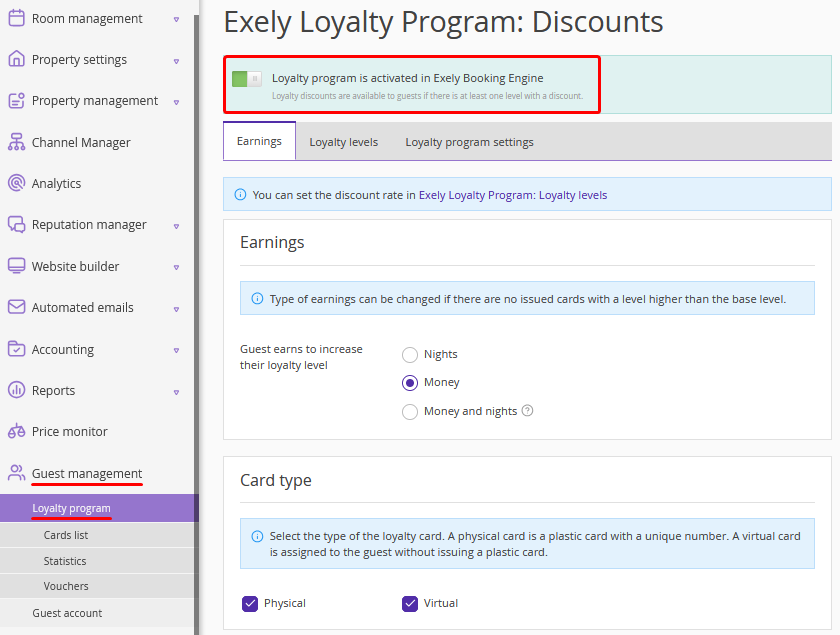
This is necessary to ensure that discounts do not apply to all rate plans while you are configuring loyalty levels and applying them to the rate plans. |
1. To adjust the list of rate plans to which discounts are applied, go to the "Room management" > "Promotions" section in the Exely extranet of one of the group properties.
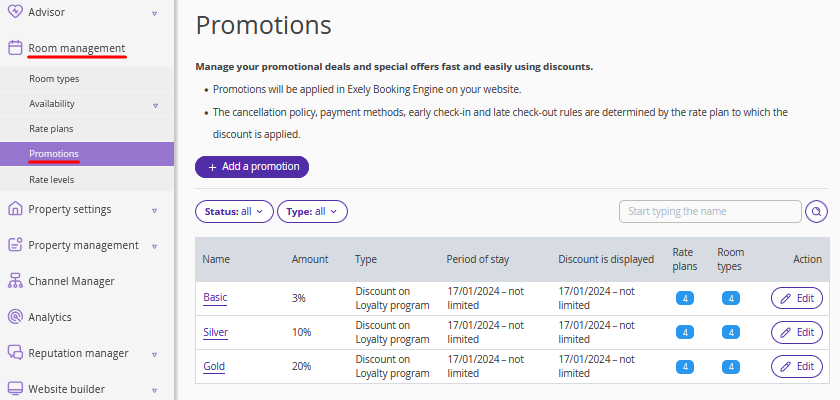
The list of promotions will display the loyalty program discounts that are unified for all properties within the group.
By default, after all group properties are connected to the group loyalty program, discounts are applied to all rate plans.
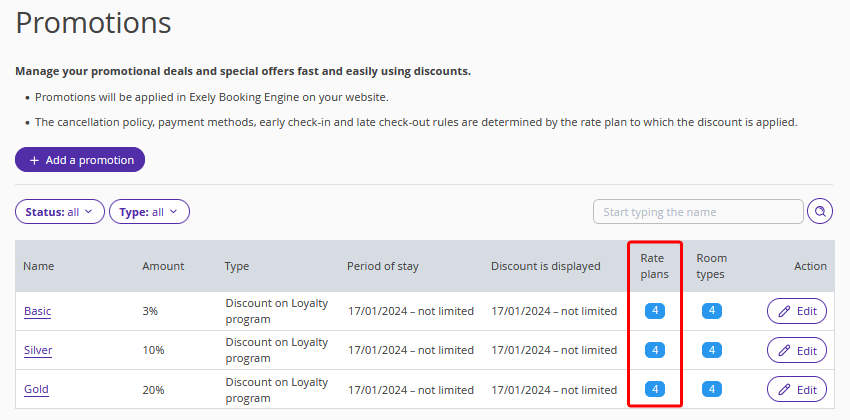
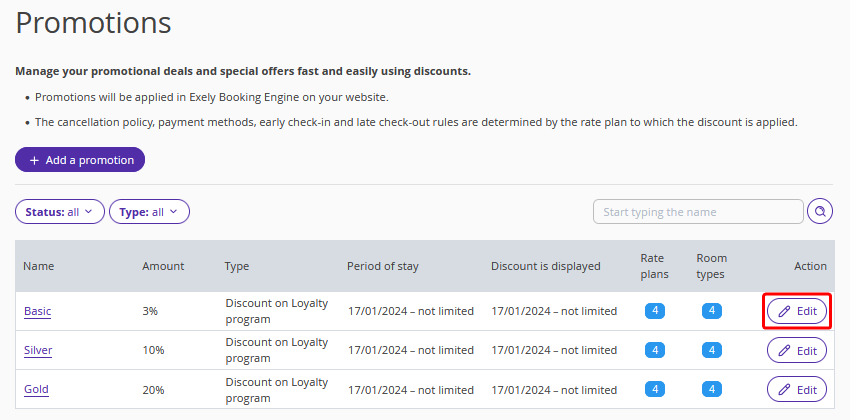
3. To reconfigure a loyalty level discount, click "Edit" for it.
4. On the discount settings page, in the "Promotion validity" section, untick check-boxes for the rate plans to which the loyalty program discount should not be applied.
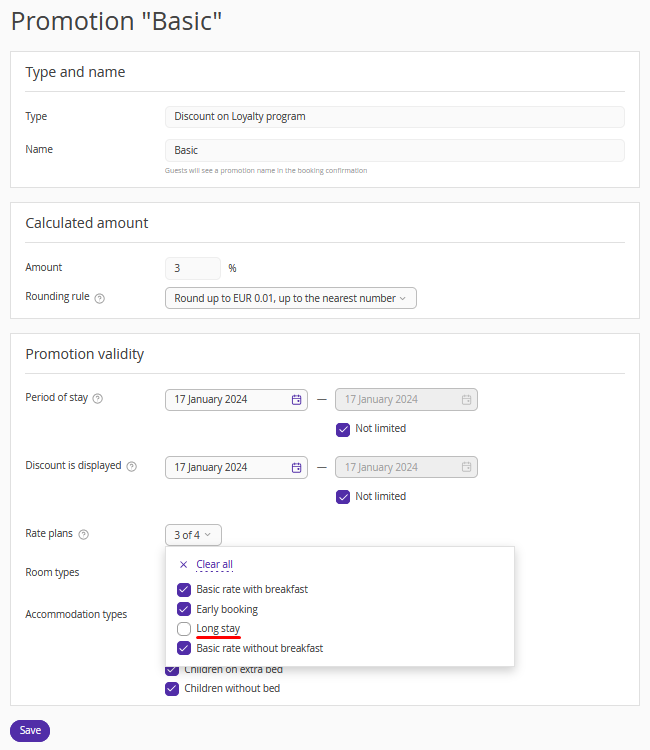
5. Save the changes.
6. Repeat steps 3–5 for the remaining loyalty program discounts.
The updated discount settings for the group loyalty program will be applied to all properties within the group.
7. Go to the "Guest management" > "Loyalty program" section, click "Edit" for Exely Loyalty Program: Discounts and click the switch to activate the loyalty program in Exely Booking Engine.
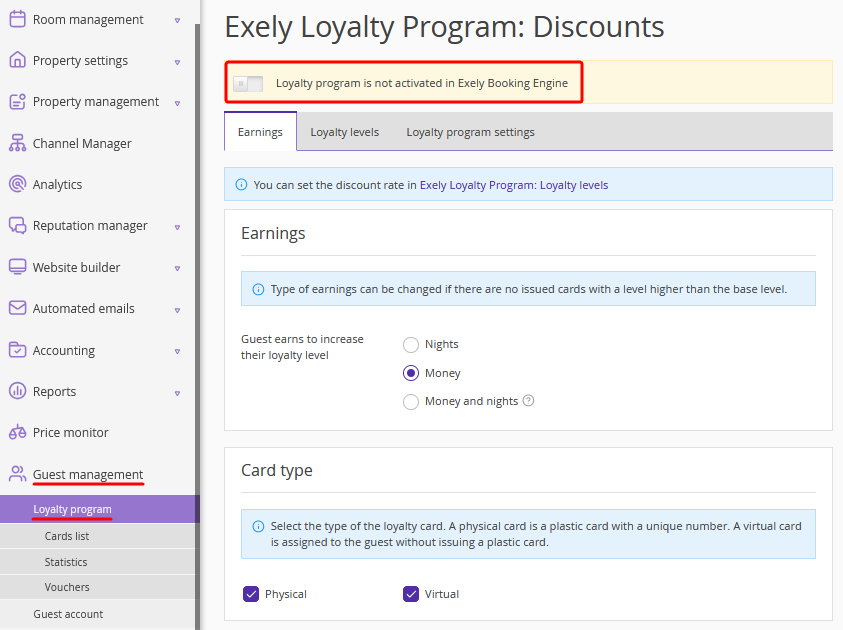
8. Save the changes.
How to connect Exely Loyalty Program: Points for a property group
1. Set up Exely Loyalty Program: Points for one of the properties.
2. Send a request to your Customer Support manager or Exely Customer Support team specifying:
the IDs of all group properties to be connected to the group loyalty program;
the ID of the property, the loyalty program settings of which will be applied to other properties after connection.
Exely Customer Support specialists will connect all properties to the group loyalty program.
3. If required, set different rules for rewarding points for one or several properties within the group.
How to set different rules for rewarding points for properties within a group
Pay attention. Before setting up rules for different properties, make sure the group loyalty program is connected.
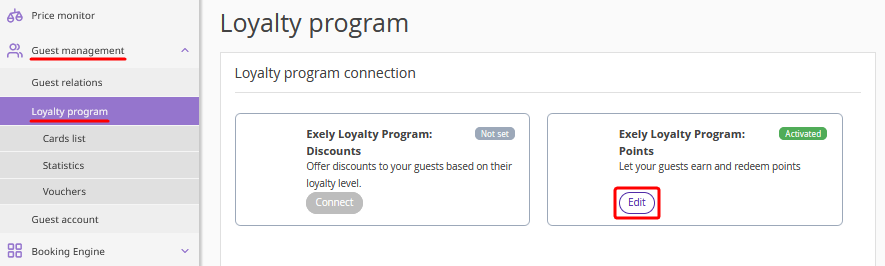
1. In the Exely extranet, go to “Guest management” > “Loyalty Program”.
2. On the “Loyalty program” page, click “Edit” for Exely Loyalty Program: Points.
3. In the loyalty program settings, switch to the “Reward rules” tab.
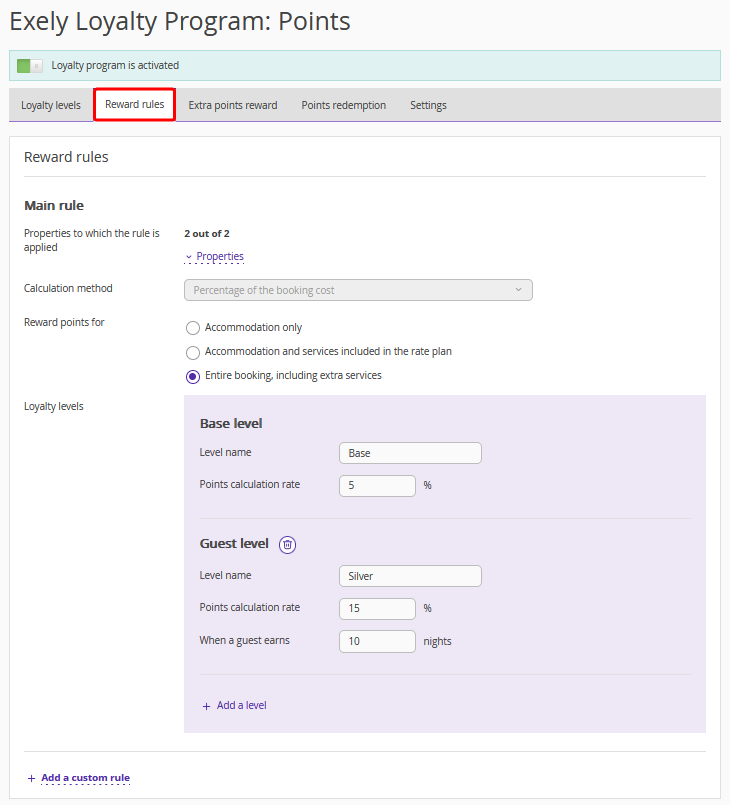
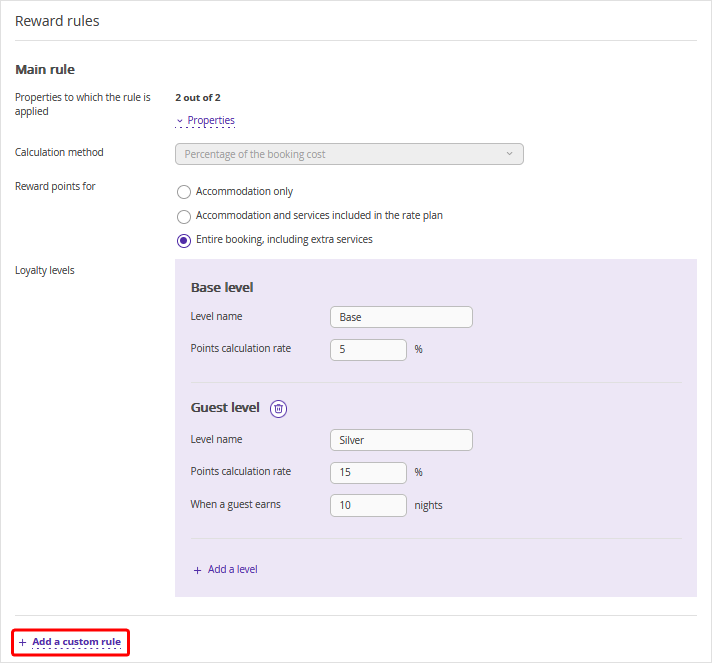
In the “Main rule” section, you will see a list of properties to which the main rule for rewarding points is applied. By default, the main rule is applied to all properties in the group. This means that the same rule applies to all properties in the list.
Pay attention. Properties that are not part of the group or have been removed from it are not included in the list of properties.
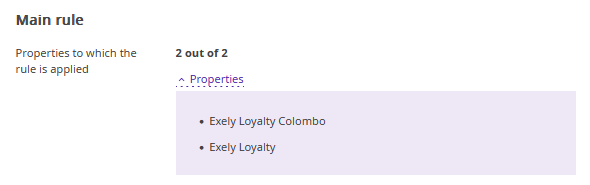
By default, the main rule is applied to all properties connected to a group loyalty program, as well as newly added properties.
4.Click “Add a custom rule” to create a different rule for rewarding points for one or several properties.
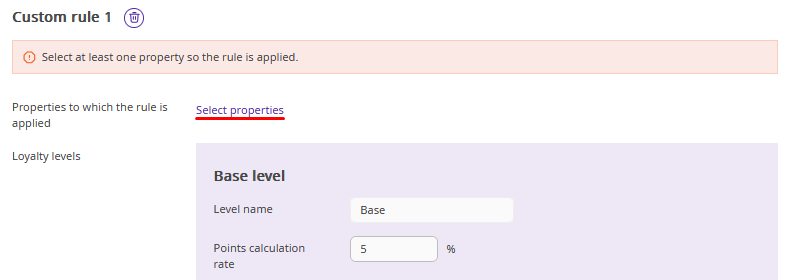
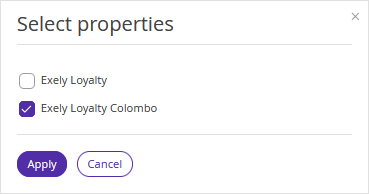
5. Select the properties to which the custom rule will be applied.
Pay attention. After a separate rule has been applied to a property, the main rule no longer applies to it.
6. Set the points reward conditions for each loyalty level.
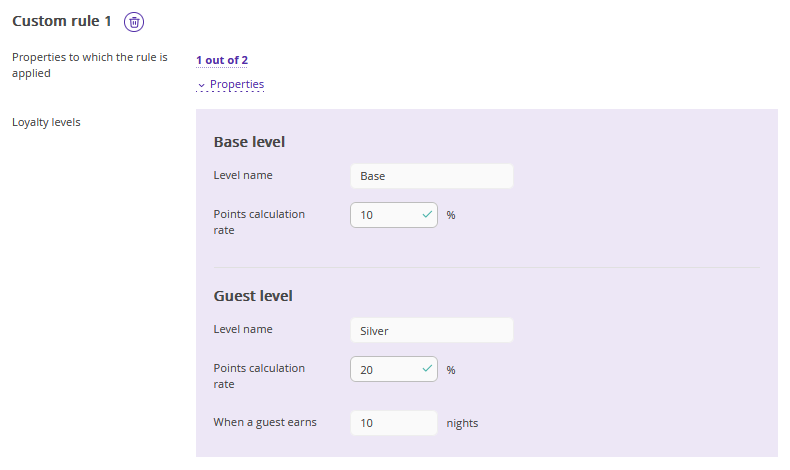
Pay attention. Values for the “Level name” and “When a guest earns” fields in a custom rule are automatically pulled from the main rule and cannot be edited. The values in these fields can be edited only in the “Main rule” section.
7. Check the list of properties in the “Main rule” section and make sure the main rule is applied to at least one property within the group.
8. Save the settings.
Features of rule settings
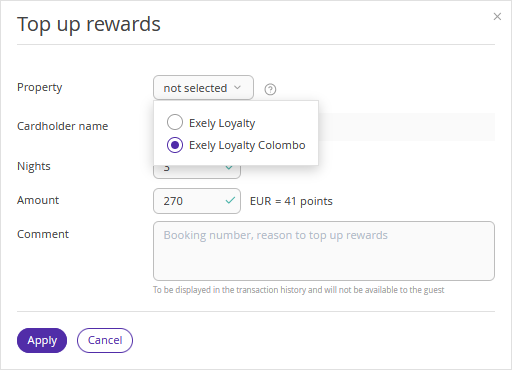
When topping up rewards manually, you need to select the property within the group where the guest stayed. Rewards will be calculated based on the selected rule (main or custom) that is applied to the selected property.
If you add a new loyalty level to the main rule, the level name and earnings threshold will be automatically added to each custom rule. In the custom rule, you will need to set the points rewarding conditions for each level.
In case a property is removed from the group and a custom rule was applied only to that property, the custom rule will be automatically deleted.
