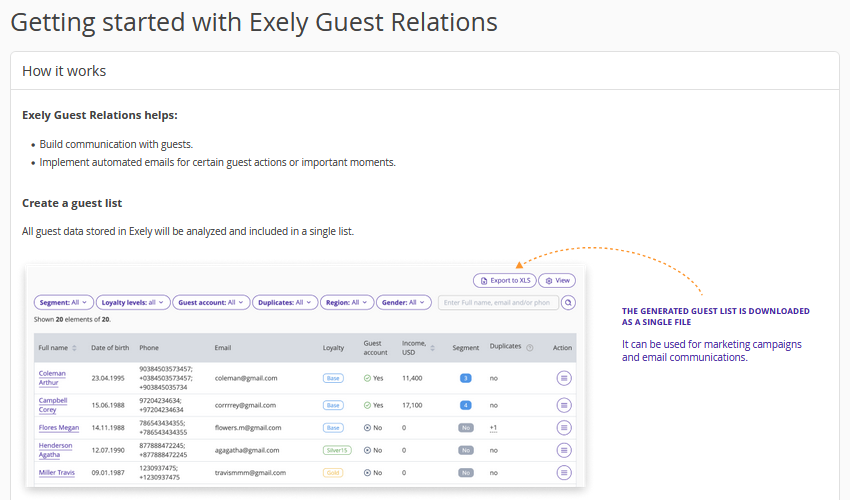
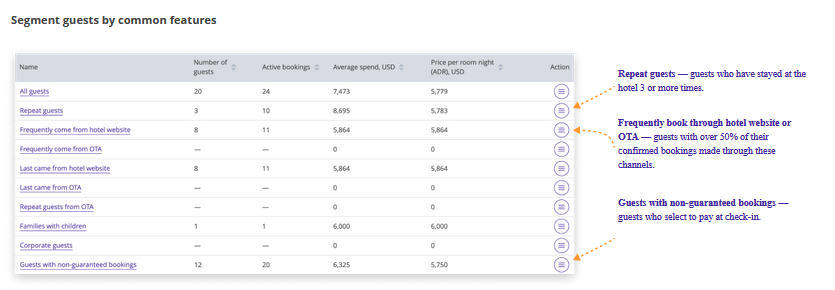
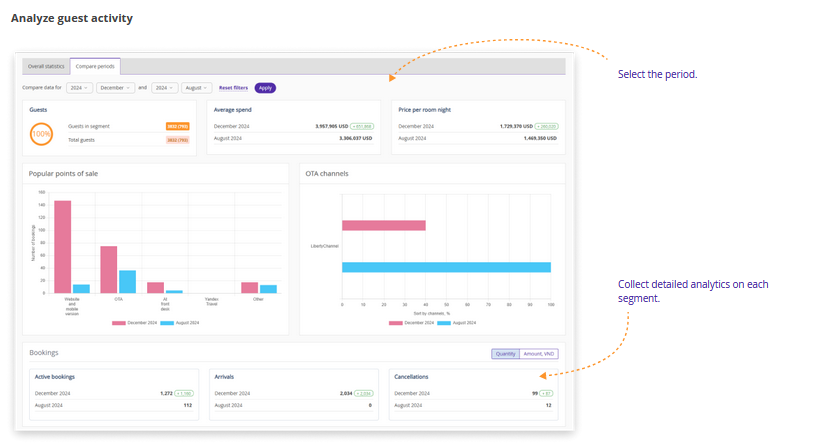
Exely Guest Relations is an Exely solution that allows automating work with guests. It helps to:
Automate the collection of guest data and the history of their bookings.
Distribute guests by segment and analyse them.
Build communication with guests through mailings and surveys.
Study the guest journey and create a unique offer.
The Exely Guest Relations solution allows you to:
Increase the number of direct bookings through the analysis of booking channels and ready-made mailing scenarios with settings by segments.
Improve the quality of service based on extended guest information.
How to find the “Guests relations” section
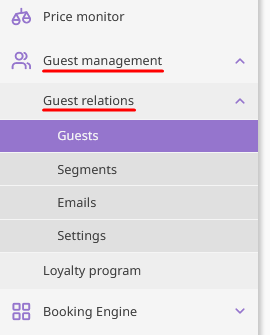
In the Exely extranet, in the “Guest management” section, a new page is added — “Guest relations”.
Pay attention. To work with the Exely Guest Relations solution, the property must have the Exely Booking Engine enabled.
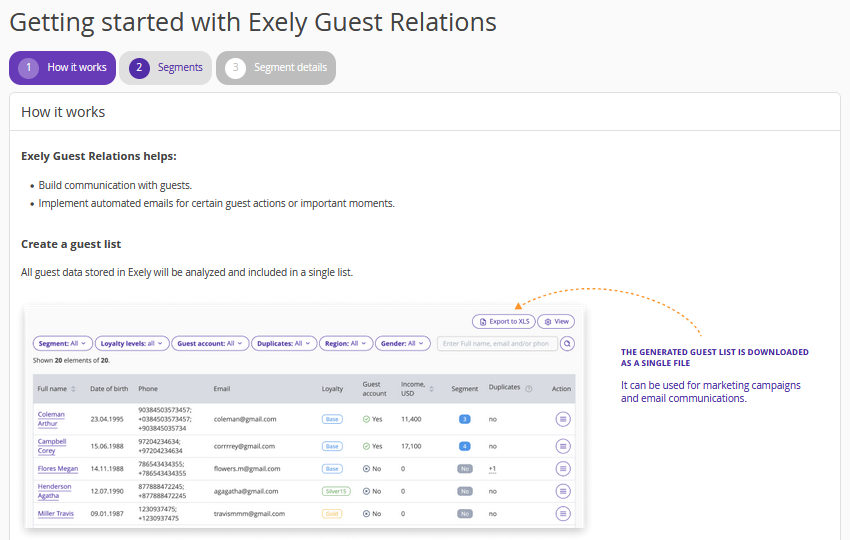
If you use Exely PMS, the Exely Guest Relations start page in the Exely extranet looks like this:
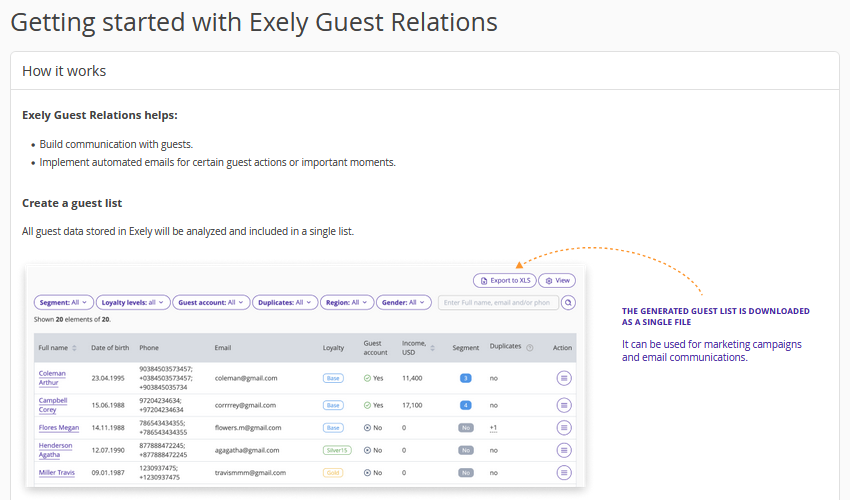
If you use a different PMS, the start page looks as follows:
How to set Exely Guest Relations
If you work with Exely PMS, 1C, Opera or Fidelio with the extended option of data synchronization with Exely.
Pay attention. The extended option of data synchronization with Fidelio PMS can be enabled on request. Send the request to your Customer Support manager or Exely Customer Support team.
In the Exely extranet, go to “Guest management” > “Guest relations” and go through 3 steps to configure the solution:
1. Read the information about how the solution works: the key characteristics by which guests are segmented, what the analysis section consists of, and click “Continue”.
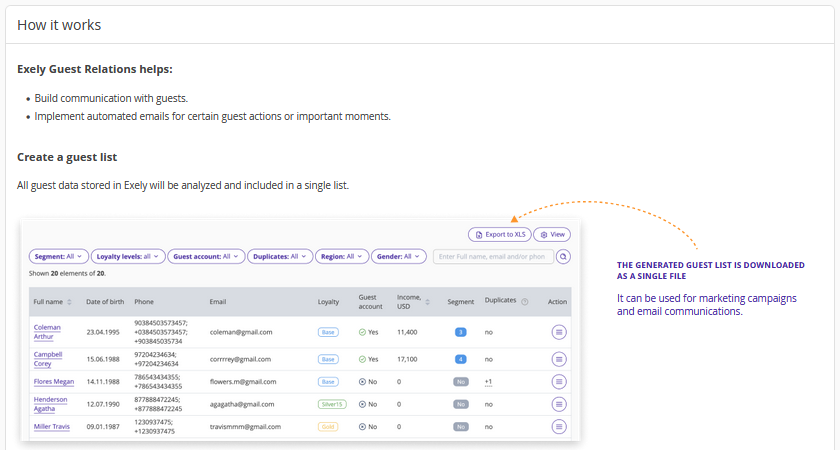
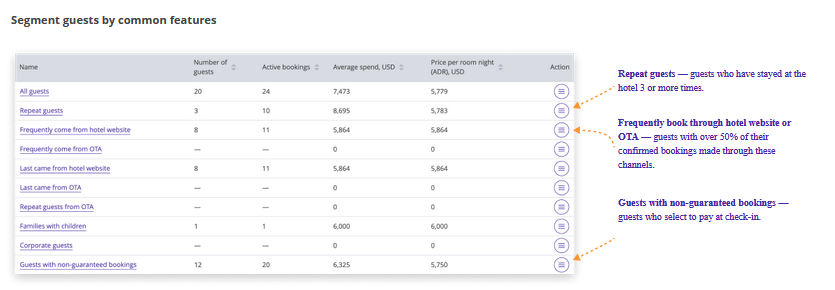
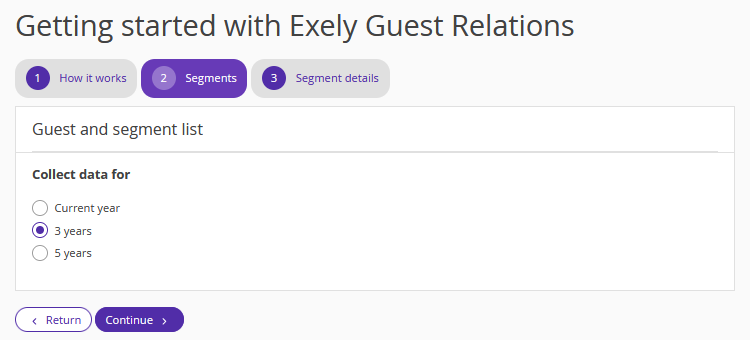
2. On the “Segments” step, set the period of data collection from the PMS. Select “Current year”, if you work with the PMS for less than a year. You work with the PMS for more than 3 years, select “5 years”. Click “Continue”.
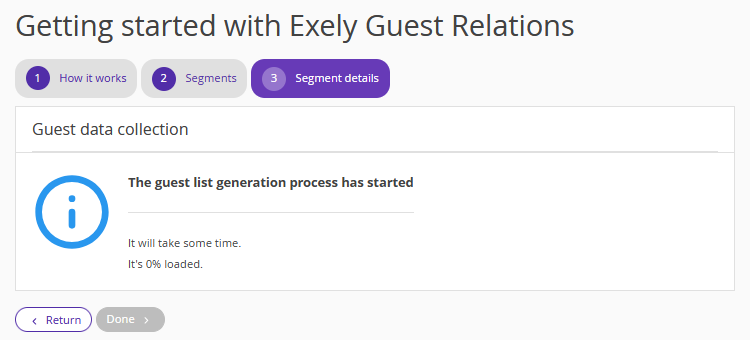
3. Wait until the guest list is generated. The data collection process may take time — it depends on the volume of data being transferred. If the process slows down, do not rush to contact the Exely Customer Support team and do not close the setup window. The “Done” button will become active when the data is collected.
If you have a different PMS
In the Exely extranet, go to “Guest management” > “Guest relations”. Read the information about how the solution works: the key characteristics by which guests are segmented, what the analysis section consists of, and click “Continue”.
The guest list will be generated based on data from the Exely extranet starting from the moment Exely Guest Relations is connected. It will include guests who made bookings through the booking engine, online distribution channels, and metasearch engines.