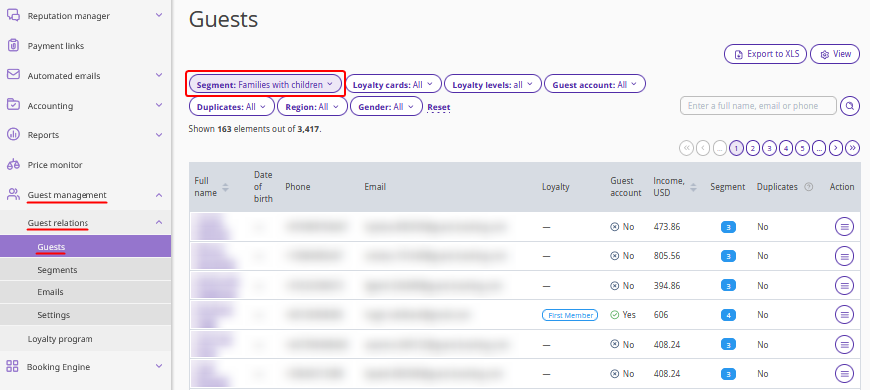
The “Segments” section is designed to separate guests and bookings into different categories or segments. This helps hoteliers better understand their guests and manage bookings more effectively.
How segments are formed
The full list of segments can be found in “Guest management” > “Guest relations” > “Segments”.
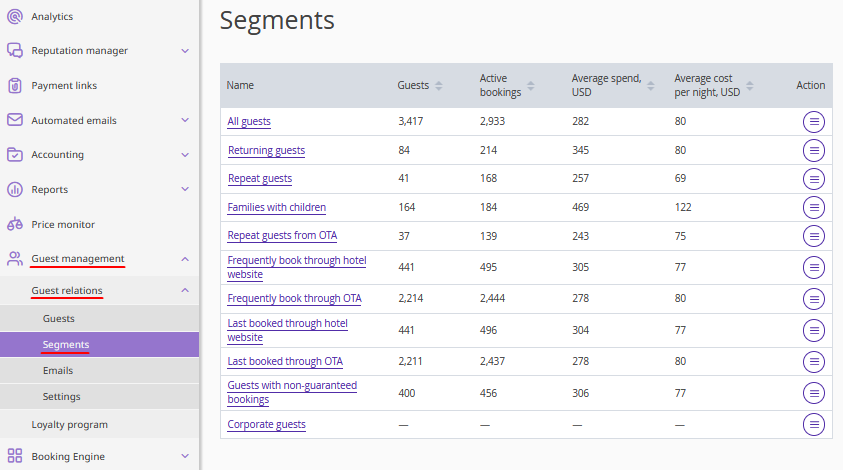
The page displays the following segments:
All guests — a complete list of all guests available in the database.
Returning guests — guests who have made 2 or more bookings and have not canceled them.
Repeat guests — guests who have made 3 or more bookings and have not canceled them.
Frequently book through hotel website — guests who currently have more than 50% successful bookings from the website. As well as guests with the same number of bookings from the website and from channels, and the last booking was made on the website.
Frequently book through OTA — guests who currently have more than 50% successful bookings from channels. As well as guests with the same number of bookings from the website and from channels, and the last booking was made in a channel.
Last booked through hotel website — guests with “Website” indicated as the booking source in their last uncancelled booking.
Last booked through OTA — guests with “OTA” indicated as the booking source in their last uncancelled booking.
Repeat guests from OTA — guests who have at least 3 successful bookings, and at least 50% of all their uncancelled bookings were made in channels.
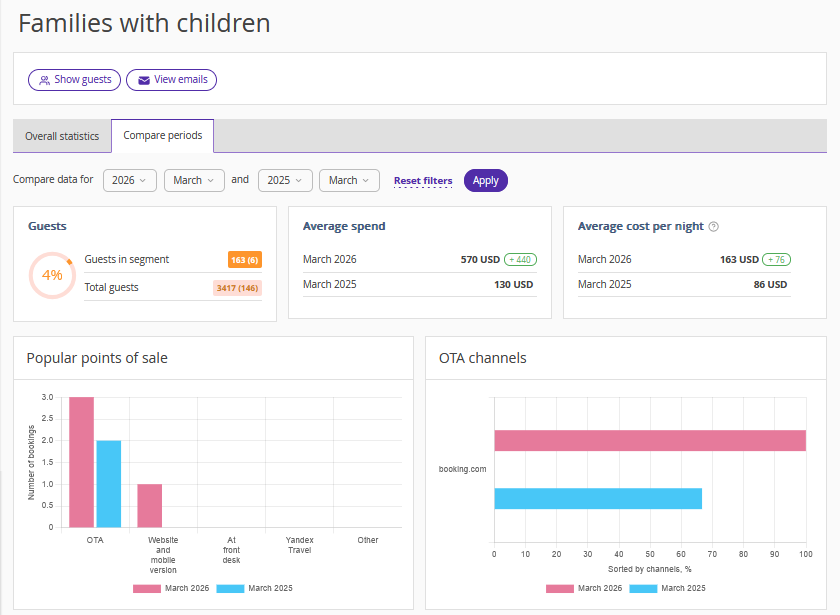
Families with children — guests who have at least one booking with child accommodation selected.
Corporate guests — guests who choose the “Bank transfer for legal entities” payment method when booking.
Guests with non-guaranteed bookings — guests who selected the “At check-in” payment method when booking and have not yet made the payment.
How to view overall statistics
In the Exely extranet, go to “Guest management” > “Guest relations” > “Segments” and click “All guests”. On the segment page, click the “Overall statistics” tab.
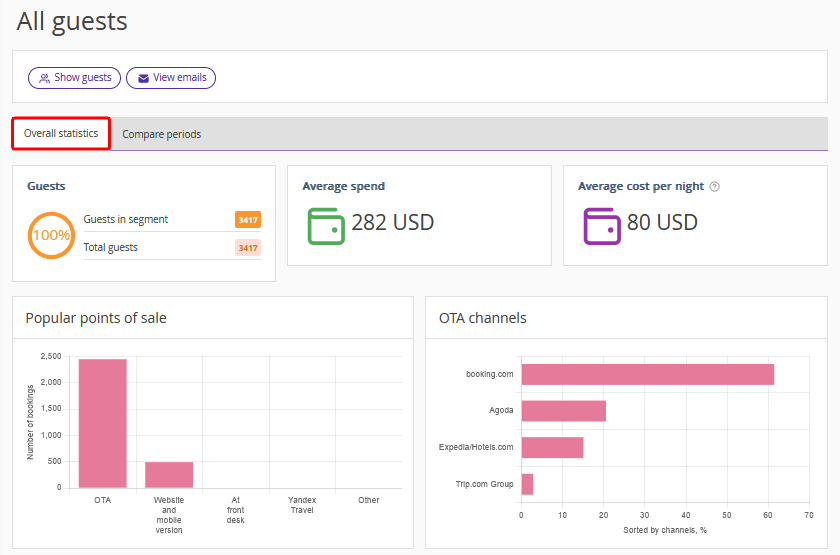
The “Overall statistics” tab shows the segment data for the entire data collection period that you set when setting up Exely Guest Relations.

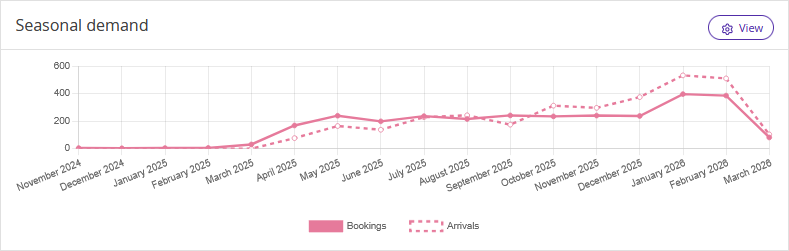
In the “Seasonal demand” section, the chart will show the start date of guest data collection. The solid line shows bookings, the dotted line shows arrivals.
How to open the required segment
1. In the list of segments, find the required segment. Click the segment name or “Action” > “Go to segment”.
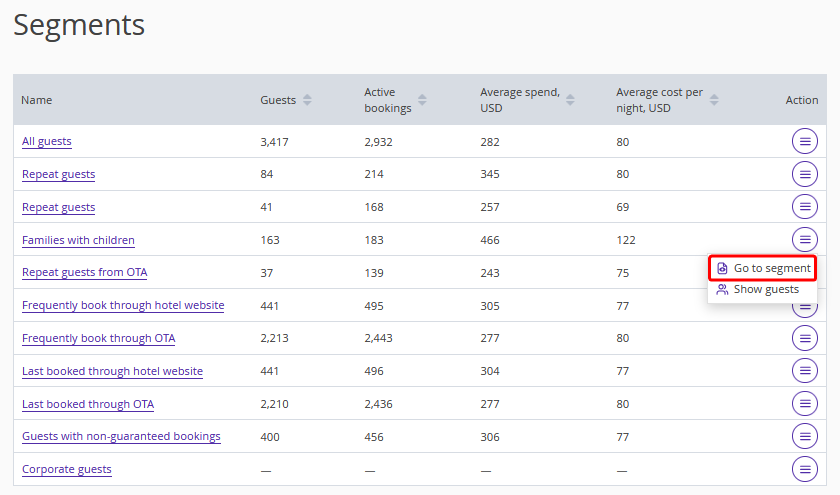
2. The page of the selected segment will be opened.
How to open a list of guests who belong to a segment
Click “Action” > “Show guests” on the right of the required segment.
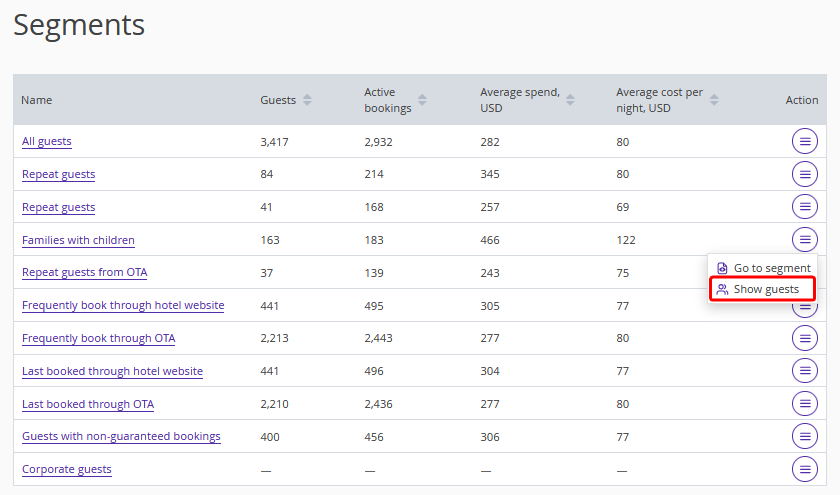
The page with the list of guests will be opened in the “Guest management” > “Guest relations” > “Guests” section. The chosen segment will be automatically selected in the filter settings.