To set up the referral program, in the Exely extranet, go to "Guest management" > "Loyalty program" > "Referral program".
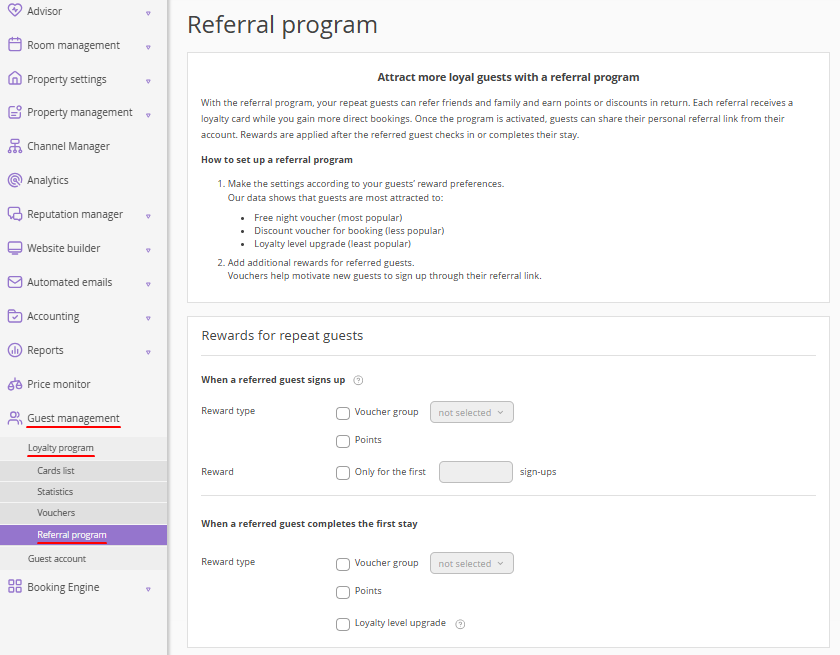
Step 1: Select rewards for repeat guests (the referrers)
To activate the program, at least one reward condition must be set up. Choose when the referrer will be rewarded:
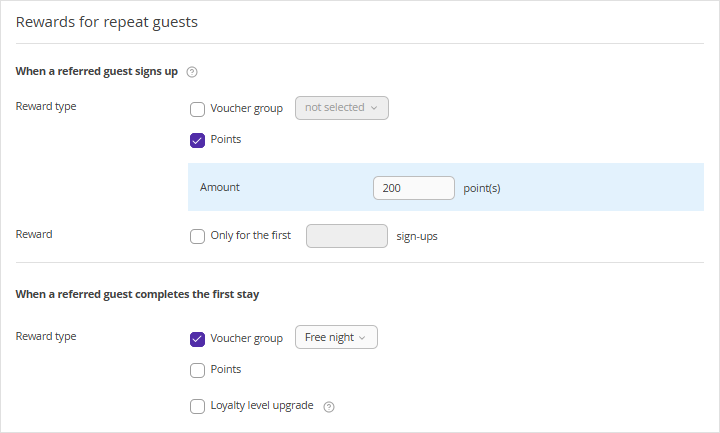
When a referred guest signs up
1. Select a reward type: a voucher (for a discount/free night) or points (for Exely Loyalty program: Points). The reward is credited only after the friend confirms their email (this protects against spam).
Note. To issue vouchers, you need to set up an active voucher group in advance in the “Vouchers” section.
2. Set a reward limit if you need to control the budget. For example, reward "only for the first 5 sign-ups".
When a referred guest completed the first stay
1. Select the reward type: a voucher (for a discount/free night), points (for Exely Loyalty program: Points, fixed amount or percentage of the cost), or a one-level loyalty level upgrade for the referrer.
Note. The reward is credited automatically 5 days after the friend’s check-out.
Step 2: Select rewards for referred guests (the referrals)
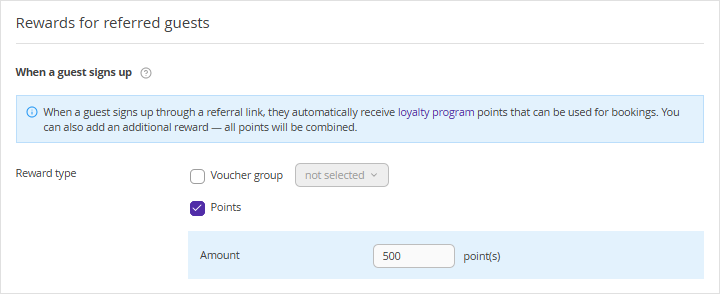
After signing up via the link, the guest always receives benefits of the base loyalty program level.
To grant an additional reward, in the “Rewards for referred guests” section, select the reward type: a voucher (for a discount/free night) or points (for Exely Loyalty program: Points).
Step 3: Activate the referral program
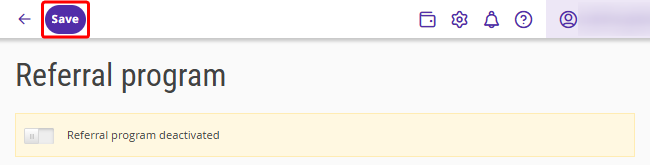
1. Click the "Save" button at the top of the page.
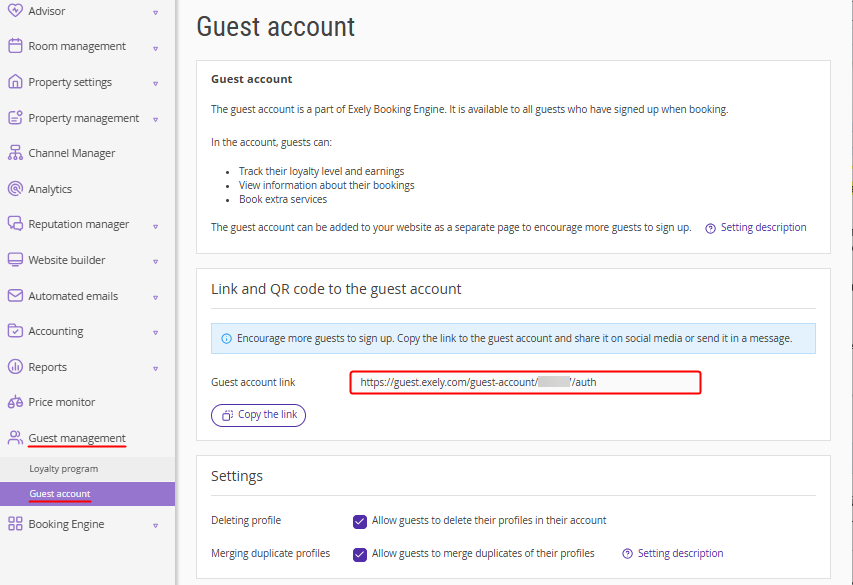
2. Go to the "Guest management" > "Guest account" section and make sure the correct link is specified in the guest account settings. In case of an error, contact your Customer Support manager or Exely Customer Support team.
3. Click the switch to activate the referral program.
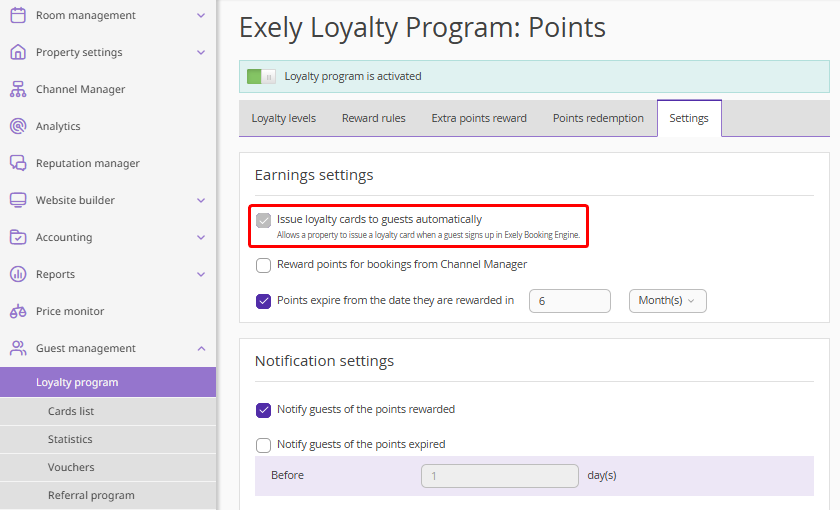
Pay attention. When the referral program is activated, the system will automatically enable the option "Issue loyalty cards to guests automatically" in the loyalty program settings. To disable this option, first deactivate the referral program.
How to view referred guests of a repeat guest
To see who a particular guest has referred:
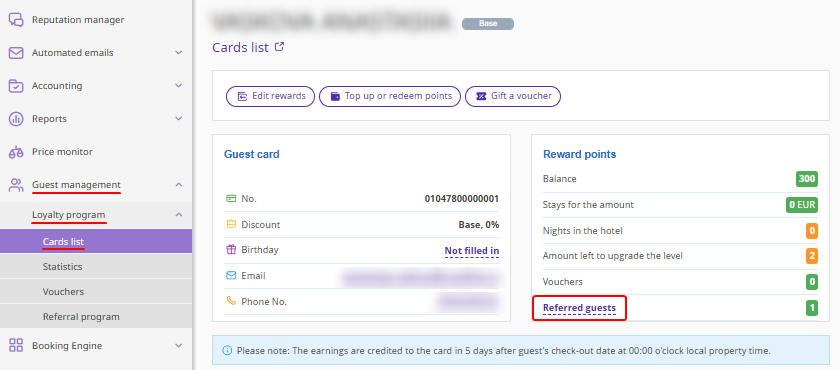
1. Go to "Guest management" > "Loyalty program" > "Cards list".
2. Open the referrer’s loyalty card. In the "Reward points" section, click the "Referred guests" link.
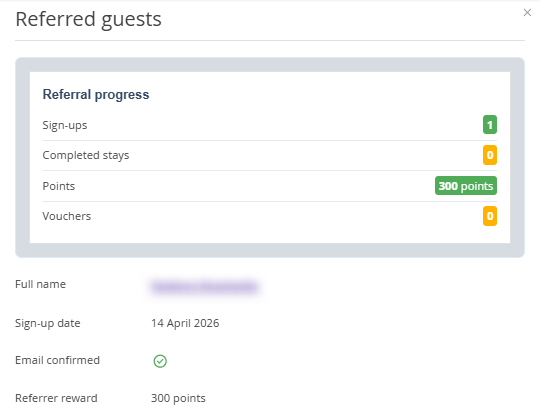
The “Referred guests” window will be opened with the following information about referred guests:
full names of referred guests;
the date each referred guest signed up for the loyalty program;
information about completed stays;
email confirmation status;
the type of reward the referrer received.
Analytics of the referral program efficiency
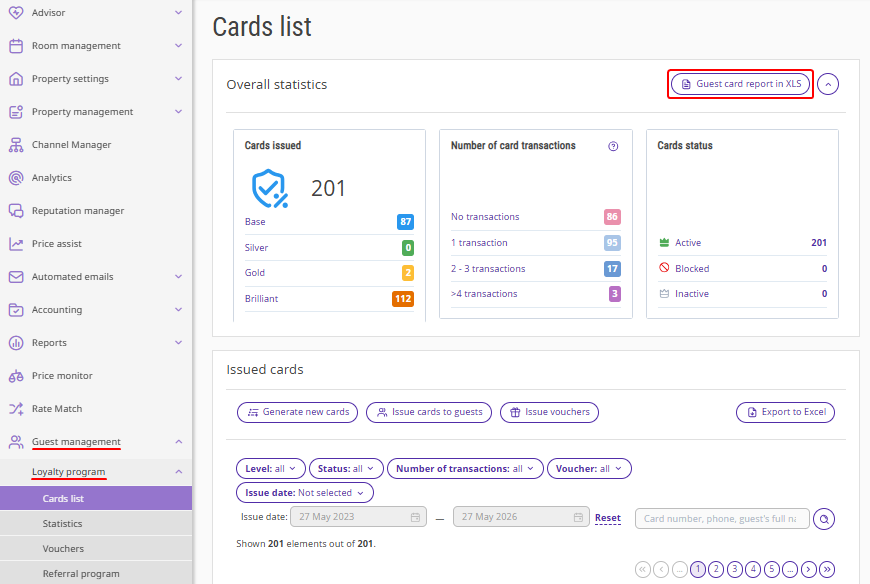
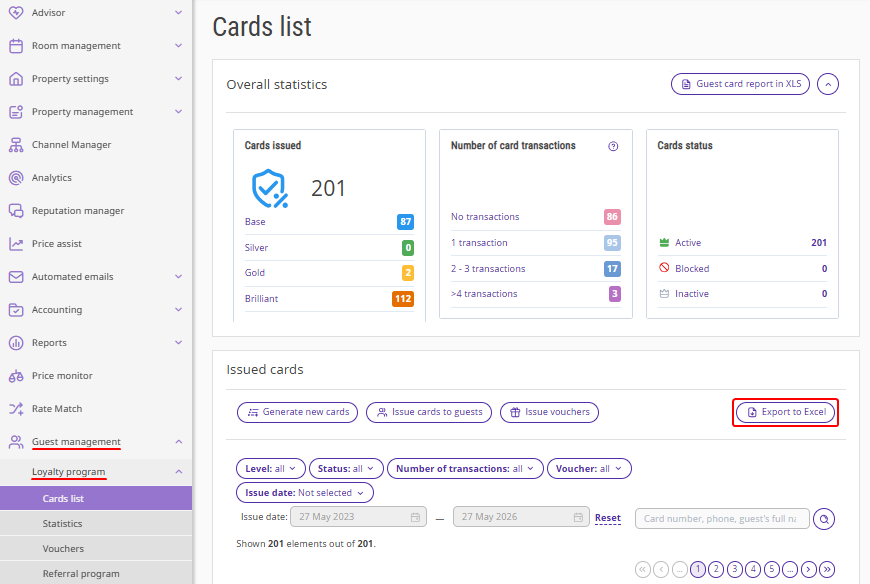
In files exported using the "Guest card report in XLS" and "Export to Excel" buttons, you can review the performance of the referral program:
how many new loyalty cards were issued to guests through the referral program;
how many and what types of rewards (points, vouchers, levels) were received by new guests and the repeat guests who invited them;
how many referred guests completed a stay.
How to download the guest card report
1. Go to the "Guest management" > "Loyalty program" > "Cards list" section and click the "Guest card report in XLS" button.
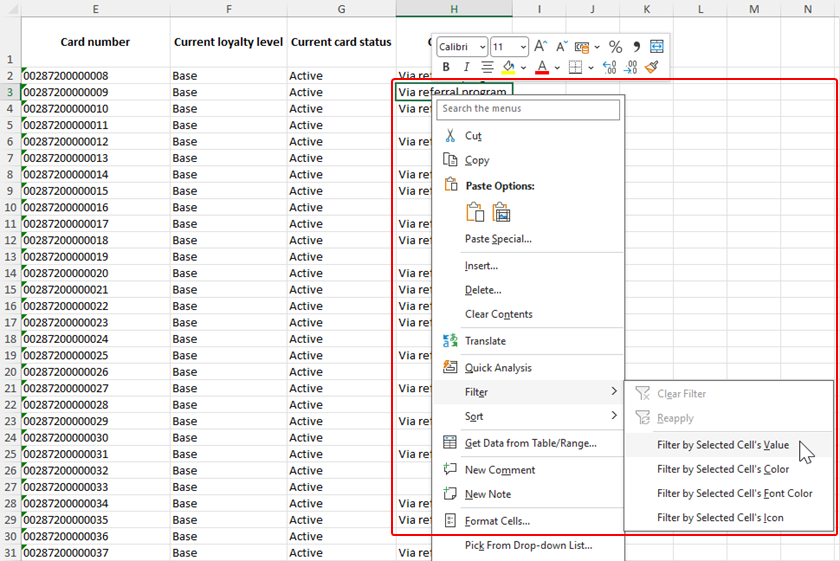
3. In the downloaded file, apply a filter to the "Comment" column with the value "Via referral program".
4. Based on the filtered data, create pivot tables or charts in Excel / Google Sheets for a clear presentation of the results.
How to export the list of issued cards
1. In the “Cards list” section, click "Export to Excel".
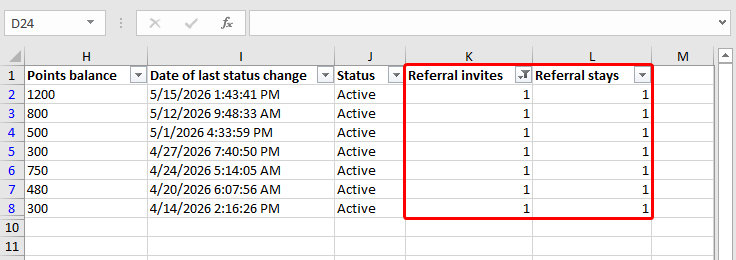
2. In the downloaded file, apply a filter to the "Referral invites" or "Referral stays" column with the required numeric value.
3. Based on the filtered data, create pivot tables or charts in Excel / Google Sheets for a clear presentation of the results.
