Without reconciliation, earnings (points, nights, and accommodation amounts) are rewarded five days after a guest checks out, provided a loyalty card is linked to the booking. However, the booking may list other guests, such as the cardholder's colleagues, friends, or acquaintances, instead of the cardholder.
Reconciliation helps identify such cases. Exely Suite compares the cardholder's full name with the guest details in the booking and makes a preliminary decision. The check takes typos and different name spellings into account. Based on the reconciliation results, earnings are rewarded to the cardholder's account only if the cardholder stayed at the property. Guests who did not stay will not receive rewards.
You have five days from the guest's actual check-out date to review the result and manually approve or reject the earnings.
How reconciliation works
1. Exely Suite runs reconciliation daily at 09:00 local property time. A match between the cardholder's full name and at least one guest in the booking is enough to preliminarily approve the reward.
2. You can change the decision until 10:00 local property time on the fifth day after the guest's check-out date. Check the exact deadline in the "Can be changed until" column.
3. After the deadline, Exely Suite rewards the earnings to the card holder or rejects the earnings. You can no longer change the decision in reconciliation.
How to enable reconciliation
Reconciliation is disabled by default.
1. Go to "Guest management" > "Loyalty program" > click “Edit” for the set-up loyalty program and switch to the "Settings" tab.
2. In the "Earnings settings" section, tick the "Guests earn rewards if their full name in the booking exactly matches the name on the loyalty card” checkbox.
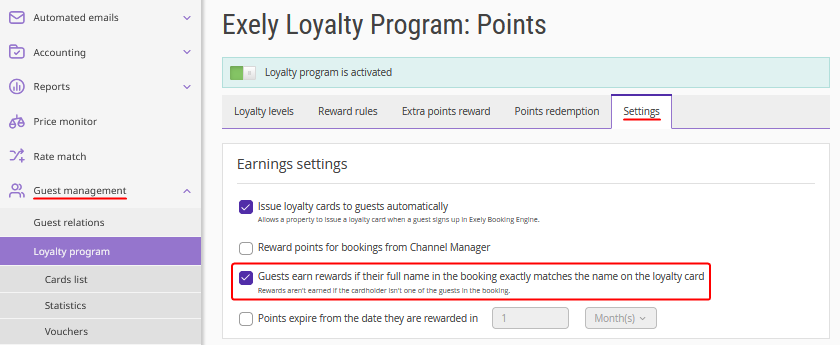
3. Click "Save" at the top of the page.
Reconciliation takes effect once the settings are saved. Eligible bookings will appear in the list during the next reconciliation run, which takes place daily at 09:00 local property time. Reconciliation applies to bookings with an actual check-out date on or after the time reconciliation was enabled.
Pay attention. Users with "Read-only" permissions cannot change this setting or open the reconciliation list.
How to review and change a decision
1. Go to "Guest management" > "Loyalty program" > "Cards list".
2. In the "Issued cards" section, click "Reconcile earnings".
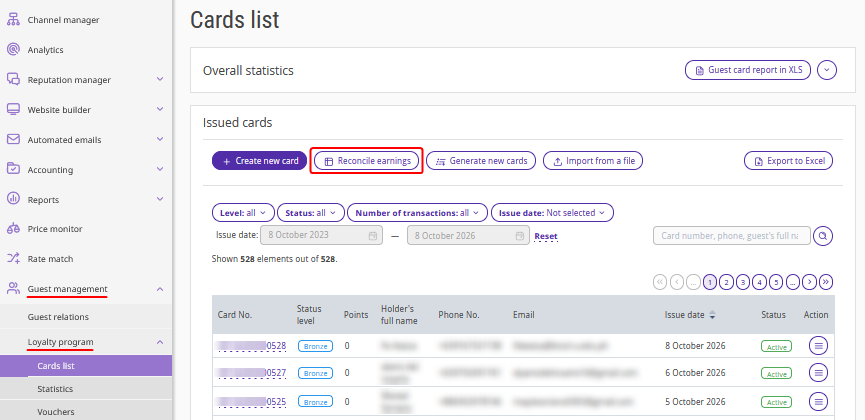
3. Find the booking by booking number, loyalty card number, phone number, full name, or email address. If necessary, apply the "Status", "Property", and "Check-out date" filters.
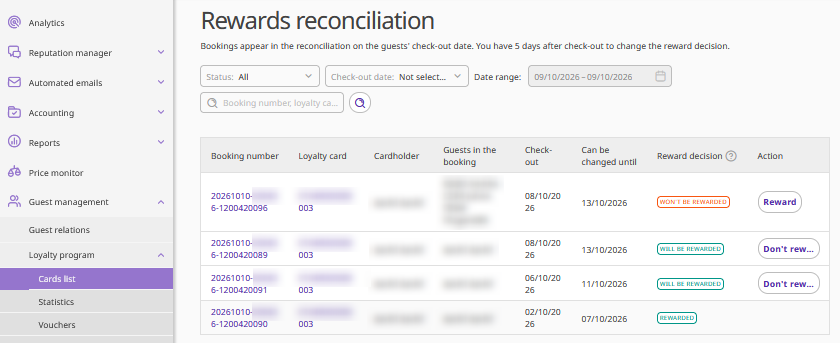
4. Compare the details in the "Cardholder" and "Guests in the booking" columns. If there are more than three guests, click "Expand".
5. Check the deadline in the "Can be changed until" column and the status in the "Reward decision" column.
6. To change the decision, click the available button and confirm the action in the opened window. Earnings will be rewarded to the card after the reconciliation period ends. Until then, you can change the decision as many times as needed.
Pay attention. Manually changing a decision does not extend the deadline. If the automatic check is not completed and the administrator does not make a decision manually, the earnings will be rewarded to the guest.
Reward decision statuses
|
Status |
Meaning |
Available action |
|
Pending AI processing |
The automatic check is not yet complete |
Click "Don’t reward" to reject the earnings |
|
Will be rewarded |
The earnings have been preliminarily approved |
Click "Don’t reward" to change the decision |
|
Won’t be rewarded |
The earnings have been preliminarily rejected |
Click "Reward" to change the decision |
|
Rewarded |
The earnings have been added to the card |
The decision cannot be changed |
|
Not rewarded |
The earnings have not been added to the card |
The decision cannot be changed |
What to do after data changes
If the guest's full name in the booking was corrected after check-out. The details in the list will be updated, but the check will not be run again. Compare the updated name with the cardholder's details and change the decision manually if necessary.
If the card is blocked. The status will be changed to "Won’t be rewarded", and the action buttons disappear.
If the card is unblocked. The earnings will not resume automatically. If the reconciliation period has not yet ended, click "Reward" and confirm the action.
For the rules used to compare full names and other special cases, see the article "Earnings reconciliation: verification rules and special cases".
How to disable and re-enable reconciliation
To disable reconciliation, go to "Guest management" > "Loyalty program" > click “Edit” for the set-up loyalty program and switch to the "Settings" tab. In the "Earnings settings" section, clear the check-box for the reconciliation setting and click "Save".
After reconciliation is disabled:
The "Reconcile earnings" button disappears.
New bookings and earnings for them are processed without checking guest names.
Exely saves the current decisions for pending records and disables the option to change them manually.
To re-enable reconciliation, tick the check-box and click "Save".
The list will show the history of previous reconciliation periods. Decisions for these records cannot be changed. Bookings with an actual check-out date during the period when reconciliation was disabled will not be included.